April 1, 2026Jerron Smith/10 min read

Medical Animation: Creating Reusable Animations

Master Advanced After Effects Animation Techniques

Core After Effects Concepts Covered

Expression-Based Looping

Learn to create seamless animation loops using After Effects scripting language. Master the loopOut cycle function for efficient repetitive motion.

Nested Composition Workflow

Understand pre-composing techniques and working with nested compositions. Create reusable animated elements for complex projects.

Essential Properties Control

Discover how to expose and control properties from nested compositions. Enable layer-by-layer customization of animated elements.

Topics Covered in This After Effects Tutorial:

Master advanced animation techniques including looping animations with expressions, leveraging Essential Properties for flexible compositions, and adding professional motion blur to nested compositions for realistic movement effects.

Exercise Preview

preview medical anim

Project Setup Requirements

1

Open Project File

Launch Your Name—Medical Animation.aep in After Effects or use the provided backup file from Finished Projects folder

2

Verify Previous Work

Ensure Exercise 5C is completed or follow the sidebar instructions to start from the ready-made file

3

Save Working Copy

Create a properly named working file in the designated Class Files directory structure

Exercise Overview

In this comprehensive exercise, you'll complete the medical illustration animation while mastering essential motion graphics techniques. You'll explore motion paths for natural movement, implement expressions to create seamless animation loops, and discover how these professional workflows can dramatically improve your animation efficiency and visual quality.

Getting Started

  1. Ensure you have Your Name—Medical Animation.aep open in After Effects. If you've closed the project, reopen it by navigating to File > Open Project then Desktop > Class Files > After Effects Class > Medical Animation. We strongly recommend completing the previous exercise (5C) before proceeding, as this builds directly on those foundational techniques. If you haven't completed exercise 5C, follow the setup instructions in the sidebar below.

If You Did Not Do the Previous Exercise (5C)

  1. If a project is currently open in After Effects, save your work with File > Save, then close it using File > Close Project.
  2. Navigate to File > Open Project and locate Desktop > Class Files > After Effects Class > Medical Animation > Finished Projects.
  3. Double–click on Medical Animation—Ready for Expressions.aep to open the prepared file.
  4. Save this as your working file by going to File > Save As > Save As. Name it Your Name—Medical Animation.aep and save to Desktop > Class Files > After Effects Class > Medical Animation (replace any existing file if prompted).
Project Continuity Notice

This exercise builds directly on Exercise 5C. If you haven't completed the previous work, use the provided Medical Animation—Ready for Expressions.aep file to ensure proper starting conditions for this tutorial.

Looping an Animation with Expressions

After Effects expressions represent one of the most powerful features in modern motion graphics workflow. This JavaScript-based scripting language allows you to create complex, procedural animations that would be time-consuming or impossible to keyframe manually. In the professional world, expressions are essential for creating scalable, maintainable animations. We'll start with a fundamental looping expression that automatically repeats your keyframed animation.

  1. In the Timeline, select the blood cell 1 layer to prepare it for expression control.
  2. Hold Option (Mac) or ALT (Windows) and click on the Position stopwatch stopwatch to add an expression. This keyboard modifier is crucial—clicking normally would delete your keyframes.

  3. In the expression text field that appears below the keyframes, replace the default text (transform.position) with:

    loopOut("cycle");

    NOTE: Expressions are case-sensitive and syntax-specific. Type exactly as shown above, including the semicolon and quotation marks. The loopOut("cycle") expression seamlessly repeats your keyframes indefinitely after the last keyframe.

  4. Click anywhere outside the text field to finalize the expression. You'll notice the expression text turns red if there are syntax errors, or remains black when correct.

  5. Move the playhead to 6;00 to extend our preview duration.

  6. Press the N key to move the work area end point to the current playhead position, focusing our preview on the relevant timeframe.

  7. Use the Spacebar to preview the animation. You should now see the animation seamlessly repeating every 2 seconds—a perfect loop that would require dozens of additional keyframes to achieve manually.

  8. Save your progress with File > Save or Cmd–S (Mac) / CTRL–S (Windows).

loopOut("cycle");
The exact expression syntax to create seamless animation loops in After Effects. This case-sensitive command must be entered precisely as shown to function correctly.

Expression Implementation Process

1

Access Expression Mode

Hold Option (Mac) or ALT (Windows) and click the Position stopwatch to enable expression editing

2

Replace Default Code

Clear the transform.position text and enter the loopOut cycle expression exactly as specified

3

Test Loop Timing

Set work area to 6 seconds and preview to verify the 2-second animation cycle repeats correctly

Duplicating & Offsetting Layers

Now we'll transform our single animated cell into a complex system using pre-compositions and the Echo effect. Pre-composing is a fundamental workflow technique that allows you to nest compositions within compositions, creating modular, reusable animation elements. This approach is essential for managing complex projects and creating variations efficiently.

  1. In the Timeline, CTRL–click (Mac) or Right–click (Windows) on the blood cell 1 layer and choose Pre–compose. Pre-composing encapsulates our animated layer into a nested composition, making it easier to duplicate and modify.

  2. Configure the pre-composition with these settings:

    • Name: blood cell—animated
    • Check Move all attributes into the new composition to preserve all keyframes and effects
    • Ensure other options remain unchecked to maintain proper layer relationships
    • Click OK to create the nested composition
  3. Select the newly created blood cell—animation layer in the Timeline.
  4. Press Return (Mac) or Enter (Windows) to enter rename mode.
  5. Rename to cell 1 and press Return (Mac) or Enter (Windows) to confirm. Clear naming conventions become crucial as project complexity increases.

  6. CTRL–click (Mac) or Right–click (Windows) on the cell 1 layer and choose Effect > Time > Echo. The Echo effect creates temporal duplicates of your layer, perfect for generating multiple animated elements from a single source.

  7. In the Effect Controls panel (typically located at the top left), adjust these parameters:

    • Echo Time (seconds): -0.273 (negative values create echoes that appear before the original)
    • Number of Echoes: 5 (creates 5 additional blood cells)
    • Echo Operator: Maximum (determines how echoes blend with the original layer)

    NOTE: Starting Intensity and Decay should default to 1.0—these control the opacity behavior of the echoed elements.

  8. Preview the animation using the Spacebar. Initial rendering may be slower as After Effects processes the effect, but subsequent playbacks will run at full speed. For faster previews during development, adjust the Resolution/Down Sample Factor popup at the bottom left of the Composition panel from Full to Half or lower.

  9. Select the cell 1 layer in the Timeline.
  10. Press Cmd–D (Mac) or CTRL–D (Windows) to duplicate the layer, creating cell 2.

  11. Position the playhead at 0;10 to set a slight offset timing.

  12. Press the [ bracket key to move the In point of the cell 2 layer to the current playhead position. This creates temporal variation in when the blood cells appear.

  13. In the Effect Controls panel, modify the cell 2 layer's Echo Time to -0.133. This creates different timing relationships between the echoed elements.

  14. With cell 2 still selected, duplicate it again using Cmd–D (Mac) or CTRL–D (Windows).

  15. Change the new cell 3 layer's Echo Time to -0.243 in the Effect Controls panel.

  16. CTRL–click (Mac) or Right–click (Windows) on any column header and choose Columns > In to display the In point column for precise timing control.

  17. Click on the In point value for the cell 3 layer and modify it:

    • Change to -100 (this extends the layer start time significantly earlier)
    • Click OK to confirm
  18. Hide the In column by CTRL–clicking (Mac) or Right–clicking (Windows) on the In column header and choosing Hide This.

  19. Preview your animation with the Spacebar. You should now see multiple blood cells with varied timing, creating a more organic, realistic circulation effect. The variation in timing prevents the mechanical look that identical timing would create.

  20. Save your work using File > Save or Cmd–S (Mac) / CTRL–S (Windows).

Pre-Composition Setup Checklist

0/3

Echo Effect Timing Values

Cell 1 Echo Time
273
Cell 2 Echo Time
133
Cell 3 Echo Time
243

Adding Motion Blur to a Nested Comp

Motion blur is essential for creating realistic movement in motion graphics. When objects move quickly, our eyes naturally see them as blurred, and omitting this effect makes animation feel artificial and video game-like. Working with nested compositions requires a two-step process: enabling motion blur within the nested comp and then in the parent composition. This technique is fundamental for professional-quality animation work.

  1. Double-click on any of the cell layers (cell 1, 2, or 3) in the Timeline to open the nested composition. Since all cell layers reference the same nested comp, editing one affects all instances.

  2. If the layer switches aren't visible to the right of the blood cell 1 layer, click the Toggle Switches / Modes button timeline switches at the bottom of the Timeline panel.

  3. Click the layer's Motion Blur switch motion blur column to enable motion blur for this layer. This tells After Effects which layers should receive motion blur when the effect is globally enabled.

  4. Access composition settings via Composition > Composition Settings or Cmd–K (Mac) / CTRL–K (Windows):

    • Click the Advanced tab to access motion blur controls

    • Set Shutter Angle to 90 degrees. This mimics camera shutter behavior—higher values create more blur, lower values create less. 90 degrees provides natural-looking motion blur without being excessive.

    • Click OK to apply the settings

  5. Return to the parent composition by clicking the Circulation tab in the Timeline.

  6. Enable motion blur for the entire composition by clicking the Motion Blur button motion blur column near the top of the Timeline. This master control activates motion blur for all layers that have their individual motion blur switches enabled.

    enable motion blur all layers

  7. Preview the animation using the Spacebar. Motion blur requires significant computational power, so expect longer render times during preview. The visual improvement, however, is substantial—the blood cells now move with realistic blur trails that match natural motion perception.

    Professional tip: When motion blur isn't needed for your current work, toggle the composition-level Motion Blur button motion blur column off to dramatically speed up preview rendering. The individual layer settings remain intact for final rendering.

  8. Save your completed animation with File > Save or Cmd–S (Mac) / CTRL–S (Windows).

  9. Close the project using File > Close Project when you're finished.

Nested Composition Motion Blur

Motion blur in nested compositions requires enabling the effect both in the child composition on individual layers and in the parent composition at the timeline level. The 90-degree shutter angle provides realistic motion blur strength.

Motion Blur Considerations

Pros
Creates realistic movement appearance
Adds professional polish to animations
Helps sell the illusion of speed and motion
Cons
Significantly increases render times
RAM intensive during preview
Can slow down iterative workflow

Optional Bonus: Working with Essential Properties

Essential Properties represent a powerful workflow innovation that allows you to expose specific parameters from nested compositions to their parent compositions. This feature is invaluable for creating template-based workflows, client-customizable projects, and maintaining design consistency across complex motion graphics projects. In professional environments, Essential Properties enable efficient project scaling and client collaboration.

  1. Double-click the cell 1 comp layer in the Timeline to enter the nested composition. Note that any cell layer will work since they all reference the same nested comp.

  2. In the blood cell—animation timeline, select the blood cell 1 layer.

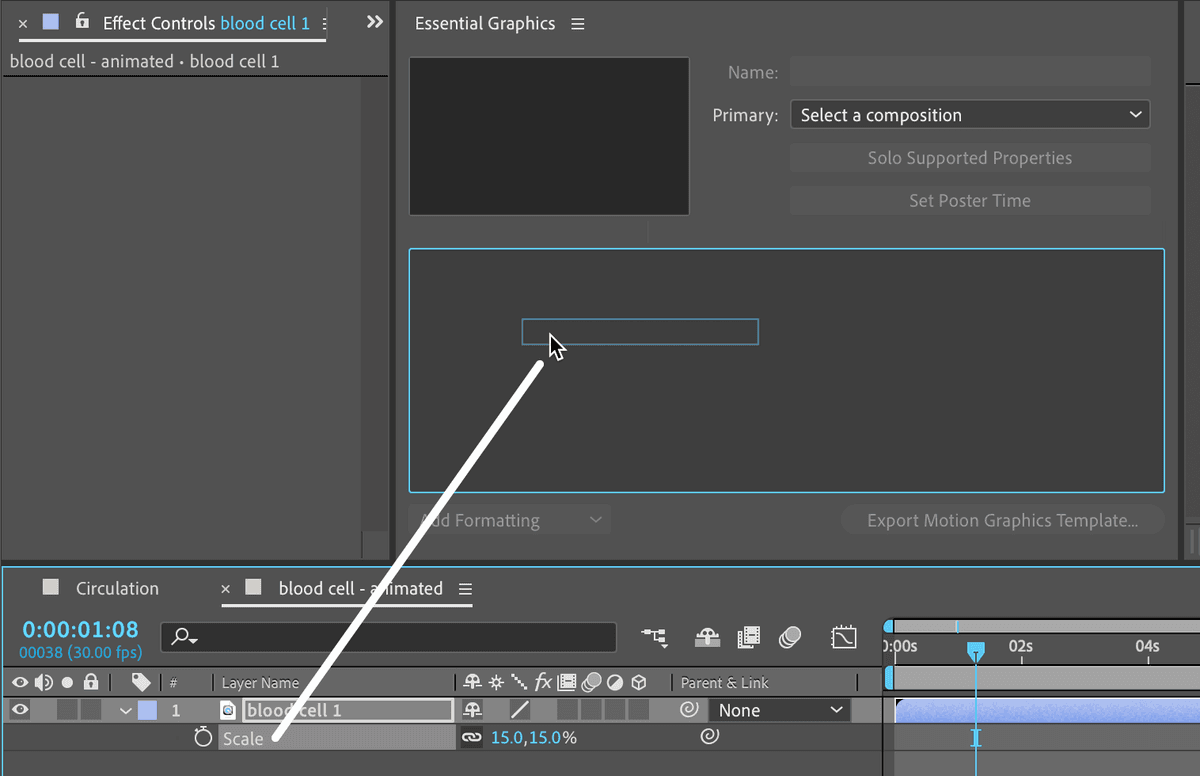
  3. Press S to reveal the Scale property. This keyboard shortcut quickly exposes the scale transform without opening all transform properties.

  4. Open the Essential Graphics panel via Window > Essential Graphics. This panel manages which properties are exposed to parent compositions.

  5. In the Essential Graphics panel, change the Primary dropdown menu to blood cell—animated to ensure you're working with the correct composition context.

  6. Drag the Scale property from the Timeline directly into the Essential Graphics panel. This action converts the Scale property into an Essential Property, making it controllable from the parent composition.

    essential graphics

    NOTE: Any property added to the Essential Graphics panel becomes accessible from parent compositions, enabling non-destructive customization of nested elements.

  7. Return to the parent composition by clicking the Circulation tab. You should now see an Essential Properties category for each cell layer, containing the Scale property you just exposed.

  8. Reset your workspace for optimal layout by choosing Window > Workspace > Reset "Standard" to Saved Layout. Alternatively, double-click the workspace name at the top of the interface and confirm the reset.

  9. Expand the Essential Properties section for cell 1 by clicking the disclosure arrow.

  10. Modify the Essential Property Scale to 10 to create a smaller blood cell variant.

  11. Expand Essential Properties for cell 3 and set its Scale to 18 for size variation.

  12. Add temporal variation by CTRL–clicking (Mac) or Right–clicking (Windows) on cell 3 and selecting Time > Time Stretch:

    • Set Stretch Factor to 150 (this slows the animation to 150% of original duration)
    • Click OK to apply
  13. Apply time stretching to the remaining cell layers with these values to create varied movement speeds:

    • Cell 2: 200 (slowest movement)
    • Cell 1: 250 (significantly slower than original)
  14. Select cell 3, then hold Shift and click cell 1 to select all three cell layers simultaneously.
  15. Press Cmd ~ (Mac) or CTRL ~ (Windows) to collapse all visible properties, cleaning up the Timeline interface.

  16. Preview your final animation using the Spacebar. You now have a sophisticated blood circulation system with varied sizes, timing, and movement speeds that creates a convincing organic flow. The combination of Essential Properties and time stretching provides the natural variation that makes motion graphics feel alive rather than mechanical.

Essential Properties Workflow Benefits

Layer Customization

Control nested composition properties on a per-instance basis. Each cell layer can have unique scale values while sharing the same source animation.

Time Stretch Variations

Apply different timing to create natural variation. Cell layers use stretch factors of 150%, 200%, and 250% for organic movement patterns.

Cell Layer Scale Variations

Cell 1 Scale
10
Cell 2 Scale (Default)
15
Cell 3 Scale
18

Key Takeaways

1Expressions provide powerful automation for repetitive animations, with loopOut cycle creating seamless infinite loops from existing keyframes
2Pre-composing animated layers enables reusability and efficient workflow when creating multiple similar elements with variations
3The Echo effect with Maximum operator creates multiple instances of animated layers with precise timing offsets for complex motion patterns
4Motion blur in nested compositions requires activation at both child layer and parent composition levels, with shutter angle controlling blur intensity
5Essential Properties allow customization of nested composition parameters on a per-instance basis without duplicating source compositions
6Time stretching combined with scale variations creates natural organic motion patterns that avoid mechanical repetitive appearance
7Proper project organization with consistent naming conventions becomes critical when working with multiple nested compositions and effect layers
8Performance optimization techniques like resolution downsampling and selective motion blur toggling maintain smooth workflow during complex animation development

RELATED ARTICLES