Cellphone Commercial: Wipe Transitions & Shape Layer Fun
What This Tutorial Covers
Wipe Transitions
Custom shape-based wipes between scenes.
Shape Layers
Vector shapes built and animated in After Effects.
Trim Path
Animate the visible portion of a shape over time.
Noble Desktop's Video Editing & Motion Graphics Certificate teaches After Effects alongside Premiere Pro, Cinema 4D, and DaVinci Resolve.
Learn advanced techniques in Adobe After Effects with this comprehensive tutorial focusing on creating effective transitions, manipulating shape layers, and creating a dynamic airplane transition in an animated cellphone commercial project.
Exercise Preview
Preparing the Plane Graphics
We’ll use an airplane as the “pilot” for our first layout transition. First we need to copy the graphics so we can add it to our next scene (the fifth one).
From the Project panel’s Pre-comps folder, double–click plane-transition.
Notice that this comp contains a graphic of a plane, vector lines that show how fast our plane is moving, and a reference image. Select the plane and lines layers.
Copy the layers.
Close the plane-transition tab to return to the Cellphone-MAIN tab.
Select the [5-Mograph] layer and press I to go to its in point at 5;25.
With the pre-comp still selected, paste the layers.
Press the left bracket ([) key so that the layers start at the playhead.
We want to parent the lines layer to the plane to ensure they’ll move together. Deselect all, then set the lines layer’s Parent & Link menu to 5. plane.
To shrink the plane and move its starting position to off-screen on the bottom left, set the following Transform properties for the plane layer:
Anchor Point: 1991,30 (on the nose of the plane) Position: –30,1090 Scale: 20% For both the plane and lines layers, turn on Continuously Rasterize
 .
.
Making the Plane Fly
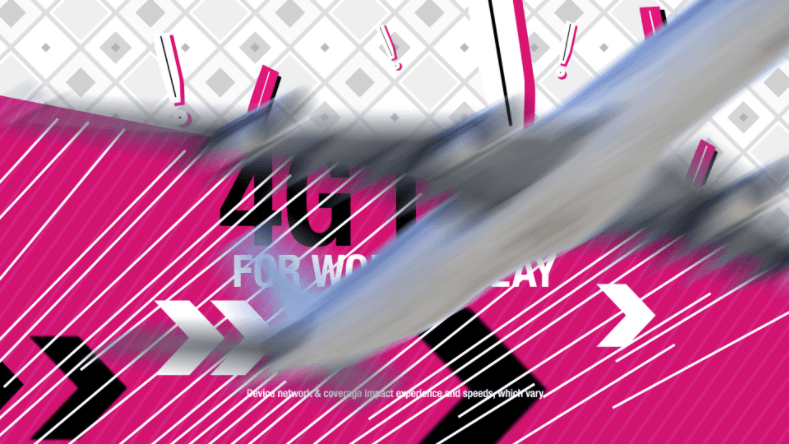
We’ve been cleared for take off! Let’s make our plane ascend diagonally across the screen. To make it more exhilarating, let’s blur the plane’s motion and make it look like it’s getting closer to the viewer by scaling it up over time.
The [Tmobile-roughcut.mov] layer has been a nice reference, but it’s obstructing our flight path. Get it out of the way by clicking its eye
 to hide it.
With the playhead still at 5;25, click the stopwatches
 for the plane layer’s Position and Scale properties.
Move the playhead to 6;02.
Set Scale to 104%.
We want the plane to be fully scaled up a few frames before the plane disappears out of view. Go to 6;11, when we want the plane to stop moving.
Set Position to 4163, –1350 to move the plane fully off-screen at the top right.
Scrub through to watch the plane grow as it flies across the screen! It’s a good start, but the plane doesn’t look like it’s moving as fast as those vector lines suggest.
To give it the whoosh factor, turn on the plane layer’s Motion Blur switch
 .
.We should shorten these layers. Move the playhead to 6;11.
Select both the plane and lines layers.
Press Opt–] (Mac) or ALT–] (Windows) to shorten the layers to the playhead.
Syncing a Linear Wipe Transition with the Plane’s Flight
The motion graphics in the Janet yay scene share a color scheme with the 4G LTE scene we want to transition to, but that’s about it. This means we need to create a transition that fully covers up the yay scene, revealing the scene positioned on top of it in the layer stack. We’ll accomplish this by adding a wipe effect that makes the magenta [5-Mograph] layer appear to rise along with the plane layer (and the lines that move with it), as if it were an aerial banner ad attached to the plane.
Move the playhead to 5;25.
Select the [5-Mograph] layer we want to transition to.
Go to Effect > Transition > Linear Wipe.
In the Effect Controls panel, set Transition Completion to 50% and you’ll see half of the layer below it (the Janet yay scene).
Remember that for effects such as Linear Wipe, a value of 0% means the whole layer is revealed. At 100%, you don’t see the layer at all.
Let’s tilt the wipe so that it better matches the plane. Move the playhead to 5;28, the first frame where we can see the wing’s angle.
Set the Wipe Angle to 0x+198°.
Next to Wipe Angle, click the stopwatch
to set a keyframe.Set Transition Completion to 90% to hide this layer, revealing the scene below.
Next to Transition Completion, click the stopwatch
to add a keyframe.With the [5-Mograph] layer still selected, press I to go to its in point.
Set Transition Completion to 100%.
With the [5-Mograph] layer still selected, press U to show its keyframes.
Move the playhead to 6;02.
Set Transition Completion to 56% to continue matching the plane wings.
Set the Wipe Angle to 0x+191°.
Move the playhead to 6;05.
Set Transition Completion to 13%.
The Wipe Angle looks pretty good, so just add a keyframe
 for it in the Timeline.
Move forward one frame to 6;06.
Set Transition Completion to 2%. (It won’t look like anything changes because there’s a white chevron near the top-right corner at this point in time.)
Move forward one frame to 6;07.
Set Transition Completion to 0%.
Move the playhead to 5;24.
Press B to set the Work Area start point so that our preview will start there.
Press the Spacebar to preview the flying plane transition. Cool!
We can mark these layers as done. Select the plane and lines layers.
Click either of their color squares and choose Green.
Collapse the layers to keep things neat.
Cloning & Animating a Shape Layer Using the Repeater
Let’s texturize the background and make this scene more interesting by adding lots of subtle magenta stripes that move across the magenta background. Ugh, does that mean we need to duplicate a shape layer countless times, reposition each copy until the cows come home, and then animate all those layers with a null object?! Nope.
All we need to do is clone the original stripe using the Repeater! We can add this operator to any After Effects shape layer. It comes with a slew of customizable properties that allow us to do nifty stuff in the blink of an eye. We’ll use it to create hundreds of clones, which we’ll animate as if they were a single object.
Double–click [5-Mograph] to open this pre-comp in a new tab.
To ensure we create a new shape layer (instead of a mask) in the next step, make sure nothing is selected.
Double–click the Rectangle tool
 to create a shape layer with the same dimensions as our comp.
If the new Shape Layer 1 isn’t already a solid white color with no stroke, go to the Tools panel and do whichever step(s) you need to change its appearance:
- If the fill isn’t solid, click the word Fill, select Solid Color
 , and click OK.
 - If the fill isn’t white, click its color swatch, set it to white (#FFFFFF), and click OK.
- If there’s a stroke, click the word Stroke, set it to None
 , and click OK.
- If the fill isn’t solid, click the word Fill, select Solid Color
Expand into Shape Layer 1 > Contents > Rectangle 1 > Rectangle Path 1.
To the right of Size click the Constrain Proportions icon
 to turn it off.
Set Size to 10, 1080 to make it a vertical line.
To best see all the lines we’re about to add, make sure Toggle Mask and Shape Path Visibility
 is off (gray) and the zoom level is set to Fit.
To give our solitary line some friends, we need to add a new operator. Under the Shape Layer 1 layer, to the right of Contents click the arrow
 next to Add and choose the Repeater operator.
Let’s create more lines. Expand into Repeater 1 and set Copies to 200.
By default, it positions all the copies to the right of the original. To balance it so half of the copies are on the left, set Offset to –100.
We can make more of the lines visible on-screen, expand into Repeater 1 > Transform: Repeater 1.
Set Position to 45, 0 to reduce the space between lines to 45 pixels each.
Remember that each shape layer comes with a minimum of one group. Within each group, you have a path, stroke, fill, and transform. Every time you add an operator, it adds its own group, which contains its own set of transforms.
The lines evoke the image of prison bars—definitely not what Cellphone wants! We can make the lines diagonal, expand into Rectangle 1 > Transform: Rectangle 1. (It may be easier to find if you close up the Transform: Repeater 1 group.)
Set Skew to 36 to make the lines skew rightward (like the plane’s speed lines, but at a more comfortable angle).
Let’s get these stripes moving! Move the playhead to 0;00.
Keyframing the offset animates the original and its clones, so within Repeater 1, click the stopwatch
next to Offset to add a keyframe.Move the playhead to the end of the comp at 2;09.
Change Repeater 1 > Offset to –105. Because the two values are close to each other and the animation happens for a while, they will move at a nice slow pace.
Scrub through with the playhead to watch the lines move.
We want to overlay these lines over the background, but they’re currently covering everything. Move Shape Layer 1 so it becomes the second to last layer (Layer 16).
Rename Shape Layer 1 to stripes.
Let’s tone down the stripes. With the layer selected, press T and set Opacity to 10%.
Making the 3D Chevrons Move Across the Screen
In the Timeline, notice that there’s many layers that start with black or white. Those are the chevrons you see on the screen. They have already been scaled to different sizes, scattered around the screen, and made into 3D layers. What we want to do is make them move across the screen.
Click the legal 2 layer and Shift–click the for work & play layer so all the layers are selected except the bottom two.
Set them to Continuously Rasterize
by clicking the switch in any selected layer.At the bottom right of the Composition panel, click the menu that says 1 View and change it to 2 Views – Horizontal. You should see the Top view and Active Camera view side-by-side.
The easiest way to make all the chevrons move in space with a nice parallax effect (where objects that are closer appear to move faster) is to parent them to a null object, which we can then move.
In the Timeline, select the black1 layer so the null object we’re about to add will be added above it.
Go to Layer > New > Null Object.
Make the selected [Null #] layer a 3D Layer
 .
.Rename it to 3D Pan Null.
Let’s move it to a more logical place. With 3D Pan Null selected, press P.
Change the X value to 664 (the Position values should be 664,540,0).
Move the playhead to 0;00 and click the Position property’s stopwatch
.Select all the chevrons by clicking on black1 and Shift–clicking on white5.
So they’re easier to keep track of, set their layer color to Yellow.
With all the chevrons still selected, go to the Parent & Link column and drag the pick whip
 for any of the selected layers to 3D Pan Null.
Move the playhead to the end of the comp at 2;09.
Back in the 3D Pan Null layer, change the X Position to around 1290 (or whatever you think looks good).
Notice that the main text in the center gets partially obscured at the end. To fix this, select the 4G LTE and for work & play layers.
Go to Layer > Arrange > Bring Layer to Front.
To move the chevron that overlaps the text, select the white5 layer and press P.
Make sure you’re still at 2;09 and change its X Position to around –740.
3D Positioning & Layer Order in the Timeline’s Stack
Layer order is irrelevant unless it’s a 2D layer interacting with 3D layers. A layer’s position in 3D space (along the Z-axis) is the determining factor for which 3D elements will be positioned atop or below other 3D elements. The more negative the Z Position, the closer the layer will appear to the viewer.
Let’s move the black chevron at the bottom center to overlap the white chevrons a bit more to enhance the 3D effect. Select the black6 layer and press P.
Change its X Position to around –442.
Change the Composition panel’s view from 2 Views – Horizontal back to 1 View, and make sure the zoom level is set to Fit.
Using a Shape Layer to Initiate a Radial Wipe Transition
In the previous transition, we used a Linear Wipe that wipes on the entire layer at the specified angle. This time, we want to use a giant chevron shape to initiate a wipe transition. Because it is composed of two lines (as opposed to the straight plane wings), a Linear Wipe will not work.
The Radial Wipe transition usually moves in a circle, and can look quite cheesy. In this case it’s the perfect tool for the job, because we can customize it to move along a sharp angle that matches that of our chevron.
Switch to Cellphone-MAIN.
Move the playhead to 7;27, where the sixth scene starts.
In the Project panel, expand into Assets > 5-layout-outlines Layers.
Within that folder, find giantWhite/5-layout-outlines.ai and drag it to the Timeline above the [6-Interview] layer (the scene we’ll transition to).
Rename the layer giant white chevron.
We want this layer to start at 7;27, so with the giant white chevron layer selected, press the left bracket ([).
Keeping the giant white chevron layer selected, press P.
CTRL–click (Mac) or Right–click (Windows) on the Position property and choose Separate Dimensions.
Deselect all and then next to X Position, click the stopwatch
to set a keyframe.Set X Position to –619 so it’s fully positioned off-screen to the left.
Move the playhead to 8;04.
Set X Position to 2477. Yes, this will be a fast transition!
Select the [6-Interview] layer.
Go to Effect > Transition > Radial Wipe.
In the Effect Controls panel under Radial Wipe, set the following to make it look similar to our huge chevron:
Transition Completion: 74% Start Angle: 0x+90° Wipe: Both Notice how having it wiping both clockwise and counterclockwise with a start angle of 90°, creates a similar shape to our giant white chevron. We just need to have this movement match our chevron.
Move the playhead to 7;27.
In the Effect Controls panel, next to Wipe Center click the stopwatch
to add a keyframe.To the right of Wipe Center, drag the first number left while holding down Shift until it is all the way off-screen.
Move the playhead to 8;04.
To the right of Wipe Center, drag the first number right while holding down Shift until the entire interview scene is showing.
We need to shorten the giant white chevron layer bar so it doesn’t extend longer than the animation. Select it.
Make sure the playhead is at 8;04.
Press Opt–] (Mac) or ALT–] (Windows) to end the layer bar at the playhead.
Scrub through to make sure the transition looks good. This pre-comp is done!
Collapse any layers and close the tabs other than Cellphone-MAIN.
In Cellphone-MAIN, we should mark the comps we’re finished with as done. Change the colored squares for giant white chevron and [5-Mograph] to Green.
Save the project and leave it open. We’ll finish it up in the next exercise!