Logo Animation
What This Tutorial Covers
Logo Build-On
Reveal the logo through staged element animation.
Anchor Points
Position transform anchors for the right rotation pivots.
Easing & Timing
Custom curves that give logo animation life.
Noble Desktop's Video Editing & Motion Graphics Certificate teaches After Effects alongside Premiere Pro, Cinema 4D, and DaVinci Resolve.
Dive into this After Effects tutorial and learn how to work with Adobe Illustrator Files, create staggered and sequential animations, organize your timeline, and much more.
Exercise Preview
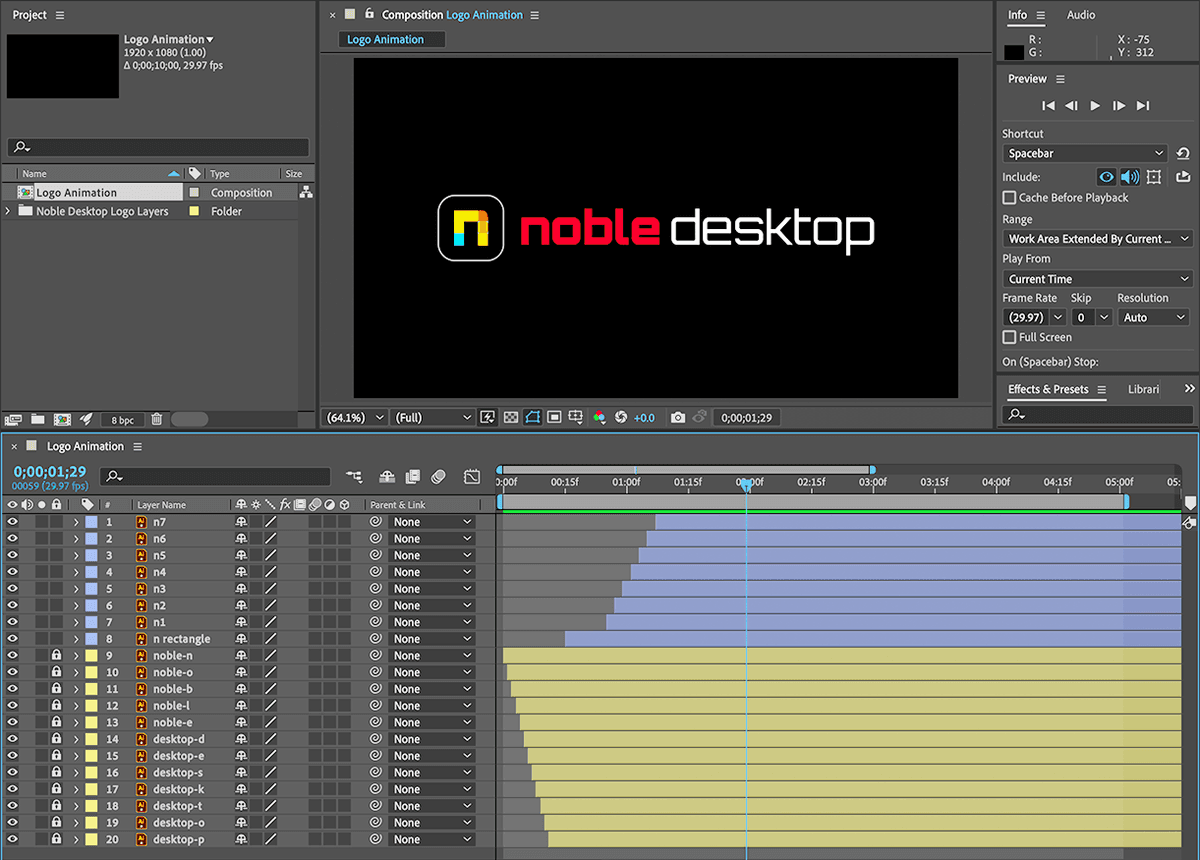
Organizing the Timeline: Color Labels & Shy Layers
When working in the Timeline, there are several features such as Layer Name, Label Color and the various layer switches can help you stay organized.
In the Timeline, select the noble-n layer.
Hold Shift and click on the desktop-p layer (at the bottom) to select all of the noble and desktop character layers.
To the left of any of the highlighted layers, click the color box in the Label column
 and from the menu that appears choose Yellow.
Select the top layer named n7.
Hold Shift and click on the layer named n rectangle (this selects all the layers between them as well).
Click the Label color box and choose Blue.
We can hide some of the layers in the Timeline to simplify it, so we have fewer layers to scroll through. We can use Shy layers, which remain visible in the Composition panel, but are temporarily hidden in the Timeline.
With the blue layers still selected, to the right of the layer names click the Shy switch
 . If you don’t see it and instead you see a Normal menu, go to the bottom of the Timeline and click the Toggle Switches / Modes button.
All the blue layers’ Shy switches should now be
 .
.- means Shy (it will hide). It’s hiding its cute little face!
- means Not Shy (it won’t hide)
Now that we’ve indicated which layers we want to hide, we must actually hide them. At the top of the Timeline, click the Shy button
 as shown here:
Now the Timeline should only have the yellow noble and desktop character layers.
NOTE: To maintain consistency, the layers maintain their same numbering.
Animating Transform Properties: Position & Scale
Scale is one of the 5 transform properties that all visual layers possess. It controls the size of a layer, and can be set using a percentage (the default) or a more concrete unit of measure like pixels.
We’re going to animate with some exaggeration. The layers will “overshoot” their final position and size, and then seem to bounce back to their final appearance. Overshoot is a fundamental principle of animation, and can bring additional liveliness to your animations.
Hit Cmd–A (Mac) or Ctr–A (Windows) to select all the layers.
It’s important to keep these layers selected until we tell you to deselect them!
Press the P key to reveal Position for the highlighted layers.
Hold Shift and press S to reveal Scale as well.
Move the playhead to 0;11
We’re going to create an animation that lasts 11 frames. Because the layers were imported from Illustrator, we already have the complete logo designed how it should look when the animation is finished. Because of this, we are going to start by creating the end keyframe of the animation.
On the noble-n layer, click on the stopwatches
 next to Position and Scale.
This adds keyframes to all the selected layers.
Move the playhead to the beginning of the timeline.
Hold Shift and hit the Left Arrow key twice.
This moves all of the selected layers over by 10 pixels each time.
- On the noble-n layer, set Scale to 0 (which does so for all the layers).
Play the animation so far.
It does not look that good yet because we have not staggered the animations, but trust us it will look much better soon.
- Now let’s add the overshoot. Move the playhead to 0;06 (6 frames).
With all the layers still selected, hold Shift and press the Right Arrow key twice.
- On the noble-n layer, set Scale to 115
- Play the animation to see the overshoot. It’s starting to look better.
With your cursor over the Timeline panel, press the ~ (Tilde) key to expand the Timeline panel to fill the window. The ~ (Tilde) key is at the top left of the keyboard, just above the Tab key.
Select all of the middle keyframes by dragging a selection box over the column of middle keyframes as shown below:

With all the middle keyframes selected, CTRL–click (Mac) or Right–click (Windows) on any of them and choose Keyframe Assistant > Easy Ease (or hitting the F9 key).
Press the ~ (Tilde) key again to return the Timeline to normal size.
Play the animation to see the easing. It’s very subtle, but it makes the overshoot bounce a bit smoother and more springy.
NOTE: Easing adds some acceleration and deceleration to the animation. So the speed of the animation will slow down a little as it approaches the middle keyframe and then still be moving a little slower as it leaves this same keyframe. Think of it as “slow in” and “slow out”.
Press Cmd–tilde (~) (Mac) or CTRL–tilde (~) (Windows) to hide all of the visible properties of the highlighted layers.
Choose File > Save or hit Cmd–S (Mac) or CTRL–S (Windows).
Using Anchor Points to Affect Transform Properties
Moving on to the n part of the logo, let’s scale up the rounded rectangle.
With all the layers selected, click in the Lock column
 to the left to any of the highlighted layers.
That will prevent us from accidentally messing up this part of the animation.
At the top of the Timeline, click the blue Shy button
 to unhide the n layers.
Hit Cmd–A (Mac) or CTRL–A (Windows) to select all the unlocked layers.
Click the Shy switch
to the right of any of the highlighted layers to disable shy.Move the playhead to 0;15
Press
[to move the In point of all the blue layers to the playhead.Hit Cmd–Shift–A (Mac) or CTRL–Shift–A (Windows) to deselect all layers.
Select only the n rectangle layer.
Press S to reveal its Scale property.
Hover your cursor over the first Scale value until you get the hand slider
 .
.Drag the hand slider left and right and watch the Composition panel to see how the scale of the rectangle layer changes.
Notice how the rectangle scales from the middle.
Layer transformations are based on the location of the layer’s anchor point. By default, imported layers have the anchor point in the middle. We want to scale this rectangle from the right side instead.
CTRL–click (Mac) or Right–click (Windows) on Scale property and choose Reset.
In the Tools panel, choose the Pan Behind (Anchor Point) tool
 .
.To the right of the Tools panel, check on Snapping.
In the Composition panel, drag the anchor point
 over to the right side (on the vertical middle point).
To the right of the Tools panel, uncheck Snapping.
In the Tools panel, choose the Selection tool
 .
.Move the playhead to 0;25
Click on the stopwatch
next to Scale.Press I to jump the playhead to the In point of the currently selected layer.
Set Scale to 0
Hit Cmd–Right Arrow (Mac) or CTRL–Right Arrow (Windows) 6 times to move the playhead six frames to the right.
NOTE: If you have a full keyboard, you can use the Page Up and Page Down keys to move the playhead 1 frame forward or back.
Set Scale to 115
CTRL–Click (Mac) or Right–Click (Windows) on the middle keyframe you just created and choose Keyframe Assistant > Easy Ease.
Play the animation to see the rounded rectangle’s scaling.
Cool, but it will look better when the colored boxes aren’t there (they’ll appear after the rectangle has animated in).
Creating a Sequential Animation
The n icon in the logo is composed of a series of colorful boxes. To create an interesting contrast to the wave-like overlapping animation of the letters, let’s animate the colors sequentially (one after the other with no overlap).
- Select the n1 layer
Hold Shift and click on the n7 layer to highlight all of them.
It’s important to keep these layers selected until we tell you to deselect them!
- Move the playhead to the beginning of the timeline.
We want the color box animations to start after of the rectangle is done.
Press the K key 3 times to jump the playhead to the last of the keyframes on n rectangle.
NOTE: J & K are used to move between keyframes. J jumps the playhead to the next visible keyframe. K jumps to the previous visible keyframe.
- Press
[to move the highlighted layers to the playhead. - Press S to reveal Scale for all the selected layers.
We’re going to create a short 2-frame scaling animation for the boxes.
Press Cmd–Right Arrow (Mac) or CTRL–Right Arrow (Windows) twice to move the playhead forward two frames.
- Click the stopwatch next to Scale for the n7 layer (which adds keyframes to all the selected layers).
Press I to jump back to the beginning of the layers.
On the n7 layer set Scale to 0
Let’s stagger the animation. Press Cmd–Right Arrow (Mac) or CTRL–Right Arrow (Windows) to move the playhead forward a single frame.
Opt–
](Mac) or ALT–](Windows) to trim the Out point of the highlighted layers to 2 frames in length.- Before we sequence the layers, let’s sure they’re selected in the correct order. With the Timeline panel active, press Cmd–Shift–A (Mac) or CTRL–Shift–A (Windows) to deselect all layers.
- Select the n1 layer
Hold Shift and click on the n7 layer to highlight all of them.
Choose Animation > Keyframe Assistant > Sequence Layers.
Confirm that the Overlap switch is not enabled and click OK.
Press the End key if you have one (if you don’t, hold Fn and hit Right Arrow) to jump the playhead to the end of the Timeline. If you prefer, you can drag the playhead to the end of the Timeline manually.
Opt–
](Mac) or ALT–](Windows) to extend the Out point of the highlighted layers.Press CTRL–tilde (~) to hide the properties of all the highlighted layers.
Click the arrow
 next to the n rectangle layer to hide its properties.
Play through the completed animation. Sweet!
Exporting Transparent Video
Animated logos are commonly used in video editing apps either by themselves, or overlaid on top of video. For that type of workflow, we can export the animation as video with an alpha channel (to maintain transparency).
At the bottom left of the Composition panel, click the Toggle Transparency Grid button
 .
.The checkerboard represents transparency, so our background is already transparent.
- Click the Toggle Transparency Grid button again.
Move the playhead to 5;00
Press N to move the end of the Work Area bar to the playhead.
The Work Area bar controls the area of the Timeline that previews and exports.
Work Area Bar Keystrokes
Press B to move the beginning of the Work Area bar to the playhead.
Press N to move the end of the Work Area bar to the playhead.
Choose File > Export > Add to Render Queue (or Composition > Add to Render Queue).
In the Render Queue panel, confirm that Render Settings is set to Best Settings.
This will produce the highest quality output.
Next to Output To click on Not yet specified and:
Navigate to Desktop > Class Files > After Effects Class > Logo Animation > Exports.
Name it Your Name—Logo Animation (You can ignore the file extension. If you delete it, it will add it back once you close the dialog.)
Click Save.
To the right of Output Module, click the arrow
 and choose High Quality with Alpha.
At the top right of the Render Queue panel, click the Render button.
When the rendering is done, you’ll have a video with a transparent background that you can use in video editing projects or even other After Effects projects.
Choose File > Save or hit Cmd–S (Mac) or CTRL–S (Windows).
Mac users: If you open the exported file in Quicktime you’ll get an error and can’t play it. Refer to the next section for how to view the file (if you want to).
Optional Bonus: Previewing a Video with Alpha (Transparency)
Programs for watching videos (like QuickTime Player or VLC media player) typically don’t preview videos with alpha channels very well. If you want to see video with a transparency, you’ll normally want to view it in a video editing or graphics app.
- In After Effects, choose File > Import > File.
Navigate to Desktop > Class Files > After Effects Class > Logo Animation > Exports.
Double–click the Your Name—Logo Animation file to import.
NOTE: The file extension will be different on Mac or PC. When using the Lossless preset, Macs default to creating a QuickTime file while PCs create an AVI.
In the Project panel, double–click on the Your Name—Logo Animation video file.
A Footage panel will open where you previously saw the Composition panel.
At the bottom left of the Footage panel, click the Toggle Transparency Grid button
.Press the Spacebar to play the video file on its transparent background.
You’re done, so choose File > Close Project (and don’t save the changes).