Text Animation: Creating a Transition Between Layouts
What This Tutorial Covers
Layout States
Define start and end layouts as separate compositions.
Element Tracking
Animate shared elements between layouts.
Smooth Interpolation
Easing that makes layout shifts feel deliberate.
Noble Desktop's Video Editing & Motion Graphics Certificate teaches After Effects alongside Premiere Pro, Cinema 4D, and DaVinci Resolve.
Learn how to create an animated transition in Adobe After Effects by using guide layers for positioning reference, moving lines of text using null objects, and using a guide layer to move text away from expanding graphics in this comprehensive tutorial.
Exercise Preview
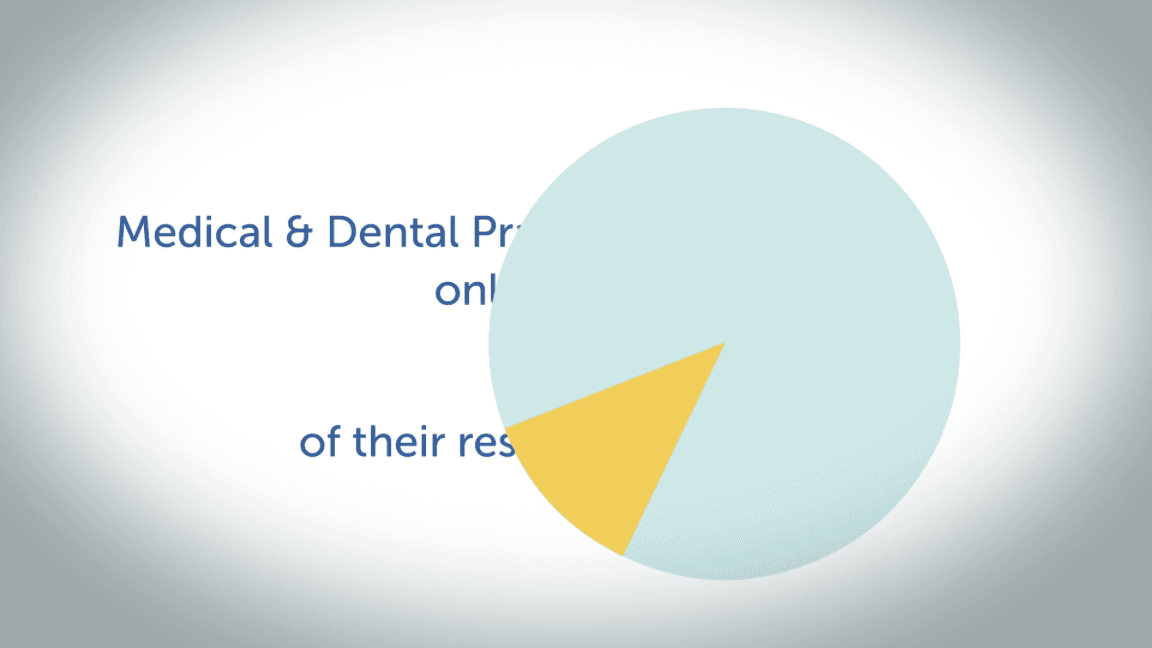
Using a Guide Layer As a Positioning Reference
Switch to After Effects, where yourname-Text Animation.aep is open.
In the Timeline, switch to the Text Animation-MAIN tab if you aren’t already there.
At the top of the layer stack, locate the [02-Pie Chart] pre-comp layer and toggle its visibility on by clicking the eye switch
 .
.In this second layout, you should see that the lines of text have moved over to the left of their original positions, making room for a pie chart on the right.
Because this transitional layout is similar to the layout we animated in the previous exercise, let’s use it as a guide to help us reposition the text we already have (instead of animating this layer). In the Timeline, CTRL–click (Mac) or Right–click (Windows) on the layer and select Guide Layer.
Notice the new guide layer icon
 .
.Guide layers are only visible in the composition you’re currently working in, but we want it in our first layout’s pre-comp. Copy it.
At the top of the Timeline, switch to the 01-12 Percent tab.
So the layer will paste above everything else, select the topmost layer, which should be line 1 matte.
Paste the guide layer.
To make this layer a more helpful positioning reference, let’s lower its opacity. Press T to show the property, then change it to 50%. Much better!
Creating the Null Objects That Will Move the Text
Except for the third line with the 12% text, all of the lines of text are composed of multiple words. We can move each multi-word line as a single object, let’s parent each of them to their own null object.
Let’s temporarily hide the [02-Pie Chart] guide layer so we can position the null objects we’re about to create. Click the layer’s eye switch
off.If you can’t see all the lines of text, move the playhead to 4;21 (when the final line stops moving) or later.
Because our first null object will move the first line, select the Medical text layer.
Go to Layer > New > Null Object.
To remind us of its role in our animation, rename it to line 1 mover.
In the Tools panel at the top, make sure the Selection tool
 is active.
Press the Up Arrow key (adding Shift when you need to move 10 times as fast) until the line 1 mover layer’s anchor point
 (on the top left of its red wireframe) is positioned in the center of the line 1 text, right around the letter e’s horizontal line.
The Position should be around 960, 392.
In the Timeline, select all the other red layers by clicking on the Medical text layer and Shift–clicking on line 1 matte.
Under one of the selected layers’ Parent & Link column, drag the pick whip
 to the line 1 mover layer name and release.
Repeat the last several steps to create a new null object called line 4 mover directly above the of text layer.
Change its Position y coordinate to 740.
Remember to make its layer color Fuchsia.
Parent the other layers with the same color to this new null object (the text layers of, their, and resources, as well as the line 4 matte).
The second line’s two text layers and their associated mattes also need to move as a single unit. Select all four yellow layers and press Cmd–Shift–C (Mac) or CTRL–Shift–C (Windows) to pre-compose them. This is another way to move layers as a unit.
Name it 01-Line 2-PC. It remembered the previous settings, so just click OK.
Select the [01-Line 2-PC] layer, press A and then Shift–P to show the Anchor Point and Position.
Grab the Pan Behind (Anchor Point) tool
 to move the anchor of this pre-comp.
Drag the anchor point
, while looking at the Timeline, until the Position and Anchor Point values are around 960, 488.Change the [01-Line 2-PC] layer’s label color to Yellow.
By the time we want to move these layers over, the individual 12% chunks are long gone. This means that for the third line, we’ll only be moving the 12% layer. We won’t need a null object, but we do need to center the Anchor Point. To take a look, select the 12% layer and Solo
 it.
it.With this layer selected, to Layer menu > Transform > Center Anchor Point in Layer Content.
When done, turn the Solo switch
off, so you can see all your layers again.
Expanding the Pie Chart As It Enters the Composition
The pie chart’s initial move into our composition will influence every other element in our project so far. We can get a good sense of when to move each individual line of text, let’s first animate the pie chart as a whole so both the pie and its slice grow around the anchor point in the pie’s center.
Let’s get back to the master composition using the Composition Mini-Flowchart. To open it, go to the top middle of the Timeline and click its icon
 :
:
Notice the mini-flowchart shows the comp’s nested pre-comps on the right, as well as the comp that it’s nested within, on the left. A neat visual of the project structure! As shown below, click on Text Animation-MAIN to go up a level to the main comp:

Move the playhead to 5;20, the end of the pie chart’s entrance animation.
We want to hide the distracting guide layer and show the two vector layers. Click the eye switches
next to the [02-Pie Chart], slice, and pie layers.Notice that the pie layer is parenting the smaller slice layer. Wherever the pie goes, the little slice will come along for the ride!
Let’s animate backwards. Select the pie layer. Press Opt–S (Mac) or ALT–Shift–S (Windows) to add a Scale keyframe.
Like the lines of text in the previous exercise, our pie chart is so excited about expanding that it gets a little bigger than its current size. Let’s scale it up a bit to create an overshoot keyframe. Move the playhead to 5;16.
We want the chart to scale up 110% of its current size, but unless you’re a math whiz, you’d probably need to pull out a calculator to figure out the value we need. Luckily After Effects can do this math for you! Click into either 84% and change it to 84
*1.1.This tells After Effects to multiply the original value by 1.1, to scale it up 110%. Press Return (Mac) or Enter (Windows), scaling the pie and its child to 92.4%!
Press I to go to the layer’s in point at 5;06.
Set Scale to 0% and leave the playhead here until we tell you to move it.
Select the second keyframe
 (at 5;16) and press F9 to Easy Ease it.
Let’s see how the chart’s expansion affects our text so far. Starting at 5;06, press Cmd-Right Arrow (Mac), Page Down (Windows), or Fn–Down Arrow, to advance frame-by-frame.
Notice that at 5;11, the pie chart starts touching the top line of text, invading its “personal space”. In the next frame, it touches the bottom line of text and before long, the middle two as well.
To maintain a good amount of negative space between objects, let’s set up our text animation so each layer “sees” what’s about to happen and starts moving away around three frames before the chart would touch them. To make it as realistic as possible, we’ll move the layers in order of their closeness to the chart.
Above the composition itself, go to the top left of the Composition panel. Here, there’s another visual of the project structure, with the comp names listed like a computer directory. As shown in the image below, click on the word 01-12 Percent:

Make Way for Pie: Moving the Lines Away from the Chart Using the Guide Layer
From the perspective of the lines of text, the incoming pie chart is like a flood that is forcing them out of their homes. To convey their rush to move away, we’ll make each line overshoot its resting position by about one letter before they breathe a sigh of relief that the chart is no longer expanding. We’ll use the guide layer to help us position these overshoot and final keyframes.
Next to the [02-Pie Chart] guide layer, click the eye switch
to make it visible.The chart started touching the top line at 5;11, so move the playhead three frames earlier, to 5;08. This is two frames after the chart starts animating.
Because line 1 is the longest, it’s closest to the pie chart and will be the first to “feel” it moving on-screen. Select the red line 1 mover layer that controls the entire line.
Press the P key, then CTRL–click (Mac) or Right–click (Windows) on the Position property that appeared and select Separate Dimensions.
Deselect the two properties, then enable horizontal keyframing by clicking the stopwatch
 next to X Position.
Press Shift-Cmd-Right Arrow (Mac), Shift–Page Down (Windows), or Shift–Fn–Down Arrow, to move the playhead forward 10 frames. You should be at 5;18, when the first line will overshoot its destination.
Press the V key as a shortcut to get the Selection tool
.As shown below, press the Left Arrow key (adding Shift when needed) to move the null object to the left. Stop when the line of text is one letter space to the left of the same text in the [02-Pie Chart] guide layer, as shown below:

You should have an X Position of around 572.
Our pie chart stopped moving four frames after it overshot its final size. Let’s make the lines of text match its timing. Move the playhead four frames later, to 5;22.
Use the Right Arrow key to move the text until each letter aligns as closely as possible with the guide layer. (If you need to zoom in, press the period (
.) key.)NOTE: The guide layer text is positioned just a tiny bit higher than the text we’re moving. Do not move the null object vertically to perfectly align the two—the guide layer is set up this way to help you better gauge the positioning when you get close.
Select the second keyframe
(at 5;18) and press F9 to add an Easy Ease.Let’s check out the animation starting at the beginning of the transition. In the Timeline, look at the [02-Pie Chart] layer and notice it has a triangular marker
 that says start transition. We’ll create a marker like this in a later exercise.
Just like with keyframes, the playhead can snap to markers. Hold Shift and drag the playhead until it snaps to the marker
(at 5;06).In the Preview panel, make sure Play From is set to Current Time.
Press the Spacebar to preview.
The animation looks good, so let’s rinse and repeat with the other lines.
As the pie chart expands like a ripple in a pond, the text will also start moving in ripples. Move the playhead to 5;09, 1 frame after the first line starts its move.
The second longest line is the bottommost one. Select the fuchsia line 4 mover layer, pull up its Position property, and Separate Dimensions.
Deselect the properties, then click the stopwatch
next to X Position.Press Shift-Cmd Right Arrow (Mac), Shift–Page Down (Windows), or Shift–Fn–Down Arrow, to move the playhead forward 10 frames to 5;19, where we’ll keyframe its overshoot position.
Move the line of text leftward, so it’s one letter space to the left of the guide layer’s fourth line. (The X Position should be around 738.)
This line’s final, “settle” keyframe will be at 5;23, so move the playhead there.
Move the text so each letter aligns as closely as possible with the guide layer.
Select the second keyframe
(at 5;19) and press F9 to add an Easy Ease.Next up, let’s move our second line! Select the yellow [01-Line 2-PC] layer, pull up its Position property, and Separate Dimensions.
Follow the same process to add X Position keyframes at the following timecodes:
5;10: Click the stopwatch to add the initial keyframe.5;20: Change the X Position to 850. 5;24: Move the letters so they align with the guide layer. Select the second keyframe
(at 5;20) and press F9 to add an Easy Ease.Select the 12% layer, pull up its Position property, and Separate Dimensions.
Follow the same process to add X Position keyframes at the following timecodes:
5;11: Click the stopwatch to add the initial keyframe.5;21: Change the X Position to 924. 5;25: Move the letters so they align with the guide layer. Select the second keyframe
(at 5;21) and press F9 to add an Easy Ease.Click the eye
next to the [02-Pie Chart] guide layer to make it invisible.Go to 5;06 and press the Spacebar to preview. Awesome, this transitional layout is done! We’re ready to transition to the next one, where we’ll introduce a solution for all those inefficiently used medical and dental resources.
Expanding the Pie Chart to Cover up the Second Layout
Because the next layout shares the same background but otherwise has different elements on it, covering up everything but the current layout’s background will make for an effective transition. Let’s do so by expanding the pie chart a second time.
Go back to the Text Animation-MAIN master comp using either the Composition Mini-Flowchart
at the top middle of the Timeline, the directory at the top of the Composition panel, or simply by clicking on its Timeline tab.Move the playhead to 7;01, when the pie chart will start growing. This gives viewers time to see the pie chart and grasp the importance of their unused resources.
In the pie layer to the left of Scale, click the diamond-shaped dip
 to add another keyframe.
Press Opt–P and Opt–R (Mac) or ALT–Shift–P and ALT–Shift–R (Windows) to add Position and Rotation keyframes.
Move the playhead to 7;18.
Center the chart by setting Position to 920,530.
To make the pie cover almost all of the composition frame, set Scale to 300%.
Both of these Illustrator layers are vector graphics. Because we’re scaling the pie and slice larger than 100%, we should turn on their Continuously Rasterize switches
 . Do that now.
Remember that this ensures the layers will always stay sharp, no matter how large they scale.
Between the first keyframe and this one, we want the chart to make one full revolution with 72 extra degrees. To spin it around, set Rotation to 1x+72°.
Select the final set of three keyframes
 at 7;18.
Press Shift–F9 as a shortcut to add an Easy Ease In.
Press I to return to 5;06, then press the Spacebar to preview from the current time. Now that we can no longer see the text we’ve been working with, we need to complete our transition and reveal the project’s next layout.
Splitting Layers to “Unparent” a Child Layer
Our slice is all grown up and ready to leave the nest, so let’s “unparent” it! In a previous exercise, we mentioned that the Parent attribute has no stopwatch, so unless we were to install a handy $29.99 script called Good Parents, we can’t do this by adding or removing keyframes. Luckily we can just split the child layer at the point in time where we want it to stop following its parent.
We want the slice to start detaching from its parent at 7;18, so go there now.
In the Timeline, select the slice layer and press Cmd–Shift–D (Mac) or CTRL–Shift–D (Windows) to split the layer.
Rename the slice 2 layer to slice alone and press U to see it has no keyframes.
Go into the slice alone layer’s Parent & Link menu and choose None.
We want to animate the newly independent slice to detach from its former parent, so both layers can move away from each other to reveal the third layout. To help us position the slice as it comes apart from its parent, let’s move its anchor point to its narrowest point. Go to Window > RepositionAnchorPoint.jsx.
We rotated this layer for you ahead of time, so the tip of the slice is actually at the bottom left. In the panel, click on the bottom left arrow
 .
.Click the Reposition button to move the layer’s anchor point accordingly.
Close the panel using the panel menu
 or the red button above the panel.
Press Opt–P (Mac) or ALT–Shift–P (Windows) to keyframe the Position property.
We want the pie and slice to move away from each other in about 1⁄3 of a second, so move the playhead accordingly, to 8;01.
Change the first Position value (the X coordinate) to 1930 to place the slice fully off-screen to the right. Neat, we can already get a glimpse of the next layout!
Select the pie layer and with the playhead still at 8;01, change its first Position value to –830 to move it off-screen left.
In the Preview panel, change Play From to Start of Range (you may need to scroll down).
Press Spacebar to preview the entire project from the very beginning.
At the end of the animation so far, the pie and slice break apart to reveal our third layout. It’s quite appropriately numbered because in the next exercise, we’ll be animating the elements on it in the third dimension!
In the Timeline, use the arrows
 to swivel closed any open layers.
Save the project and leave it open. We’ll continue working on it in the next exercise.