April 1, 2026Jerron Smith/6 min read

Chroma Keying with Keylight

Master Professional Chroma Key Techniques in After Effects

Core Chroma Keying Concepts

Video Compositing

The process of combining multiple video layers to create a single composite image. Chroma keying is a fundamental compositing technique used in professional video production.

Color Screen Removal

The technical process of removing specific colored backgrounds (typically green or blue) to replace them with new backgrounds or visual elements.

Professional Workflow

Industry-standard techniques that combine multiple effects for optimal results rather than relying on single-effect solutions.

Topics Covered in This After Effects Tutorial:

Creating a Garbage Matte, Using Keylight, Applying a Preset, Key Cleaner Effect, Advanced Spill Suppressor Effect, Matching Color and Tones

Exercise Preview

genPrev

Exercise Overview

In this exercise, you'll master the art of chromakey compositing by keying out a color screen and seamlessly integrating a new background into your footage. This foundational technique remains essential in modern video production, from indie filmmaking to high-budget commercial work. While AI-powered tools are emerging in 2026, understanding manual keying gives you complete creative control and the ability to handle challenging footage that automated solutions can't manage.

Video Compositing Foundation

This exercise demonstrates video compositing by keying out a color screen and adding a new background. This fundamental technique is used extensively in film, television, and digital media production.

Previewing the Final Video

  1. Let's examine the finished composite before diving into the technical work. If you're currently in After Effects, keep it open but switch to your Desktop.
  2. On the Desktop, navigate to Class Files > After Effects Advanced Class> Greenscreen Removal > Preview Movie and double–click Woman Talking on the Phone.mp4.
  3. Study the following compositional elements:

    • This video demonstrates professional-grade compositing where two separate video sources have been seamlessly integrated. Notice how the lighting, color temperature, and edge quality create a convincing final result.
  4. Replay the video to observe the consistency of the key throughout the timeline, then close it when you're ready to begin.

Setting up the Workspace

A properly configured workspace accelerates your keying workflow and provides optimal access to essential panels. Let's establish the Standard workspace, which offers the ideal balance of tools for compositing work.

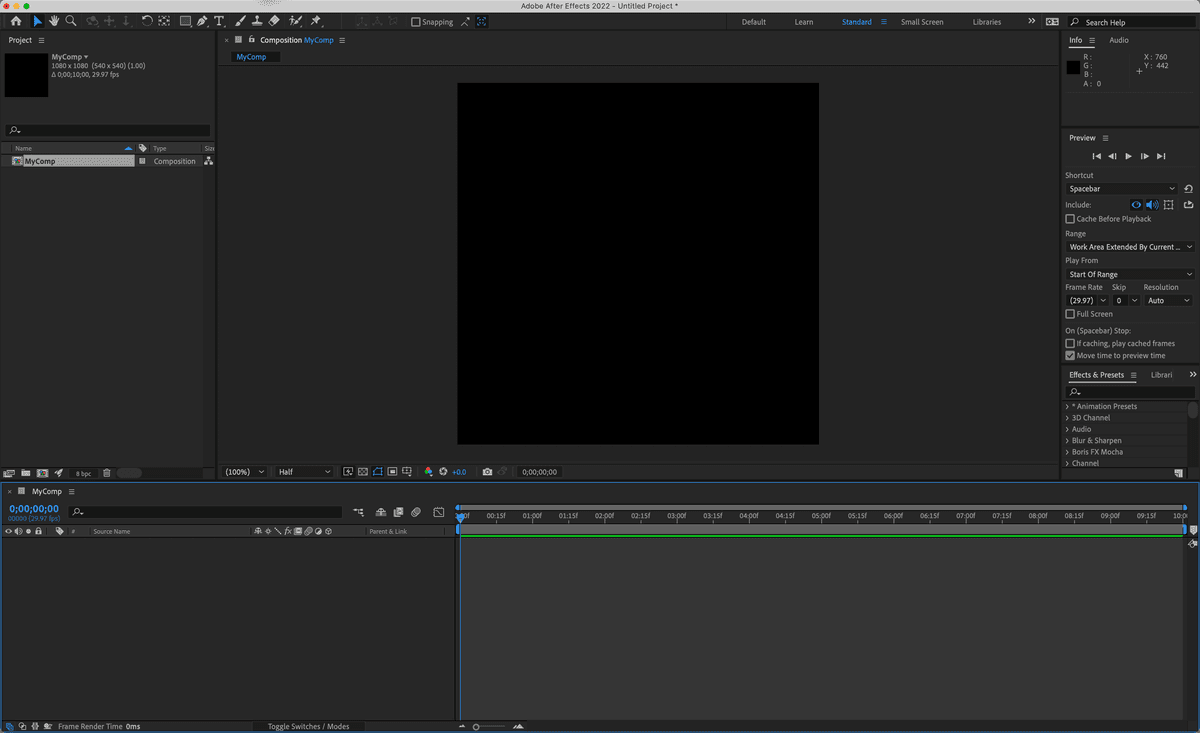
  1. In After Effects, go to Window > Workspace > Standard.

  2. Choose Window > Workspace > Reset "Standard" to Saved Layout to ensure you're working with the default configuration.

  3. If the After Effects window does not fill the screen, maximize it for optimal workspace efficiency:

    Mac: At the top left of the window, click the green button (the third button).
    Windows: At the top right of the window, click the Maximize button (the middle button).

Workspace Configuration Steps

1

Access Standard Workspace

Navigate to Window > Workspace > Standard to establish the optimal panel layout for keying operations.

2

Reset Layout

Choose Window > Workspace > Reset Standard to Saved Layout to ensure consistent panel positioning.

3

Maximize Window

Expand the After Effects window to full screen for maximum workspace visibility and efficiency.

Getting Started

Now we'll open the project file and create your working version. This ensures you maintain the original starter file while building your own version of the composite.

  1. In After Effects, if you have a project open, choose File > Save to preserve your current work.

  2. Choose File > Open Project and:

    • Navigate to Desktop > Class Files > After Effects Advanced Class > Greenscreen Removal.
    • Double–click on Greenscreen Removal—Started.aep to open it.
  3. Choose File > Save As > Save As and:

    • Name the file Your Name—Greenscreen Removal.aep and
    • Save it into Desktop > Class Files > After Effects Advanced Class> Greenscreen Removal.

Project Setup Checklist

0/4

Setting up the Composition

Proper layer organization is crucial for efficient keying workflows. The stacking order and naming convention you establish here will streamline every subsequent step in the compositing process.

  1. Drag your main video (the footage with the green or blue screen) into the empty Timeline panel or onto the Create a New Composition button. This creates a new composition with settings that match your source footage.

  2. Drag your background layer into the Timeline below your greenscreen layer. The stacking order is critical—your keyed footage must be above the background for proper compositing.

  3. Rename the bottom layer Background or BG and rename the top layer Talent. Clear naming conventions become invaluable in complex composites with multiple elements.

Layer Organization Process

1

Add Main Video

Drag the greenscreen video into the Timeline panel or onto the Create New Composition button to establish the primary layer.

2

Add Background Layer

Drag the background footage below the greenscreen layer to create proper stacking order for compositing.

3

Rename Layers

Label bottom layer as Background or BG and top layer as Talent for clear project organization and workflow efficiency.

Creating a Garbage Matte

Garbage mattes are essential preprocessing tools that dramatically improve keying results. They eliminate problematic areas before the keying algorithm runs, reducing computational overhead and preventing common keying artifacts. Think of them as rough sketches that define your area of interest—they isolate your subject while excluding lighting equipment, set boundaries, or any elements that might interfere with clean color separation.

  1. Select your Talent layer—the footage containing your main subject that needs to be keyed.

  2. Activate one of the Shape tools from the toolbar. Since precision isn't critical at this stage, choose the Rectangle, Ellipse, or Pen tool based on your subject's general shape and your comfort level with each tool.

  3. Create a rough mask that encompasses your main subject with generous margins. The goal is exclusion of problematic background elements, not precision edge work—that's the keying effect's job.

  4. If your subject moves significantly throughout the shot, animate the mask by setting keyframes at key movement points. For subtle movement, a static garbage matte often suffices and saves valuable time.

Garbage Matte Purpose

Garbage mattes are quick masks that remove problematic elements like light stands and rigging before keying. They don't need to be perfect, just roughly enclose your subject to limit the screen color area for more efficient keying.

Garbage Matte Creation

1

Select Talent Layer

Choose the layer containing your main subject that needs the background removed.

2

Choose Shape Tool

Activate Rectangle, Ellipse, or Pen tools depending on your subject's shape and movement.

3

Create Rough Mask

Draw a mask around your subject, animating if necessary for subjects with significant movement.

Applying the Keylight + Key Cleaner + Advanced Spill Suppresser Preset

Adobe's comprehensive keying preset combines three essential effects in optimal sequence, representing industry best practices developed over years of professional use. This preset approach is superior to manual effect stacking because it ensures proper effect order and provides pre-configured settings that work harmoniously together. While individual effects offer more granular control, the preset delivers professional results more efficiently for most scenarios.

  1. In the Timeline panel, select the layer requiring chromakey treatment.

  2. In the Effects & Presets panel, type keylight into the search field to quickly locate the keying options.

  3. Double–click on the Keylight + Key Cleaner + Advanced Spill Suppresser preset to apply all three effects simultaneously.

  4. In the Effect Controls panel, use the Screen Colour eyedropper to sample the background color you want to remove. Click on the most representative area of your screen color—typically a well-lit section without shadows or variations.

  5. Adjust Screen Gain to fine-tune the tolerance of color removal. Lower values are more selective, while higher values remove a broader range of similar colors. Start conservatively and increase gradually.

  6. Modify Screen Balance if your key shows uneven results across the frame. This parameter compensates for lighting variations across the screen surface.

  7. Switch to the Screen Matte or Status preview mode to visualize the alpha channel directly. This black-and-white view reveals exactly what the keying algorithm is interpreting.

  8. Open the Screen Matte properties and refine Clip Black, Clip White, and Clip Rollback parameters. Your objective is achieving pure white for retained areas (your subject) and pure black for removed areas (the screen). Gray values indicate transparency or edge softness.

  9. Return the View mode to Intermediate Result and adjust Screen Shrink/Grow to eliminate any residual fringe coloration around your subject's edges. Positive values shrink the key, negative values expand it.

Professional Insight: Chromakey work remains fundamentally artistic despite technological advances. Even with AI-assisted tools emerging in 2026, achieving convincing results requires patience, iterative refinement, and a trained eye for color relationships and edge quality. Expect to cycle between preview modes multiple times, making incremental adjustments until you achieve the desired result. The most experienced compositors still spend considerable time perfecting challenging keys.

  1. Activate the Advanced Spill Suppressor effect to neutralize any color contamination from the original screen that may be reflecting onto your subject.

    Technical Reference: For comprehensive documentation of Keylight's advanced parameters, consult The Foundry's official documentation: https://tinyurl.com/2tr5w2fw. This resource provides detailed explanations of every parameter and professional techniques for handling complex keying scenarios.

  2. Save your project file to preserve your work and settings.

Preset Advantage

Adobe's combined preset with Keylight, Key Cleaner, and Advanced Spill Suppresser is recommended over standalone effects for most situations, providing optimized workflow and better results.

Keying Approach Comparison

FeatureStandalone KeylightCombined Preset
Effects IncludedKeylight onlyKeylight + Key Cleaner + Spill Suppresser
Setup TimeManual configurationIntegrated workflow
Professional ResultsRequires expertiseOptimized combination
Recommended: Use the combined preset for most professional keying situations

Keylight Application Process

1

Select Target Layer

Choose the layer in the Timeline panel that contains the colored screen to be keyed out.

2

Apply Preset

Search for keylight in Effects & Presets panel and double-click the combined preset.

3

Sample Screen Color

Use the Screen Colour pipette in Effect Controls to select the specific color for removal.

4

Adjust Tolerance

Modify Screen Gain to increase or decrease the color removal tolerance for optimal results.

Professional Insight

Chroma Keying is more of an art than a science. It can take multiple tries and often minor adjustments to values to get the result you want. Switching between Intermediate Result and Screen Matte previews multiple times is normal for achieving professional effects.

Key Takeaways

1Chroma keying requires a systematic workflow combining workspace setup, proper layer organization, and multiple specialized effects for professional results
2Garbage mattes are essential pre-keying masks that remove problematic elements and improve keying efficiency by limiting the color screen area
3Adobe's combined Keylight + Key Cleaner + Advanced Spill Suppresser preset is recommended over standalone effects for most professional situations
4Proper layer naming and organization (Talent and Background layers) is crucial for maintaining clear project workflow and collaboration
5The Screen Matte and Intermediate Result preview modes serve different purposes and require switching between them for optimal adjustment
6Screen Gain controls color removal tolerance while Screen Balance provides additional color matching refinement
7Clip Black, Clip White, and Clip Rollback adjustments in Screen Matte mode aim for completely white foreground and completely black background
8Chroma keying is an iterative artistic process requiring multiple adjustments and patience rather than a single-step technical solution

RELATED ARTICLES