April 1, 2026Jerron Smith/11 min read

Title Animation: Write-On Text Effect

Master Professional Text Animation in After Effects

Key Animation Techniques You'll Learn

Write-On Text Effect

Create smooth letter-by-letter text animations that simulate handwriting. Perfect for titles and decorative elements.

Mask-Based Animation

Use precise path masking combined with stroke effects to control animation reveal timing and flow.

Layer Sequencing

Master manual timing adjustments to create natural progression across multiple animated elements.

Topics Covered in This After Effects Tutorial:

Creating a Write-On Text Effect

Exercise Preview

preview write on text

Animation Sequence Breakdown

First

Line Animation

Decorative line draws on first, establishing the foundation

Second

Top Text Entry

Upper text flies in from behind the animated line

Final

Write-On Effect

Bottom text reveals letter by letter with write-on animation

Exercise Overview

The write-on text effect remains one of the most compelling and versatile animation techniques in motion graphics. This exercise will teach you to create this essential animation, which simulates handwritten text appearing progressively on screen. The technique is particularly effective for script fonts, branding animations, and narrative sequences where you want to create intimacy or emphasize the act of creation itself. You'll master the combination of masks and stroke effects that make this illusion possible.

Previewing the Final Video

Before diving into the technical process, let's examine the sophisticated animation sequence you'll be creating to understand the layered approach to motion design.

  1. Let's see a preview of what you'll be making. If you're in After Effects, keep it open but switch to your Desktop.

  2. On the Desktop, navigate to Class Files > After Effects Class > Title Animation > Preview Movie and double–click Title Animation.mp4.

  3. Notice the following sophisticated timing and layering:

    • The decorative line animates in first, establishing the composition and creating visual anticipation.
    • The top line of text flies in dynamically, as if emerging from behind the line element.
    • The bottom line of text reveals itself through the write-on effect, appearing to be hand-lettered in real time.
  4. Study the timing relationships between elements—this sequential reveal creates visual hierarchy and guides the viewer's attention deliberately. Replay the video if needed, then close it when you've absorbed the pacing.

Getting Started

Now we'll prepare your project file and establish the proper workflow foundation for creating professional write-on effects.

  1. You should still have Your Name—Title Animation.aep open in After Effects. If you closed it, re-open it now by going to File > Open Project then Desktop > Class Files > After Effects Class > Title Animation. We strongly recommend completing the previous exercise (4B) before proceeding, as this exercise builds directly on those foundational elements. If you haven't completed it, use this sidebar to catch up.

    Project Continuity

    This exercise builds directly on Exercise 4B. If you haven't completed it, use the provided ready-to-go project file to catch up quickly.

If You Did Not Do the Previous Exercise (4B)

  1. Go to File > Open Project and navigate to Class Files > After Effects Class > Title Animation > Finished Projects.
  2. Double–click on Title Animation—Ready for Write-On.aep.
  3. Go to File > Save As > Save As. Name the file Your Name—Title Animation.aep and save it into Desktop > Class Files > After Effects Class > Title Animation.

Adding Masks for the Write-On Text Effect

The write-on effect relies on precisely crafted masks that define the path along which your text will appear to be written. These masks must follow the natural flow of how someone would actually write each letter by hand. To streamline your learning, we've already created masks for the Accuse layers, but you'll create the masks for the Me layers to master this crucial skill.

  1. At the bottom left of the Composition panel there's a menu showing the current percentage of zoom. Click on that menu and choose 200% to make things larger and provide precision for detailed mask work.
  2. If you cannot see the word Me on the right anymore:

    • In the Tools panel, choose the Hand tool hand tool.
    • Drag in the Composition panel until you can see the word Me clearly.
    • In the Tools panel, choose the Selection tool selection tool.
  3. In the Timeline, select the Me_M layer to begin creating your first mask path.

  4. In the Tools panel, select the Pen tool pen tool (or press the G key for quick access).

  5. We're going to create a single path that flows through the center of the letter form, mimicking how someone would naturally write this letter with a pen. Focus on creating a smooth, logical writing path rather than perfect precision—the goal is natural movement that feels authentic.

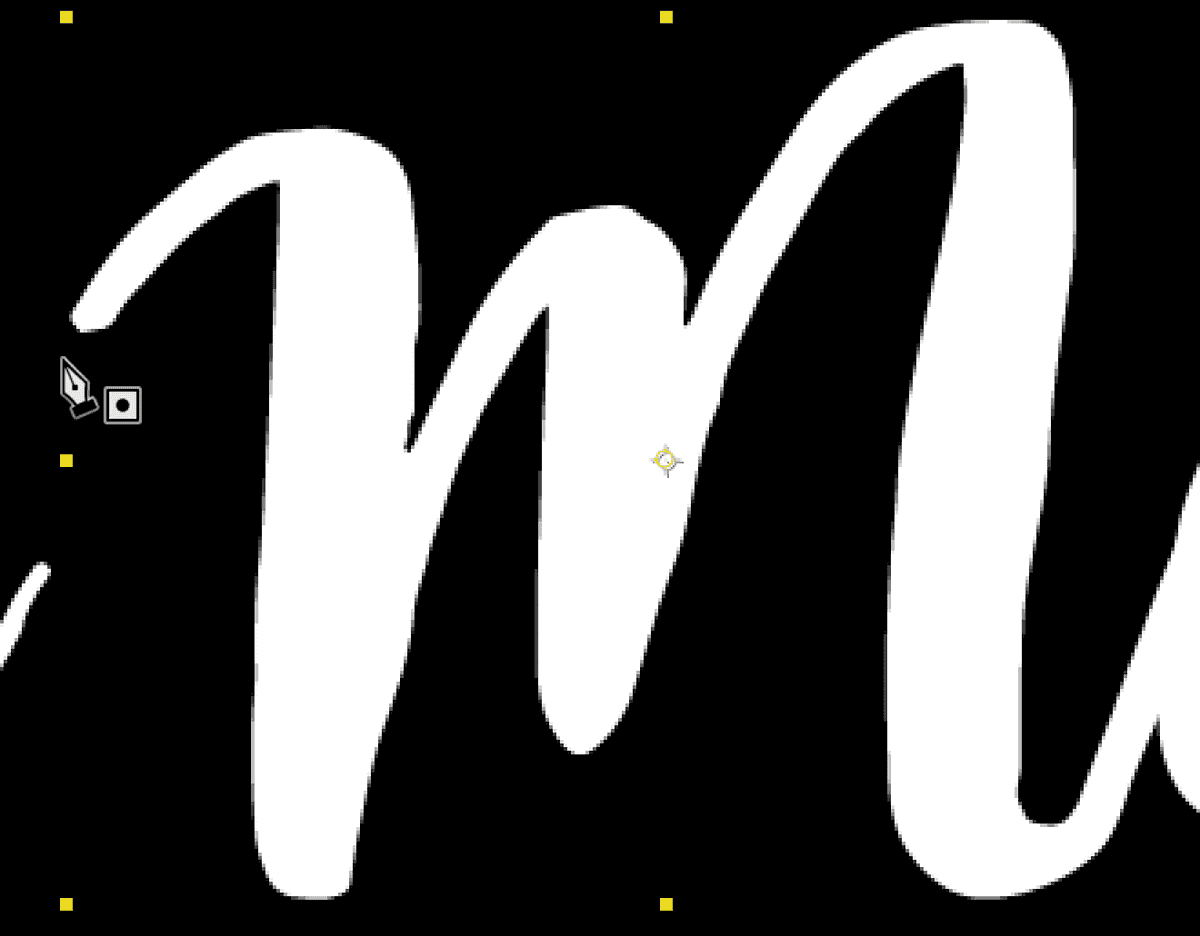
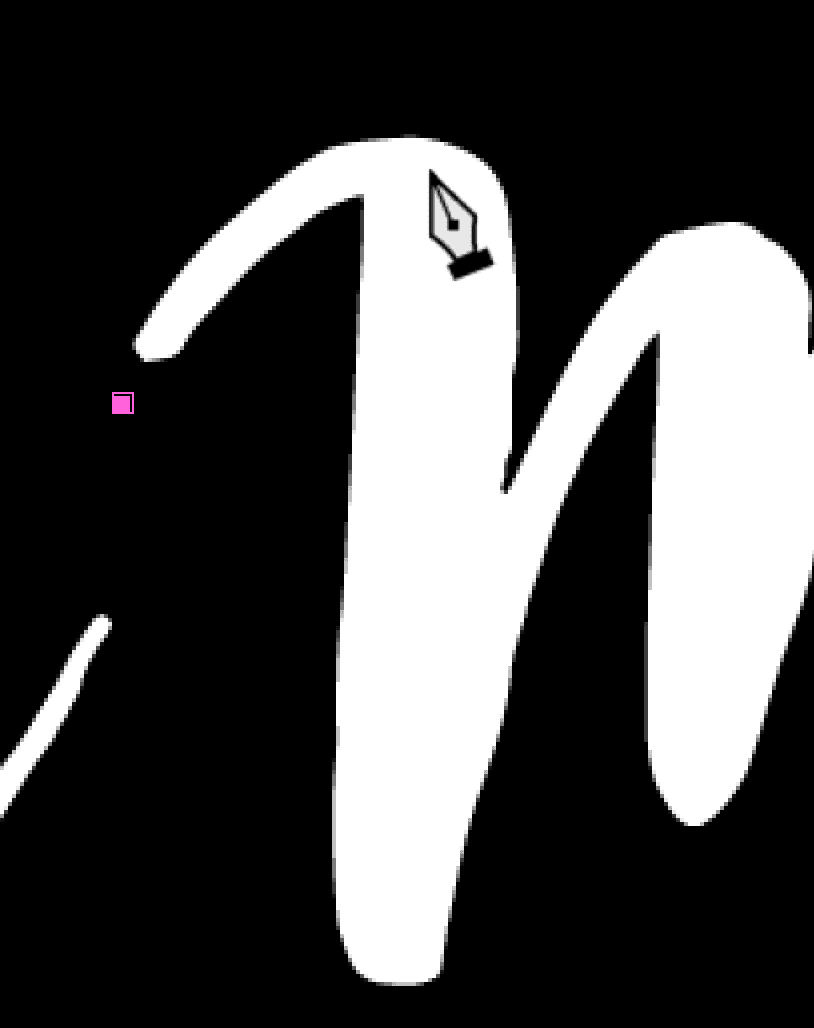
    As shown below, position the cursor just outside the top left of the M, ensuring the cursor displays the mask creation icon pen mask cursor, then click once to establish your first vertex (anchor point).

    writeOn 01

    NOTE: Most Adobe applications call these control points "anchor points," but After Effects uses the term "vertex" when referring to mask path points.

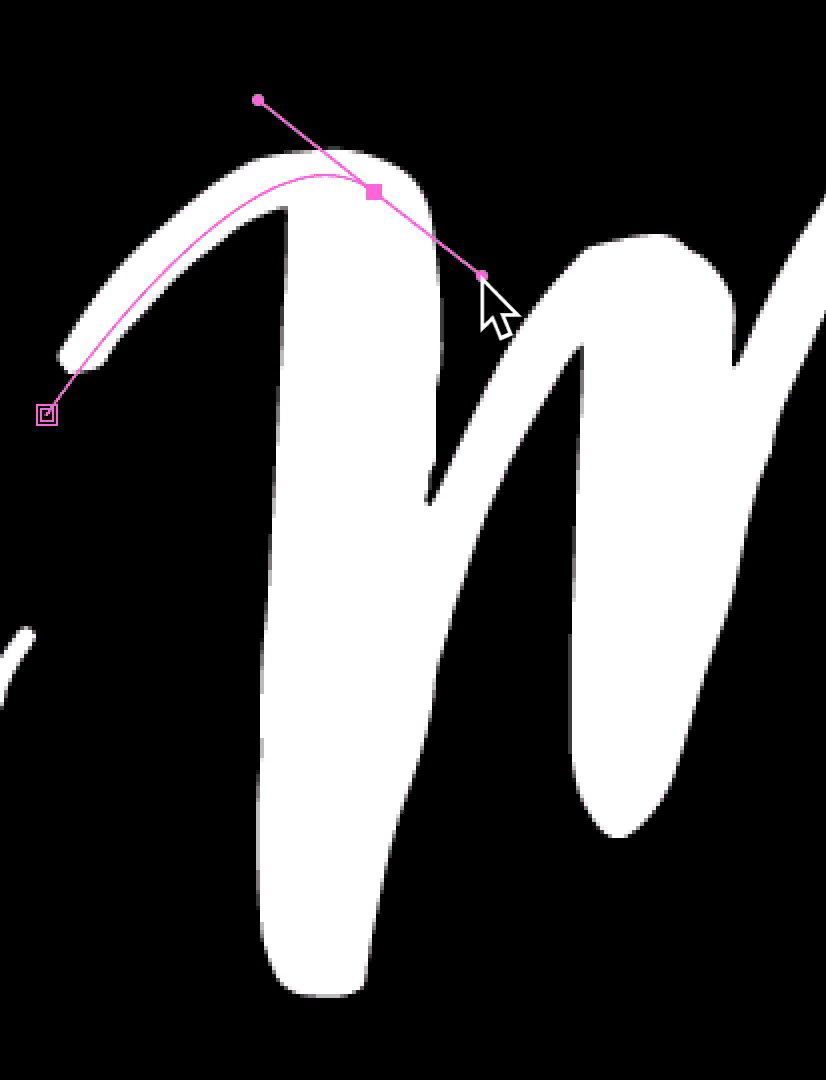
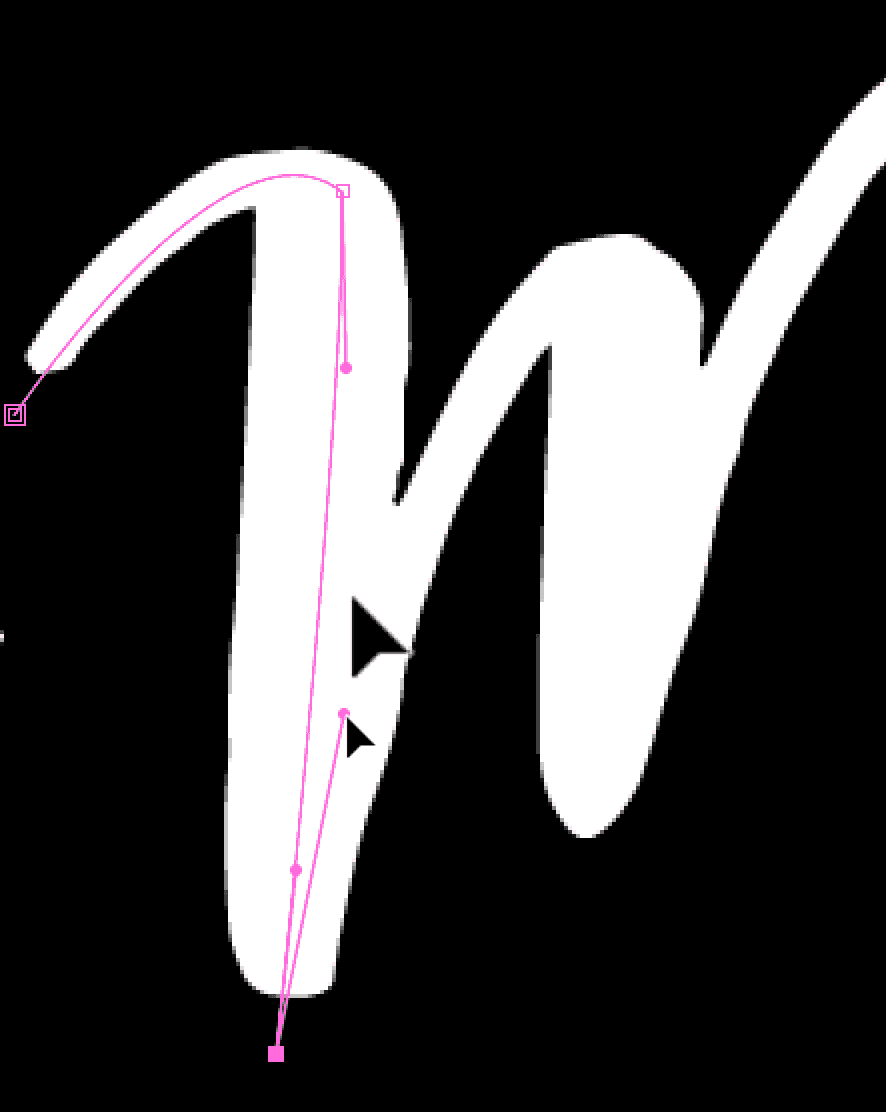
  6. To create the second vertex with a smooth curve, drag at the top of the letter. A curved line segment will automatically connect your two points, creating the flowing motion essential for natural writing effects.

    writeOn 02

    NOTE: Clicking with the Pen tool creates straight line segments, while dragging creates smooth curves—crucial for natural-looking writing motion.

  7. Hold Option (Mac) or ALT (Windows) and drag the direction handle downward to point it along the natural flow of the letter shape.

    writeOn 03

    NOTE: Direction handles control both the angle and intensity of curves. Always point handles in the direction your path should flow to maintain smooth, natural curves.

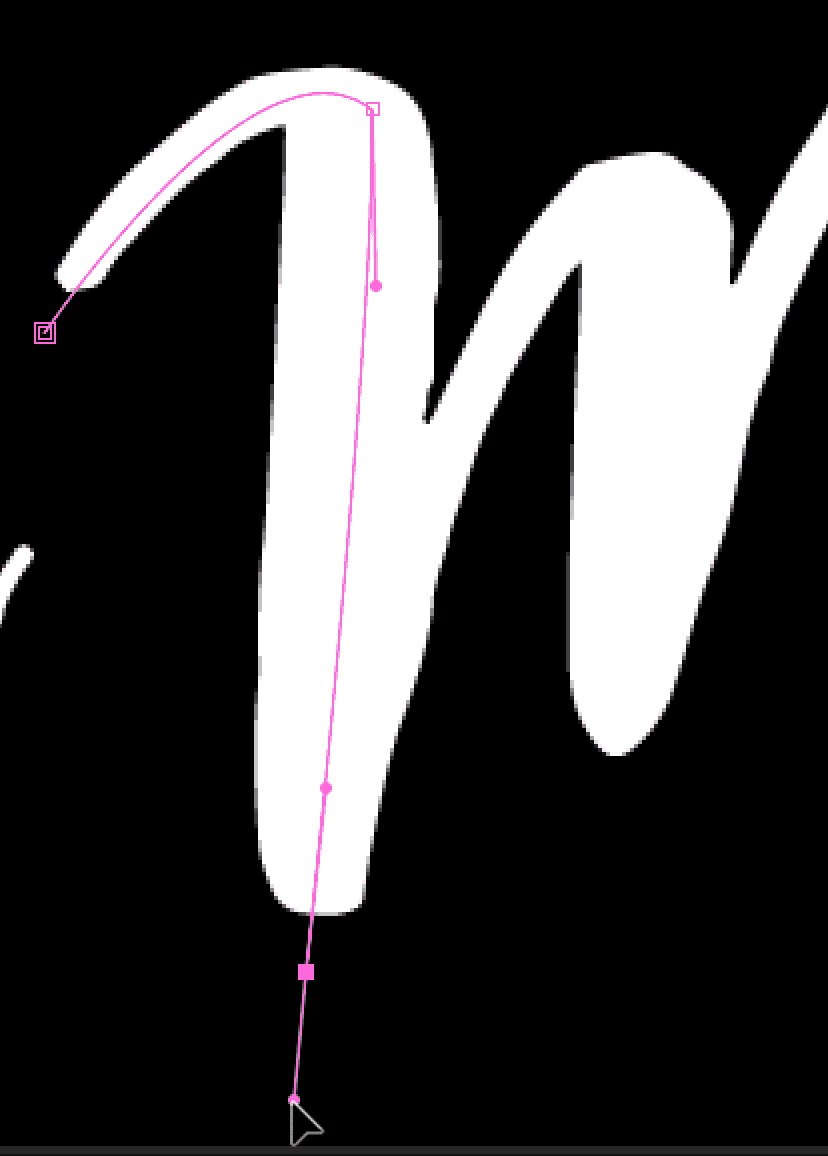
  8. Drag at the base of the M to establish the next vertex, continuing the natural writing flow.

    writeOn 04

  9. Hold Option (Mac) or ALT (Windows) and adjust the direction handle to point upward, preparing for the next section of the letter (as shown below).

    writeOn 05

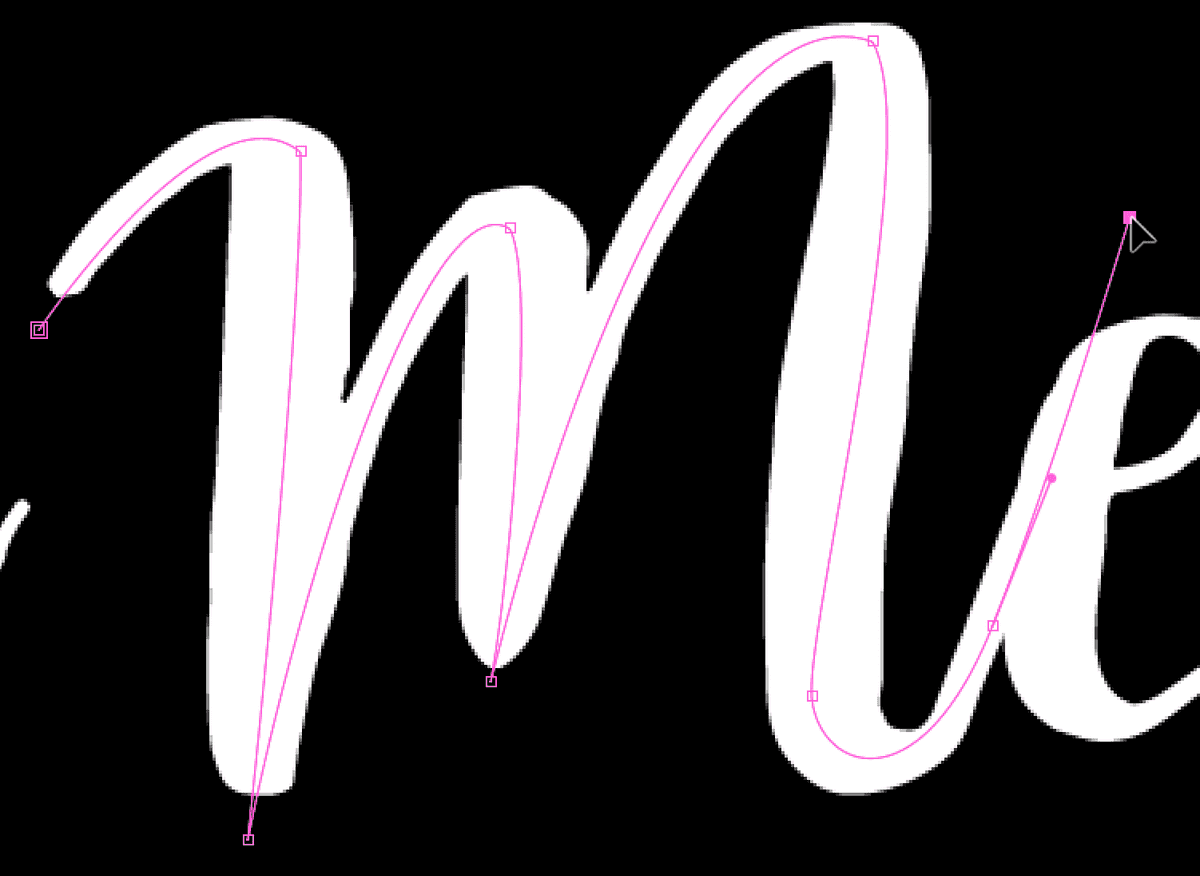
  10. Continue creating vertices and adjusting their direction handles until you've mapped a complete path that follows the natural writing flow of the letter M. Place your final point slightly outside the letter's end to ensure complete coverage during animation:

    writeOn 06

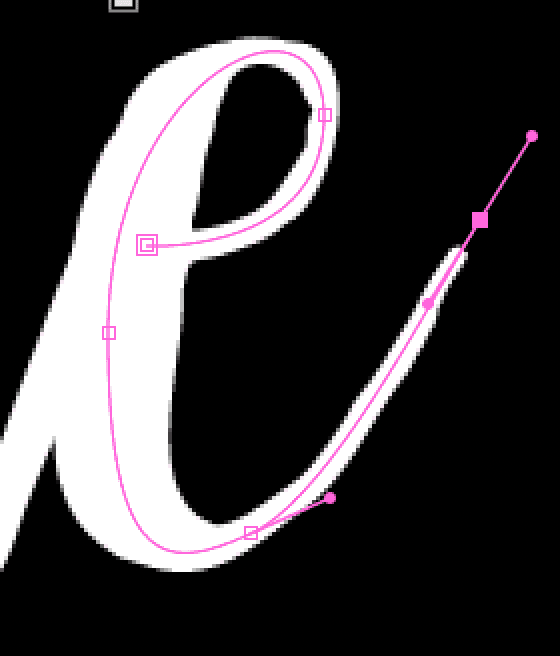
  11. In the Timeline, select the Me_e layer to begin your second mask path.

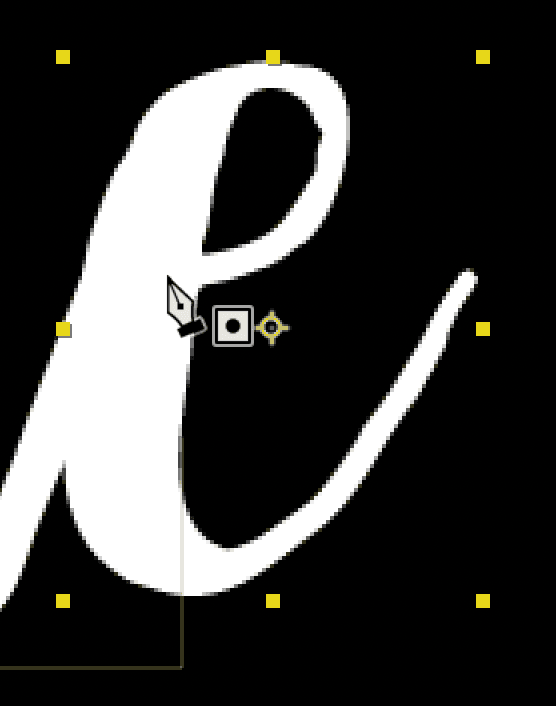
  12. Position the cursor at the crossbar of the letter e—this serves as the natural starting point for writing this letter. Ensure you see the mask cursor pen mask cursor, then click once to create your first vertex.

    writeOn 07

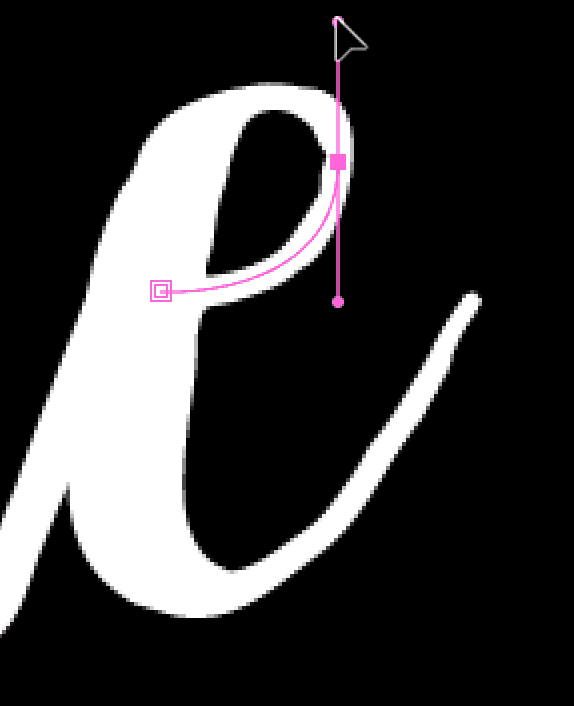
  13. On the right side of the e, drag upward to create the next vertex with a smooth curve that follows the letter's natural contour.

    writeOn 08

  14. Continue creating vertices and fine-tuning their direction handles to trace the letter's form. Remember that consistency is more important than perfection—maintain the path approximately through the center of the letterform while following natural writing motion.

    writeOn 09

  15. Save your progress with File > Save or Cmd–S (Mac) / CTRL–S (Windows). Regular saving is essential when working with complex mask paths.

Pen Tool Masking Process

1

Set Composition View

Zoom to 200% and position the workspace to clearly see the text you're masking

2

Create Path Foundation

Use the Pen tool to establish the first vertex point just outside the letter form

3

Build Curved Segments

Drag to create curves, then hold Option/Alt to adjust direction handles for smooth flow

4

Complete Letter Tracing

Continue placing vertices through the center of each letter form until the path is complete

Pen Tool Technique

Clicking creates straight lines while dragging creates curves. Direction handles control curve angles and should point toward the next curve direction.

Creating the Write-On Text Effect

With your mask paths complete, we'll now apply the Stroke effect that transforms these paths into animated writing. This effect will use your masks as guides to progressively reveal the text layers beneath.

  1. Move the playhead to the beginning of the timeline to establish your starting point for the animation.
  2. At the bottom left of the Composition panel click on the zoom menu (which currently shows 200%) and choose Fit to see your entire composition clearly.
  3. In the Timeline, select the Accuse_A layer to begin applying the stroke effect.
  4. If the Effects & Presets panel isn't visible on the right side of your workspace, choose Window > Effects & Presets to access After Effects' comprehensive effect library.
  5. In the Effects & Presets panel's search field, type stroke to quickly locate this essential effect.
  6. Double–click on the Stroke effect (found in the Generate category) to apply it to your selected layer.
  7. In the Effect Controls panel (located at the top left of your workspace), configure these critical settings:

    • Brush Size: 25 (this value must be large enough to completely cover the thickness of your text—adjust if needed for your specific font)
    • Paint Style: Reveal Original Image (this crucial setting makes the stroke reveal your text rather than painting over it)
    • End: 0 (starting at zero ensures no text is initially visible)
    • Click the End stopwatch stopwatch to create your first keyframe.
  8. Press the U key to reveal all keyframed properties in the Timeline—this shortcut is essential for efficient animation workflow.
  9. Move the playhead to 0;10 to establish the duration of your write-on animation.
  10. Change the End value to 100 (you can adjust this in either the Effect Controls panel or directly in the Timeline). This creates your second keyframe, completing the basic animation.
  11. Press the Spacebar to preview the animation of the letter A. You'll notice the main stroke animates beautifully, though the crossbar remains static—we'll address that in the next step.

Stroke Effect Configuration

0/4

Copying the Effect to the Other Letters

Efficiency in motion graphics comes from smart workflow practices. Rather than manually recreating the stroke effect for each layer, we'll copy and paste the configured effect to maintain consistency across all elements.

  1. At the top of the Effect Controls panel, click directly on the Stroke effect name to select the entire effect with all its settings.

  2. Choose Edit > Copy or press Cmd–C (Mac) / CTRL–C (Windows) to copy the effect to your clipboard.
  3. Move the playhead back to the beginning of the timeline to maintain consistent starting points.
  4. Select the Accuse_A cross layer to begin your multi-selection.
  5. Hold Shift and click on the Me_e layer. This selects all the remaining text layers that need the write-on effect applied.
  6. Choose Edit > Paste or press Cmd–V (Mac) / CTRL–V (Windows) to apply the stroke effect to all selected layers simultaneously.
  7. Choose Edit > Deselect All or press Cmd–Shift–A (Mac) / CTRL–Shift–A (Windows) to clear your selection.
  8. Press the Spacebar to preview the animation and observe the results.

    You'll notice all letters now have the write-on effect applied, but they're all animating simultaneously—creating visual chaos rather than the elegant sequential reveal we want.

Selection Strategy

Select all yellow layers at once using Shift+click to apply the copied stroke effect efficiently across multiple letters simultaneously.

Manually Sequencing Layers

Professional motion design relies heavily on timing and sequence. For script fonts and handwritten effects, each letter must complete before the next begins, mimicking natural writing rhythm and creating visual comprehension.

  1. Press Cmd–A (Mac) or Ctrl–A (Windows) to select all layers in your timeline.
  2. Press U to reveal the keyframes of all layers simultaneously—this gives you a comprehensive view of all animation timing.
  3. Press Cmd–Shift–A (Mac) / CTRL–Shift–A (Windows) to deselect all layers, allowing for precise individual layer manipulation.
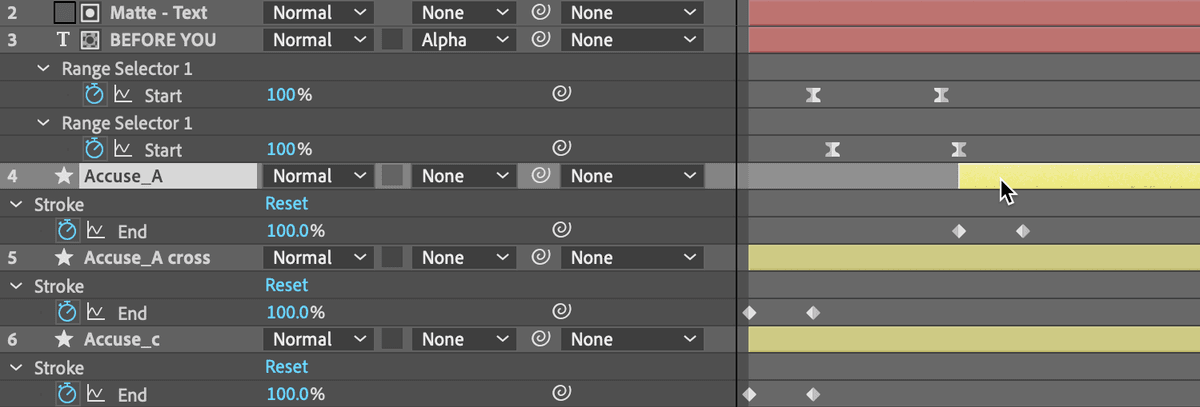
  4. Drag the Accuse_A layer to align its starting point with the final keyframe of the BEFORE YOU layer above it. Hold Shift while dragging to enable snapping—this ensures frame-accurate alignment.

    accuse a

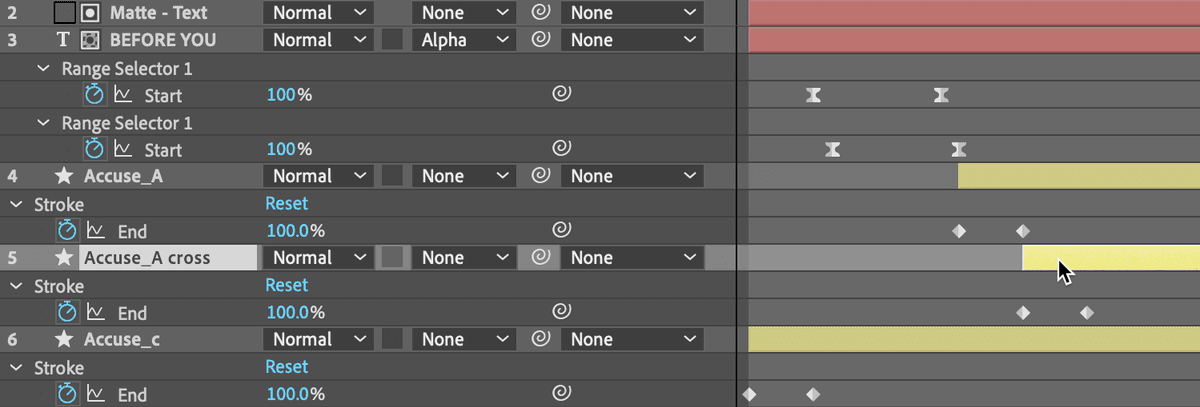
  5. Drag the Accuse_A cross layer so its beginning aligns with the final keyframe of the Accuse_A layer above it. Again, hold Shift while dragging for precise snapping.

    accuse a cross

  6. Since the crossbar represents a quick stroke in natural writing, we should accelerate its animation. Move the playhead to 1;16 to establish a shorter duration.
  7. Drag the Accuse_A cross layer's second keyframe toward the playhead, holding Shift after beginning your drag to snap it precisely to the playhead position.
  8. Press the Spacebar to preview just the A and its crossbar animation—this focused review helps you evaluate the timing before proceeding.
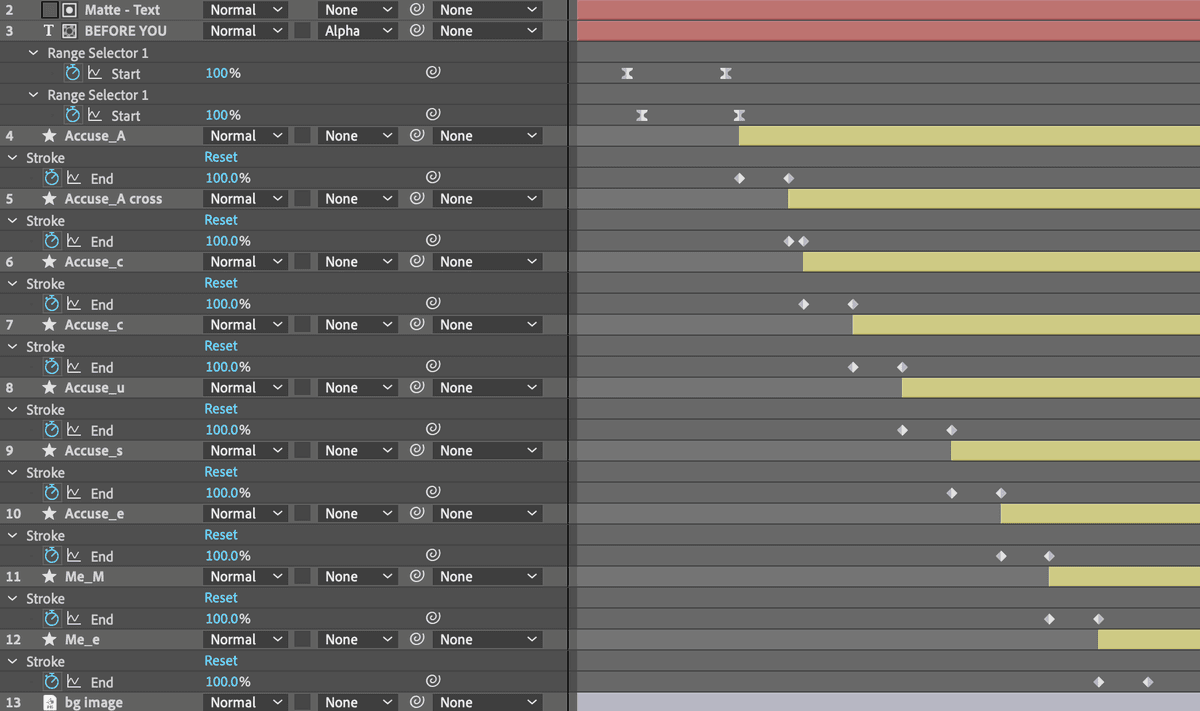
  9. For all remaining layers, repeat the sequencing process: drag each layer so its starting point aligns with the final keyframe of the layer above it, maintaining the Shift-drag technique for accurate snapping. Your final layer stack should resemble this configuration:

    write on all layers sequenced

  10. Press the Spacebar for a complete preview of your sequenced animation.

    Each letter should now draw on sequentially, creating the illusion of continuous handwriting. This timing creates visual flow and maintains viewer engagement.

  11. Press Cmd–A (Mac) or Ctrl–A (Windows) to select all layers for the final cleanup step.
  12. Press Cmd ~ (Mac) or CTRL ~ (Windows) to collapse all layer properties, cleaning up your timeline view.
  13. Save your work with File > Save or Cmd–S (Mac) / CTRL–S (Windows). Your write-on effect is now complete and professional-ready.

Layer Timing Coordination

1

Reveal All Keyframes

Select all layers and press U to display timing information across the composition

2

Sequence Main Letters

Drag each layer so its start aligns with the previous layer's end keyframe using Shift for snapping

3

Adjust Small Elements

Speed up short animations like crossbars by moving their end keyframes closer to create quicker transitions

4

Test and Refine

Preview the complete sequence to ensure natural letter-by-letter progression

Optional Bonus: Animating the Background Image

Professional motion graphics benefit from layered animation that adds depth and visual interest without overwhelming the primary content. If time permits, this background animation will add subtle movement that enhances the overall production value.

  1. Move the playhead to the beginning of your timeline to establish consistent starting points.
  2. Select the bg image layer in your timeline.
  3. Show the bg image layer by clicking in the eye icon eye icon column—this reveals the background element you'll animate.
  4. Press P to reveal the Position property for this layer.
  5. Hold Shift and press T to also reveal the Opacity property—this keyboard combination lets you view multiple properties simultaneously.
  6. Change the second Position value (Y-axis) to 1100, positioning the image off-screen initially.
  7. Click the Position stopwatch stopwatch to create your first position keyframe.
  8. Change Opacity to 0 to make the background completely transparent initially.
  9. Click the Opacity stopwatch stopwatch to establish your first opacity keyframe.
  10. Move the playhead to 4;15—this timing allows the text animation to establish itself before the background movement begins.
  11. Change Opacity to 100 to make the background fully visible.
  12. Change the second Position value to -350, creating a smooth pan across the composition.
  13. Click on the Position property name to select all position keyframes.
  14. Hold Shift and click the Opacity property name to add all opacity keyframes to your selection.

    This technique allows you to apply timing adjustments to multiple properties simultaneously.

  15. CTRL–click (Mac) or Right–click (Windows) on any selected keyframe and choose Keyframe Assistant > Easy Ease. This applies sophisticated easing that creates natural acceleration and deceleration, matching professional motion graphics standards.
  16. Press the Spacebar to preview your complete animation with the enhanced background movement.
  17. Save your final project: File > Save or Cmd–S (Mac) / CTRL–S (Windows).
  18. You've successfully created a professional write-on text effect with sophisticated timing and optional background animation. Choose File > Close Project to complete this exercise.

Background Animation Enhancement

Position Movement

Animate from 1100 to -350 on the second position value to create smooth horizontal motion across the composition.

Opacity Fade

Transition from 0 to 100% opacity synchronized with position changes for elegant entrance effect.

Keyframe Enhancement

Apply Easy Ease to both Position and Opacity keyframes simultaneously for professional smooth motion that feels natural and polished.

Key Takeaways

1Write-on text effects combine precise path masking with stroke animations to simulate natural handwriting progression
2The Pen tool creates masks by clicking for straight segments and dragging for curves, with direction handles controlling curve flow
3Stroke effect settings require brush size matching letter thickness and Reveal Original Image paint style for proper text display
4Layer sequencing timing is critical - each letter should begin animating as the previous letter completes for realistic flow
5Keyframe animation from End value 0 to 100 over 10 frames creates smooth progressive text reveal
6Manual timing adjustments using Shift-drag snapping ensure precise alignment between sequential letter animations
7Background image animation with position and opacity changes adds production value when synchronized with text timing
8Easy Ease keyframe interpolation creates professional smooth motion that enhances the overall animation quality

RELATED ARTICLES