April 1, 2026Noble Desktop Publishing Team/10 min read

Viewing & Managing a Collection of Files

Master Adobe Bridge for Professional File Management

Core Bridge Capabilities

Visual File Management

Browse and organize files with visual previews instead of text-only file lists. Bridge provides thumbnail views that make identifying content faster and more intuitive.

Batch Operations

Perform bulk actions like renaming, rotating, and organizing multiple files simultaneously. This saves significant time when managing large photo collections.

Creative Cloud Integration

Seamlessly connect with other Adobe applications like Photoshop and InDesign. Launch directly from any Creative Cloud program for streamlined workflow.

Topics Covered in This Adobe Bridge Tutorial:

Browsing Files in the Bridge, Managing & Comparing Images, Batch Renaming Images

Exercise Preview

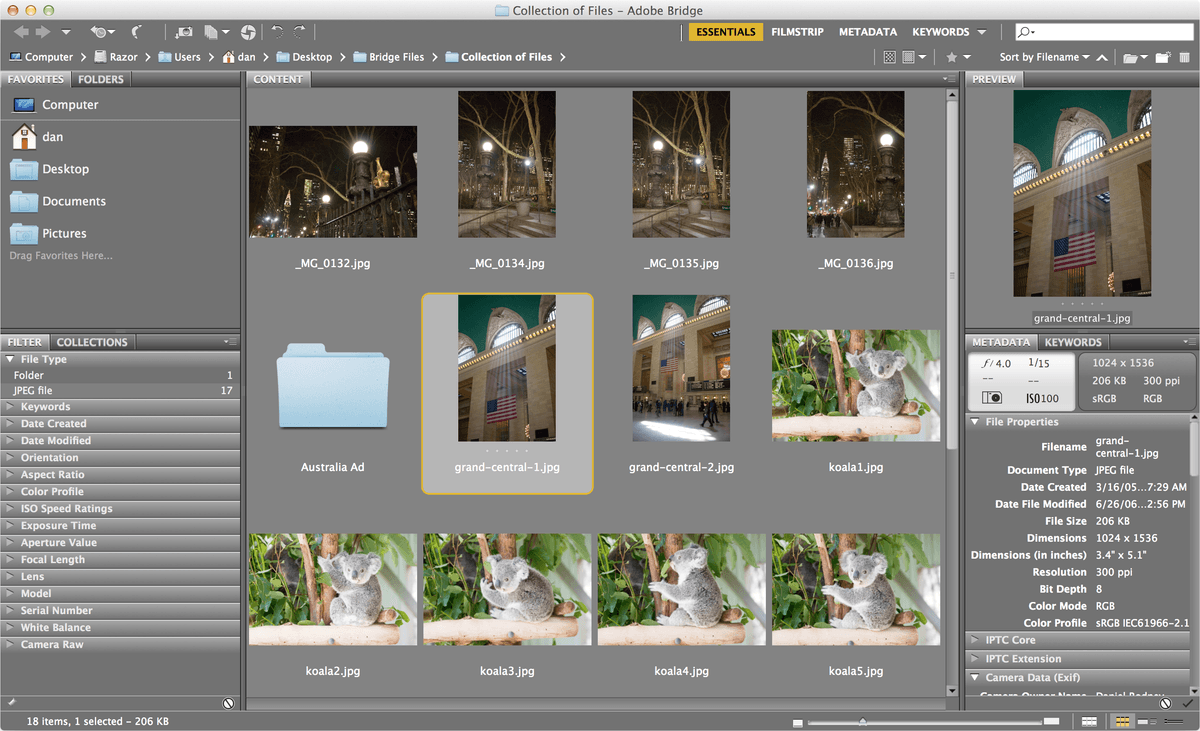
bridge organizing files

Exercise Overview

While most professionals default to using their desktop file explorer for basic organization tasks like creating folders and renaming files, this approach becomes inefficient when dealing with large collections of visual assets. In this exercise, you'll discover how Adobe Bridge transforms these routine organizational tasks into streamlined workflows through its sophisticated visual previews, powerful batch processing capabilities, and intelligent metadata management. For creative professionals managing hundreds or thousands of assets, these features can save hours of manual work while reducing errors and improving consistency across projects.

Desktop vs Adobe Bridge File Management

FeatureDesktop ManagementAdobe Bridge
File PreviewIcon onlyVisual thumbnails
Batch RenamingManual one-by-oneAutomated sequences
Image ComparisonOpen each fileSide-by-side preview
RotationOpen in editorDirect thumbnail rotation
Recommended: Bridge offers superior visual management and batch processing capabilities for creative files

Navigating to a Folder

We'll work with a realistic scenario: a collection of files from a photo shoot where we need to efficiently identify and organize our strongest images for client presentation. This workflow mirrors what professional photographers, designers, and creative directors handle daily.

  1. Download the class files. Refer to the Downloading the Class Files page at the beginning of the workbook for detailed instructions on downloading and installing the practice files.

  2. Launch Adobe Bridge using either of these methods:

    • Launch Bridge directly from your Applications folder or Start menu.
    • From any Creative Cloud application (such as Photoshop), choose File > Browse in Bridge. This method automatically establishes the connection between your current project and Bridge's organizational tools.
  3. To ensure we're working with identical interface settings:

    • Navigate to Window > Workspace > Essentials.
    • Then select Window > Workspace > Reset Workspace. This standardizes your panel layout and ensures consistent results throughout the tutorial.
  4. At the top left of the Bridge window, locate the Favorites and Folders tabs. These panels serve as your primary navigation tools within Bridge's interface.

  5. Ensure you're viewing the Favorites tab, then click on Desktop from the favorites list.

  6. The default icon size may be too small for efficient visual scanning. To improve readability and visual identification of files, drag the zoom slider (illustrated below) toward the right at the bottom right of the window. This adjustment is crucial when working with large image collections where quick visual identification saves significant time.

    zoom slider

  7. In the Content panel (the largest central section of Bridge), locate the Class Files folder and double-click to open it.

  8. Navigate deeper into the file structure by double-clicking the Bridge Files folder.

  9. Complete the navigation by double-clicking the Collection of Files folder.

  10. Now that you can see the complete collection of practice files, experiment with the zoom slider to understand how thumbnail size affects your ability to quickly assess and compare images. Notice how larger thumbnails reveal more detail but show fewer files at once—a trade-off you'll constantly balance in professional workflows.

With your workspace properly configured, we're ready to explore Bridge's organizational capabilities that go far beyond basic file management.

Initial Bridge Setup Process

1

Launch Adobe Bridge

Either open Bridge directly or use File > Browse in Bridge from any Creative Cloud application

2

Reset to Essentials Workspace

Go to Window > Workspace > Essentials, then Window > Workspace > Reset Workspace for consistent layout

3

Navigate to Files

Use Favorites tab to access Desktop, then navigate through Class Files > Bridge Files > Collection of Files

4

Adjust Thumbnail Size

Use the zoom slider at bottom right to optimize thumbnail size for better readability

Organizing Some of the Files

  1. Professional projects often involve multiple file types that belong together—design files, assets, documentation, and supporting materials. Rather than hunting through mixed collections, we'll create focused project folders. Navigate to File > New Folder to create a dedicated project container.

  2. Name the new folder Australia Ad using a clear, descriptive naming convention that will remain meaningful months from now.

  3. Click once on the thumbnail of the InDesign file named australia ad-started.indd. This selection technique allows you to target specific files for batch operations.

  4. Hold Shift and click on the thumbnail of the Illustrator file named australia dot com logo-white.ai. The Shift-click method efficiently selects continuous ranges of files, essential for managing related assets.

  5. Verify that all four Australia-related files are now selected: one InDesign document, one text file, and two logo variations. This type of multi-format project organization is typical in professional design workflows where campaigns require coordinated assets across multiple applications.

  6. Drag any of the selected thumbnails into the Australia Ad folder. Bridge will move all selected files simultaneously, maintaining their relationships while organizing them logically.

  7. Double-click the Australia Ad folder to verify that all files transferred correctly and are now organized within their project-specific container.

  8. Notice the breadcrumb navigation trail at the top left of the window, showing your current location: Collection of Files > Australia Ad. This navigation feature becomes invaluable when working with complex folder hierarchies in large projects.

    breadcrumbs

  9. Click Collection of Files in the breadcrumb trail to return to the parent folder and continue organizing the remaining assets.

This organizational approach scales effectively from small projects to enterprise-level asset libraries, providing the foundation for efficient creative workflows.

File Selection Techniques

Use Shift+click to select continuous files in a range, or Command/Control+click to select non-adjacent files. This allows for efficient batch operations on multiple items.

Project Organization Workflow

0/5

Rotating Images

  1. Camera orientation issues are common in photography workflows, especially when shooting in varied conditions. Bridge provides efficient batch rotation tools that outperform individual file corrections. Click once on the image named _MG_0134.jpg (one of the night shots that needs orientation correction).

  2. Hold Shift and click on _MG_0136.jpg to select the range of images requiring the same rotation adjustment.

  3. Verify that three images are selected, including the intermediate file. Bridge's range selection automatically includes all files between your start and end points, streamlining batch operations.

    Pro Tip: For non-continuous selections (selecting specific images scattered throughout a collection), hold Command (Mac) or Control (Windows) while clicking individual images. This technique is essential when correcting orientation issues that don't follow sequential patterns.

  4. Apply rotation using either of these professional methods:

    • Use the keyboard shortcut Cmd–] (Mac) or Ctrl–] (Windows) for rapid processing—ideal when correcting large batches of images.
    • Click the Rotate 90° clockwise button rotate 90 degrees clockwise in the toolbar at the top left of the window for visual confirmation of the operation.

These rotation capabilities demonstrate Bridge's strength in batch processing—operations that would require opening and individually editing files in other applications happen instantly here, preserving your creative momentum.

Image Rotation Methods

Keyboard Shortcuts

Use Cmd+] (Mac) or Ctrl+] (Windows) for quick 90-degree clockwise rotation. This is the fastest method for experienced users.

Toolbar Button

Click the Rotate 90° clockwise button in the top toolbar. Visual method that's easier for beginners to remember and locate.

Deleting the Worst Images

  1. Professional image curation requires efficient comparison tools to identify weak shots that dilute portfolio quality. Switch to Bridge's specialized Preview workspace by selecting Window > Workspace > Preview, which optimizes the interface for detailed image evaluation.

  2. Reset the workspace to ensure optimal layout by choosing Window > Workspace > Reset Workspace.

  3. Your interface now features thumbnails in a vertical column with an enlarged Preview panel on the right—the ideal setup for rapid image assessment. Fine-tune the thumbnail size using the slider at the bottom right to balance overview and detail based on your collection size.

    zoom slider

  4. Customize your workspace further by adjusting the Content panel width. Position your cursor over the panel divider until you see the Resize cursor resize horizontal cursor, then drag to optimize the thumbnail-to-preview ratio for your workflow.

  5. Navigate between images efficiently by clicking thumbnails or using the Up/Down arrow keys. Keyboard navigation maintains focus on evaluation rather than mouse precision, speeding up the curation process significantly.

  6. Navigate to the fourth image _MG_0132.jpg—a fence composition with the Chrysler Building in the background—by pressing the down arrow or clicking its thumbnail.

  7. Press the Down arrow to advance to the next image, which captures a similar composition but with noticeably softer background focus.

  8. Use the Up/Down arrows to rapidly toggle between these two nearly identical shots. This comparison technique is crucial for identifying the strongest version when shooting multiple takes of the same subject—a common scenario in professional photography.

  9. With the inferior image selected (_MG_0133.jpg—the blurrier version), press Delete (Mac) or Ctrl-Delete (Windows) to remove it from your working collection.

  10. Complete the deletion process according to your operating system:

    Mac: Choose between Reject (flags the image for later review) or Delete (permanent removal). For this exercise, click Delete, then confirm with OK when prompted.
    Windows: Confirm the move to Recycle Bin by clicking OK. The file remains recoverable from the Recycle Bin if needed later.

This curation workflow demonstrates Bridge's power in quality control—rapidly identifying and removing inferior shots while maintaining focus on your creative vision rather than technical file management.

Preview Workspace Benefits

The Preview workspace layout provides large image previews alongside thumbnails, making it much easier to evaluate image quality and compare similar shots side-by-side.

Image Comparison and Deletion Process

1

Switch to Preview Workspace

Go to Window > Workspace > Preview for optimal image evaluation layout with large preview panel

2

Adjust Panel Sizes

Resize thumbnail area and adjust thumbnail size using bottom-right slider for comfortable viewing

3

Navigate and Compare

Use arrow keys or click thumbnails to flip between images and compare similar shots quickly

4

Delete Inferior Images

Select unwanted image and press Delete (Mac) or Ctrl+Delete (Windows), then confirm deletion

Renaming Images

  1. Effective file naming is crucial for long-term project management and client deliverables. Return to the standard workspace by selecting Window > Workspace > Essentials, which provides optimal balance between thumbnails and metadata for renaming operations.

  2. Adjust thumbnail size for comfortable viewing of both images and filenames by dragging the zoom slider at the bottom right of the window. Proper sizing helps prevent accidental double-clicks during the renaming process.

    zoom slider

  3. Select the third image (_MG_0113.jpg) and carefully click directly on its filename. Timing is critical here—click deliberately but not rapidly, as double-clicking will launch the image in Photoshop instead of enabling rename mode.

  4. When the filename becomes editable (indicated by a text selection highlight), replace the cryptic camera-generated name with Noble Desktop, preserving the .jpg extension. Descriptive naming conventions like this make files searchable and meaningful to team members and clients.

  5. Locate and select the image 2005-10-08 20-56-23.jpg (the Sydney Opera House thumbnail)—another example of unhelpful timestamp naming that hampers professional workflows.

  6. Click the filename to activate edit mode and replace it with the descriptive name sydney-opera-house, again preserving the .jpg extension. This naming approach improves searchability and professional presentation in client deliverables.

  7. For files requiring identical naming patterns, Bridge's batch rename feature eliminates tedious individual renaming. Click the first image _MG_0075.jpg to select it.

  8. Shift-click the second image _MG_0076.jpg to select both images in the series requiring coordinated naming.

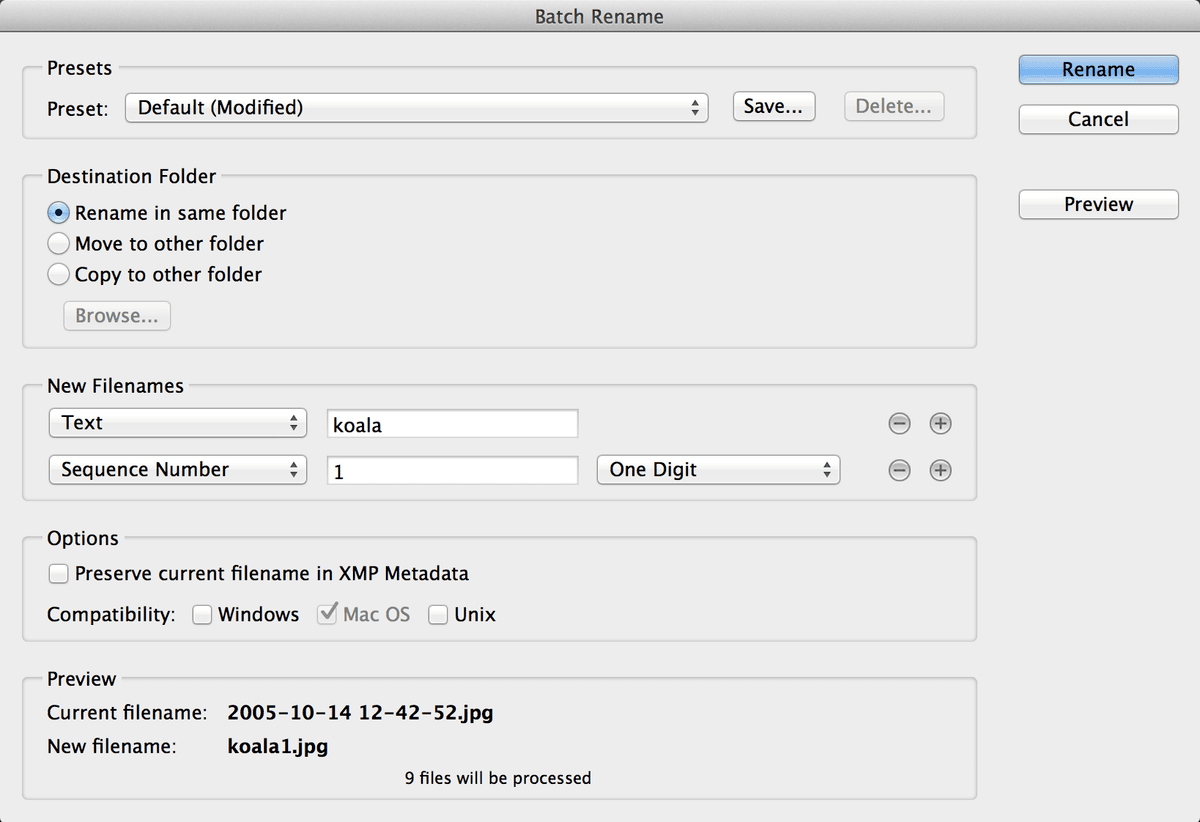
  9. Access Bridge's powerful batch rename tool via Tools > Batch Rename—a feature that can process hundreds of files with consistent naming patterns in seconds.

  10. Before proceeding, ensure your settings are correct. Under Destination Folder, verify that Rename in same folder is checked to maintain your current file organization.

  11. In the New Filenames section, set the top dropdown menu to Text if not already selected, then enter grand-central- in the adjacent field. This creates the base name for your series.

  12. Configure the numbering system by ensuring you have exactly two dropdown menus under New Filenames. If additional menus exist, click the minus button minus button to remove excess options. If you need a second menu, click the plus button plus button to add one.

  13. Set the second dropdown to Sequence Number and configure the digit count to One Digit. This creates a clean, professional naming sequence ideal for small series.

    batch rename

    Pro Tip: The Preview section at the bottom shows exactly how your new filenames will appear—always verify this before proceeding to avoid naming errors that require correction later.

  14. Execute the rename operation by clicking Rename. Bridge applies your naming convention instantly across all selected files.

  15. Apply the same efficient process to the koala image series. Select the first koala photograph, then Shift-click the last koala image to capture the entire series.

  16. Launch Tools > Batch Rename again, leveraging your previous settings as a starting point.

  17. Update the text field to koala and reset the sequence number to 1 to start fresh numbering for this new series. This creates a logical, searchable naming pattern for thematically related images.

    koala rename

  18. Complete the operation by clicking Rename, instantly transforming your collection from cryptic camera files to professionally organized, searchable assets ready for client presentation or team collaboration.

These batch renaming capabilities exemplify Bridge's value in professional workflows—what would take considerable manual effort becomes a streamlined, error-free process that scales from small collections to enterprise-level asset libraries. The consistent, descriptive naming conventions you've implemented here form the foundation for efficient project management and successful client deliverables.

Individual vs Batch Renaming

FeatureIndividual RenameBatch Rename
MethodClick filename directlyTools > Batch Rename
Best forUnique descriptive namesSequential numbering
SpeedOne file at a timeMultiple files instantly
ConsistencyManual typing requiredAutomated formatting
Recommended: Use individual rename for descriptive names, batch rename for systematic numbering
Filename Editing Timing

When clicking to edit filenames, be careful not to double-click too quickly or Bridge will interpret it as a command to open the file in Photoshop instead of entering edit mode.

Batch Rename Configuration

1

Select Target Files

Choose files to rename using click and Shift+click for ranges

2

Configure Text Prefix

Set descriptive text that will appear at the start of each filename

3

Add Sequence Numbers

Include automatic numbering to distinguish between files in the series

4

Preview and Execute

Review the filename preview at bottom of dialog before clicking Rename

Key Takeaways

1Adobe Bridge provides superior visual file management compared to traditional desktop folder browsing, with thumbnail previews and batch operations that streamline creative workflows
2The Essentials workspace layout offers optimal balance of navigation, content viewing, and file operations, while Preview workspace excels for detailed image comparison and quality assessment
3Efficient file organization involves creating project-specific folders and using selection techniques like Shift+click for ranges and Command/Control+click for non-adjacent files
4Image rotation can be performed directly on thumbnails using keyboard shortcuts (Cmd/Ctrl+]) or toolbar buttons, eliminating the need to open files in external editors
5The Preview workspace enables effective image comparison using arrow key navigation, making it easier to identify and delete inferior shots from photo collections
6Bridge offers two renaming approaches: individual filename editing for descriptive names, and batch renaming for systematic sequential numbering of related files
7Batch rename functionality allows combining text prefixes with automatic sequence numbers, providing consistent naming conventions across multiple files simultaneously
8Workspace customization through panel resizing and thumbnail scaling optimizes Bridge for specific tasks, whether organizing files or evaluating image quality

RELATED ARTICLES