Comparing, Rating, & Viewing Images
What This Tutorial Covers
Star Ratings
Rate images 1–5 to surface your best shots.
Compare View
Side-by-side comparison for nearly identical frames.
Filter & Sort
Find rated images instantly with Bridge filters.
Noble Desktop's Graphic Design Certificate covers Photoshop, Illustrator, and InDesign — the core Creative Cloud apps Adobe Bridge organizes.
Learn how to effectively use Adobe Bridge to sort, compare, and label images, as well as how to create slideshows and fullscreen previews in this comprehensive tutorial.
Exercise Preview
Navigating to a Folder
To make sure we are looking at the same thing:
- Go to Window > Workspace > Essentials.
- Then go to Window > Workspace > Reset Workspace.
At the top left of the window, you should see a Favorites and a Folders tab.
You should already be viewing the Favorites tab, so in the list of favorites click on Desktop.
Go into the following folders: Class Files, then Bridge Files and finally into the Australia Photo Shoot folder.
At the bottom right of the window, adjust the thumbnail size using the slider
 until you can see the images well and can read their entire filename.
Ranking Images & Using the Loupe
Some of the pictures are better than others. We need to decide on four images that we’ll actually use in our project.
Let’s take a closer look at some of these photos by switching to the Preview workspace. Go to Window > Workspace > Preview.
Click once on koala 7.cr2 thumbnail. You may have to scroll through the thumbnails in the Content panel to find it.
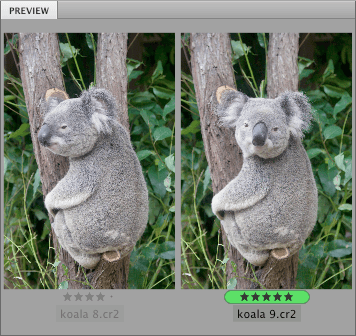
Hold down Shift and click on koala 8.cr2 to see both images side-by-side.
They are both somewhat similar shots, but let’s check out how they compare in regards to focus.
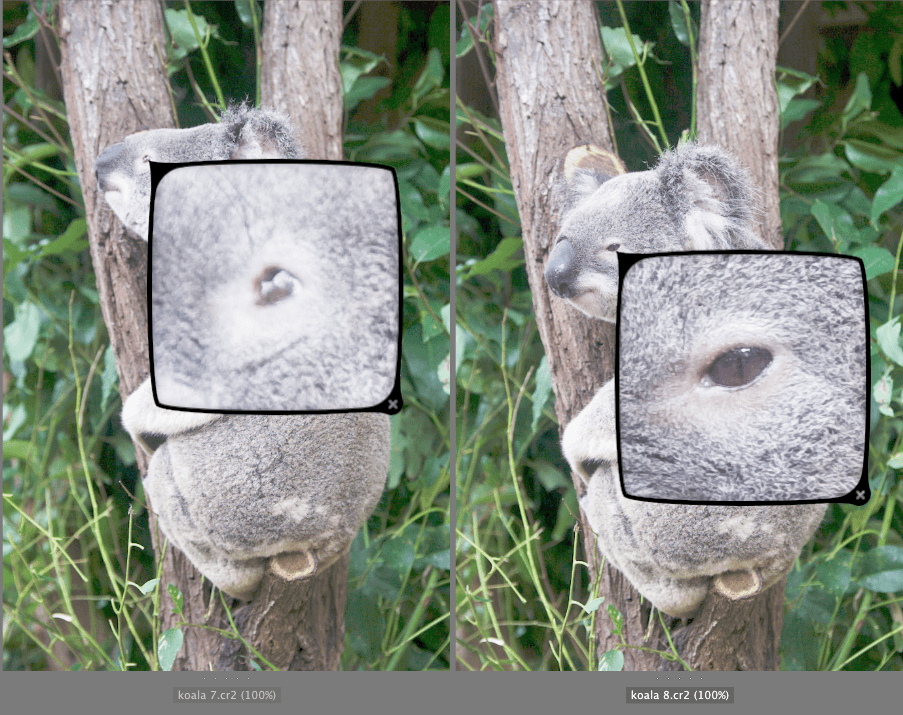
In the large preview of koala 7.cr2, click right on his eye. You’ll get a Loupe that zooms all the way in on the eye detail.
In the large preview of koala 8.cr2, click right on his eye. You should now have a Loupe for each of the koala’s eyes. Notice that koala 8.cr2 is more in focus.
Click once on the thumbnail of koala 8.cr2 so it is the only one selected. Do NOT double–click on it, as that will open it in Photoshop.
Click anywhere on the loupe again to close it.
You can rate images from 0–5 stars, with 5 stars being the best. Press Cmd–4 (Mac) or CTRL–4 (Windows) to assign it the second-highest rating of 4 stars.
If you get a message about “Labels and Rating are stored in XMP files…” check Don’t show again and click OK.
Go to Window > Workspace > Essentials.
Click once on koala 3.cr2.
Press Cmd–4 (Mac) or CTRL–4 (Windows) to give it a 4-star rating.
Select koala 9.cr2.
Press Cmd–5 (Mac) or CTRL–5 (Windows) to assign it the highest rating of 5 stars.
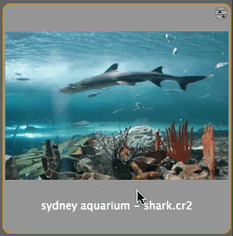
Select sydney aquarium—shark.cr2.
A different way to rate images is using the dots under the thumbnail. In the Content panel, click the rightmost dot below the thumbnail to give it a 5 star rating (as shown below). Keep in mind that these dots aren’t displayed when thumbnails are too small. Also, the dots shown in the Preview panel are for display only and can’t be used to set ratings.
Using whichever method you like, assign the following rating to these images:
sydney aquarium.cr2: 4 stars sydney cityscape.cr2: 5 stars sydney opera house—front.cr2: 3 stars sydney opera house—side.cr2: 5 stars sydney street performers.cr2: 4 stars With the ranking complete, let’s hide the images we’re not interested in. On the left of the window, in the Filter panel under the Ratings section, Shift–click on the 3 stars to only show images with 3 or more stars.
