April 1, 2026Noble Desktop Publishing Team/4 min read

Setting Up a WordPress Site

Complete Guide to Local WordPress Development Setup

WordPress Setup Components

Local Server Environment

MAMP for Mac or XAMPP for Windows provides Apache and MySQL services needed to run WordPress locally.

Database Management

phpMyAdmin interface allows you to create and manage MySQL databases for your WordPress installations.

WordPress Core Files

WordPress.org provides the latest version of core files that power your content management system.

Topics Covered in This WordPress Tutorial:

Creating a Database, Installing WordPress.org Files

Exercise Preview

ex prev 2A

Exercise Overview

WordPress has evolved far beyond its blogging roots to become the web's most powerful and flexible Content Management System (CMS). In this exercise, we'll harness that power to build a fully dynamic website with both static pages and blog functionality. This approach gives you complete editorial control over every aspect of your site while maintaining the robust content management capabilities that have made WordPress the platform of choice for over 40% of all websites worldwide. Before we can begin crafting our site, we need to establish the foundational database that will store all of our content, user data, and configuration settings.

  1. To set up a database, start your server and open phpMyAdmin, as shown below:
WordPress as CMS

Beyond blogging, WordPress serves as a full-fledged Content Management System for creating dynamic, editable websites with pages and blog functionality.

Mac

  1. Open MAMP (Hard Drive > Applications > MAMP > MAMP.app).
  2. The servers should start automatically. If not, click Start Servers.
  3. If the MAMP start page does not open automatically, click the Open WebStart page button.
  4. On the start page, in the nav menu, go to Tools > phpMyAdmin.
  5. Click the Databases tab at the top.
  6. In the Create database field, enter: mrp
  7. Click the Create button.

Mac Database Setup Process

1

Launch MAMP

Open MAMP application from Hard Drive > Applications > MAMP > MAMP.app and start servers

2

Access phpMyAdmin

Navigate to Tools > phpMyAdmin from the MAMP start page navigation menu

3

Create Database

Click Databases tab, enter 'mrp' in Create database field, and click Create button

Windows

  1. If XAMPP is not already running, navigate to C:/xampp, then double–click xampp-control.exe and start the Apache and MySQL services.
  2. Open your browser and go to localhost
  3. On the start page, in the Tools section, click phpMyAdmin.
  4. Click the Databases tab at the top.
  5. In the Create database field, enter: mrp
  6. Click the Create button.

Windows Database Setup Process

1

Start XAMPP Services

Navigate to C:/xampp, run xampp-control.exe, and start Apache and MySQL services

2

Open phpMyAdmin

Go to localhost in browser, then click phpMyAdmin in the Tools section

3

Create Database

Click Databases tab, enter 'mrp' in Create database field, and click Create button

Installing WordPress

With our database foundation in place, we're ready to deploy the WordPress core files. While we've provided a specific WordPress version for this tutorial to ensure consistency across all learners, it's worth noting that in professional environments, you should always download the latest stable release from WordPress.org. WordPress releases security updates and feature enhancements regularly, and staying current is crucial for both functionality and security. The installation process we're about to complete mirrors exactly what you'd do when launching a live site, making this exercise invaluable real-world preparation.

  1. Navigate to the Desktop, go into the Class Files folder, then the WordPress.org Class folder.

  2. Select the WordPress-4.1 folder and hit Cmd–C (Mac) or CTRL–C (Windows).

  3. Go to the htdocs folder:
    • Mac: Hard Drive > Applications > MAMP > htdocs
    • Windows: C: > xampp > htdocs
  4. Hit Cmd–V (Mac) or CTRL–V (Windows) to paste the WordPress-4.1 folder.

  5. Rename the new pasted folder mrp

File Installation Paths

FeatureMacWindows
Source LocationDesktop/Class Files/WordPress.org ClassDesktop/Class Files/WordPress.org Class
Destination PathHard Drive/Applications/MAMP/htdocsC:/xampp/htdocs
Final Folder Namemrpmrp
Recommended: Copy WordPress-4.1 folder to htdocs directory and rename to 'mrp' for both platforms
WordPress Version Best Practice

Always download the latest WordPress version from WordPress.org for production projects to ensure security and feature updates.

Creating a Wp-config.php File

Now comes the critical step of connecting WordPress to our database through the wp-config.php file. This configuration file serves as the bridge between your WordPress installation and your MySQL database, containing essential connection parameters and security keys. Think of it as WordPress's passport—without it, the system cannot access the data it needs to function. The setup wizard we're about to use will generate this file automatically, but understanding these database credentials is essential for troubleshooting and future site management.

  1. Open your favorite browser and go to:
    • Mac: localhost:8888/mrp
    • Windows: localhost/mrp
  2. English (United States) should be selected, so click Continue.

  3. Click the Let's go! button at the bottom of the page.

  4. Enter the following database information:

    Mac
    Database Name: mrp
    User Name: root
    Password: root
    Database Host: localhost
    Table Prefix: wp_
    Windows
    Database Name: mrp
    User Name: root
    Password: (leave blank for local install)
    Database Host: localhost
    Table Prefix: wp_

    NOTE: These credentials are specific to your local development environment. In production environments, your hosting provider will supply unique database credentials that differ significantly from these default local settings for security purposes.

  5. Click Submit.

  6. Click Run the install.

  7. For Site Title, enter: Monteith Restoration & Performance

  8. For Username, enter: mrpAdmin

  9. For Password, enter and re-enter: student

  10. For Your Email, enter an email address that can be accessed for the remainder of the class. Make sure to double-check the address before submitting the form.

  11. Uncheck Allow search engines to index this site.

  12. Click the Install WordPress button.

  13. Click the Log In button.

  14. For Username, enter: mrpAdmin

  15. For Password, enter: student

  16. Click Log in.

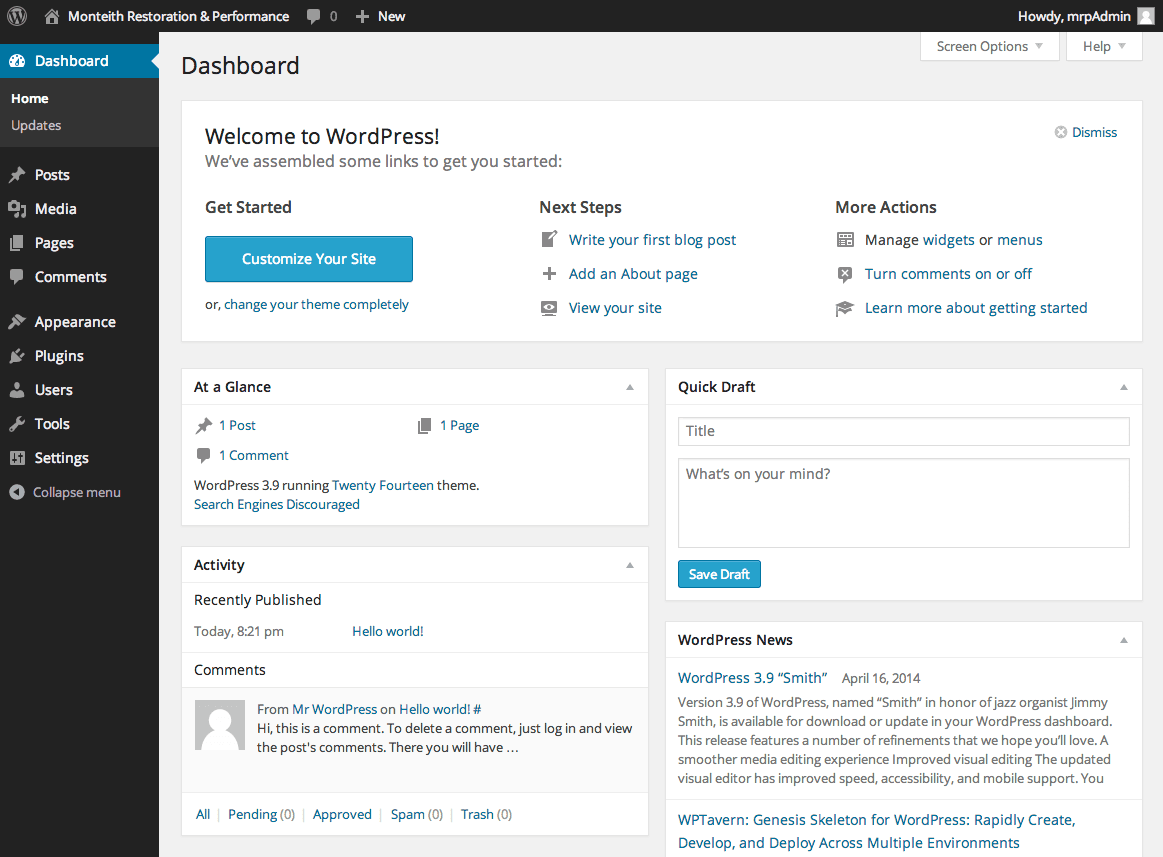
    Congratulations! You've successfully installed WordPress and will now be taken to the Dashboard of Monteith Restoration & Performance. This administrative interface is your command center for managing content, customizing appearance, installing plugins, and monitoring site performance. Take a moment to familiarize yourself with the navigation structure—this Dashboard will become your primary workspace as we build out the full functionality of your new WordPress-powered website.

Database Configuration by Platform

FeatureMac (MAMP)Windows (XAMPP)
Access URLlocalhost:8888/mrplocalhost/mrp
Usernamerootroot
Passwordrootleave blank
Database Hostlocalhostlocalhost
Recommended: Platform-specific credentials are required for proper database connection

WordPress Installation Checklist

0/6
Email Address Verification

Double-check your email address during setup as it will be used for password resets and administrative notifications throughout the class.

Key Takeaways

1WordPress functions as both a blogging platform and a full Content Management System for dynamic website creation
2Local development requires server software: MAMP for Mac users and XAMPP for Windows users to run Apache and MySQL
3Database creation through phpMyAdmin is essential before WordPress installation, requiring platform-specific access methods
4WordPress core files must be downloaded from WordPress.org and placed in the htdocs directory of your local server
5Database configuration differs between platforms: Mac MAMP uses root/root credentials while Windows XAMPP uses root with blank password
6Proper WordPress setup includes site configuration, admin account creation, and disabling search engine indexing for development
7Always verify email addresses during installation as they're crucial for administrative functions and password recovery
8The wp-config.php file creation process guides you through essential database connection and site configuration steps

RELATED ARTICLES