April 1, 2026Noble Desktop Publishing Team/8 min read

Creating Pages: Free WordPress Tutorial

Master WordPress Page Creation with Template Development

WordPress Template System Essentials

page.php Template

WordPress automatically uses page.php as the template for all static pages. This reserved filename ensures consistent page rendering across your site.

Dynamic Content Functions

Functions like the_title() and the_content() pull content from the WordPress database, making templates flexible and reusable.

Theme Integration

Pages integrate with your theme's header, sidebar, and footer components using get_header(), get_sidebar(), and get_footer() functions.

Topics Covered in This WordPress Tutorial:

Creating custom page templates, implementing dynamic titles, adding and managing pages, configuring site navigation structure, and optimizing media integration

Exercise Preview

ex prev 3C

Exercise Overview

With your blog functionality complete, you're ready to build the cornerstone of any professional WordPress site: custom page templates. Unlike blog posts that display chronologically, WordPress pages serve as static content repositories—your About Us, Services, and Contact information that forms your site's foundation. WordPress uses a hierarchical template system where page.php serves as the default template for all static pages. When WordPress encounters a page request, it automatically searches for and applies this template, giving you precise control over how your static content appears to visitors.

Page Template Development Process

1

Create Template File

Duplicate single.php and save as page.php to establish the page template foundation

2

Customize Template Structure

Remove blog-specific elements like comments and post metadata while keeping core content functions

3

Add Dynamic Elements

Insert page title functionality using the_title() function for dynamic content display

4

Test and Validate

Preview the template using Sample Page to ensure proper rendering and functionality

If You Did Not Complete the Previous Exercise

  1. Navigate to your local WordPress admin panel at localhost:8888/mrp/wp-admin (Mac) or localhost/mrp/wp-admin (Windows) and authenticate if prompted.
  2. In the Dashboard sidebar, hover over Appearance and select Themes.
  3. Click the Add New button to access the theme installer.
  4. Select the Upload option, then click Browse (or Choose File).
  5. Navigate to Desktop > Class Files > WordPress.org Class and select mrpTheme-ready-for-pages.zip.
  6. Click Install Now, then Activate to implement the theme.

Creating the Page.php Template

The most efficient approach to creating page.php is duplicating your existing single.php template and modifying it for static content. This ensures visual consistency across your site while tailoring functionality for different content types.

  1. Open single.php in your preferred code editor if it's not already accessible.

  2. Save this file as page.php in your mrpTheme directory:
    • Mac: Hard Drive > Applications > MAMP > htdocs > mrp > wp-content > themes
    • Windows: C: > xampp > htdocs > mrp > wp-content > themes
  3. Static pages don't require blog-specific elements like publication dates, author information, or comment sections. Remove the <h2> title, time & tags paragraph, and the comments div, leaving only the essential content loop:

    <?php get_header(); ?>
       <div id="primary">
          <?php if ( have_posts() ) : while ( have_posts() ) : the_post(); ?>
             <?php the_content(); ?>
          <?php endwhile; ?>
          <?php endif; ?>
       </div><!—end primary—>
       <?php get_sidebar(); ?>
    <?php get_footer(); ?>
  4. Add a dynamic page title using WordPress's built-in function. Insert this <h1> element above your content loop on line 2:

    <?php get_header(); ?>
       <h1><?php the_title(); ?></h1>
       <div id="primary">
  5. Save your changes to preserve the template.

  6. Test your new template by navigating to your local site:
    • Mac: localhost:8888/mrp
    • Windows: localhost/mrp
  7. Click the Sample Page link to verify that your page.php template renders correctly.

Building Your Site's Page Structure

Now you'll replace the default WordPress content with your custom pages, creating a professional site architecture that serves your business goals.

  1. Access your WordPress Dashboard:
    • Mac: localhost:8888/mrp/wp-admin
    • Windows: localhost/mrp/wp-admin
  2. Authenticate if required.

  3. Remove the default placeholder content by clicking Pages in the sidebar.

  4. Hover over Sample Page to reveal management options, then click Trash to remove it.

  5. Begin creating your professional page structure by clicking Add New at the top of the page.

  6. Switch to the Text tab in the editor's top-right corner for direct HTML input.

  7. Enter your homepage title: Welcome to MRP

  8. Return to your code editor to access the pre-built content files.

  9. Open content-index.html from your mrpTheme folder.

  10. Select all content using Cmd–A (Mac) or CTRL–A (Windows).

  11. Copy the selected content with Cmd–C (Mac) or CTRL–C (Windows).

  12. Close the content file.

  13. Return to your WordPress admin window.

  14. Paste the content using Cmd–V (Mac) or CTRL–V (Windows) into the main content area.

  15. Click Publish to make the page live.

  16. Create your contact page by clicking Add New again.

  17. Title this page: Contact

  18. Switch to your code editor and open content-contact.html.

  19. Select and copy all content.

  20. Close the content file and return to WordPress.

  21. Paste the contact content into the editor.

  22. Click Publish to save the contact page.

  23. Create your blog landing page by clicking Add New once more.

  24. Title this page: Latest News

  25. Leave the content area empty—WordPress will automatically populate this with your blog posts once configured.

  26. Click Publish to complete your basic page structure.

Configuring Your Site's Homepage and Navigation

WordPress offers flexible options for your homepage display. You'll configure it to show your welcome page as the front page while directing blog content to your Latest News page—a common professional site structure.

  1. Navigate to your reading settings by hovering over Settings in the sidebar and clicking Reading.

  2. Under Front page displays, select A static page and configure the following:

    Front page: Welcome to MRP
    Post page: Latest News
  3. Click Save Changes to implement your new site structure.

  4. Test your changes by clicking the Monteith Restoration & Performance site title at the top of the admin panel.

  5. You should now see your Welcome page as the homepage. Click Latest News to view your blog posts—but you'll notice the page title displays incorrectly.

  6. This requires a quick template adjustment. Return to your code editor and open index.php.

  7. Replace the static title around line 2 with a dynamic WordPress function:

    <?php get_header(); ?>
       <h1><?php the_title(); ?></h1>
       <div id="primary">
  8. Save the file and test in your browser again.

  9. Navigate back to your homepage:
    • Mac: localhost:8888/mrp
    • Windows: localhost/mrp
  10. Click Latest News again. The title now shows the most recent post title instead of the page name—this needs refinement.

  11. Return to your code editor and modify the title function to use WordPress's page-specific title function:

    <?php get_header(); ?>
       <h1><?php wp_title(''); ?></h1>
       <div id="primary">

    NOTE: The wp_title() function retrieves the appropriate page title contextually. The empty quotes prevent WordPress from adding its default separator prefix.

  12. Save your changes.

  13. Test the final result in your browser:
    • Mac: localhost:8888/mrp
    • Windows: localhost/mrp
  14. Navigate to Latest News—the title should now display correctly.

Professional Image Integration

Adding images to your pages enhances visual appeal and user engagement. WordPress includes a robust media management system that handles image optimization, responsive sizing, and accessibility features automatically.

  1. Access your page editor by navigating to your WordPress admin:
    • Mac: localhost:8888/mrp/wp-admin
    • Windows: localhost/mrp/wp-admin
  2. Authenticate if necessary.

  3. Click Pages in the sidebar to view your page list.

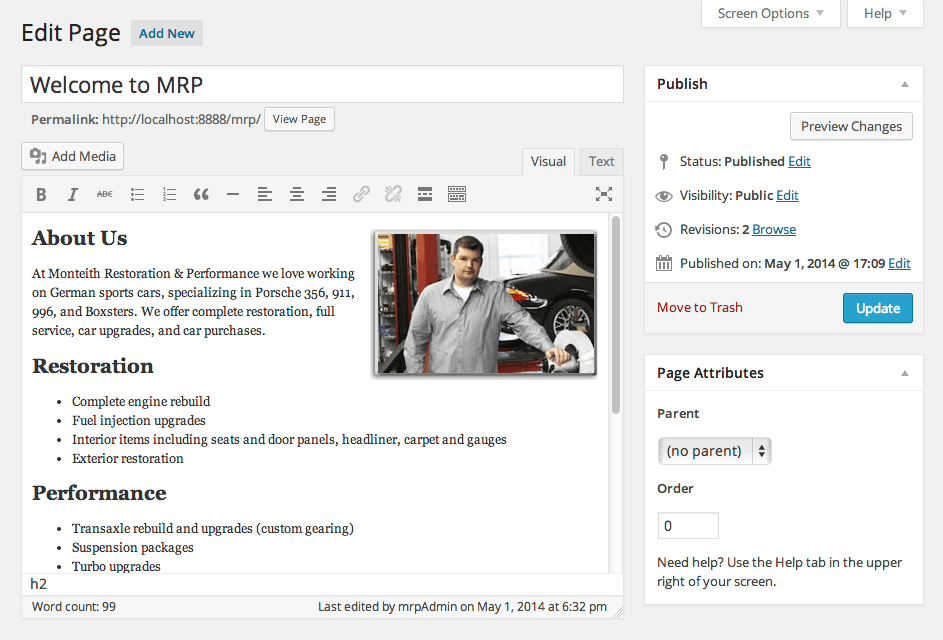
  4. Select the Welcome to MRP page to edit it.

  5. Switch to the Visual tab for WYSIWYG editing.

  6. Position your cursor at the beginning of the About Us heading where you want the image to appear.

  7. Click the Add Media button to access WordPress's media uploader.

    add media

  8. In the Upload Files section, click Select Files and navigate to your image directory:
    • Mac: Hard Drive > Applications > MAMP > htdocs > mrp > wp-content > themes > mrpTheme > img
    • Windows: C: > xampp > htdocs > mrp > wp-content > themes > mrpTheme > img
  9. Select and upload get-to-know-us.jpg.

  10. After the upload completes, add accessibility information by typing Get to know us in the ALT Text field—this improves SEO and accessibility for screen readers.

  11. Configure your image display settings:

    Alignment: Right
    Link To: None
    Size: Full Size
  12. Click Insert into page to add the image to your content.

  13. Save your changes by clicking Update.

  14. Preview your changes by clicking the Monteith Restoration & Performance title to view the live site.

    You'll notice the image appears but doesn't float right as expected. WordPress applies CSS classes (.alignright, .alignleft) to positioned images, but your theme needs corresponding styles to make this work.

  15. Return to your code editor and open style.css.

  16. Locate the existing .imgRight and .imgLeft classes around line 426 (above the comments and #postsNavLink styles).

  17. Rename these classes to match WordPress's naming convention: change .imgRight to .alignright and .imgLeft to .alignleft.

  18. Save your CSS file to apply the changes.

  19. Refresh your homepage to see the properly aligned image:
    • Mac: localhost:8888/mrp
    • Windows: localhost/mrp

    The image should now float correctly to the right of your content.

Bonus: Completing Your Professional Site Architecture

To create a comprehensive business website, you'll add the remaining essential pages using the same systematic approach. These additional pages—About Us, Facilities, and Services—form the core of most professional websites and help establish credibility with potential clients.

  1. Navigate to your WordPress admin panel:
    • Mac: localhost:8888/mrp/wp-admin
    • Windows: localhost/mrp/wp-admin
  2. Authenticate if prompted.

  3. Hover over Pages in the sidebar and select Add New.

  4. Create your About Us page by entering the title: About Us

  5. Switch to your code editor and open content-about.html from the mrpTheme folder.

  6. Select all content using Cmd–A (Mac) or CTRL–A (Windows).

  7. Copy the content with Cmd–C (Mac) or CTRL–C (Windows).

  8. Close the file and return to the WordPress admin.

  9. Click the Text tab in the editor for direct HTML input.

  10. Paste the content using Cmd–V (Mac) or CTRL–V (Windows).

  11. Click Publish to create the About Us page.

  12. Repeat this process for your Facilities page: click Add New at the top.

  13. Title this page: Facilities

  14. Open content-facilities.html in your code editor.

  15. Select, copy, and close the file.

  16. Return to WordPress and paste the content into the Text editor.

  17. Click Publish to save the Facilities page.

  18. Create your final page by clicking Add New.

  19. Title this page: Services

  20. Open content-services.html in your code editor.

  21. Select all content and copy it.

  22. Close the file and return to the WordPress admin.

  23. Paste the content into your page editor.

  24. Click Publish to complete your site's page structure.

  25. Test your completed website by clicking the Monteith Restoration & Performance title.

  26. Navigate through all your pages using the navigation bar to ensure everything functions correctly and maintains visual consistency.

Key Takeaways

1WordPress uses page.php as the reserved template filename for all static pages, automatically applying this template when it exists in your theme
2Creating page templates by duplicating existing templates like single.php ensures structural consistency while allowing for page-specific customizations
3WordPress functions like the_title() and the_content() enable dynamic content display that pulls information from the database rather than hard-coded HTML
4Static front pages provide better control over user experience and messaging compared to dynamic post displays, making them ideal for business websites
5WordPress automatically applies CSS classes like .alignright and .alignleft to images, requiring corresponding styles in your theme's CSS file
6The wp_title() function offers more flexibility than the_title() for blog pages, but requires parameter configuration to control default formatting
7WordPress Dashboard provides a complete content management system for creating, editing, and organizing pages without direct file manipulation
8Importing content from HTML files through the Text tab maintains design consistency while leveraging WordPress's content management capabilities

RELATED ARTICLES