April 1, 2026Noble Desktop Publishing Team/8 min read

Optimizing with Plugins

Essential WordPress plugins for optimization and performance

WordPress Plugin Ecosystem

12,000+
plugins available in WordPress repository
4
must-have plugins for any site

Topics Covered in This WordPress Tutorial:

Akismet, WordPress SEO by Yoast, Google XML Sitemaps, QuickCache

Plugin Categories Covered

Spam Protection

Akismet filters and blocks spam comments automatically. Comes pre-installed with WordPress but requires activation and API key setup.

Search Engine Optimization

WordPress SEO by Yoast optimizes your site for search engines with automated titles, meta tags, and canonical URLs.

Site Performance

Google XML Sitemaps and Quick Cache improve site indexing and loading speeds for better user experience.

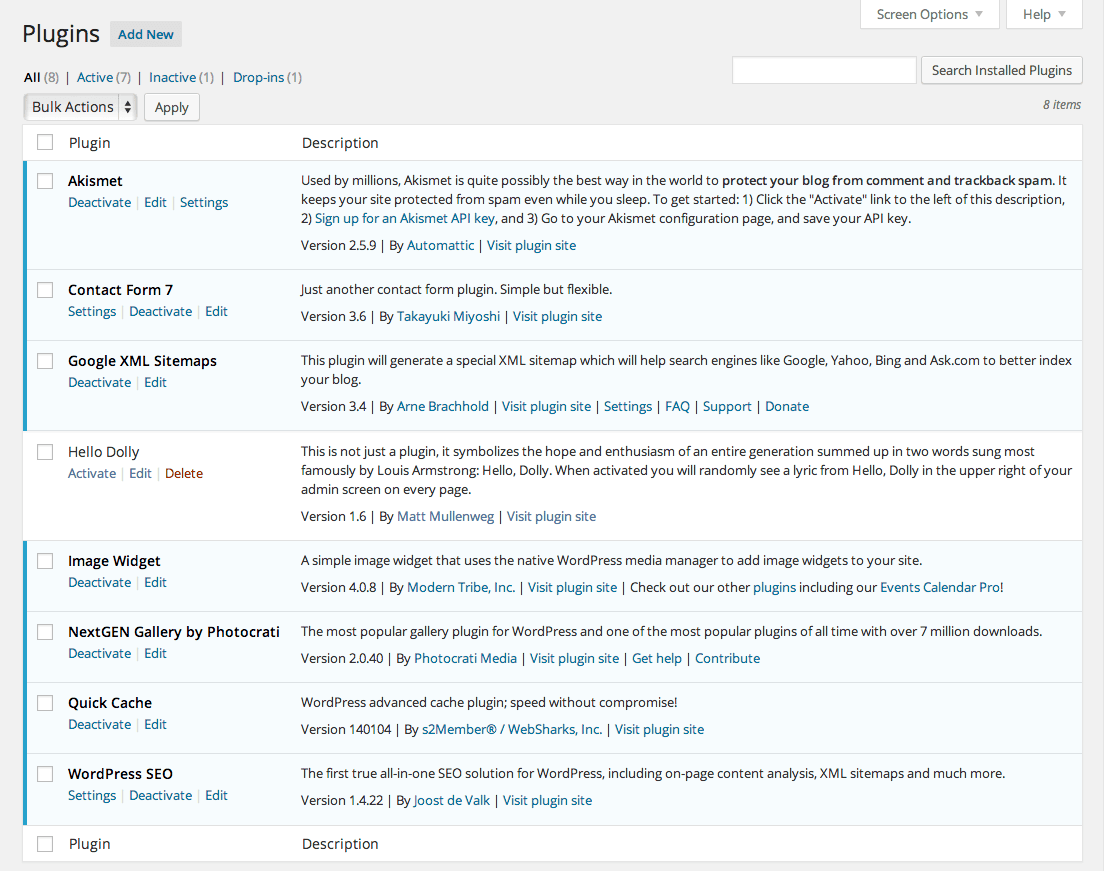
Exercise Preview

plugin page

Exercise Overview

With over 60,000 plugins now available in the WordPress repository, choosing the right ones can feel overwhelming. However, four plugins remain fundamental to any professional WordPress installation: Akismet, WordPress SEO by Yoast, Google XML Sitemaps, and QuickCache. These battle-tested tools form the foundation of a secure, search-optimized, high-performing website by blocking spam, enhancing SEO visibility, and accelerating page load times.

In this hands-on exercise, you'll learn to install and configure each plugin strategically, understanding not just the "how" but the "why" behind each configuration choice. This knowledge will serve you whether you're managing a single business site or overseeing multiple client installations.

Local vs Production Setup

This exercise uses local server setup for practice. In real projects, install these plugins on your remote production server for live site optimization.

Akismet

Akismet comes pre-installed with every WordPress installation—a testament to its critical importance. This plugin uses machine learning algorithms to analyze millions of spam attempts daily, providing your site with enterprise-level protection that improves over time. The setup process creates a direct connection between your site and Automattic's spam-fighting infrastructure.

Please note that for this exercise we will continue to work on our local server. In a real-world deployment, you should install these plugins on your production server.

  1. Navigate to your local WordPress admin:
    • Mac: localhost:8888/mrp/wp-admin
    • Windows: localhost/mrp/wp-admin
  2. Log in using your administrator credentials.

  3. In the left sidebar, click Plugins to access your plugin management area.

  4. Locate Akismet in your plugin list and click Activate.

  5. WordPress will display a notification banner at the top of your screen. Click the prominent Activate your Akismet account button to begin the API key registration process.

  6. Click Get your API key to proceed to the Akismet website.

  7. Click the large Get an Akismet API Key button to access the registration options.

  8. If you don't have a WordPress.com account, complete the registration form. If you already have an account, click I already have a WordPress.com account! to streamline the process.

  9. Sign in to your WordPress.com account. If prompted by a security dialog, click Authorize to grant the necessary permissions.

  10. On the pricing page, under the Personal plan section, click Sign Up.

  11. Under WHAT IS AKISMET WORTH TO YOU? adjust the price slider to $0 for personal use. Note that commercial sites require a paid license.

  12. Complete any required contact information fields.

  13. Click Continue to generate your unique API key.

    Your Akismet API key will appear on the confirmation page. This key creates a secure connection between your site and Akismet's spam detection servers.

  14. Select and highlight the entire API key.

  15. Copy the key using Cmd–C (Mac) or CTRL–C (Windows).

  16. Return to your WordPress admin panel:
    • Mac: localhost:8888/mrp/wp-admin
    • Windows: localhost/mrp/wp-admin
  17. In the left sidebar, navigate to Settings > Akismet.

  18. In the text field labeled Manually enter an API key, paste your API key using Cmd–V (Mac) or CTRL–V (Windows).

  19. Click Use this key to validate and save your API key.

  20. Click Save Changes to complete the configuration.

    Excellent! Your site now benefits from Akismet's sophisticated spam protection algorithms. If any spam does slip through initially, mark it as spam to help train the system for even better future protection. This feedback loop is what makes Akismet increasingly effective over time.

    NOTE: While the personal plan allows $0 payment, consider supporting the developers who maintain this essential service—even a few dollars monthly helps sustain the platform. Commercial websites must purchase a paid license to comply with terms of service. Visit the Akismet website for current commercial pricing and licensing details.

With spam protection secured, let's turn our attention to search engine optimization—the key to making your content discoverable.

Akismet Setup Process

1

Activate Plugin

Navigate to Plugins section in WordPress admin and click Activate under Akismet since it comes pre-installed

2

Get API Key

Click the activation button, create or sign into WordPress.com account, and generate your free API key

3

Configure Settings

Enter the API key in Settings > Akismet and save changes to enable spam protection

Commercial Use Requirement

While personal use can be free, commercial sites require a paid Akismet license. Consider supporting the developers even for personal use.

WordPress SEO by Yoast

Yoast SEO transforms WordPress into a search engine optimization powerhouse. Beyond generating essential meta tags and canonical URLs, it provides real-time content analysis, readability scoring, and schema markup—features that can significantly impact your search rankings. The plugin's traffic light system makes complex SEO principles accessible to users at any skill level.

  1. In the left sidebar, navigate to Plugins > Add New.

  2. In the search field, type yoast and press Return (Mac) or Enter (Windows).

  3. Locate WordPress SEO by Yoast in the search results and click Install Now.

  4. If WordPress requests confirmation, click OK to proceed with the installation.

  5. Once installation completes, click Activate Plugin to enable the functionality.

  6. If prompted about anonymous usage statistics, click Do not allow tracking to maintain privacy.

  7. Notice that an SEO section has been added to your WordPress dashboard navigation—this is your command center for all optimization activities.

  8. Hover over SEO in the sidebar and select Titles & Metas.

  9. If an introductory dialog appears, click Close to dismiss it.

  10. To optimize your homepage's search appearance, click the Home tab at the top of the configuration area.

  11. Click the editing the front page itself >> link to access homepage-specific settings.

  12. Scroll down to locate the WordPress SEO by Yoast module.

  13. In the SEO Title field, enter: Monteith Restoration & Performance

  14. CTRL–click (Mac) or Right–click (Windows) on the Monteith Restoration & Performance link in the top navigation and select Open Link in New Tab (or Window).

  15. Switch to the MRP preview page. In the main content area, select all text under the About Us heading.

  16. Copy the selected text using Cmd–C (Mac) or CTRL–C (Windows).

  17. Return to the WordPress admin tab with the WordPress SEO by Yoast module visible.

  18. Click in the Meta description text area.

  19. Paste the copied text using Cmd–V (Mac) or CTRL–V (Windows).

    This customized meta description will appear in search engine results for your homepage, giving potential visitors a compelling preview of what your site offers. A well-crafted meta description can significantly improve your click-through rates from search results.

  20. In the Publish module (top right), click Update to save your changes.

  21. Navigate back to the MRP homepage and refresh the page.

    If you view the page source code, you'll see that Yoast has automatically generated the proper meta description tag with your custom content. This is just one example of how the plugin works behind the scenes to optimize your site's technical SEO.

  22. Yoast SEO offers extensive customization options for advanced users, including XML sitemap generation, social media integration, and schema markup. Take time to explore these features as your SEO knowledge grows.

Now that your content is optimized for search engines, let's ensure those search engines can efficiently crawl and index your site structure.

Yoast SEO Configuration

0/4

Google XML Sitemaps

An XML sitemap serves as a roadmap for search engine crawlers, providing a structured overview of your site's content hierarchy. This is particularly valuable for new sites, sites with complex navigation, or content that might not be easily discoverable through internal linking. Modern search engines use sitemaps to prioritize crawling and understand content relationships.

  1. In the WordPress dashboard, navigate to Plugins > Add New.

  2. Click the Popular tab at the top. Google XML Sitemaps typically appears among the most-installed plugins, reflecting its universal importance.

  3. Click Install Now next to the Google XML Sitemaps plugin. Confirm installation by clicking OK if prompted.

  4. Once installation completes, click Activate Plugin.

    That's it! The plugin automatically generates a comprehensive sitemap.xml file at your site's root directory. This sitemap updates automatically whenever you publish new content, ensuring search engines always have access to your latest pages and posts.

With your site now discoverable and well-structured for search engines, the final step is ensuring it loads quickly for both users and crawlers.

Automatic Sitemap Generation

Once activated, this plugin automatically creates a sitemap.xml file that helps search engine crawlers quickly index your entire site structure.

Quick Cache

Website performance directly impacts user experience, search rankings, and conversion rates. Quick Cache addresses performance bottlenecks by storing static versions of your dynamic WordPress pages, dramatically reducing server processing time and database queries. In an era where page speed is a critical ranking factor, caching is no longer optional—it's essential.

  1. Navigate to Plugins > Add New in the left sidebar.

  2. In the search field, enter quick cache and press Return (Mac) or Enter (Windows).

    Look for Quick Cache (Speed Without Compromise) by WebSharks Inc. in the search results—this plugin is renowned for its simplicity and effectiveness.

  3. Click Install Now, then OK if WordPress requests confirmation.

  4. After installation completes, click Activate Plugin.

  5. You'll notice a new Quick Cache section in the left sidebar. Click it to access the configuration options.

  6. Under the Enable/Disable section, click the prominent Yes, enable Quick Cache! button to activate caching.

  7. Scroll to the bottom of the configuration page and click Save All Changes to apply your settings.

    Perfect! Your WordPress site now serves cached versions of pages to visitors, resulting in faster load times and improved server performance. The plugin works invisibly in the background, automatically clearing cache when you update content.

Congratulations! You've successfully implemented the four cornerstone plugins that form the foundation of any professional WordPress installation. Your site now benefits from comprehensive spam protection, search engine optimization, efficient crawling support, and performance enhancement. These tools work synergistically to create a robust, fast, and discoverable web presence that serves both your visitors and your business objectives effectively.

Caching Benefits and Considerations

Pros
Significantly improves site loading speed
Reduces database queries and server load
Simple one-click activation process
No complex configuration required
Cons
May cause issues with dynamic content
Requires monitoring for compatibility problems
Cache clearing needed after major updates

Quick Cache Setup

1

Install Plugin

Search for 'quick cache' and install Quick Cache (Speed Without Compromise) by WebSharks Inc

2

Enable Caching

Navigate to Quick Cache settings and click the big enable button

3

Save Configuration

Scroll down and click Save All Changes to activate the caching system

Key Takeaways

1Four essential WordPress plugins provide comprehensive site optimization: Akismet for spam protection, Yoast SEO for search optimization, Google XML Sitemaps for indexing, and Quick Cache for performance
2Akismet comes pre-installed with WordPress but requires a free WordPress.com account and API key activation to function properly
3Commercial websites must purchase paid Akismet licenses while personal sites can use the free version with optional donations
4WordPress SEO by Yoast automatically generates optimized titles, meta descriptions, and canonical URLs while allowing manual customization for specific pages
5Google XML Sitemaps plugin works automatically once activated, creating essential sitemap.xml files that help search engines index your site efficiently
6Quick Cache plugin provides significant performance improvements through simple one-click activation without requiring complex configuration
7Local development servers are ideal for learning plugin installation and configuration before implementing changes on live production sites
8These four plugins address the most critical aspects of WordPress site management: security, SEO optimization, search engine accessibility, and performance enhancement

RELATED ARTICLES