April 1, 2026Noble Desktop Publishing Team/12 min read

Adding Custom Fields

Master WordPress custom fields with WYSIWYG editors

What You'll Build

Custom Page Templates

Create specialized templates with multiple content areas beyond the standard WordPress editor. Build flexible layouts for different page types.

WYSIWYG Custom Fields

Implement user-friendly editors for custom content areas using Advanced Custom Fields plugin. Enable client-friendly content management.

Dynamic Content Areas

Set up left and right column custom fields that display dynamically based on page template selection and custom field values.

Topics Covered in This WordPress Tutorial:

Adding Custom Fields, Installing a WYSIWYG Editor Plugin

Exercise Preview

ex prev B5

Exercise Overview

WordPress's default content structure—a title and main content area—works well for basic pages, but modern websites often demand more flexible layouts. Consider a services page that needs distinct sections for main content, testimonials, and call-to-action areas, each editable independently. This is where custom fields become invaluable, allowing you to create multiple content zones that clients can manage without touching code.

In this comprehensive exercise, we'll build a practical example using a classic car restoration site. You'll learn to implement custom fields that create a three-section layout: main content plus two customizable bottom columns. This pattern is widely used in professional WordPress development for landing pages, service descriptions, and portfolio showcases.

  1. We'll be working on a fresh WordPress installation to demonstrate custom fields from the ground up. Let's start by setting up a new database environment:
Beyond Standard Content Fields

WordPress pages typically only have a title and main content area. Custom fields allow you to create additional editable areas specific to each page, like bottom columns, sidebars, or specialized content sections.

Mac

  1. Launch MAMP by navigating to Hard Drive > Applications > MAMP > MAMP.app.
  2. The Apache and MySQL servers should start automatically. If they don't, click the Start Servers button.
  3. If the MAMP start page doesn't open automatically, click the Open WebStart page button in the MAMP interface.
  4. On the MAMP start page, navigate to Tools > phpMyAdmin in the top navigation menu.
  5. Click the Databases tab at the top of the phpMyAdmin interface.
  6. In the Create database field, enter: landm
  7. Click the Create button to establish your new database.

Windows

  1. If XAMPP isn't running, navigate to C:/xampp, then double-click xampp-control.exe and start both the Apache and MySQL services.
  2. Open your preferred browser and navigate to localhost
  3. On the XAMPP start page, locate the Tools section and click phpMyAdmin.
  4. Click the Databases tab at the top of the interface.
  5. In the Create database field, enter: landm
  6. Click the Create button to establish your new database.

MAMP vs XAMPP Database Setup

FeatureMAMP (Mac)XAMPP (Windows)
Database Passwordrootleave blank
Usernamerootroot
Default Port888880
Access URLlocalhost:8888localhost
Recommended: Remember these credentials come from your local development environment, not hosting account settings.

Installing WordPress

Now we'll install a fresh WordPress instance that will serve as our development environment. This clean installation ensures we can focus entirely on custom field implementation without interference from existing content or configurations.

  1. Navigate to Desktop > Class Files > WordPress.org Class in your file system.

  2. Locate and select the WordPress-4.1 folder. (Note: While we're using WordPress 4.1 for this tutorial, the custom field techniques demonstrated here remain fully compatible with current WordPress versions through 2026.)

  3. Copy the folder using Cmd–C (Mac) or CTRL–C (Windows).

  4. Navigate to your local server's document root:
    • Mac: Hard Drive > Applications > MAMP > htdocs
    • Windows: C: > xampp > htdocs
  5. Paste the WordPress folder using Cmd–V (Mac) or CTRL–V (Windows).

  6. Rename the pasted WordPress-4.1 folder to landm to match our database name and maintain clear project organization.

Creating a wp-config.php File

WordPress requires database connection details to function. We'll configure these through WordPress's built-in setup wizard, which creates the essential wp-config.php file automatically.

  1. Open your browser and navigate to your new WordPress installation:
    • Mac: localhost:8888/landm
    • Windows: localhost/landm
  2. English (United States) should be pre-selected. Click Continue to proceed.

  3. Click the Let's go! button to begin the database configuration process.

  4. Enter the following database connection details based on your operating system:

    Mac Configuration:
    Database Name: landm
    User Name: root
    Password: root
    Database Host: localhost
    Table Prefix: wp_
    Windows Configuration:
    Database Name: landm
    User Name: root
    Password: (leave blank for local install)
    Database Host: localhost
    Table Prefix: wp_

    Important: These credentials are specific to local development environments. In production environments, you'll receive database credentials from your hosting provider, and they should always use strong, unique passwords.

  5. Click Submit to test the database connection.

  6. If the connection succeeds, click Run the install to proceed with WordPress installation.

  7. Complete the WordPress installation by filling out the site information:

    Site Title: L&M Classic Cars
    Username: landmAdmin
    Password: student
    Your Email: Enter your email address (double-check this before submitting, as WordPress uses it for important notifications).
  8. Uncheck Allow search engines to index this site to prevent this development site from appearing in search results.

  9. Click the Install WordPress button to complete the installation.

  10. Click the Log In button to access the admin area.

  11. Enter your credentials: Username: landmAdmin, Password: student

  12. Click Log in to access the WordPress Dashboard for your new L&M Classic Cars site.

WordPress Installation Process

1

Database Configuration

Enter database name 'landm' with appropriate credentials for your local environment (MAMP or XAMPP)

2

Site Setup

Configure site title as 'L&M Classic Cars' with admin username 'landmAdmin' and password 'student'

3

Search Engine Settings

Uncheck search engine indexing to prevent local development site from appearing in search results

Creating the Theme Folder

Rather than building a theme from scratch, we'll use a pre-built theme that demonstrates best practices for custom field integration. This theme incorporates the templating techniques covered throughout this course while focusing specifically on custom field implementation.

  1. Navigate to your class files: Desktop > Class Files > WordPress.org Class.

  2. Locate and select the landmTheme folder.

  3. Copy the folder using Cmd–C (Mac) or CTRL–C (Windows).

  4. Navigate to your WordPress theme directory:
    • Mac: Hard Drive > Applications > MAMP > htdocs > landm >
      wp-content > themes
    • Windows: C: > xampp > htdocs > landm > wp-content > themes
  5. Paste the landmTheme folder into the themes directory using Cmd–V (Mac) or CTRL–V (Windows). This folder contains both the functional PHP templates and the static HTML mockups that informed the design.

Activating the Theme

With our custom theme in place, we need to activate it through WordPress's admin interface. This theme includes multiple templates, including the custom "Bottom Columns" template we'll be working with.

  1. Access the WordPress admin by navigating to:
    • Mac: localhost:8888/landm/wp-admin
    • Windows: localhost/landm/wp-admin
  2. Log in using your credentials if prompted.

  3. In the WordPress Dashboard sidebar, hover over Appearance and click Themes.

  4. You should see the L and M Classic Cars (Ready for Custom Fields) theme listed among available themes.

  5. Click Activate beneath the theme thumbnail to make it your active theme.

  6. Click the L&M Classic Cars title at the top left to view your site's front end.

  7. Navigate to the Sample Page link in the sidebar. This is a default page WordPress created during installation. Notice it uses a standard single-column layout with one main content area. We'll create a more sophisticated template with multiple editable sections.

Template Hierarchy

WordPress themes can have multiple templates for different page types. The 'Bottom Columns' template we're using provides additional content areas beyond the standard page template.

Checking Out Our Custom Template

Our theme includes several templates to demonstrate different content approaches. The default template provides a standard single-column layout, while our custom "Bottom Columns" template will showcase how to implement multiple content areas using WordPress custom fields.

  1. Open your preferred code editor—we recommend a modern editor like Sublime Text, VS Code, or PHPStorm for WordPress development.

  2. For optimal workflow, open the entire landmTheme folder in your editor if it supports project-based editing. This allows you to easily navigate between template files.

  3. Open the bottom-columns.php file from your theme directory:
    • Mac: Hard Drive > Applications > MAMP > htdocs > landm >
      wp-content > themes > landmTheme
    • Windows: C: > xampp > htdocs > landm > wp-content > themes > landmTheme
  4. Examine the standard WordPress Loop structure currently in the template:

    <?php if (have_posts()) : while (have_posts()) : the_post(); ?>
       <div class="intro">
          <?php the_content('<p>Continue reading…</p>');?>
       </div>
    <?php endwhile; ?>
    <?php else: ?>
       <div class="box">
          <p>
             <?php _e('Sorry, no posts matched your criteria.'); ?>
          </p>
       </div>
    <?php endif; ?>

    This standard loop displays the main page content using the_content(), just like any typical WordPress template.

  5. Below the loop, notice the two placeholder divs that will house our custom field content:

    <div class="rightColumn">
       <!—right-column Content Here—>
    </div>
    <div class="leftColumn">
       <!—left-column Content Here—>
    </div>

    These divs represent our custom content areas. We'll populate them with dynamic content using WordPress's custom field functions, creating a flexible three-section layout that content managers can easily update.

Notice that below the loop are two divs: rightColumn and leftColumn. This is where our custom fields will go.
The template structure shows placeholder divs that will be populated with custom field content using WordPress functions.

Template Structure

Standard WordPress Loop

Displays the main page content using the_content() function within the traditional WordPress loop structure.

Custom Field Containers

Two additional div containers (rightColumn and leftColumn) ready to display custom field content dynamically.

Making a New Page

Let's create a services page that will demonstrate our custom field implementation. This page will showcase how custom fields enable rich, multi-section layouts while maintaining the ease-of-use that makes WordPress popular with content managers.

  1. Access the WordPress Dashboard:
    • Mac: localhost:8888/landm/wp-admin
    • Windows: localhost/landm/wp-admin
  2. Navigate to Pages > Add New to create a fresh page.

  3. Enter the title: Services & Restoration

  4. Click the Add Media button to enhance the page with a professional image.

  5. In the Upload Files tab, click Select Files to browse your computer.

  6. Navigate to Desktop > Class Files > WordPress.org Class > landm Content > images and select highlight-wes-in-shop.jpg.

  7. After the image uploads, add Wes Monteith as the ALT text—this improves accessibility and SEO.

  8. Configure the image display settings:

    Alignment: Left
    Link To: None
    Size: Full Size
  9. Click Insert into page to add the image to your content.

  10. Switch to your code editor to access the prepared content.

  11. Open the landm Content folder in your editor if possible, or navigate to Class Files > WordPress.org Class > landm Content.

  12. Open services.txt, which contains professionally written content for this page.

  13. Select and copy all the content, then close the file using Cmd–W (Mac) or CTRL–W (Windows).

  14. Return to the WordPress Dashboard and your new page.

  15. Click the Text tab to switch to HTML editing mode, as we're inserting formatted HTML content.

  16. Position your cursor after the image tag and create a new line.

  17. Paste the content into the page editor.

  18. In the Page Attributes section on the right, change the Template dropdown from "Default Template" to Bottom Columns. This tells WordPress to use our custom template with the placeholder areas for custom fields.

Adding Custom Fields

WordPress includes custom field functionality by default, but it's hidden to reduce interface complexity for basic users. We'll enable it to start adding our custom content areas.

  1. At the top right of the WordPress admin, click Screen Options to reveal hidden interface elements.

  2. Check the box next to Custom Fields to enable this feature.

  3. Click Screen Options again to collapse the menu.

    You'll now see a Custom Fields section at the bottom of the page editor. We'll create two custom fields to populate our template's additional content areas.

  4. In the Add New Custom Field section, create your first custom field:

    Name: right-column
    Value: this is some test content for the right column
  5. Click Add Custom Field to save this field.

  6. Create a second custom field:

    Name: left-column
    Value: this is some test content for the left column
  7. Click Add Custom Field to save this second field.

  8. Click Publish at the top right to save the page with its custom fields.

  9. Click View Page to see the current output. You'll notice that while the main content displays correctly, our custom fields don't appear yet. This is expected—we need to modify our template to retrieve and display this custom field data.

Custom Fields Setup

1

Enable Custom Fields

Access Screen Options and check 'Custom Fields' to reveal the custom fields interface at the bottom of the page editor

2

Add Field Pairs

Create 'right-column' and 'left-column' custom fields with test content to establish the field structure

3

Select Template

Choose 'Bottom Columns' template in Page Attributes to enable the custom field display functionality

Editing bottom-columns.php

Now we'll modify our template to retrieve and display the custom field content. WordPress provides the get_post_meta() function specifically for this purpose, allowing templates to access custom field data dynamically.

  1. Return to your code editor and open bottom-columns.php if it's not already open.

  2. Locate the rightColumn and leftColumn divs around line 22.

  3. Add the WordPress custom field functions to retrieve and display the content:

    <div class="rightColumn">
       <!—right-column Content Here—>
       <?php echo get_post_meta($post->ID, 'right-column', true) ?>
    </div>
    <div class="leftColumn">
       <!—left-column Content Here—>
       <?php echo get_post_meta($post->ID, 'left-column', true) ?>
    </div>

    The get_post_meta() function is WordPress's standard method for retrieving custom field data. It accepts three parameters:

    • Post ID: The ID of the page or post containing the custom field data
    • Field name: The exact name of the custom field to retrieve
    • Single value: When set to true, returns a string; when false, returns an array. We want simple string output for direct display.
  4. These divs need to be inside the WordPress Loop to access the post data. Cut both div sections.

  5. Paste them inside the loop, just before the <?php endwhile; ?> tag around line 14:

    <?php if (have_posts()) : while (have_posts()) : the_post(); ?>
       <div class="intro">
          <?php the_content('<p>Continue reading…</p>');?>
       </div>
       <div class="rightColumn">
          <!—right-column Content Here—>
          <?php echo get_post_meta($post->ID, 'right-column', true) ?>
       </div>
       <div class="leftColumn">
          <!—left-column Content Here—>
          <?php echo get_post_meta($post->ID, 'left-column', true) ?>
       </div>
    <?php endwhile; ?>
  6. Save the file to preserve your changes.

  7. Return to your browser and refresh the Services & Restoration page. You should now see your test content appearing in the two bottom columns, confirming that the custom fields are working correctly.

Understanding get_post_meta()

The get_post_meta() function requires three parameters: post ID, custom field name, and return format (true for string, false for array). This function retrieves and displays custom field values.

Code Implementation

Function Parameters

get_post_meta($post->ID, 'field-name', true) retrieves custom field data for the current post with string output format.

Loop Placement

Custom field divs must be placed inside the WordPress loop to access the current post's ID and display the correct content.

Adding WYSIWYG Editors for the Custom Fields

While basic custom fields work functionally, they're not user-friendly for content managers who expect rich-text editing capabilities. The default custom field interface requires HTML knowledge and provides no formatting tools. We'll solve this by implementing Advanced Custom Fields, the industry-standard plugin for professional WordPress custom field management.

  1. Navigate to the WordPress Dashboard.

  2. In the sidebar, click Plugins > Add New.

  3. In the search field, type: advanced custom fields

  4. Press Return (Mac) or Enter (Windows) to search.

  5. The first result should be Advanced Custom Fields by Elliot Condon—this is the most trusted and widely-used custom fields plugin in the WordPress ecosystem.

  6. Click Install Now next to the plugin name (confirm if your browser prompts for permission).

  7. After installation completes, click Activate Plugin to enable the functionality.

    With Advanced Custom Fields activated, we can create sophisticated field groups with WYSIWYG editors, giving content managers the same rich-text experience they're accustomed to in WordPress's main editor.

  8. In the Dashboard sidebar, click the new Custom Fields menu item that appeared after activation.

  9. Click Add New to create a new field group.

  10. Give your field group a descriptive title: Bottom Columns

  11. Click the + Add Field button to create your first custom field.

  12. Configure the left column field:

    Field Label: left-column
    Field Name: left-column
    Field Type: Wysiwyg Editor
  13. Click +Add Field again to create the right column field.

  14. Configure the right column field:

    Field Label: right-column
    Field Name: right-column
    Field Type: Wysiwyg Editor
  15. Scroll down to the Location section. This crucial setting determines where these fields appear. Set the rule to Page Template is equal to Bottom Columns. This ensures the custom fields only appear on pages using our specific template.

  16. Click Publish to save your field group configuration.

  17. Navigate to Pages in the Dashboard sidebar.

  18. Click Services & Restoration to edit the page.

  19. Scroll down to see the transformation: you now have professional WYSIWYG editors for both custom fields, alongside the legacy Custom Fields section (creating apparent duplication).

  20. Clean up the interface by clicking Screen Options at the top right.

  21. Uncheck Custom Fields to hide the basic custom field interface.

  22. Ensure Bottom Columns remains checked to keep your new WYSIWYG editors visible.

  23. Click Screen Options again to close the menu.

Advanced Custom Fields Plugin Setup

1

Install Plugin

Search for and install 'Advanced Custom Fields' by Elliot Condon from the WordPress plugin repository

2

Create Field Group

Add new custom field group titled 'Bottom Columns' with left-column and right-column WYSIWYG editor fields

3

Set Location Rules

Configure the field group to display only when 'Bottom Columns' page template is selected

Adding Some Content to the Custom Fields

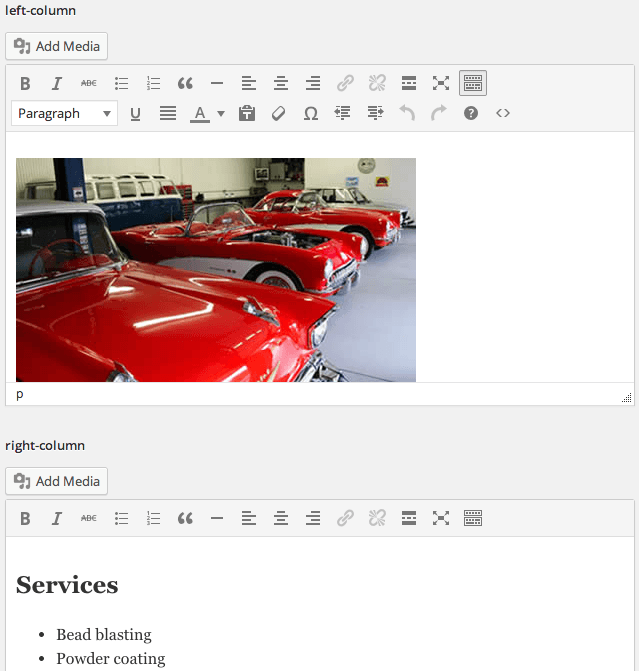
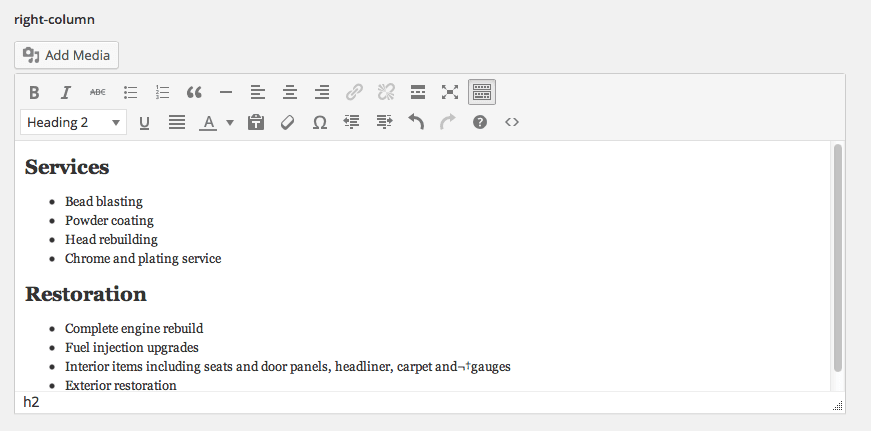
  1. Scroll to the bottom of the page editor where you'll find your new WYSIWYG custom field editors.

Content Input Methods

FeatureWYSIWYG EditorHTML Source
User-FriendlyVisual editingCode required
Media UploadBuilt-in buttonManual HTML
FormattingToolbar optionsRaw HTML tags
Client SuitableYesNo
Recommended: WYSIWYG editors provide a much better user experience for clients who need to update content regularly.

Key Takeaways

1Custom fields extend WordPress beyond standard title and content areas, enabling complex page layouts with multiple editable sections
2The get_post_meta() function retrieves custom field values using post ID, field name, and return format parameters within the WordPress loop
3Advanced Custom Fields plugin transforms basic text inputs into user-friendly WYSIWYG editors for better content management
4Custom page templates can be created with specific div containers that display custom field content dynamically based on template selection
5Location rules in Advanced Custom Fields ensure custom field groups only appear when appropriate page templates are selected
6Local development environments (MAMP/XAMPP) require specific database credentials that differ from production hosting accounts
7Screen Options in WordPress Dashboard controls which interface elements are visible, including custom fields and other page editing tools
8Custom fields provide client-friendly content management by separating different content areas into distinct, editable sections

RELATED ARTICLES