April 1, 2026Dan Rodney/12 min read

Jive Factory: Finishing the Wireframe

Master responsive wireframing with advanced CSS techniques

Core Technologies in This Tutorial

CSS Media Queries

Learn to create breakpoints for different screen sizes using min-width and max-width queries. Essential for responsive design targeting tablets, desktops, and phablets.

CSS Calc() Function

Master dynamic width calculations that account for margins and padding. Enables precise control over fluid layouts in complex responsive designs.

Float-based Layouts

Understand how to structure multi-column layouts using CSS floats and clearing techniques. Foundation for creating professional wireframes.

Topics Covered in This Mobile & Responsive Web Design Tutorial:

Master the essential techniques for creating truly adaptive web experiences: structuring layouts for various screen sizes and devices, implementing precise min and max-width media queries, leveraging the CSS calc() function for sophisticated fluid layout control, and strategically hiding elements based on device capabilities and user context.

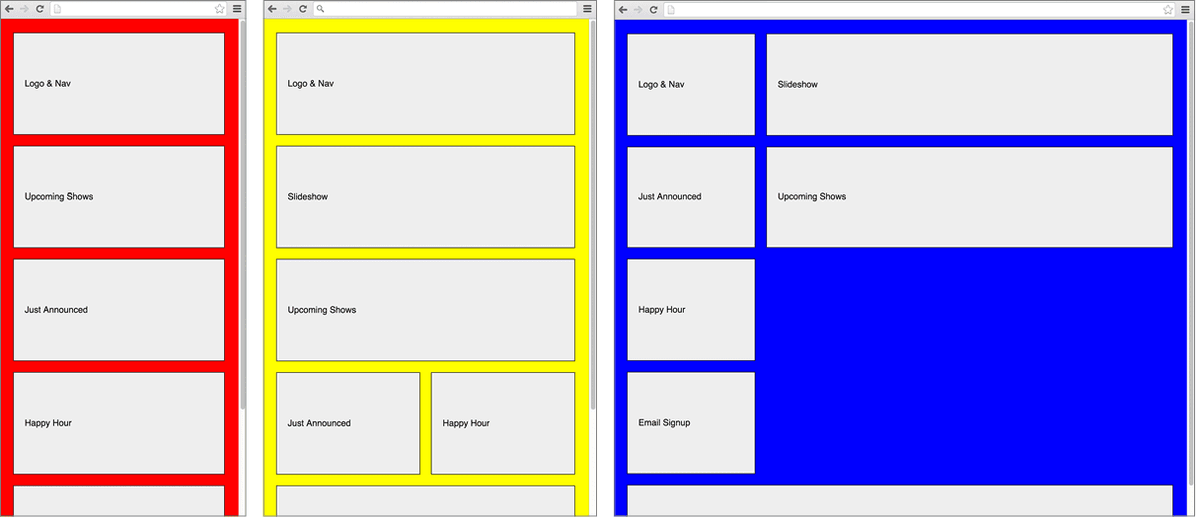
Exercise Preview

preview wireframe done

Exercise Overview

Building upon our foundation from the previous exercise, we'll now complete the Jive Factory wireframe by implementing responsive breakpoints that ensure optimal user experience across the entire device spectrum. This exercise demonstrates how professional developers approach multi-device design challenges in today's diverse digital landscape.

  1. If you completed the previous exercise, you can proceed directly to the next section. We strongly recommend completing the previous exercise (2D) before starting this one, as it establishes the foundational structure we'll be enhancing. If you haven't finished it, follow the setup instructions in the sidebar below.

    Prerequisites Check

    This exercise builds directly on the previous wireframe foundation. If you haven't completed Exercise 2D, follow the setup instructions to get the base files before continuing.

If You Did Not Do the Previous Exercise (2D)

  1. Close any files you may have open.
  2. On the Desktop, navigate to Class Files > yourname-Mobile and Responsive Class.
  3. Delete the Jive folder if it exists.
  4. Select the Jive Basic Wireframe Done folder.
  5. Duplicate the folder.
  6. Rename the folder to Jive.

Structuring the Page for Tablets

Tablet layouts represent a crucial middle ground in responsive design, requiring careful balance between mobile simplicity and desktop complexity. We'll now implement a sophisticated two-column layout that maximizes tablet screen real estate while maintaining excellent usability.

  1. For reference during development, you can open Jive > layouts > Layout2-Tablet.pdf to visualize our target design.

    Our tablet strategy positions the Upcoming Shows section as the primary content area, occupying two-thirds of the screen width and floating right. The remaining one-third accommodates our secondary content: Just Announced, Happy Hour, and Email Signup sections. This layout hierarchy ensures users see the most important content first while maintaining easy access to supporting information.

  2. In your code editor, open index.html from the Jive folder if it's not already open.

  3. Add semantic structure by adding a shows class to the div containing our primary content:

    <div class="shows module">
       Upcoming Shows
    </div>
  4. Create a logical content grouping by wrapping our secondary content in an aside tag, which semantically indicates supporting content:

    <aside>
       <div class="module">
          Just Announced
       </div>
       <div class="module">
          Happy Hour
       </div>
       <div class="module">
          Email Signup
       </div>
    </aside>

    TIP: In Sublime Text with Emmet installed, you can wrap selected content by pressing CTRL–Option–Return (Mac) or CTRL–ALT–Enter (Windows), typing the wrapper element name (aside), then hitting Return or Enter.

  5. Save the file to preserve your structural changes.

  6. Switch to main.css (located in the css folder within your Jive directory).

  7. Within the existing min-width: 480px media query, add the following layout rules after the body rule:

    .shows {
       float: right;
       width: 67%;
    }
    aside {
       float: left;
       width: 33%;
    }
  8. Save the file and prepare to test your layout.
  9. Preview index.html in a browser to see your changes in action.
  10. Resize the browser window until you see the green background, indicating you're viewing the 480px+ breakpoint. You'll notice the Footer section has moved up inappropriately (appearing on the left, below the Slideshow). This common issue occurs because floated elements collapse out of the normal document flow, no longer pushing subsequent content downward. We need to clear these floats to restore proper layout behavior.
  11. Return to main.css in your code editor.
  12. Add footer clearing within the min-width: 480px media query, after the aside rule:

    footer {
       clear: both;
    }
  13. Save the file and test your improvements.

  14. Preview index.html in Chrome (we'll be using Chrome DevTools for debugging).

    While the footer now properly clears the floated content, you'll notice the aside and shows content are too wide to fit side-by-side. This common issue stems from the CSS box model and margin calculations—let's investigate and fix it using browser developer tools.

Tablet Layout Implementation

1

Add Semantic Classes

Add 'shows' class to the Upcoming Shows div and wrap Just Announced, Happy Hour, and Email Signup sections in an aside tag for proper structure.

2

Apply CSS Floats

Set .shows to float right with 67% width and aside to float left with 33% width within the 480px media query.

3

Clear Footer Floats

Add clear: both to footer to prevent it from moving up beside floated elements and ensure proper layout flow.

Using the Calc() CSS Function

The CSS calc() function represents one of the most powerful tools in modern responsive design, allowing developers to perform real-time calculations that account for complex spacing scenarios. While our 67% and 33% widths mathematically total 100%, the margins applied by our .module class create additional space that breaks our intended layout.

  1. CTRL–click (Mac) or Right–click (Windows) on the Upcoming Shows text and choose Inspect.

    NOTE: These instructions are written for Chrome's DevTools. Other browsers offer similar functionality with slightly different interfaces.

  2. The DevTools panel will open either at the bottom or right side of your browser. If you're currently in Device Mode, click the Toggle device toolbar button devtools device mode icon to exit mobile emulation.

  3. In the Elements tab, ensure the <div class="shows module"> line is selected.

  4. In the Styles panel, locate the .shows rule. Directly below it, you'll see the .module rule that's also being applied to this element.

  5. In the .module rule, uncheck the box next to margin: 0 10px 20px; to temporarily disable it.

    Notice how the aside and shows content now fit perfectly side-by-side. This confirms that margins are the culprit. While we could remove margins entirely, they provide essential visual breathing room. The calc() function offers an elegant solution that preserves our margins while maintaining precise width control.

    NOTE: Even with the modern border-box sizing model, margins remain outside an element's calculated width. Only padding and borders are included within the specified width when using box-sizing: border-box.

  6. Return to main.css and modify the .shows rule as follows, ensuring you include spaces around the minus operator:

    .shows {
       float: right;
       width: calc(67% - 20px);
    }

    NOTE: The calc() function instructs the browser to perform mathematical calculations at render time, enabling dynamic layouts that respond to content and viewport changes. Here, we maintain our desired 67% proportional width while subtracting 20 pixels to accommodate the 10px margins on each side applied by the .module class. Remember: when using addition (+) and subtraction (-) operators with calc(), you must always include whitespace around the operators for proper parsing.

  7. Save the file and observe the improvement.

  8. Preview index.html in a browser. The layout should now display beautifully with proper spacing and proportions.

Calc() Syntax Requirements

When using addition and subtraction with calc(), the + and - operators must always be surrounded by whitespace. Missing spaces will cause the calculation to fail.

Width Calculation Methods

FeatureWithout Calc()With Calc()
Width Declarationwidth: 67%width: calc(67% - 20px)
Margin HandlingBreaks layoutAccounts for margins
Browser CompatibilityUniversalModern browsers
Recommended: Use calc() for precise control when margins affect layout width calculations.

Structuring the Page for Desktop

Desktop layouts demand maximum utilization of available screen real estate while maintaining clear visual hierarchy. Our approach transforms the single-column mobile experience into a sophisticated multi-column layout that presents information efficiently without overwhelming users.

  1. For design reference, you can review Jive > layouts > Layout3-Desktop.pdf to understand our target layout.

Following our design specifications, the desktop layout positions the Logo & Nav as a left sidebar occupying 25% of the screen width, while the Slideshow and Upcoming Shows sections share the remaining 75% of the space. The aside content strategically positions itself below the Logo & Nav, creating a balanced, scannable layout that guides users through the content hierarchy.

  1. Switch to main.css to implement our desktop layout rules.

  2. Within the min-width: 1024px media query, add the following code after the existing body rule:

    header {
       float: left;
       width: 25%;
    }
  3. Save the file and test the initial desktop layout changes.
  4. Preview index.html in a browser and resize the window until you see the blue background (desktop breakpoint). Notice that while the header now floats left, the aside content below it doesn't quite match the Logo & Nav width—we'll address this shortly. First, let's position our main content area.

    We need to group the Slideshow and Upcoming Shows content to float them together as a single unit occupying 75% of the available width. Currently, we lack a way to target both elements as a cohesive group.

  5. Return to index.html and wrap the slideshow and shows content in a semantic main element:

    <main role="main">
       <div class="module">
          Slideshow
       </div>
       <div class="shows module">
           Upcoming Shows
       </div>
    </main>
  6. Save the file to preserve your structural improvements.
  7. Switch back to main.css.
  8. Add the main content area styling within the min-width: 1024px media query, after the header rule:

    main {
       float: right;
       width: 75%;
    }
  9. Save and test your layout progress.
  10. Preview index.html in a browser.

    You'll again encounter the familiar issue of columns not fitting side-by-side due to margins. The solution follows our established pattern using the calc() function.

  11. Return to main.css to apply the margin compensation.
  12. In the min-width: 1024px media query, modify the header rule's width:

    header {
       float: left;
       width: calc(25% - 20px);
    }

    NOTE: We adjust the header width rather than main because the header element has the module class, which adds margins. The main element serves purely as a wrapper without the module class, so its child elements handle their own spacing.

  13. Save and preview your refined layout.
  14. Preview index.html in a browser to see the improved column alignment.
  15. You'll notice the Upcoming Shows section appears smaller than intended. This occurs because our tablet layout styles cascade to the desktop breakpoint—the 67% width rule for .shows from our tablet media query still applies at desktop sizes.

    While we could override this behavior with additional CSS in the desktop media query, a more elegant approach involves restricting our tablet styles to apply only within the intended breakpoint range. This prevents style conflicts and creates cleaner, more maintainable code.

  16. Create a new, precisely-targeted media query in main.css before the existing min-width: 1024px media query:

    @media (min-width: 480px) and (max-width: 1023px) {
    
    }
  17. Locate the .shows rule in the min-width: 480px media query.

  18. Cut the entire .shows rule from its current location.

  19. Paste it into your new min/max-width media query:

    @media (min-width: 480px) and (max-width: 1023px) {
       .shows {
          float: right;
          width: calc(67% - 20px);
       }
    }
  20. Save and test the improved breakpoint handling.
  21. Preview in a browser at the desktop breakpoint. The Upcoming Shows section should now match the width of the Slideshow above it. However, the Just Announced aside content isn't properly tucking beneath the Logo & Nav because it's too wide. Let's fix this by matching the aside width to our header width.

  22. In the min-width: 1024px media query within main.css, add the following rule after the main style:

    aside {
       width: 25%;
    }
  23. Save the file and preview in a browser. Your desktop layout should now display with perfectly aligned left-column content and balanced proportions across all sections.

Desktop Layout Width Distribution

Logo & Nav25%
Main Content75%
CSS Cascade Management

Instead of adding CSS to override previous styles, create specific media queries with min and max widths to target exact breakpoint ranges and avoid style conflicts.

Structuring the Page for Phablets

Modern responsive design must account for the growing phablet category—devices that fall between traditional phones and tablets. These larger smartphones require their own breakpoint strategy to prevent content from becoming uncomfortably narrow while maintaining touch-friendly interactions.

  1. In main.css, modify the min-width: 480px media query to trigger at a more appropriate breakpoint:

    @media (min-width: 740px) {
       body {
          background: green;
       }
  2. Update the corresponding min/max-width media query to maintain consistency:

    @media (min-width: 740px) and (max-width: 1023px) {
       .shows {
          float: right;
  3. Save and preview in a browser. While our tablet layout now performs better, we've created a gap between 480px and 740px where content may appear too wide for comfortable mobile viewing. This is exactly the scenario where a dedicated phablet breakpoint adds value.

  4. Create a new media query for phablet-sized devices by adding this code before the min-width: 740px media query:

    @media (min-width: 480px) {
    
    }
  5. Add a distinctive background color for testing within this new media query:

    body {
       background: yellow;
    }
  6. Save and preview, then resize your browser to see the yellow background indicating our phablet breakpoint. At this intermediate size, we'll implement a side-by-side layout for our Just Announced and Happy Hour content to better utilize the available space.
  7. We need additional HTML structure to target these specific elements. Switch to index.html.
  8. Add a tout class to both promotional content divs (tout is short for "tout," a marketing term for promotional content):

    <div class="tout module">
       Just Announced
    </div>
    <div class="tout module">
       Happy Hour
    </div>
  9. Save your HTML changes.
  10. Return to main.css.
  11. Implement the two-column tout layout within the min-width: 480px media query, after the body rule:

    .tout {
       float: left;
       width: calc(50% - 20px);
    }
  12. Save and test your phablet layout.
  13. Preview index.html in a browser at the phablet breakpoint (yellow background).
  14. While the touts now float side-by-side as intended, the Email Signup section inappropriately moves up into the gutter between them. We need to clear the floats to maintain proper vertical spacing.
  15. Switch to index.html to add targeting capability.
  16. Locate the div containing Email Signup, typically around line 31.
  17. Add an email-signup class for CSS targeting:

    <div class="email-signup module">
       Email Signup
    </div>
  18. Save your HTML changes.
  19. Switch to main.css.
  20. Add float clearing within the min-width: 480px media query, after the .tout rule:

    .email-signup {
       clear: both;
    }
  21. Save and test the improved spacing.
  22. Preview index.html in a browser. The phablet layout should look great, but resize to see the tablet styles (green background). Unfortunately, our tout styling cascades to the larger breakpoint, disrupting the intended tablet layout. Let's create a targeted media query that applies only to the phablet range.

  23. Switch to main.css and create a precise phablet-only media query before the min-width: 740px media query:

    @media (min-width: 480px) and (max-width: 739px) {
    
    }
  24. Cut both the .tout and .email-signup rules from the min-width: 480px media query.
  25. Paste them into your new phablet-specific media query:

    @media (min-width: 480px) and (max-width: 739px) {
       .tout {
          float: left;
          width: calc(50% - 20px);
       }
       .email-signup {
          clear: both;
       }
    }
  26. Save and thoroughly test across all breakpoints. Your tout columns should appear only at the phablet size (yellow background), with all other breakpoints displaying their appropriate layouts.

Breakpoint Configuration

740px
Tablet breakpoint threshold
480px
Phablet minimum width
50%
Tout element width

Phablet Layout Process

1

Adjust Breakpoints

Change tablet media query from 480px to 740px to create space for phablet-specific styling between mobile and tablet views.

2

Create Tout Classes

Add 'tout' class to Just Announced and Happy Hour divs to enable specific styling for side-by-side layout on phablet screens.

3

Implement Float Clearing

Add 'email-signup' class and clear: both to prevent content from floating into gutters between tout elements.

Hiding the Slideshow

Strategic content hiding represents a crucial responsive design technique. Rather than forcing all content onto small screens, we can improve mobile performance and user experience by hiding non-essential elements. Slideshows, while engaging on larger screens, often provide poor mobile experiences due to touch interaction challenges and bandwidth concerns.

  1. In index.html, add a slideshow class to enable CSS targeting:

    <div class="slideshow module">
       Slideshow
    </div>
  2. In main.css, create a mobile-specific media query before the existing min-width: 480px media query:

    @media (max-width: 479px) {
    
    }
  3. Add the slideshow hiding rule within this mobile-only media query:

    @media (max-width: 479px) {
       .slideshow {
          display: none;
       }
    }
  4. Save and test your responsive hiding functionality. The slideshow should disappear on mobile (red background) while remaining visible at all larger breakpoints, creating a cleaner, faster-loading mobile experience.

Element Visibility Control

0/4

Responsive Display Strategy

FeatureMobile (479px)Larger Screens
SlideshowHiddenVisible
NavigationStackedHorizontal
Content ColumnsSingleMultiple
Recommended: Hide complex elements on mobile to improve performance and user experience.

Key Takeaways

1CSS calc() function enables precise width calculations that account for margins and padding in responsive layouts
2Media queries with both min-width and max-width create targeted breakpoints that prevent style cascade conflicts
3Semantic HTML elements like aside and main improve code structure while enabling better CSS targeting
4Float-based layouts require proper clearing techniques to prevent content reflow issues in multi-column designs
5Phablet breakpoints bridge the gap between mobile and tablet layouts for optimal mid-range device experiences
6Progressive enhancement approach starts with mobile-first design and adds complexity for larger screens
7Element visibility control using display: none optimizes mobile performance by hiding unnecessary content
8Proper class naming conventions like 'tout' and 'email-signup' improve CSS maintainability and specificity

RELATED ARTICLES