April 1, 2026Dan Rodney/7 min read

Flix: Mobile-Friendly Forms

Building Mobile-Optimized Forms with HTML5 Features

Core HTML5 Form Improvements

Input Types

HTML5 introduces specialized input types like search and email that provide native mobile optimizations and better user experience.

Mobile Usability

New input types automatically trigger appropriate mobile keyboards and interface elements, reducing user friction on touch devices.

CSS Enhancements

Modern CSS techniques for background gradients and form styling ensure consistent appearance across all platforms and screen sizes.

Topics Covered in This Mobile & Responsive Web Design Tutorial:

HTML5 Input Types (search & email), Advanced CSS Background Gradients, and Mobile-First Form Optimization

Exercise Preview

preview mobile friendly forms

Photos courtesy of istockphoto, unizyne, Image #19302441.

Exercise Overview

HTML5 revolutionized form usability with specialized input types and attributes that dramatically improve the mobile experience. In this hands-on exercise, you'll discover how semantic input types enhance user interaction patterns, reduce input errors, and create more intuitive interfaces across devices. These techniques remain essential in 2026 as mobile-first design continues to dominate web development practices.

Exercise Implementation Steps

1

Setup Project Files

Open the Flix Forms folder in your code editor and close any other files to avoid confusion during development.

2

Implement Search Functionality

Convert basic text input to HTML5 search type with proper placeholder text and mobile keyboard optimization.

3

Add Email Input Type

Transform email field to use HTML5 email input type for better mobile keyboard support with @ symbol access.

4

Fix CSS Gradient Issues

Resolve background gradient repetition problems using CSS background-attachment fixed property.

Search Fields

  1. We'll be using a new folder of provided files for this exercise. Close any files you may have open in your code editor to avoid confusion and maintain a clean workspace.
  2. For this exercise we'll be working with the Flix Forms folder. Open that folder in your code editor if it allows you to (modern editors like VS Code, Sublime Text, or Atom support this workflow).
  3. Open index.html from the Flix Forms folder.
  4. Preview index.html in a browser to establish your baseline.
  5. Notice there is an empty white text field in the header at the top of the page. This represents a common UX problem: users can't identify the field's purpose without visual cues or placeholder text. The field also lacks proper positioning and styling. We'll transform this into a fully functional, accessible search field that follows current best practices.
  6. Switch back to index.html in your code editor.
  7. Locate the form element, starting on line 18:

    <form>
       <input type="text">
    </form>
  8. Let's add placeholder text to provide clear user guidance. Add the following bold code:

    <form>
       <input type="text" placeholder="Search">
    </form>
  9. Save the file and prepare to see the immediate improvement in user experience.
  10. Preview index.html in a modern desktop browser such as Safari, Google Chrome, Firefox, or in a mobile browser. The search box in the header should now display Search as placeholder text (this disappears when users begin typing, following standard interaction patterns).
  11. If you can preview in Safari using the iOS Simulator (or an actual iOS device), tap into the search field. As shown below, notice the gray return button in the keyboard (older iOS versions displayed a Go button). This represents the default text input behavior. (If the keyboard doesn't appear, try hitting Cmd–K to open it.)
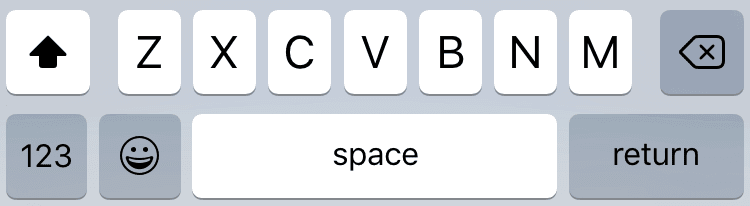
    iOS simulator keyboard return

    NOTE: We're using iOS as an example, but modern mobile platforms including Android and Windows Mobile implement similar input-specific keyboard adaptations.

  12. Now let's demonstrate the power of semantic HTML5 input types. Switch back to index.html in your code editor.
  13. Change the type from text to search as shown below:

    <form>
       <input type="search" placeholder="Search">
    </form>
  14. Notice the <form> currently lacks an action attribute? While a production search field requires backend connectivity, iOS Safari (since version 8) needs an action attribute to properly recognize and style search input types. Add the following bold code to the form tag:

    <form action="">

    NOTE: The empty action attribute satisfies the browser requirement without specifying functionality—perfect for prototyping and can be populated later during backend integration.

  15. Save the file to implement these semantic improvements.
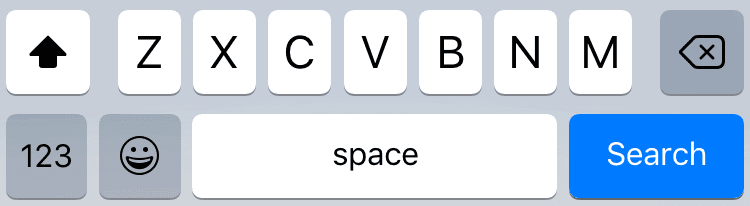
  16. Preview the page in Safari using the iOS Simulator (or on an iOS device). Tap into the search field and observe the transformation. As shown below, the keyboard now displays a blue Search button instead of the generic gray return button! This contextual change improves user understanding and interaction efficiency.

    Before:

    iOS simulator keyboard return

    After:

    iOS simulator keyboard search

  17. The search field now displays with rounded corners on iOS (shown below on the left) but maintains standard rectangular styling on desktop Safari (shown below on the right). The search input type triggered Safari's native iOS styling, including the rounded corners. Since rounded corners enhance the modern aesthetic and we need to properly position the field, let's create custom CSS for cross-platform consistency.

    search not rounded

    Photos courtesy of istockphoto, unizyne, Image #19302441.

  18. In your code editor, open main.css from the css folder inside the Flix Forms folder.
  19. After the header.logo rule (which starts on line 62) add the following professional styling:

    input[type="search"] {
       font-size:.75rem;
       float: right;
       border: 0;
       padding:.4em 1em;
       margin-top: 25px;
       width: 120px;
       outline: 0;
       border-radius: 20px;
    }

    NOTE: This CSS rule leverages attribute selectors to target the type="search" attribute we just added. This approach eliminates the need for additional classes or IDs, keeping your HTML semantic and your CSS maintainable.

  20. Save the file and preview index.html in both desktop browser and iOS Simulator (if available). The search field should now display with consistent rounded corners and proper positioning across all platforms, demonstrating responsive design best practices.

Input Type: Text vs Search

Featuretype="text"type="search"
Mobile KeyboardGeneric ReturnBlue Search Button
Visual StylingSquare CornersRounded Corners (iOS)
FunctionalityBasic InputSearch-Optimized
Action RequiredNoYes (iOS 8+)
Recommended: Use type="search" for better mobile user experience and semantic HTML.
iOS Safari Requirement

Starting in iOS 8, Safari requires a form action attribute for the keyboard to properly reflect the search input type. Add action="" even if not implementing backend functionality yet.

Preventing Page Zoom

Mobile browsers implement automatic zoom behaviors that can disrupt user experience. Let's address a common iOS Safari issue and implement the current best practice solution.

  1. On iOS devices, Safari automatically zooms in when users tap into form fields with font sizes smaller than 16px. This occurs with our current search field styling (if you have the iOS Simulator open, tap the search field to observe this behavior on smaller screens like iPhone SE).

    After completing their search, users must manually zoom back out to see the full page—a frustrating experience that violates mobile UX principles. This zoom behavior triggers because our 0.75rem font-size equals 12px (16 × 0.75 = 12), which falls below Safari's 16px threshold.

  2. Navigate to main.css in your code editor.

  3. Around line 68, update the font-size property:

    input[type="search"] {
       font-size: 1rem;
  4. Save the file. iOS Safari will no longer trigger automatic zoom on the search field. (Test this by reloading the page in iOS Simulator and tapping into the search field.) This 1rem sizing (equivalent to 16px) meets accessibility guidelines while preventing unwanted zoom behavior.

Font Size and Mobile Zoom

iOS automatically zooms in when form fields have font-size smaller than 16px. Text sized at 0.75rem equals 12px, triggering unwanted zoom behavior.

Font Size Impact on Mobile Behavior

Feature0.75rem (12px)1rem (16px)
Mobile ZoomTriggers ZoomNo Zoom
User ExperienceRequires Manual Zoom OutSeamless Interaction
Visual SizeSmaller TextStandard Size
Recommended: Use minimum 1rem (16px) font-size for form inputs to prevent mobile zoom issues.

Styling Placeholder Text

Placeholder text styling requires vendor prefixes for cross-browser compatibility. Let's implement a professional approach to placeholder customization.

  1. We've prepared the vendor-prefixed CSS for easy implementation. In your code editor, open placeholder.css from the snippets folder inside the Flix Forms folder.
  2. Select and copy all the code, which includes the necessary browser prefixes for comprehensive compatibility.
  3. Close the file and return to main.css.
  4. After the input[type="search"] rule you just modified, paste the copied code.
  5. Save the file and preview index.html in a browser or iOS Simulator. The placeholder text should now display in red, demonstrating successful cross-browser placeholder styling.
  6. Let's customize the color to align with our design system. Switch back to main.css in your code editor.
  7. Change red to #2ba0ee in all three vendor-prefixed rules you just pasted. This ensures consistent color rendering across all browsers.
  8. Save the file and preview index.html again to see the refined blue placeholder text that complements the overall design.

Custom Placeholder Styling Process

1

Copy Base CSS

Open placeholder.css from the snippets folder and copy all vendor-prefixed placeholder selector rules.

2

Paste Into Main CSS

Add the copied placeholder rules after the input[type="search"] rule in main.css for proper cascade order.

3

Customize Colors

Change the color value from red to #2ba0ee in all three vendor-specific placeholder rules for consistent cross-browser styling.

Email Fields

Email input types provide another excellent example of how semantic HTML improves mobile usability through intelligent keyboard adaptations.

  1. Let's examine a different form pattern. In your code editor, open login.html from the Flix Forms folder.
  2. Locate the email form label element (starting on line 20):

    <label>
       <div>Email</div>
       <input type="text">
    </label>
  3. Transform this into a semantic email input by changing the type to email:

    <label>
       <div>Email</div>
       <input type="email">
    </label>
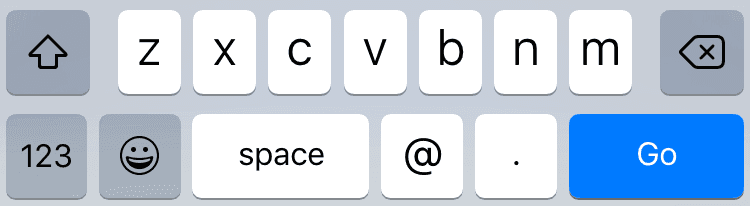
  4. Save the file and preview login.html in iOS Simulator or on an iOS device. Tap into the Email field and observe the intelligent keyboard adaptation. As shown below, the keyboard now prominently features an @ symbol and period, making email address entry significantly more efficient and reducing user errors.

    Before:

    iOS simulator keyboard return

    After:

    iOS simulator keyboard email

Email Input Type Benefits

Featuretype="text"type="email"
Mobile KeyboardStandard Letters@ Symbol and Period
Input ValidationNoneEmail Format Check
User EfficiencyManual Symbol EntryQuick Email Typing
Recommended: Always use type="email" for email address fields to improve mobile usability.

Fixing the Page's Background Gradient

While working with forms, let's address a common CSS gradient issue that affects the overall page presentation and demonstrates advanced background techniques.

  1. Preview login.html in a desktop browser and resize the window to be narrow and tall. You'll notice the radial gradient ends prematurely and creates an undesirable repeating pattern down the page—similar to how background images repeat by default. This breaks the intended visual effect and appears unprofessional.
  2. In your code editor, switch back to main.css to implement a more robust gradient solution.
  3. On line 14, locate the body rule and add the following enhancement:

    body {
       font-family: Montserrat, sans-serif;
       color: #fff;

    Code Omitted To Save Space

    background-image: -o-radial-gradient(circle, #215A96,,000);
       background-attachment: fixed;
    }
  4. Save the file to implement this critical improvement.
  5. Preview login.html in a desktop browser and test by resizing the window. The gradient now fills the entire viewport seamlessly without repeating, maintaining visual consistency regardless of content length or screen size. The background-attachment: fixed property ensures the gradient remains anchored to the viewport rather than the content, creating a professional, polished appearance that scales appropriately across devices.

CSS Background Gradient Fix

Add background-attachment: fixed to the body rule to prevent radial gradients from repeating and ensure they fill the entire viewport regardless of content height.

Background Gradient Behavior

FeatureDefault BehaviorWith background-attachment: fixed
Gradient CoverageEnds at ContentFills Entire Page
RepetitionRepeats Down PageNo Repetition
Window ResizeGradient BreaksMaintains Coverage
Recommended: Use background-attachment: fixed for consistent gradient coverage across different screen sizes.

Key Takeaways

1HTML5 input types like search and email automatically provide mobile-optimized keyboards and interface elements, significantly improving user experience on touch devices.
2Form inputs with font-size smaller than 16px trigger automatic zoom on iOS devices, requiring users to manually zoom out after form interaction.
3The type="search" input provides rounded corners on iOS and changes the keyboard return button to a blue Search button for better usability.
4iOS Safari requires a form action attribute (even if empty) for the search input type to properly display the optimized keyboard interface.
5Email input types display @ symbols and periods on mobile keyboards, making email address entry faster and more accurate for users.
6Cross-browser placeholder text styling requires vendor-specific CSS selectors to ensure consistent appearance across different browsers and platforms.
7CSS background gradients can be prevented from repeating using background-attachment: fixed, ensuring full viewport coverage regardless of content height.
8Mobile form optimization focuses on reducing user friction through appropriate input types, proper font sizing, and platform-specific interface enhancements.

RELATED ARTICLES