April 1, 2026Dan Rodney/10 min read

Color Variables & Layer Styles (Reusable Appearance)

Master Sketch color variables and reusable layer styles

Key Sketch Features You'll Master

Color Variables

Create reusable color swatches that update globally across your entire design file. Perfect for maintaining consistent branding.

Layer Styles

Save complete appearance settings including fills, borders, shadows, and effects. Apply consistent styling across multiple objects instantly.

Style Management

Organize, rename, group, and update your design system components for maximum efficiency and consistency.

Topics Covered in This Sketch Tutorial:

Master the fundamentals of efficient design systems in Sketch: creating and implementing color variables for consistent branding, building reusable layer styles that streamline your workflow, developing specialized styles for background imagery, and organizing your design assets through strategic naming, grouping, and maintenance practices.

Exercise Preview

preview shared graphic styles

Exercise Overview

Professional design workflows rely on systematic approaches to maintain consistency and efficiency. In this exercise, you'll learn two fundamental techniques that separate novice designers from seasoned professionals: color variables for global color management and layer styles for reusable design elements. Color variables ensure brand consistency across your entire project while enabling instant global updates. Layer styles go beyond simple colors, allowing you to save complete styling combinations including fills, borders, shadows, and effects that can be applied and updated across multiple objects simultaneously.

Design System Benefits

Using color variables and layer styles creates a scalable design system that saves time, ensures consistency, and makes global updates effortless across large projects.

Creating a Color Variable (Color Swatches)

Color variables are the foundation of scalable design systems. By establishing variables early in your project, you create a single source of truth for brand colors that can be updated globally with a single change.

  1. In Sketch, go to File > Open Local Document.
  2. Navigate into Desktop > Class Files > Sketch Class > iTastify and double–click on iTastify Ready for Layer Styles.sketch to open it.

    This webpage design showcases a modern interface for an iPhone app called iTastify, demonstrating current design patterns for mobile applications.

  3. Below the navigation, click on the peach background rectangle (under the Be Your Own Food Critic heading and iPhone photo).
  4. In the Sidebar, notice that the iphone-mockup group is selected.
  5. In the Inspector notice that Select group's content on click is not checked.

    This group contains an image with a mask, representing a common design pattern where images are contained within specific shapes. The grouping serves a functional purpose beyond organization, so we need to access the mask directly rather than enabling group content selection.

  6. Instead of going into the Sidebar and selecting the Mask, we can hold Cmd to temporarily click-through a group and select an item inside! Cmd–click on the peach colored area to the left of the hand image.
  7. In the Sidebar, make sure the iphone-mockup group's Mask is selected.
  8. In the Inspector, notice the fill color is the peach color.
  9. We want to save this color so we can easily reuse it elsewhere (and globally update it). In the Inspector, under Fills, click the color box color selector to open the color picker.
  10. Near the bottom of the color picker, click Create Color Variable.
  11. A name field will appear. Name it section bg and hit Return to apply.
  12. To close the color picker, press Esc or click anywhere outside it.
  13. Scroll down the page and find the sky blue section with three circular photos.
  14. Click on the blue background to select it.
  15. To make it the same peach color we used above, in the Inspector, under Fills, click the color box color selector to open the color picker.
  16. At the bottom of the color picker (you may have to scroll down to see it), under This Document click on the peach colored swatch.

    The blue background should now transform to match the peach tone, demonstrating how color variables create visual consistency across different sections.

Creating Your First Color Variable

1

Select the Element

Use Cmd-click to select through groups and target the specific element with the color you want to save as a variable.

2

Open Color Picker

Click the color box in the Inspector under Fills to open the color picker interface.

3

Create Variable

Click Create Color Variable at the bottom of the picker and give it a descriptive name like 'section bg'.

4

Apply to Other Elements

Select other elements and choose your saved color variable from the This Document section in the color picker.

Editing a Color Variable

The true power of color variables becomes apparent when you need to make design changes. Rather than hunting through your design to update colors manually, you can make a single adjustment that propagates throughout your entire project—a workflow essential for professional design iteration.

  1. With the peach colored testimonials-bg still selected, if you closed the Fill color picker, re-open it.
  2. Towards the bottom of the color picker click Edit Variable.
  3. Change Hex to ebebeb and hit Return to apply it (or click Update).
  4. To close the color picker, press Esc.
  5. Scroll back up to the top of the page and notice that the background color under Be Your Own Food Critic has also changed to the gray! That's because it's linked to the same color variable, demonstrating the efficiency of systematic color management.
Global Update Power

When you edit a color variable, all elements using that variable automatically update throughout your entire document. This is the key advantage of using variables over copying individual colors.

Making a Layer Style

While color variables handle individual color properties, layer styles address the complete visual treatment of design elements. This approach mirrors how professional design systems work in modern product development, where consistent styling rules are applied across multiple components.

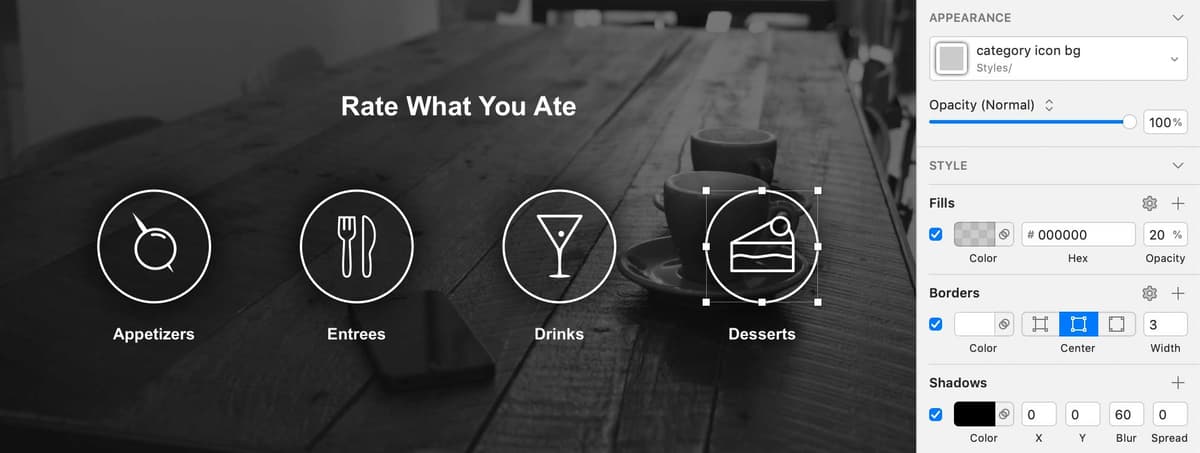
  1. Scroll down to the Rate What You Ate section with 4 icons with circle borders.

    These icons demonstrate a common design challenge: maintaining visual hierarchy when content overlays complex backgrounds. We'll enhance their visibility using a systematic approach.

  2. Click on the circle for the Appetizers icon.
  3. In the Sidebar, notice it too is in a group.
  4. As shown below, hover over the Appetizers icon's circle border and Cmd–click when it is highlighted in blue. This should select only the Oval shape.
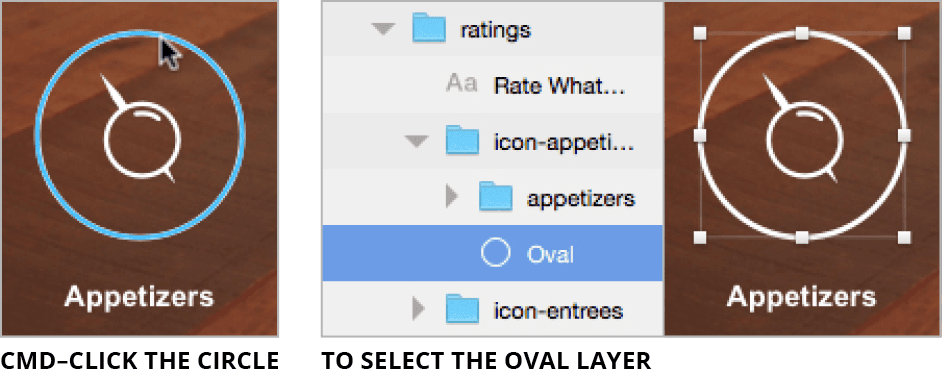
    itastify select appetizers oval

  5. In the Inspector, under Fills:

    • Check on the checkbox to turn the fill on.
    • The color should be solid white. To the right of the fill, set Opacity to 20%.
  6. In the Inspector, find the menu that says No Layer Style.
  7. Below that menu click the Create button layer style new to create a style.
  8. Name it category icon bg and hit Return to apply.
  9. Let's apply the style to the other circles. To select them efficiently:

    • Cmd–click on the Entrees circle.
    • Then Cmd–Shift–click on the other circles (Drinks and Desserts) to add them to your selection.
  10. In the Inspector, click on the No Layer Style menu and choose This Document > category icon bg style.
  11. Click on a blank area of the canvas to deselect everything.
  12. Now we want to refine the style based on how it appears in context. Cmd–click on any of the circles. Because they're all associated with the style, it doesn't matter which one you select—changes will apply to all instances.
  13. Let's try a dark background instead of the current light background for better contrast. Click the Fill color box and:

    • Set the color to black.
    • Change Alpha (transparency) to 50.
    • Close the color picker when done.
  14. In the Inspector to the right of Shadows, click the plus button to add depth to our design.
  15. Configure the shadow with these professional settings:

    Y: 0
    Blur: 60
  16. Click the Shadows' color box color selector, then change Alpha to 100 for maximum impact.
  17. Close the color picker when done.
  18. In the Inspector, below the category icon bg menu click the Update button layer style update.
  19. Let's refine the border for a more contemporary look. Under Borders, click into the Width field to put the cursor there.
  20. Hit the Down Arrow key to reduce the Width value to 2, creating a more subtle border treatment.
  21. In the Inspector, click the Update button layer style update or hit CTRL–S (for Sync).

    NOTE: Maintaining synchronization between layer styles and individual instances is crucial for design system integrity. If you don't update the style, individual layers may appear different, but they'll still receive updates when you modify the style from any other instance. If you intentionally want a layer to deviate from the style permanently, click the Detach button layer style detach below the style's menu.

Creating and Applying Layer Styles

1

Style the First Element

Configure all appearance properties including fills, borders, shadows, and opacity on your first element.

2

Create the Style

Click Create below the No Layer Style menu and give your style a descriptive name.

3

Apply to Other Elements

Select multiple elements using Cmd-click and Cmd-Shift-click, then choose your style from the Layer Style menu.

4

Update the Style

Make changes to any styled element and click Update or press Ctrl-S to sync changes across all instances.

Rounded Corners Are Not Part of a Layer Style

It's important to understand the limitations of layer styles in Sketch. The Corners setting (for rounding corners) cannot be saved into a layer style because it's considered a shape property rather than a style property. In the Inspector, only the options in the Style section are saved into a style. While rounded corners cannot be included in layer styles, you can create reusable buttons and interface elements using symbols, which you'll master in an upcoming exercise. This distinction helps you choose the right tool for different design scenarios.

Layer Style Limitations

Corner radius settings cannot be saved in layer styles. Only properties in the Style section of the Inspector are included. For reusable rounded buttons, use Symbols instead.

Making a Style to Darken Full-Width Background Photos

Background images often require consistent treatment to ensure overlaid content remains readable. Creating a dedicated style for this common design pattern streamlines your workflow and maintains visual consistency across your project.

  1. Make sure you can see the Rate What You Ate section with 4 icons with circle borders.
  2. To select the photo within its mask, double–click on the photo behind the icons.
  3. In the Inspector, to the right of Fills, click the plus button to add a darkening overlay.
  4. Set the color to black.
  5. Set Alpha to 40 to create an optimal balance between image visibility and content readability.
  6. Close the color picker.
  7. Below the No Layer Style menu click the Create button layer style new.
  8. Name it darken image and hit Return to apply.
  9. Scroll down near the bottom of the page to the Start Remembering Now section.
  10. Double–click on the full-width photo background (to select the photo within the mask).
  11. In the Inspector, click on the No Layer Style menu and select This Document > darken image to apply consistent treatment.
  12. Let's enhance the style further by adding a contemporary black and white treatment. At the bottom of the Inspector, check on Color Adjust.
  13. Reduce Saturation to -100% and notice how the photo transforms to a sophisticated monochrome treatment that's popular in modern web design.
  14. To update (sync) the style click the Update button layer style update or hit CTRL–S.
  15. Scroll up to the Rate What You Ate section to see that its photo background has also transformed to match the black and white treatment, demonstrating the power of systematic styling.
  16. Excellent! Save and close the file to preserve your design system work.

Photo Enhancement Techniques

FeatureBefore StyleAfter Style
Photo VisibilityOriginal brightness40% black overlay
Text ReadabilityPoor contrastEnhanced contrast
Color TreatmentFull colorDesaturated to -100%
ConsistencyManual adjustmentsAutomated via style
Recommended: Use the darken image style for all background photos to ensure consistent text readability and visual hierarchy.

Renaming, Grouping, & Deleting Styles

Professional design systems require careful organization and maintenance. As your projects grow in complexity, proper naming conventions and logical grouping become essential for team collaboration and long-term project sustainability.

  1. At the top-left of the Toolbar, click on the Components button show components button to access your design system assets.

    show components location

  2. In the middle of the Toolbar, click on the Colors button show colors to view your color system.
  3. This is your color variable management center, where you can maintain, organize, and expand your color system as your project evolves.
  4. In the middle of the Toolbar, click on the Layers button show layer styles to switch to layer style management.
  5. Select the category icon bg style.
  6. In the Inspector on the right, change the name to rating icon and hit Return to apply a more descriptive name that reflects its specific function.
  7. Let's organize these styles into logical groups for better project management. Select the darken image style.
  8. Hold Shift and click on rating icon so both styles are selected.
  9. Choose Arrange > Group to create a logical organization structure.
  10. In the Sidebar on the left, double–click on the Group name and change it to Backgrounds to clearly identify the group's purpose.

    NOTE: To delete a style that's no longer needed, select it and press the Delete key, or Right–click (or Control–click) on a style and choose Delete. Be cautious when deleting styles, as this action will affect all instances using that style throughout your project.

  11. At the top-left of the Toolbar, click on the Canvas button show canvas button to return to your main design view.

    show canvas location

  12. Hit Cmd–S to save your organized design system structure.

Style Management Best Practices

0/4

Reset Layer Style

Design iteration often involves experimenting with individual instances while maintaining overall system consistency. If an object with a layer style has overrides (meaning it now looks different from the original layer style), you can remove these experimental changes and return to the system standard using either of these methods:

  • Hit CTRL–Option–S for a quick keyboard reset
  • In the Inspector, below the style's menu, click the More button layer style more and choose Reset Style for more deliberate control.

This functionality ensures you can experiment freely while always having a path back to your established design system standards—essential for maintaining consistency in professional design workflows.

Layer Style Override Management

Pros
Overrides allow temporary customization without breaking the style connection
Easy to reset overrides back to original style using Ctrl-Option-S
Overrides automatically sync when the base style is updated
Detach option available for permanent customization
Cons
Overrides can create inconsistency if not managed properly
Easy to forget which elements have overrides applied
Overrides may be lost when updating the base style
Detached styles lose connection to the design system

Key Takeaways

1Color variables enable global color updates across entire design files, ensuring brand consistency and saving time on revisions
2Layer styles save complete appearance settings including fills, borders, shadows, and effects for consistent object styling
3Use Cmd-click to select through groups and target specific elements without enabling group content selection
4Update layer styles using the Update button or Ctrl-S to sync changes across all instances automatically
5Corner radius settings cannot be saved in layer styles - use Symbols for reusable rounded button components
6Create darkening overlay styles for background photos to improve text readability and visual hierarchy
7Organize styles using descriptive names and group related styles together for better design system management
8Reset layer style overrides using Ctrl-Option-S or detach styles permanently when needed for unique customizations

RELATED ARTICLES