April 1, 2026Dan Rodney/7 min read

Adjusting the Layout for Tablets & Mobile Phones

Master responsive design with Bootstrap grid systems

Bootstrap Grid Breakpoints

Desktop

Full multi-column layouts with standard Bootstrap grid. Optimal for complex layouts with sidebars and multiple content areas.

Tablet (768px+)

Narrower columns with same gutters. Content container at 720px wide allows for flexible column spanning.

Mobile (<576px)

Primarily single column layout at 320px wide. Limited to essential content with minimal column usage.

Topics Covered in This Sketch Tutorial:

Mastering Bootstrap's Grid System, Strategic Design Adaptation for Tablets, Optimizing Mobile Phone Layouts

Exercise Preview

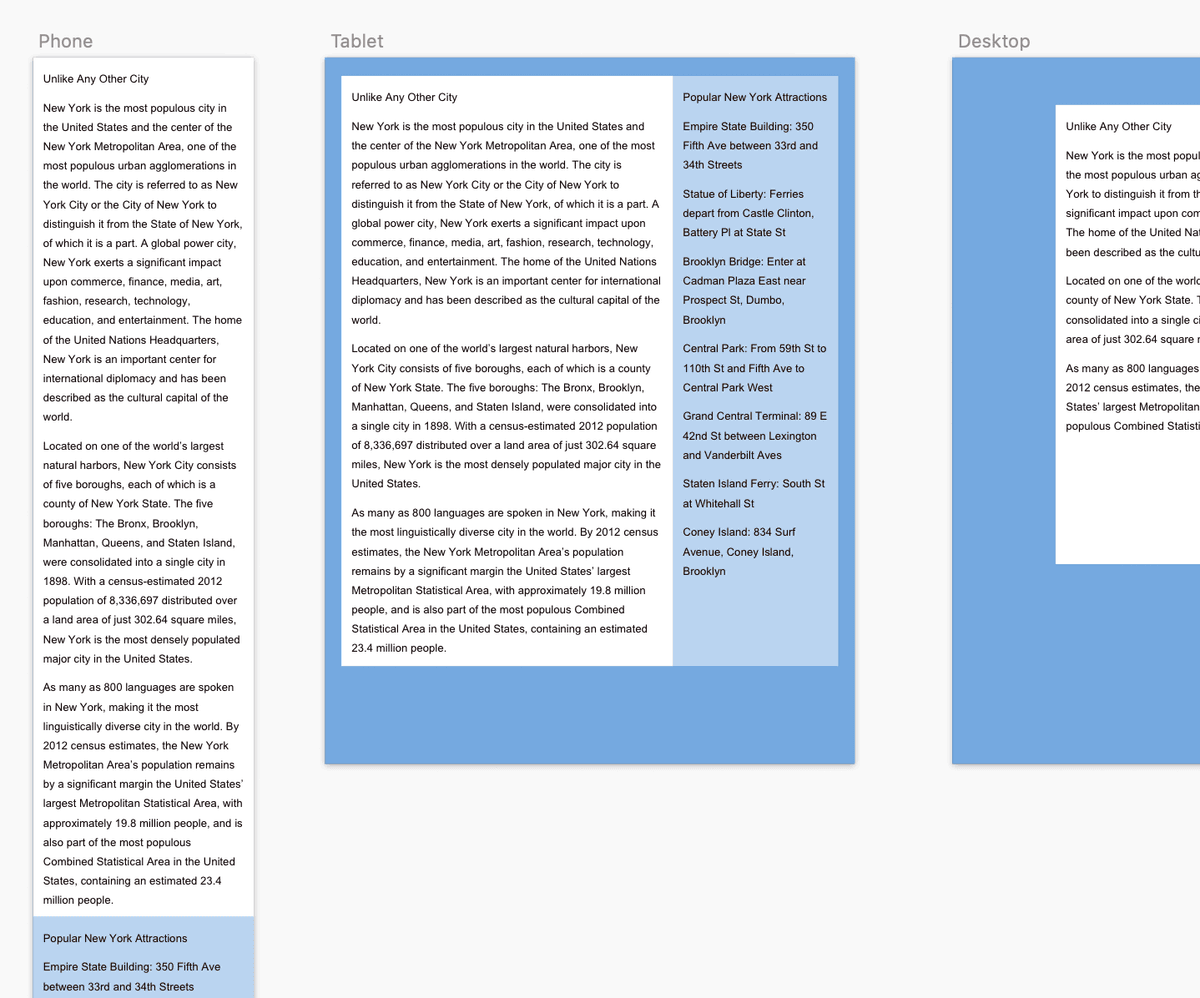
preview adapting for tablet and phone

Exercise Workflow

1

Compare Grid Systems

Analyze desktop, tablet, and mobile Bootstrap grids to understand column behavior across breakpoints

2

Adapt for Tablets

Modify column spans and adjust element positioning for 768px+ screens

3

Optimize for Mobile

Stack elements vertically and create single-column layouts for screens under 576px

Exercise Overview

In this comprehensive exercise, you'll master the art of responsive design by learning how to systematically adapt a desktop-sized layout for smaller screens. This skill remains fundamental to modern UI/UX design, as mobile traffic now accounts for over 60% of web usage globally. You'll understand not just the mechanics of resizing elements, but the strategic thinking behind effective multi-device experiences.

Comparing Bootstrap's Desktop, Tablet, & Mobile Grids

Building on the previous exercise where we established our desktop foundation using Bootstrap templates, we'll now examine how grid systems intelligently adapt across devices. Understanding these breakpoints and their behaviors is crucial for creating cohesive user experiences that feel native to each screen size.

  1. In Sketch, close any open files to start with a clean workspace.
  2. Navigate to File > Open Local Document in Sketch.
  3. Browse to Desktop > Class Files > Sketch Class > NYC and double–click About Page—Ready for Tablet & Mobile.sketch to open it.

    NOTE: This file mirrors your previous exercise's work exactly. We're using this standardized version to ensure consistency as we explore responsive principles together.

  4. Compare the Desktop and Tablet artboards side by side. Use Spacebar + drag to pan smoothly between layouts if needed.
  5. Observe how the columns become narrower in the tablet layout while maintaining consistent gutter spacing—this proportional relationship is key to Bootstrap's responsive success.

    NOTE: The Tablet artboard targets screens 768px and larger, with a content container of 720px. This breakpoint captures most tablet devices in both portrait and landscape orientations.

  6. Now examine the dramatic shift between Tablet and Phone artboards. The transition to mobile represents the most significant design challenge—multi-column layouts simply cannot function effectively on small screens. Notice we've included two-column guides for occasional use, though single-column layouts dominate mobile design.

    NOTE: Bootstrap's mobile-first approach targets extra small devices under 576px. Our Phone artboard uses 320px width—the baseline established by the iPhone SE and still relevant for ensuring broad compatibility in 2026.

Bootstrap Grid Specifications

FeatureDesktopTabletMobile
Container WidthVariable720px320px
Column LayoutMulti-columnNarrower columnsSingle column
Gutter SizeStandardSame as desktopMinimal
Breakpoint992px+768px+<576px
Recommended: Choose column spans based on content hierarchy and screen real estate

Adapting the Design for Tablets

Responsive design isn't simply about shrinking elements—it's about rethinking proportions and hierarchy. While our sidebar spans 3 columns on desktop, we'll expand it to 4 columns on tablet. This demonstrates a core responsive principle: elements can and should claim different amounts of space across breakpoints to maintain optimal readability and visual balance.

  1. First, we'll establish our working view to see both artboards simultaneously:

    • In the left Sidebar, click Tablet to select it.
    • Hold Shift and click Desktop to add it to your selection.
    • Navigate to View > Zoom To > Selection for optimal viewing.
  2. Click any blank canvas area to deselect both artboards and prepare for element manipulation.
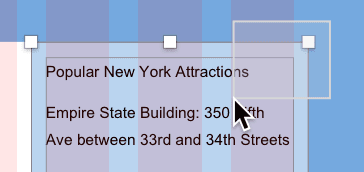
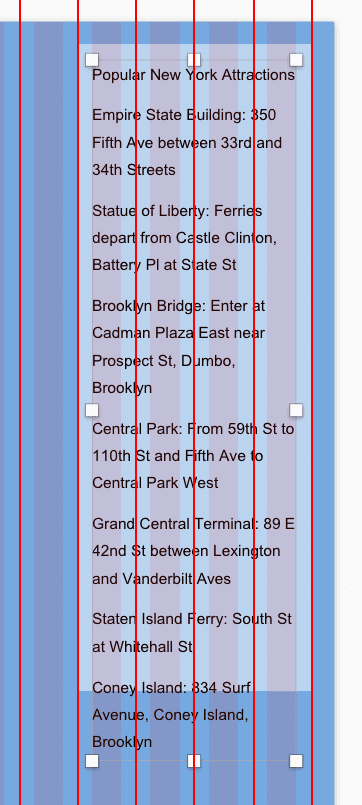
  3. On the Desktop artboard, create a precise selection around the sidebar elements by dragging from outside the content area until your selection box encompasses both the background and text:

    nyc sidebar drag selection

    NOTE: Use Cmd–Plus(+) or Cmd–Minus(-) to adjust zoom levels throughout this exercise for precision work.

  4. Copy the selected elements with Cmd–C.
  5. Select the Tablet artboard in the Sidebar to set your paste destination.
  6. Paste with Cmd–V—elements will appear centered on the artboard initially.
  7. Switch to actual size view with Cmd–0 (View > Zoom To > Actual Size) to see true proportions.
  8. Ensure your guides are visible: press CTRL–R (View > Canvas > Show Rulers) if rulers aren't showing.
  9. Activate column guides with CTRL–L (View > Canvas > Show Layout) if they're not visible.
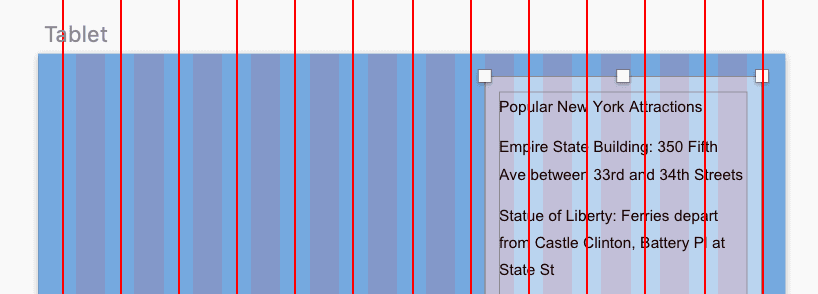
  10. Position the sidebar precisely by aligning its right edge with the rightmost red guide. The vertical position should create visual balance—refer to the image below for guidance:

    nyc position tablet sidebar

  11. Deselect by clicking blank canvas space.
  12. Select only the sidebar bg to resize the background independently.
  13. Drag the background's left-middle resize handle inward until it snaps to the 5th red guide from right, creating our 4-column sidebar width:

    nyc tablet sidebar resize bg

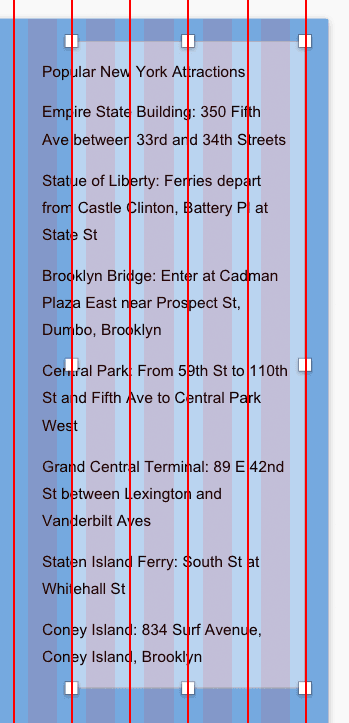
  14. Click the sidebar text to select it.
  15. Resize the text container by dragging its bottom-left handle inward and downward until it snaps to the column boundaries within the background color, ensuring all text remains visible:

    nyc tablet sidebar text box

  16. Navigate to the Desktop artboard using Spacebar + drag or two-finger trackpad scrolling.
  17. On the Desktop artboard, select both the main content's white background and its text by dragging a selection box around both elements.
  18. Copy with Cmd–C.
  19. Transfer these elements to the tablet layout:

    • Scroll to the Tablet artboard.
    • Ensure the tablet context is active by selecting any sidebar element or clicking Tablet in the artboard header or Sidebar.
    • Paste with Cmd–V.

    This juxtaposition clearly illustrates the significant size difference between desktop and tablet viewports.

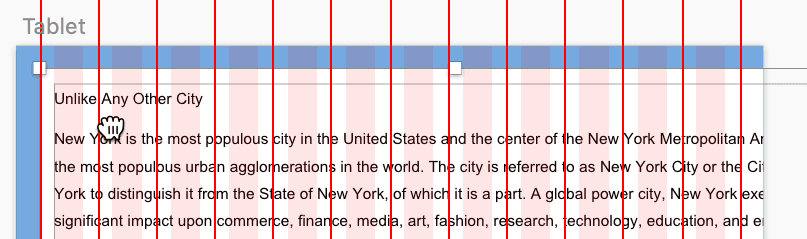
  20. Position the main content area by aligning its left edge with the 1st red guide. Watch for the horizontal red guide that appears when you're properly aligned with the sidebar's top edge:

    nyc position main col sidebar

  21. Deselect elements by clicking empty canvas space.
  22. Select the main column's white background.
  23. Resize by dragging the background's right-middle handle inward until it snaps to the sidebar's left edge (the 5th red guide from right).
  24. Select the main column's text container.
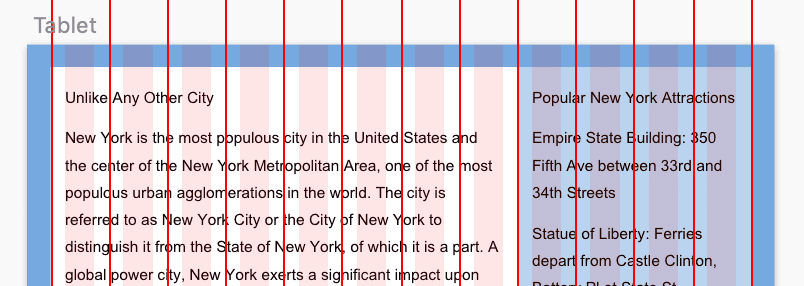
  25. Adjust the text box by dragging its right-middle handle inward to the 8th column boundary within the white background, achieving this layout:

    nyc tablet resize main col

  26. Extend the main text column by dragging its bottom-middle handle downward until all text is visible.
  27. Select the main column's white background on the Tablet artboard.
  28. Shift–click the sidebar's blue background to select both background elements.
  29. Extend both backgrounds by dragging their bottom handles down to create appropriate spacing below the text content. If Smart Guides interfere with your preferred positioning, temporarily disable them via View > Canvas > Show All Guides, then re-enable when finished.
  30. Clean up your view by toggling off guides with CTRL–R and CTRL–L to appreciate your completed tablet layout.

    NOTE: The tight padding you see represents Bootstrap's minimum spacing. On larger tablet screens, this content area remains constant while additional whitespace appears on the sides. While pre-built frameworks offer convenience, remember that custom grid systems provide greater control over spacing and proportions for unique design requirements.

  31. Save your progress with File > Save (Cmd–S).

Column Flexibility

Grid systems don't require elements to span the same amount of columns across screen sizes. The sidebar spans 3 columns on desktop but 4 columns on tablet for better proportions.

Tablet Layout Process

1

Select Multiple Artboards

Use Shift-click to select both Desktop and Tablet artboards, then zoom to selection for easy comparison

2

Copy and Position Elements

Drag selection boxes around sidebar elements, copy with Cmd-C, and paste to tablet artboard with proper alignment

3

Resize and Align

Use red guides to align elements and resize backgrounds to fit the 4-column sidebar span

4

Adjust Text Areas

Resize text boxes and backgrounds to accommodate all content within the new column constraints

Adapting the Design for Mobile Phones

Mobile design represents the ultimate test of content hierarchy and user experience prioritization. With severely limited horizontal space, we must abandon multi-column layouts entirely. Our strategy places the primary content first, followed by supporting information—a approach that aligns with mobile users' task-focused behavior and limited attention spans.

  1. Select both Phone and Tablet artboards by clicking Phone in the Sidebar, then Shift–clicking Tablet.
  2. Focus on both layouts using View > Zoom To > Selection.
  3. Deselect artboards by clicking blank canvas space.
  4. Select the Phone artboard by clicking the word Phone at its top-left corner—we need to accommodate much more content vertically.
  5. Drag the bottom resize handle downward to add height, though visual estimation isn't precise enough for our needs.
  6. In the right Inspector panel, set the H (Height) field to 1,000 and press Return for adequate vertical space.
  7. The process for creating the mobile layout follows the same copy-paste-adjust methodology you've just mastered. Since you've demonstrated proficiency with these techniques, we'll move forward (though you're welcome to practice the mobile adaptation if desired).
  8. Save and close the file to complete this responsive design exercise.
Mobile Layout Strategy

Multiple text columns don't fit on small screens. The mobile layout uses a single column with the main content on top, requiring significant height adjustments to accommodate stacked elements.

Mobile Adaptation Checklist

0/4

Is Stacking Elements the Best Solution?

While stacking desktop columns vertically seems like the obvious mobile solution, this approach often creates problematic user experiences. Excessive vertical scrolling can bury critical information below the fold, potentially losing users before they discover key content or calls-to-action.

Consider these alternative strategies: implement collapsible sections with clear preview text for easy content scanning; convert image galleries into swipeable carousels to maintain visual impact while conserving space; use progressive disclosure to reveal detailed information on demand; prioritize content based on mobile user goals rather than desktop hierarchy. The key is understanding that mobile users often have different objectives and constraints than desktop users—your responsive strategy should reflect these behavioral differences, not simply accommodate smaller screens.

Stacking vs Alternative Solutions

Pros
Simple and straightforward implementation
Maintains all content visibility
Easy to understand for developers
Works well for content-heavy designs
Cons
Creates very tall mobile layouts
Important information may be buried below fold
Users must scroll extensively
May not optimize for mobile user behavior

Alternative Mobile Design Patterns

Collapsible Sections

Use accordion-style interfaces where sections can be collapsed for easy scanning. Users tap to reveal detailed information.

Content Carousels

Convert multiple images or content blocks into swipeable slideshows to save vertical space while maintaining access.

Priority-Based Layout

Analyze user interaction patterns to determine which content should be most prominent on mobile devices.

Design Philosophy

Think about how users will interact with your content to decide what's best for mobile, tablet, and desktop users. The goal is optimization for each platform, not just responsive scaling.

Key Takeaways

1Bootstrap grid systems use different column widths and behaviors across desktop, tablet, and mobile breakpoints
2Elements don't need to span the same number of columns across different screen sizes - adjust for optimal proportions
3Tablet layouts (768px+) use a 720px container with narrower columns but maintain the same gutter spacing as desktop
4Mobile layouts often require single-column stacking with careful consideration of content hierarchy and user scrolling behavior
5Use Sketch's selection tools and keyboard shortcuts (Cmd-C, Cmd-V, Shift-click) for efficient multi-artboard design workflows
6Red guides and column overlays are essential for precise alignment when adapting layouts across breakpoints
7Simple stacking isn't always the best mobile solution - consider collapsible sections, carousels, and priority-based layouts
8Design decisions should be based on user interaction patterns rather than just technical constraints of responsive frameworks

RELATED ARTICLES