April 1, 2026Jerron Smith/10 min read

The Interview: Lower Third Title in Premiere Pro

Master professional lower third titles in Premiere Pro

Essential Lower Third Components

Text Elements

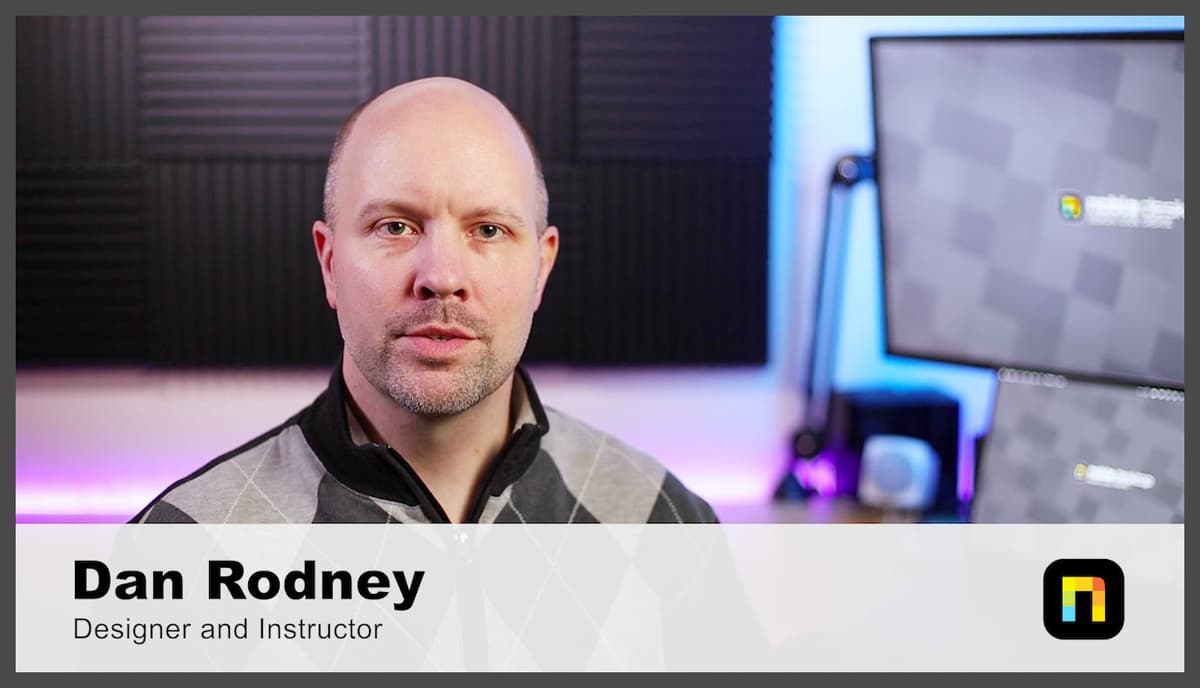
Name and title positioning with proper typography hierarchy. Arial Black for names, Arial Regular for titles with appropriate sizing.

Background Graphics

White rectangle backgrounds with 60% opacity for readability. Proper alignment and sizing for professional appearance.

Animation Timing

15-frame cross dissolve transitions for smooth entry and exit. Consistent timing across all graphic elements.

Topics Covered in This Premiere Pro Tutorial:

Adding a Lower Third Title

Exercise Preview

preview lower thirds

Exercise Overview

In this exercise, you'll master the art of creating professional Lower Third titles—those essential graphics that identify speakers and provide context in interviews, documentaries, and corporate videos. Lower thirds are a cornerstone of professional video production, serving as the visual bridge between your subject and your audience. By the end of this tutorial, you'll understand not just the technical steps, but the design principles that make lower thirds effective and visually compelling.

Getting Started

Before diving into lower third creation, let's ensure your project is properly set up and ready for graphics work.

  1. You should still have Your Name—The Interview version 2 open in Premiere Pro. If you closed it, re-open it now by going to File > Open Project then Desktop > Class Files > Premiere Pro Class > The Interview. We strongly recommend completing the previous exercises (2A–2B) before starting this one, as they establish the foundation clips and timeline structure you'll need. If you haven't finished those exercises, follow the instructions in the sidebar below.

    Pre-Exercise Requirements

    0/3

If You Did Not Do the Previous Exercises (2A–2B)

  1. If a project is open in Premiere Pro, go to File > Save, then File > Close Project.
  2. Go to File > Open Project and navigate to Desktop > Class Files > Premiere Pro Class > The Interview.
  3. Double–click on The Interview—Ready for Lower Third.prproj.

  4. Go to File > Save As. Name the file Your Name—The Interview version 2.prproj and save it to Desktop > Class Files > Premiere Pro Class > The Interview.

Alternative Setup Process

1

Close Current Project

Save any open work, then close the current project using File > Close Project

2

Open Template File

Navigate to The Interview—Ready for Lower Third.prproj in the class files directory

3

Save As New Version

Create Your Name—The Interview version 2.prproj in the proper location

Adding a Lower Third from a Template

While our speaker introduces himself at the beginning of the video, professional interviews always include onscreen identification. Lower thirds serve multiple purposes: they reinforce the speaker's credibility, help viewers who may have missed the introduction, and maintain visual consistency throughout longer productions. Adobe's built-in templates provide an excellent starting point, offering professionally designed graphics that you can customize to match your brand.

  1. On the Timeline, move the playhead to 1:10. This timing allows the viewer to see the speaker clearly before the graphic appears—a best practice in professional editing.
  2. Switch to the Graphics workspace by choosing Window > Workspaces > Captions and Graphics. This workspace optimizes your panels for graphics work.
  3. Choose Window > Workspaces > Reset to Saved Layout to ensure all panels are properly arranged.
  4. In the Essential Graphics panel's search field, type basic lower and hit Return (Mac) or Enter (Windows). Premiere Pro's template library includes hundreds of professionally designed graphics that save time while maintaining quality.
  5. Drag the Basic Lower Third motion graphics template onto the Video 2 track so the beginning of the clip lines up with the playhead. Using a separate video track keeps your graphics organized and makes future edits easier.
  6. If it's not already active, choose the Selection tool tool_selection.

  7. In the Program panel, double–click on the text Your Name Here to select it. This automatically switches you to the Type tool tool_type, streamlining your workflow.

    NOTE: You can also double–click the layer in the Essential Graphics panel to select the text—useful when working with complex graphics where direct selection might be difficult.

  8. Change the text to Dan Rodney. When creating your own projects, always use the person's preferred name format and double-check spelling for accuracy.
  9. With the Type tool tool_type now active, click 3 times on the Second Line is Smaller text to select it. Triple-clicking selects the entire text block, saving time over manual selection.
  10. Change the second line to Designer and Instructor. The second line should concisely convey the speaker's expertise or relevance to your content.
  11. Choose the Selection tool tool_selection.

    The second text line should still be selected, allowing you to modify its properties.

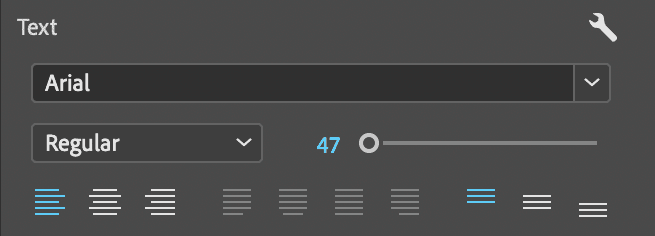
  12. In the Essential Graphics panel's Text section set:

    • Font: Arial Regular
    • Size: 47

    lower thirds bottom text font

  13. In the Essential Graphics panel's Align and Transform section, change the first value for Position essential graphics position to 90 and change the second value to 1042. These precise coordinates ensure consistent positioning across different projects.
  14. Click on the Dan Rodney text to select it.
  15. Change the font to Arial Black and size to 90. The larger, bolder font creates visual hierarchy, making the name more prominent than the title.
  16. Next to Position essential graphics position change the first value to 90 and second to 960.
  17. At the top of the Essential Graphics panel, click on the first text layer Designer and Instructor to select it.
  18. Hold Shift and click on the second text layer Dan Rodney to select it as well. This multi-selection technique allows you to apply changes to multiple elements simultaneously.
  19. In the Essential Graphics panel's Appearance section, click on the Fill color box to open the color picker.

    • At the bottom right of the color picker, next to # type in 000000 (which is black).
    • Click OK.
  20. At the top of the Essential Graphics panel, click on the New Layer button button_newItem and choose Rectangle. Adding a background shape improves text readability, especially over complex video footage.
  21. Double–click on the new shape layer's name to make it editable.
  22. Type in background and hit Return (Mac) or Enter (Windows) to apply it. Descriptive layer names are essential for project organization and team collaboration.
  23. Drag the newly named background layer below the 2 text layers. Layer order determines which elements appear in front—text should always be above background elements.
  24. With the background layer selected in the Essential Graphics panel, down in the Appearance section click on the Fill color box.

    • In the color picker, next to # type in FFFFFF (which is white).
    • Click OK.
  25. In the Align and Transform section:

    • Click the Align Bottom button align bottom.
    • Click the Align Left button align left.
  26. In the Program panel, use the Selection tool tool_selection to drag the rectangle's top right control corner to resize it until it looks like the example below, or set W (width) to 1920 and H (height) to 245. The full-width background creates a professional, broadcast-style appearance.
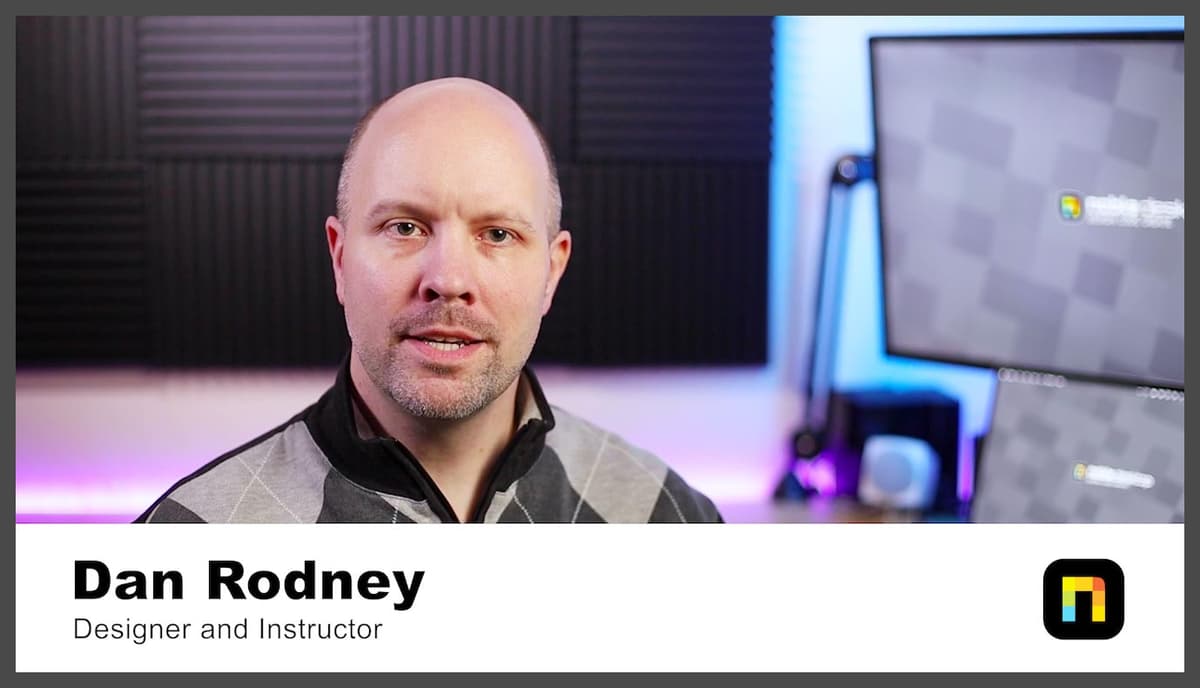
    interview_bg

  27. In the Essential Graphics panel's Align and Transform section, set Opacity essential graphics opacity to 60. This transparency allows the underlying video to show through while maintaining text readability—a balance crucial for professional lower thirds.

  28. In the Timeline, click on the graphic clip in Video 2 to select it.

  29. Press Cmd–D (Mac) or CTRL–D (Windows) to apply the default transition cross dissolve to the selected clip. This creates smooth fade-in and fade-out effects.

  30. Press the + (plus) a couple times to zoom closer in on the Timeline for more precise editing control.

  31. Double–click on the transition at the beginning of the clip.

    • Set the Duration to 15 frames and click OK. This half-second fade-in feels natural and professional.
  32. Double–click on the transition at the end of the clip.

    • Set the Duration to 15 frames and click OK. Consistent transition timing maintains visual rhythm.
  33. Play from the beginning of the timeline through the Lower Third Title to review your work. Always preview your edits to ensure smooth playback and proper timing.
  34. Choose Window > Workspaces > Editing to return to the standard editing workspace.

  35. Choose File > Save or hit Cmd–S (Mac) or CTRL–S (Windows) to preserve your work.

Timeline Positioning

Position the playhead at 1:10 for optimal lower third placement, allowing the speaker's introduction to establish context before the graphic appears.

Text Customization Process

1

Primary Text Setup

Change 'Your Name Here' to 'Dan Rodney' using Arial Black font at size 90, positioned at coordinates 90, 960

2

Secondary Text Setup

Change second line to 'Designer and Instructor' using Arial Regular at size 47, positioned at 90, 1042

3

Color and Background

Set text color to black (#000000) and add white rectangle background (#FFFFFF) with 60% opacity

Typography Specifications

Primary Text Size
90
Secondary Text Size
47
Background Opacity
60
Transition Duration
15
Professional Spacing

Background dimensions of 1920x245 pixels with proper alignment ensure the lower third spans the full width while maintaining appropriate height proportions.

Animating the Logo at the Beginning & End

Professional video production relies on polished openings and closings to create a cohesive viewing experience. Adding subtle transitions and logo animation elevates your content from amateur to broadcast-quality. These finishing touches demonstrate attention to detail that distinguishes professional work in today's competitive media landscape.

  1. Position the playhead at the beginning of the timeline.
  2. Open the Effects panel (Window > Effects) to access Premiere Pro's extensive library of transitions and effects.
  3. In the Effects panel's search field type dip. The search function saves time when working with Premiere's hundreds of available effects.
  4. Drag the Dip to Black transition to the beginning of the first Main Interview clip on the Video 1 track. This creates a professional fade-in from black.
  5. Double–click the Dip to Black transition in the timeline to access its properties.

    • Set the Duration to 15 frames and click OK. This creates a smooth, half-second fade that doesn't feel rushed or drawn out.
  6. Play the beginning of the timeline to see the video fade in smoothly from black, creating an elegant opening that draws viewers in.

  7. Move the playhead to 1:53:20 on the Timeline (the end of the interview). Consistent opening and closing treatments bookend your content professionally.
  8. Drag the Dip to Black transition from the Effects panel to the end of the last Main Interview clip on the Video 1 track.
  9. Double-click the Dip to Black transition in the timeline.

    • Set the Duration to 15 frames and click OK. Matching the opening transition duration creates symmetry.
  10. Move the Timeline's playhead to 0:15 to position it where the logo animation should begin.
  11. Click on the lock button_lock to the left of the Video 3 track to unlock it. Track locks prevent accidental edits to important elements.
  12. Using the Selection tool tool_selection, click on the Noble Logo clip to highlight it.
  13. Open the Effect Controls panel (at the top left, next to the Source panel's tab). This panel provides access to all clip properties and effects.
  14. Within Motion, click on the Toggle Animation stopwatch button_toggleAnim next to both Position and Scale to create 2 keyframes. Keyframes mark specific property values at specific times, enabling animation between different states.

  15. Move the playhead to the beginning of the Timeline to set your starting animation point.

  16. To the far right of Position, click the Reset Parameter button button_resetParam to center the logo in the screen.
  17. For Scale also click the Reset Parameter button button_resetParam to return the logo back to the original size as it was imported. This creates the animation's ending state—centered and full-size.

  18. Play the beginning of the timeline to see the logo elegantly animate from its current position to center screen while scaling to full size—a dynamic opening that captures attention.
  19. Move the playhead to 1:53:20 on the Timeline (where the interview ends) to create the closing animation.
  20. Because our edits removed some video content, the logo extends past the end of the interview. Click on the logo clip on the Video 3 track to select it.
  21. Press Cmd–K (Mac) or CTRL–K (Windows) to add an edit at the playhead position, splitting the clip.
  22. Click on the logo clip to the right of the playhead—the portion extending beyond your content.
  23. Press the Delete (Mac) or Backspace (Windows) key to delete the unwanted clip portion.
  24. With the playhead still at 1:53:20, we need to move back 15 frames to where the Dip to Black transition starts. Click on the Timeline's timecode and type in -15 and hit Return (Mac) or Enter (Windows) to go there.

    You should now be at 1:53:05.

    Pro tip: Adding a + or - in front of any number you type into the playhead position moves the playhead forward or back relative to its current position—a powerful navigation technique that saves time during complex edits.

  25. Select the Noble Logo on Video 3 to prepare for the closing animation keyframes.
  26. In the Effect Controls panel, click on the Add/Remove Keyframe button_addRemoveKey buttons for both Position and Scale. This creates keyframes that mark the beginning of your closing animation.

  27. Move the playhead to 1:53:19—just before the video fades to black.

  28. In the Effect Controls panel, click Reset Parameter button_resetParam for both Position and Scale. This creates the closing animation where the logo moves to center and scales up as the video fades out.
  29. Choose File > Save or hit Cmd–S (Mac) or CTRL–S (Windows) to preserve your completed work.
  30. Play through the entire video to appreciate your professional results. Notice how the smooth opening, informative lower third, and elegant closing create a cohesive viewing experience that rivals broadcast-quality content.

    Congratulations! You've created a professional interview piece complete with animated graphics, proper transitions, and broadcast-standard lower thirds. Keep this project open—you'll build upon these skills in the next exercise where we'll explore more advanced graphics techniques.

Animation Sequence Timeline

0:00

Fade In Start

Dip to Black transition begins the sequence

0:15

Logo Animation

Logo scales and moves to final position

1:10

Lower Third Display

Title graphics appear with cross dissolve

1:53:20

Sequence End

Final transition completes at interview conclusion

Keyframe Efficiency

Use the Reset Parameter button for both Position and Scale to quickly return elements to their original imported values, maintaining consistency across animations.

Timeline Navigation Technique

1

Relative Positioning

Type '-15' in the timecode field to move back 15 frames from current position

2

Precise Timing

This technique ensures transitions align perfectly with Dip to Black effects

3

Professional Workflow

Adding + or - before numbers enables relative timeline movement for efficient editing

Key Takeaways

1Lower third titles require precise timing at 1:10 into the interview sequence for optimal viewer engagement and speaker context establishment
2Typography hierarchy uses Arial Black at 90pt for primary names and Arial Regular at 47pt for secondary titles, maintaining professional readability standards
3Background elements need 60% opacity white rectangles sized at 1920x245 pixels with proper bottom-left alignment for broadcast-safe positioning
4Transition timing of 15 frames for cross dissolves and Dip to Black effects creates smooth, professional animation flow throughout the sequence
5Logo animation requires keyframes for both Position and Scale parameters, with Reset Parameter buttons providing quick return to original values
6Essential Graphics panel provides centralized control for text editing, color changes, and layer management within motion graphics templates
7Timeline navigation using relative positioning with +/- syntax enables precise frame-accurate editing for professional video production workflows
8Project organization with proper file naming conventions and workspace management ensures efficient collaboration and future project accessibility

RELATED ARTICLES