March 23, 2026Tziporah Zions/6 min read

Premiere Pro Circle Transition

Master Professional Video Transitions in Adobe Premiere

Prerequisites

This tutorial requires Adobe Premiere Pro and basic familiarity with the Timeline and Effects panel. Download the provided project files before beginning.

Getting the Project Files

  1. Download the project files.
  2. After the download completes, extract the archive if your system hasn't done so automatically. You should see a Premiere Pro Circle Transition folder containing all necessary assets.

Overview

This tutorial demonstrates a sophisticated circle transition technique that creates seamless visual flow between clips. The process involves strategically cutting footage segments to create a nested sequence, then applying a combination of effects to achieve a professional-grade transition. We'll use the Circle effect as our primary tool, enhanced with a 4-Color Gradient for visual interest and subtle color enhancement. Finally, we'll add a Gaussian Blur effect to the destination footage, ensuring the transition feels organic and polished.

This technique is particularly effective for narrative projects, promotional videos, and any content where smooth visual continuity enhances storytelling. Let's dive into the process.

Circle Transition Workflow

1

Cut and Nest Footage

Use the Razor tool to cut specific segments and create a nested sequence for effect application

2

Apply Circle Effect

Add the Circle effect with keyframes and 4-Color Gradient for visual enhancement

3

Add Blur Effect

Apply Gaussian Blur to the final clip for smooth transition completion

Sequence Setup

Before applying effects, we need to prepare our timeline structure by creating precise cuts and organizing our footage layers.

1. Position the Playhead Image1 at 00;00;01;00 on the Timeline.

2. Press C to activate the Razor Image4 tool.

3. Click precisely where the Playhead Image1 intersects the footage clip to create your first cut.

4. Move the Playhead Image1 to 00;00;03;08.

5. With the Razor Image4 tool active, make your second cut where the Playhead Image1 meets the footage.

6. Press V to return to the Selection Image3 tool.

7. Select both newly created footage segments using Shift+Click.

Image9

8. Right-click on either selected clip to open the context menu.

9. Select Nest to create a new nested sequence. This technique allows us to treat multiple clips as a single unit while maintaining individual control over the underlying footage.

10. Name the sequence Circle Transition for easy identification.

11. Drag the newly created nested sequence to the V3 track on the Timeline. This positioning ensures proper layering for the effect.

Image6

Now we'll adjust the underlying footage to create the proper timing for our transition reveal.

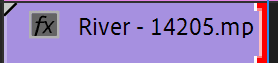
12. Click on the right edge of the River footage clip.

Image7

13. Drag the footage endpoint back to 00;00;02;11.

14. Click on the left edge of the Swans footage.

Image2

15. Extend that clip to begin at 00;00;02;12. This creates a one-frame overlap that ensures seamless transition timing.

With our sequence structure established, we can now apply the effects that will create our circle transition.

Timeline Positioning

00;00;01;00

First Cut

Position playhead at 00;00;01;00 and make initial razor cut

00;00;03;08

Second Cut

Move to 00;00;03;08 and create second division

00;00;02;11

Transition Center

Middle point for maximum effect radius

Keyboard Shortcuts

Use C for Razor tool and V for Selection tool to speed up your workflow. Shift+Click allows multiple clip selection for batch operations.

Circle Effect

The Circle effect serves as the foundation of our transition, creating a mask that reveals or conceals footage through an animated circular aperture.

1. In the Effects panel, search for Circle.

Image8

2. Drag the Circle effect onto the Circle Transition nested sequence.

3. Navigate to the Effect Controls panel and locate the newly applied Circle effect.

4. Enable the Invert Circle checkbox. This reverses the mask behavior, allowing us to create an expanding reveal rather than a contracting hide.

Image10

Now we'll set up the keyframe animation that drives our transition timing.

5. Position the Playhead Image1 at 00;00;01;00.

6. Click the Stopwatch Image5 next to Radius to enable keyframe animation.

7. Set the Radius value to 1300. This large value ensures our circle starts well outside the frame boundaries.

8. Move the Playhead Image1 to 00;00;03;08.

9. Click the Stopwatch Image5 to create an end keyframe at this position.

10. Position the Playhead Image1 at the sequence midpoint: 00;00;02;11.

11. Change the Radius to -100. This negative value creates the complete mask coverage we need for the transition peak.

Next, we'll refine the animation timing to create a more professional, organic feel.

12. Select all three keyframes using Shift+Click.

13. Right-click on any selected keyframe.

14. Choose Ease In to apply temporal easing. This creates acceleration and deceleration curves that feel more natural than linear animation.

15. Expand the Feather settings section.

16. Set the Feather Outer Edge to 150. This softens the circle's edge, eliminating harsh boundaries that would otherwise feel mechanical.

To enhance visual interest and create a more cinematic feel, we'll add subtle color treatment.

17. In the Effects panel, search for 4-Color Gradient.

18. Apply this effect to the same nested sequence.

19. In the Effect Controls panel, locate the 4-Color Gradient settings.

20. Change the Blending Mode to Soft Light. This blend mode provides subtle color enhancement without overpowering the original footage, adding warmth and visual continuity to the transition.

Our core transition is now complete, but we can add one final enhancement to maximize the professional polish.

Key Circle Effect Settings

Radius Keyframes

Start at 1300, animate to -100 at center, return to 1300. This creates the expanding and contracting circle motion.

Feather Outer Edge

Set to 150 for smooth edge blending. This prevents harsh transitions between visible and masked areas.

Invert Circle

Check this box to reverse the mask effect. This determines which part of the image remains visible during transition.

Radius Animation Values

Start Point
1,300
Midpoint
100
End Point
1,300

Blur Effect

Adding strategic blur to the destination clip creates a focus pull effect that guides viewer attention and enhances the transition's organic feel.

1. Search for Gaussian Blur in the Effects panel.

2. Apply the Gaussian Blur effect to the second footage clip (the swans footage).

3. Position the Playhead Image1 at 00;00;02;11.

4. Select the Swans footage clip.

5. In the Effect Controls panel, click the Stopwatch Image5 next to Blurriness to initiate keyframe animation.

6. Set the Blurriness value to 250. This creates significant defocus at the transition's peak moment.

7. Move the Playhead Image1 to 00;00;03;12.

8. Set the Blurriness to 0 to return to sharp focus as the transition completes.

Congratulations! You've successfully created a sophisticated Circle Transition effect that rivals professional broadcast standards. This technique demonstrates the power of combining multiple effects to achieve results that feel seamless and intentional.

Blur Effect Settings

FeatureStart KeyframeEnd Keyframe
Blurriness Value2500
Timeline Position00;00;02;1100;00;03;12
Effect PurposeMaximum blur at transitionSharp final image
Recommended: This creates a smooth focus pull that enhances the circle transition effect

Conclusion

This circle transition technique showcases how three strategic effects can transform ordinary cuts into compelling visual storytelling tools. The beauty lies in the technique's versatility—you can modify the Blend Mode on the Circle effect to create different layer interactions, experiment with various color treatments, or apply Gaussian Blur to multiple clips for extended focus effects. Consider using this transition approach with text layers, logo reveals, or complex multi-layer compositions.

The professional editing landscape continues to evolve, but foundational techniques like these remain essential. Mastering effect combination and timing principles positions you to tackle increasingly complex projects with confidence. As you develop your skills, remember that the best transitions serve the story—they should enhance narrative flow without drawing attention to the technique itself.

Keep experimenting and refining your approach. Professional editing is as much about creative problem-solving as it is about technical execution.

Circle Transition Technique

Pros
Uses only three basic effects for professional results
Highly customizable with blend modes and color effects
Can be applied to text layers and multiple footage clips
Creates smooth, seamless transitions between scenes
Cons
Requires precise keyframe timing for best results
May need adjustment based on footage content
Render times can be longer with multiple effects

Transition Customization Options

0/4

Learn Motion Graphics

Ready to advance your career in motion graphics and video editing? Our comprehensive training programs in NYC provide the industry-standard skills you need to compete in today's creative marketplace. Our instructors are active professionals bringing real-world experience from major studios and production companies. Every course emphasizes hands-on learning through industry-relevant projects, beginning with live demonstrations followed by guided practice sessions where you'll apply new concepts immediately.

We understand that working professionals need flexible scheduling, which is why our programs accommodate busy lifestyles while maintaining rigorous standards. Whether you're transitioning careers or expanding your current skill set, our project-based curriculum ensures you graduate with portfolio-ready work and practical expertise.

Key Takeaways

1The circle transition requires cutting footage into segments and creating a nested sequence for effect application
2Three main effects are used: Circle effect with inverted settings, 4-Color Gradient with Soft Light blend mode, and Gaussian Blur
3Precise timeline positioning is crucial - cuts at 00;00;01;00 and 00;00;03;08 with center point at 00;00;02;11
4Radius keyframes animate from 1300 to -100 and back to 1300, with Ease In applied for smooth motion
5Feather Outer Edge set to 150 prevents harsh transitions and creates professional-looking blends
6The 4-Color Gradient uses Soft Light blending mode to add subtle color enhancement without overwhelming the footage
7Gaussian Blur animates from 250 to 0 on the final clip to create a smooth focus pull effect
8This technique is versatile and can be applied to text layers, multiple footage clips, and customized with different blend modes and color effects

RELATED ARTICLES