April 1, 2026Jerron Smith/7 min read

The Interview: Adding a Logo “Bug” & Animating Images in Premiere Pro

Master Professional Video Graphics and Animation Techniques

Essential Premiere Pro Skills You'll Master

Logo Bug Implementation

Learn to add professional corner graphics that maintain consistent branding throughout your video content. Perfect for corporate videos and broadcast-style productions.

Image Animation Techniques

Transform static photos into dynamic visual elements using position and scale keyframes. Add professional motion effects that enhance storytelling.

Smooth Transition Workflows

Master cross dissolve and default transitions to create seamless visual flow between different video elements and maintain viewer engagement.

Topics Covered in This Premiere Pro Tutorial:

Adding Images, Animating Motion Effects, Adding Transitions

Exercise Preview

preview images animation

Tutorial Workflow Timeline

Start

Project Setup

Open pre-configured project file and save working version

Step 1

Logo Implementation

Add and position company logo as corner bug element

Step 2

Image Animation

Create keyframe animations for position and scale effects

Final

Transition Polish

Apply cross dissolve and default transitions for smooth flow

Exercise Overview

In this exercise, you'll master essential graphics integration techniques that separate amateur video projects from professional productions. You'll learn to seamlessly incorporate logos, photographs, and other visual elements into your video footage, animate them with professional-grade motion effects, and create smooth transitions that maintain viewer engagement. These skills are fundamental for modern video production, whether you're creating corporate content, marketing materials, or documentary-style interviews.

Getting Started

To ensure we're all working from the same baseline, we'll begin with a project file that includes all the b-roll footage from the previous exercise. This approach mirrors real-world production workflows where projects are often passed between team members at different stages.

  1. In Premiere Pro, if you have a project open, choose File > Close All Projects.

  2. Choose File > Open Project or hit Cmd–O (Mac) or CTRL–O (Windows).

  3. Navigate to Desktop > Class Files > Premiere Pro Class > The Interview > Finished Projects.

  4. Double–click on The Interview—Ready for Graphics.prproj to open it.

    NOTE: If you see a dialog about Converting Project (from a prior version) refer to Fixing Version Compatibility Issues section in Exercise 1A. If the Link Media dialog opens refer to Locating Missing Media in Exercise 1A.

  5. Once the project is open, go to File > Save As and:

    • Name it Your Name—The Interview version 2
    • Save it into Desktop > Class Files > Premiere Pro Class > The Interview
File Management Best Practice

Always save your working project with a new name and version number to preserve your original files. This tutorial uses 'Your Name—The Interview version 2' to maintain organized project versions.

Project Setup Checklist

0/4

Adding a Logo

Professional video content often includes persistent branding elements known as "bugs"—typically company logos or identifying graphics positioned strategically in a corner of the frame. This technique maintains brand visibility throughout the content without interfering with the primary visual narrative. Television networks, streaming platforms, and corporate videos rely heavily on this approach for consistent brand reinforcement.

  1. In the Tools panel, click on the Selection tool tool_selection.

  2. In the Project panel, locate 03—Images > Noble Logo.ai and drag it onto the Video 3 track in the Timeline so it starts at the beginning (far left).

  3. Drag the end of the clip so it matches the length of the interview clips on Video 1.

  4. Click on the Noble Logo clip on the timeline to select it.

  5. In the Program panel, near the bottom right click on the Settings wrench button_wrench and choose Safe Margins to enable the Action and Title safe margins.

    NOTE: Safe Margins originated in broadcast television to ensure text and graphics wouldn't be cut off on consumer televisions due to overscan. While modern displays have largely eliminated this issue, Safe Margins remain a valuable guide for maintaining proper visual hierarchy and ensuring your graphics don't crowd the frame edges—a principle that applies across all distribution platforms, from social media to streaming services.

  6. Click on the Effect Controls panel (at the top left, next to the Source panel's tab). If you can't find it, choose Window > Effect Controls.

  7. If necessary, click the arrow arrow expand bin next to Motion to reveal its properties.

  8. Change Scale to 30

  9. Change Position to 1755 960

    This positioning places the logo at the bottom right corner within the Safe Margins, following industry conventions that keep branding elements visible but unobtrusive.

    TIP: For more intuitive positioning, click on the word Motion in the Effect Controls panel to enable direct manipulation—you can then drag the graphic around in the Program panel for real-time visual feedback.

  10. Click on the Settings wrench button_wrench and choose Safe Margins to turn them off.

  11. In the Timeline panel, click the lock button_lock button to the left of the Video 3 track to prevent accidental modifications.

Understanding Logo Bugs

A 'bug' is broadcast terminology for small graphics placed in video corners. They provide consistent branding without interfering with main content, commonly used by TV networks and professional video producers.

Logo Positioning Workflow

1

Import and Place Logo

Drag Noble Logo.ai file onto Video 3 track at timeline beginning, extending to match interview clip length

2

Enable Safe Margins

Turn on Action and Title safe margins in Program panel to ensure proper positioning within broadcast standards

3

Scale and Position

Set Scale to 30% and Position to 1755, 960 coordinates for bottom-right corner placement within safe margins

4

Lock Track

Lock Video 3 track to prevent accidental movement of positioned logo during further editing

Adding Images & Animating Motion Effects

Static images in video projects can create visual dead zones that lose viewer attention. Professional editors transform still images into dynamic visual elements through strategic animation. This technique, widely used in documentaries, corporate videos, and news broadcasts, maintains visual momentum and creates a more polished, engaging viewing experience. The key is subtle movement that enhances rather than distracts from your content.

  1. In the Timeline, move the playhead to 45:05

  2. In the Project panel, locate 03—Images > Dan with Software.jpg
  3. Drag Dan with Software.jpg to Video 2 track on the Timeline, lining the beginning of the clip with the playhead.

  4. Click on the clip in the Timeline to select it.

  5. In the Effect Controls panel, change Position to 560 645

  6. On the right side of the Effect Controls panel is a mini–timeline view for this clip. The playhead should be the beginning (left), but if it isn't, move it there now.

  7. To the left of Position, click on the Toggle Animation stopwatch button_toggleAnim to create the first keyframe of our animation.

  8. In the Timeline, move the playhead to 49:03

    Notice this also moved the playhead in the Effect Controls panel's mini–timeline, maintaining sync between your timeline position and effect parameters.

  9. Change Position to 1865,000

    This creates the second keyframe of our animation, establishing a smooth horizontal pan across the image.

  10. In the Effect Controls panel's mini–timeline, CTRL–click (Mac) or Right–click (Windows) on the first keyframe keyframe start and choose Temporal Interpolation > Ease Out.

    This creates a professional acceleration curve that starts the animation slowly and gradually increases speed—mimicking natural motion and avoiding the mechanical feel of linear animation.

  11. CTRL–click (Mac) or Right–click (Windows) on the second keyframe and choose Temporal Interpolation > Ease In.

    This deceleration at the animation's end prevents abrupt stops, creating the smooth, polished motion characteristic of professional video production.

  12. Play the sequence over this photo clip to see the final animation.
  13. Position the playhead at the end of the photo clip you just added.
  14. Press the + (plus) key twice to zoom closer in on that part of the Timeline for precise editing.
  15. Let's add one more photo. In the Project panel, locate 03—Images > Dan with Work.jpg.
  16. Drag Dan with Work.jpg onto the Video 2 track, snapping it to right after Dan with Software.jpg.
  17. Move the playhead so it snaps to the beginning of the new image (so it's between the 2 images).
  18. Click on the new image in the Timeline to select it.
  19. In the Effect Controls panel, confirm that Scale is 100
  20. To the left of Scale, click on the Toggle Animation stopwatch button_toggleAnim.
  21. In the Timeline, move the playhead to 53:17
  22. In the Effect Controls panel, change Scale to 50
  23. Play the sequence over the 2 photos to see both animations working in harmony.

Static Image Challenge

Still images can appear visually boring in video content. Animation breathes life into static elements, maintaining viewer engagement and creating professional-looking productions.

Position Animation Setup

1

Place Image at Timecode

Position playhead at 45:05 and drag Dan with Software.jpg to Video 2 track, aligning with playhead position

2

Set Starting Position

Change Position to 560, 645 and click Toggle Animation stopwatch to create first keyframe

3

Create End Position

Move playhead to 49:03 and set Position to 1865, 000 to establish movement path

4

Apply Easing

Add Ease Out to first keyframe and Ease In to second keyframe for natural acceleration

Animation Techniques Used

Position Keyframes

Creates smooth movement across the screen from coordinates 560, 645 to 1865, 000 over approximately 4 seconds of footage.

Scale Animation

Second image uses scale keyframes from 100% to 50%, creating zoom-out effect that adds visual interest and depth.

Adding Transitions

Abrupt cuts between images can create jarring visual experiences that disrupt viewer engagement. Professional editors use transitions strategically to guide the audience's attention and create seamless visual flow. The Cross Dissolve transition, while simple, remains one of the most versatile and widely-used effects in professional video production, providing elegant solutions for everything from photo montages to scene changes.

  1. Open the Effects panel by choosing Window > Effects.
  2. In the Effects panel's search field type cross
  3. Under Video Transitions you should see Cross Dissolve.

    Drag the Cross Dissolve transition onto the edit line where the Dan with Software and Dan with Work clips join.
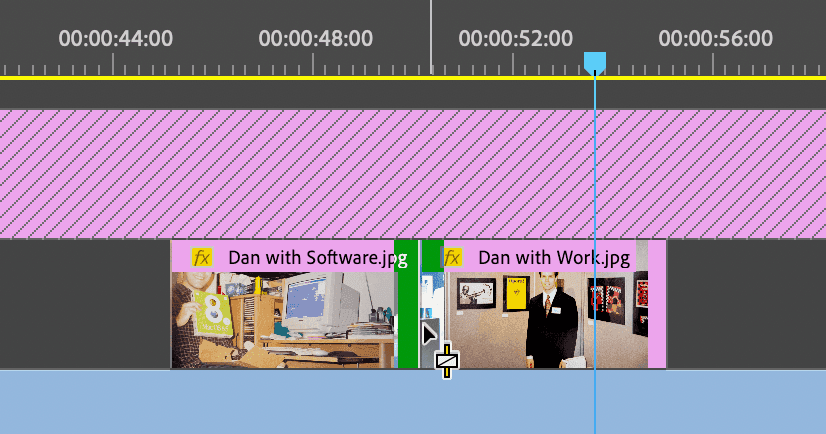
    apply_crossdissolve

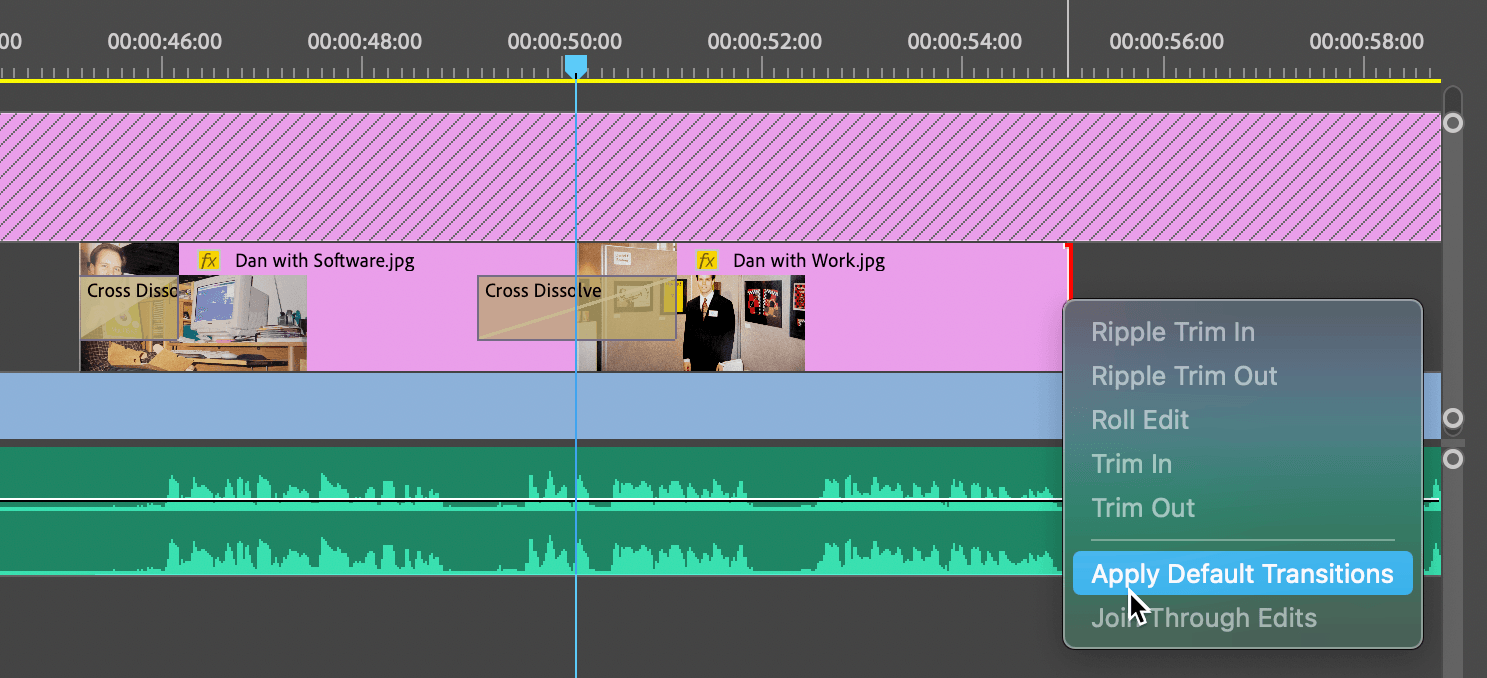
  4. In the Timeline, hover over the beginning of the first photo (Dan with Software) and when you see the right facing bracket left red bracket CTRL–click (Mac) or Right–click (Windows) and choose Apply Default Transitions.

  5. Hover over the end of the second photo (Dan with Work) and when you see the left facing bracket right red bracket CTRL–click (Mac) or Right–click (Windows) and choose Apply Default Transitions.

  6. Double–click on the transition between the two clips to open the settings.

  7. For Duration type 200

    NOTE: In Timecode that's 2:00 which is 2 seconds and 00 frames—a duration that provides smooth blending without feeling sluggish.

  8. Click OK.
  9. Play the sequence over the 2 photos to see the complete integration of photos, animations, and transitions working together.
  10. Hit the \ (backslash) key to zoom out to see everything in the Timeline.
  11. Choose File > Save or hit Cmd–S (Mac) or CTRL–S (Windows).

    Keep the project open because you'll use it in the next exercise as we continue building your professional video editing skills.

Transition Implementation Process

1

Apply Cross Dissolve

Search for Cross Dissolve in Effects panel and drag to edit line between Dan with Software and Dan with Work clips

2

Add Default Transitions

Right-click on beginning and end brackets of photo clips to apply default fade in and fade out transitions

3

Adjust Duration

Double-click transition and set Duration to 2:00 (2 seconds) for smooth, professional timing

Professional Results Achieved

The combination of animated position and scale keyframes with properly timed cross dissolve transitions creates broadcast-quality visual effects that enhance viewer engagement without overwhelming the main interview content.

Key Takeaways

1Logo bugs should be scaled to 30% and positioned within safe margins to maintain professional appearance without interfering with main content
2Safe margins serve as broadcast television guidelines that help ensure graphics won't be cut off on different display devices
3Position and scale keyframes can transform static images into dynamic visual elements that enhance video storytelling
4Ease In and Ease Out temporal interpolation creates natural acceleration that mimics real-world motion physics
5Cross dissolve transitions with 2-second duration provide smooth visual flow between different video elements
6Default transitions applied to clip beginnings and endings create professional fade effects for seamless integration
7Locking video tracks after positioning elements prevents accidental movement during continued editing work
8Proper file management with versioned project names protects original work and maintains organized workflow

RELATED ARTICLES