Zoo Promo: Animations, Effects, & Transitions in Premiere Pro
What This Tutorial Covers
Built-In Effects
Premiere's effect library for color, blur, and stylization.
Custom Animation
Keyframed motion and transform animation.
Transition Timing
Match transitions to the music's energy.
Noble Desktop's Video Editing & Motion Graphics Certificate teaches Premiere Pro alongside After Effects, DaVinci Resolve, and the full motion design toolkit.
Learn how to add animation and transitions to your video projects using Adobe Premiere Pro in this detailed tutorial, complete with hands-on exercises and helpful tips.
Exercise Preview
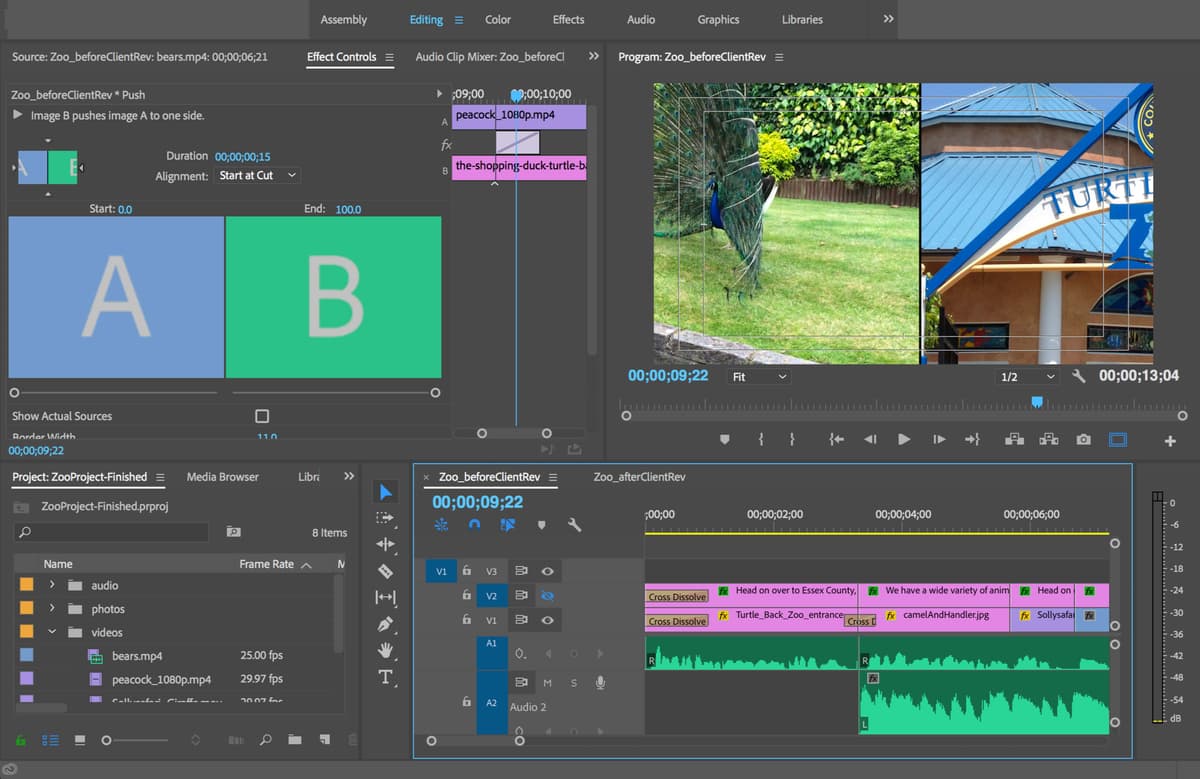
Adding Animation
We will add animation to our photos to keep momentum through them and to add another level of visual interest. Animation or transition means a change in something that happens over time. A keyframe is a way of attaching a value to a specific property (detail), at a specific point in time. You need at least two different keyframes on the same property, to see animation.
Let’s start by adjusting the scale and position of the first zoo photo and adding a zoom-in. A zoom-in (image getting larger) would be a nice way to start the promo, like we’re “going into the zoo.” Move the playhead anywhere over Turtle-Back-Zoo-Entrance.png so we can see it.
At the beginning of the Timeline, double–click Turtle-Back-Zoo-Entrance.png to load it into the Source Monitor, allowing us to make changes to it on its own.
At the top of the Source Monitor, click on Effect Controls.
Notice that by default the Scale is set to 100% (of the layer’s original Scale) and a little further down, Uniform Scale is checked on. This means that both the Width and Height will be scaled together.
In the Timeline, CTRL–click (Mac) or Right–click (Windows) on Turtle-Back-Zoo-Entrance.png and choose Set to Frame Size.
NOTE: If CTRL/Right-clicking does not show the menu you want, try clicking on a different part (such as the name instead of the icon). An alternate method is to select it in the Timeline and then go to the menu at the top of Premiere and choose Clip > Video Options > Set to Frame Size.
Look in Effect Controls and notice that Scale has changed. This is closer to what we want but we’ll need to adjust further, to remove the black bars to the top and bottom of the photo.
To start the promo, let’s animate the zoom in to the zoo entrance. Set the Scale to 72 so that the image fills the screen.
Set Position to 1012 540 to center the image.
Move the playhead to the beginning of the Timeline.
In order to start our zoom animation at this point, we need to set keyframes here. Any property that can be animated in Premiere has a little stopwatch
 directly to its left. To the left of Scale, click the stopwatch icon so it turns blue.
To the right of the Scale property, notice the keyframe
 (it may be partially cut off). A keyframe indicates the beginning/end of a transition of the property it’s adjacent to (Scale in this case).
Click the stopwatch icon
to the left of Position as well, to set a keyframe on this property too.Using the Stopwatch
Turning on the gray stopwatch
next to a property allows that property to animate. Click it only once. After that, simply changing the value of the property at a different point in time, automatically creates a new keyframe. Beware, clicking it again (when it is blue) will make all the keyframes for that property disappear!All we need to do to make a transition is create keyframes at key moments in an animation sequence, and Premiere will create in-between values for us.
In the Timeline, move the playhead to 3;09, just before the end of the entrance clip. We want the animation to continue for the entire duration of the clip.
In Effect Controls, we need to change both Scale and Position. It’s a good idea to change Scale first, then reposition to get the best shot composition. First, change Scale to 87, and then Position to 1082 566. Notice the two new keyframes
 that have been added.
Notice that we kept the Turtle Back Zoo sign within our Title Safe Margin. It’s a good rule of thumb to make sure any text, even when it’s part of a photo or video, is within the title safe margin.
NOTE: When scaling in Premiere you should use caution, as scaling too much can cause the image to break down and get pixelated/grainy. Generally, it’s a good idea to keep scaling to a maximum of 135%, and avoid scaling any larger than 150%.
Quick Guide to Animating with Keyframes
- Go to the clip’s Effect Controls window at the point in time where you want the animation to begin or end.
- Turn on the stopwatch next to the property (e.g., Scale) you want to animate, and if needed, change that number to the value you want that property to have at that point in time.
- Move the playhead earlier or later in time, and change the value of that same property any amount, to see this detail about the clip animate.
NOTE: For a transition, you simply need to create keyframes at key moments, and Premiere will create in-between values for you.
Adjusting Existing Keyframes
Scrub through in the Timeline to check out the zoom. Cool!
We’ll do something similar with the camel photo next. Move the playhead to 3;10.
Double–click the camelAndHandler.jpg clip in the Timeline, to load it up in the Source Monitor. Remember, you’ll need to double–click each clip to load it into the Source Monitor and adjust its Size and Position.
In the Timeline, CTRL–click (Mac) or Right–click (Windows) on camelAndHandler.jpg and choose Set to Frame Size.
In Effect Controls, set Scale to 55, then Position to 960 502.
Click the stopwatch icon
to the left of Position and Scale to set keyframes.Move the playhead to 5;20, the last frame of the camel photo.
Change Scale to 60 and Position to 821 502.
Play this section down (by which we mean, play this part) to check out the camel’s animation. Hmm actually let’s edit it a bit more.
When editing keyframes, your playhead must be directly over the keyframe you want to edit. Otherwise, a new keyframe will be created. A good way to make sure you’re exactly on a keyframe is to use keyframe navigation. Look in the Effect Controls panel. To the right of both Position and Scale, notice the arrows surrounding a diamond shape
 . The arrows to either side of the diamond are used to easily navigate between a property’s keyframes.
Make sure the playhead is over the first camel keyframe by clicking the keyframe navigation left arrow
 next to either Position or Scale until the arrow is dark gray and no longer clickable and the diamond is highlighted blue. (HINT: The playhead should be at 3;10.)
Change Scale to 57.5 and Position to 815 502.
Click the keyframe navigation right arrow
 to go to the last camel keyframe.
Change Scale to 64 and Position to 821 545. Remember that only the clip that’s double–clicked from the Timeline is editable in Effect Controls.
To re-cap, this was the process for animating photos in Premiere:
- Set to Frame Size
- Set the beginning Scale and Position values
- Click the stopwatches to add keyframes
- Move to one frame before the end of the clip and change values as needed. (New keyframes will automatically be created. Do not re-click the stopwatch!)
The Slip Tool & Finishing the Animations
Let’s say we want to use a different portion of a video in a clip that’s already been placed in the Timeline. There’s an easy way to do this!
We’ll choose a different part of the peacock video. Move the playhead over the peacock clip.
In the Tools panel, choose the Slip tool
 . If you don’t see it, click and hold down the Slide tool
  .
.In the Timeline, click and drag the peacock video left (to go forward in time) or right (to go back in time) and choose a different part of the video. Neat!
NOTE: In the Program Monitor, the bottom left shows what the first frame of the selected clip will look like. The bottom right image shows what will be the last frame of the selection.
Feel free to try adjusting the section of the clip used for the giraffes, also using the Slip tool. We find it looks better with the last part of the clip.
When you’re done slipping the videos, hit V to get the Selection tool
 .
.Drag the playhead over the-shopping-duck-turtle-back-zoo.jpg, and notice that the angle of the building looks slightly tilted.
To easily correct that, double–click the clip and in Effect Controls, change the Rotation value to 2°. (We don’t want to add a keyframe for this, since the tilt is staying the same through the whole clip.)
On the first frame, use the Scale and Position properties to zoom in on the zoo sign. We’ll let you decide on a nice framing for this one.
Click the stopwatch
for both.On the last frame, zoom out (decrease the Scale value) to show most of the building, and adjust Position as needed. Be careful not to show any black edges.
Remember to save your work (Cmd–S (Mac) or CTRL–S (Windows)).
Play through from the beginning to see all we’ve done so far.
Adjusting Animation on a Cross Dissolve
Play through the cross dissolve between the first two photos, then use the Left and Right Arrow keys to preview frame-by-frame.
Remember that we added scaling keyframes on both photos to give them a zooming animation. Notice that now the zoo entrance photo stops scaling during the cross dissolve (around 3;10) but instead, we want the animation to continue through the whole dissolve.
In the Timeline, double–click to select the zoo entrance clip.
Move the playhead to 3;18, one frame after the cross dissolve ends.
Go to the Effect Controls panel.
Make sure your Zoom Slider at the bottom of your Effect Controls, extends to either side of the window (fully zoomed-out).
Drag both the Position and Scale keyframes to the right, to fill in the time during the transition.
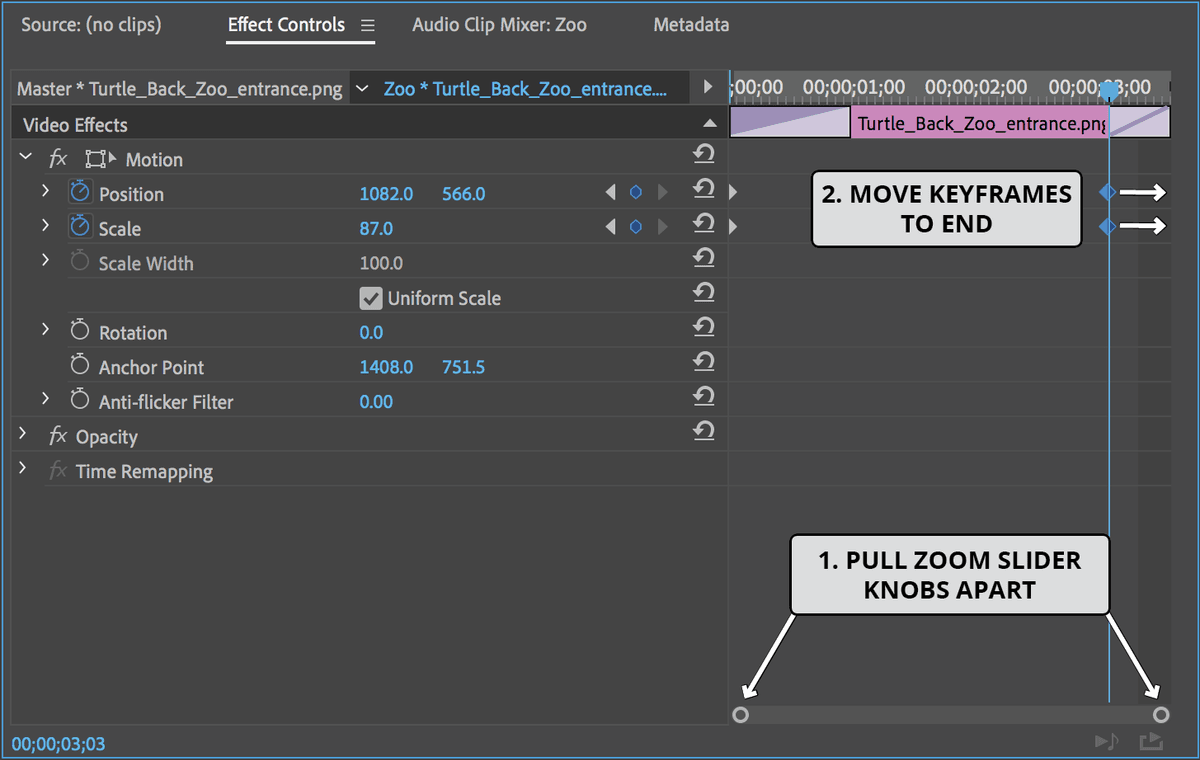
Go ahead and use the Left and Right Arrow keys to preview the revised transition (it’ll be quick!).
We also want the animation for the second photo to last for the entire dissolve. It’s currently paused when it first appears so move the playhead to 3;02, one frame before the cross dissolve begins.
In the Timeline double–click the camel clip.
We’re going to repeat the process we just used, but with the start of this clip. In Effect Controls, make sure your Zoom Slider
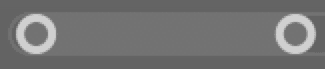 at the bottom of the panel is has its knobs positioned fully apart.
Drag the first column of Position and Scale keyframes to your left, to fill in the time during the cross-dissolve.
Preview with the Left/Right Arrow keys.
Adding a Push Slide Transition
Next we want to add a push slide transition where the peacock video gets pushed off screen by the gift shop photo.
The point where we want to add this transition is at 9;15. Move the playhead there.
Go to Window > Effects.
In the search bar at the top of the Effects panel, type push.
You should see an effect called Push within Video Transitions > Slide.
Drag the Push effect and drop it on the Timeline at 9;15 between the peacock and gift shop clips.
We want to shorten the duration of this effect from the default 1 second, to only 15 frames. On the Timeline, double–click the Push effect.
In the window that pops up, next to Duration, type 15 (for 15 frames) and click OK.
Preview the push transition and notice that the next image pushes in from the left… but we want it to push in from the right!
Select the Push transition if it isn’t already.
Make sure the playhead is halfway through the transition at approximately 9;15.
In the Effect Controls panel, click the East to West arrow as shown:
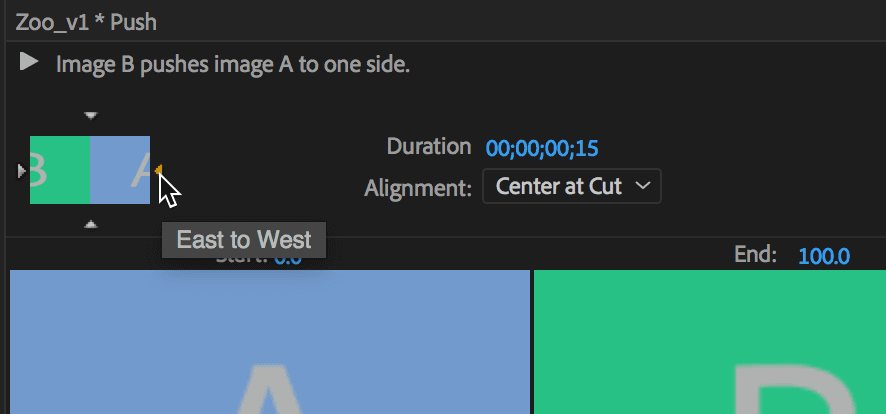
While we’re here, to the right of Border Width, click 0.0, type 11, then hit Return/Enter. Notice a border appears between the two images.
Click the checkbox to the right of Reverse (you may need to scroll down to find it). Notice that’s another easy way to reverse the order of the images. Uncheck the checkbox since we’ve already taken care of it with the East to West change we made earlier.
Toward the top of the window, next to Alignment, change the menu that most likely says Center to Cut to Start at Cut.
Center at Cut means the cut between the images will be centered on the screen at the time the cut occurs. Because the peacock video is so short, we want to use Start at Cut, which will give it a little more time on screen.
Preview the push transition in the Timeline. You should see the new image pushing in from the right… Perfect.
Save the file.
Leave this project open. In the next exercise, we’ll finish off the video by adding the subtitles, and implementing some client revisions.