April 1, 2026Jerron Smith/7 min read

Proxies: Working with UHD Footage (Such as 4K) in Premiere Pro

Streamline UHD Video Editing with Proxy Workflows

UHD Video Specifications

4,096px
pixel width for 4K footage
2,160px
pixel height for 4K footage
2x
times larger than HD footage

Topics Covered in This Premiere Pro Tutorial:

Proxy Workflow, Ultra High Definition (4K and 8K), Ingest Workflow

Exercise Preview

preview proxies

Exercise Overview

In this comprehensive exercise, you'll master the essential skill of creating proxy files for Ultra High Definition (UHD) footage workflows. As UHD content becomes the industry standard in 2026, understanding proxy workflows isn't just helpful—it's critical for maintaining efficient post-production pipelines. UHD refers to any video format exceeding the 1920 × 1080 dimensions of Full High Definition (FHD), commonly known as 4K and 8K footage. Whether you're working on corporate content, documentaries, or narrative projects, this workflow will dramatically improve your editing efficiency while preserving the stunning quality that clients expect.

What Are Proxy Files?

The pixel dimensions of 4K Ultra High Definition footage are precisely four times larger than standard HD (4096 × 2160 versus 1920 × 1080), while 8K footage contains an astounding 16 times more data. This exponential increase in resolution delivers breathtaking visual quality but comes with significant computational demands that can cripple even modern editing systems.

The substantially larger file sizes and processing requirements of UHD footage create bottlenecks that slow creative momentum and strain hardware resources. Many current laptops and older desktop systems simply cannot maintain smooth playback and responsive editing when working directly with these massive files. This is where proxy workflows become indispensable, transforming potentially frustrating editing sessions into smooth, professional experiences.

A proxy workflow employs strategically compressed, lower-resolution stand-in files during the editing process, then seamlessly substitutes the full-resolution originals during final export. Premiere Pro can generate these proxy files automatically during import, manually on demand, or even utilize proxy files created directly by modern cameras during recording. While proxy workflows benefit any footage type, they're absolutely essential when working with UHD content, particularly on systems with limited processing power or storage bandwidth.

Once proxy functionality is activated, your editing workflow remains completely natural and intuitive. The Source and Program panels display the proxy files for smooth playback and precise editing, while Premiere Pro intelligently switches to the high-resolution master files during export. This elegant solution maximizes system performance during the creative process while ensuring zero compromise in final output quality—the best of both worlds for professional editors.

UHD vs HD Footage Comparison

Feature4K UHDFull HD
Pixel Dimensions4096 x 21601920 x 1080
File SizeLargeStandard
System RequirementsHighModerate
Laptop PerformanceChallengingSmooth
Recommended: Use proxy workflow for UHD footage on older computers or laptops
Proxy Workflow Benefits

Lower resolution files serve as stand-ins during editing, then high-resolution originals are used for final export. This saves system resources without impacting final quality.

Downloading the Class Files

Given the substantial file sizes of 4K footage, we've created a dedicated download package for this tutorial's media assets.

  1. Navigate to Noble Desktop.com/download
  2. Enter the access code pp-2102-15-4K
  3. If prompted, click Start Download
  4. Once the .zip file completes downloading, extract it if your system hasn't done so automatically. You should see a Working with UHD Footage folder
  5. Move the extracted folder into your Class Files > Premiere Pro Class directory

Download Class Files Process

1

Visit Download Page

Navigate to Noble Desktop.com/download

2

Enter Access Code

Use code pp-2102-15-4000 to access the files

3

Download and Extract

Download the zip file and unzip to get Working with UHD Footage folder

4

Organize Files

Drag folder into Class Files > Premiere Pro Class directory

Getting Started

Let's begin by setting up your Premiere Pro workspace and opening the provided project file.

  1. In Premiere Pro, close any existing projects by choosing File > Close All Projects
  2. Select File > Open Project
  3. Browse to Desktop > Class Files > Premiere Pro Class > Working with UHD Footage
  4. Double-click Hospital Scene—Start.prproj to open the project
  5. Choose Window > Workspaces > Editing to optimize your interface

    You'll notice this project contains a 01—video bin with one video file already imported, giving you a foundation to build upon.

  6. Go to File > Save As
  7. Name the file Your Name—Hospital Scene and save it in the Premiere Pro Class > Working with UHD Footage directory

Project Setup Checklist

0/4

Using Ingest to Create Proxy Files

Premiere Pro's Ingest feature represents the most efficient approach to proxy creation, leveraging Adobe Media Encoder to automatically generate proxy files during import. This automated workflow ensures consistency and saves valuable time on larger projects.

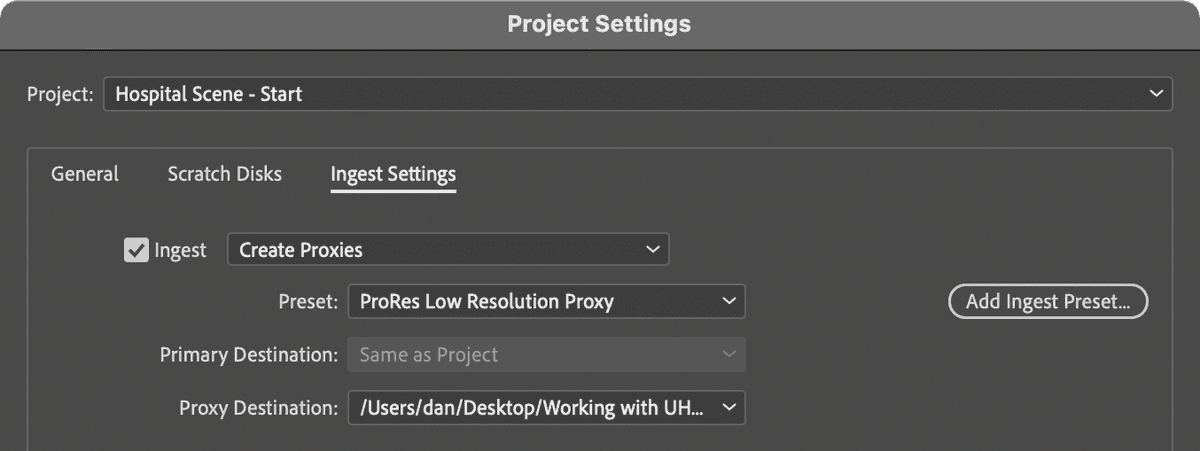
  1. Choose File > Project Settings > Ingest Settings to access the proxy configuration

  2. Enable the Ingest checkbox

  3. Set the Ingest dropdown to Create Proxies

  4. Select ProRes Low Resolution Proxy from the Preset menu—this preset is specifically optimized for 4K footage like the media in this project

    PROFESSIONAL TIP: The various resolution presets (low, medium, high) correspond to different source footage dimensions. Industry best practice suggests using proxy files with dimensions roughly half the size of your original media. The Summary section at the bottom provides guidance on each preset's intended use case—review this information to match your specific project requirements.

  5. In the Proxy Destination menu, select Choose Destination

  6. Navigate to Desktop > Class Files > Premiere Pro Class > Working with UHD Footage > Media > video > proxies and click Choose

    ORGANIZATION NOTE: Professional workflows typically store proxy files adjacent to source media in dedicated sub-folders named proxies. This structure maintains clear asset organization and simplifies media management across team environments.

  7. Click OK to confirm your settings

    From this point forward, every imported video file will automatically trigger the proxy creation process, streamlining your workflow significantly.

  8. Select the 01—video bin in the Project panel to target it for import

  9. Choose File > Import or press Cmd–I (Mac) or Ctrl–I (Windows)

  10. Navigate to Working with UHD Footage > Media > video and double-click Hospital Scene—Shot 08 Two Shot.mp4

    SYSTEM NOTE: Premiere Pro will launch Adobe Media Encoder in the background to handle the proxy creation process. You can continue working while this transcoding occurs.

  11. Once Media Encoder completes the proxy creation, return to Premiere Pro to continue

Ingest Settings Configuration

1

Access Ingest Settings

Go to File > Project Settings > Ingest Settings

2

Enable Proxy Creation

Check Ingest and set to Create Proxies mode

3

Select Preset

Choose ProRes Low Resolution Proxy for 4K footage

4

Set Destination

Choose proxies subfolder next to source media

Proxy File Size Guidelines

Use proxy files with dimensions that are half the size of your original media. The preset summary provides guidance for different resolution targets.

Manually Creating Proxy Files

When working with existing projects or footage imported before enabling the Ingest workflow, manual proxy creation provides the flexibility to optimize your editing experience retroactively.

  1. Expand the 01—video bin by clicking the arrow if necessary
  2. Drag Hospital Scene—Shot 01 exterior.mp4 to the empty Timeline panel to automatically create a matching sequence

  3. Locate the newly created Hospital Scene—Shot 01 exterior sequence in the 01—video bin and drag it to the main project level for better organization

  4. Click the sequence name to enter edit mode and rename it to Bad News—Main
  5. Click any empty area in the Project panel to confirm the name change
  6. Find the Hospital Scene—Shot 01 exterior.mp4 clip that you used to create the sequence

  7. Ctrl–click (Mac) or Right-click (Windows) on the clip and select Proxy > Create Proxies

  8. Change the Format to QuickTime

  9. Set the Preset to ProRes Low Resolution Proxy

  10. For Destination, choose Next to Original Media, in Proxy Folder—this maintains consistency with your Ingest workflow settings

    WORKFLOW TIP: For batch processing multiple files, select all desired clips simultaneously and apply this same process. If you already have proxy files (from camera recording or previous creation), use Proxy > Attach Proxies to link existing proxy files to your master footage.

  11. Click OK to begin proxy creation

Proxy Creation Methods

Automatic Ingest

Premiere Pro creates proxies during import using Adobe Media Encoder. Set up once, applies to all future imports.

Manual Creation

Right-click existing clips and select Proxy > Create Proxies. Useful for files already imported before ingest was enabled.

Camera Generated

Some cameras create proxy files during recording. Use Proxy > Attach Proxies to link existing proxy files.

Enabling Proxies

Even with proxy files created and ingest settings configured, you must explicitly enable proxy display in the viewing panels to benefit from improved performance.

  1. Locate the + button at the bottom right of the Program panel and click it to open the Button Editor

  2. Find the Toggle Proxies toggle proxies button and drag it to the Transport Controls, positioning it as the rightmost button

  3. Click OK to close the button editor and save your customization

  4. Click the newly added Toggle Proxies button to activate proxy display in both Program and Source panels

    ALTERNATIVE METHOD: You can also enable proxies through Preferences. Navigate to Premiere Pro > Preferences > Media (Mac) or Edit > Preferences > Media (Windows) and check Enable Proxies. Both the button and preference control the same functionality, so choose the method that best fits your workflow habits.

  5. Save your project using File > Save or Cmd–S (Mac) or Ctrl–S (Windows)

    Your proxy workflow is now fully operational. You can continue editing with dramatically improved performance, confident that your final exports will utilize the full-resolution master files for maximum quality. This setup forms the foundation for efficient UHD post-production workflows that scale from individual projects to large team environments.

Enable Proxy Display

1

Add Toggle Button

Click + button in Program panel, drag Toggle Proxies to Transport Controls

2

Activate Proxies

Click Toggle Proxies button to enable proxy display in Source and Program panels

3

Alternative Method

Enable in Preferences > Media > Enable Proxies for system-wide setting

Seamless Workflow Integration

Once enabled, work with clips normally. Proxies are used for editing and preview, while original high-resolution media is automatically used for final export rendering.

Key Takeaways

1UHD footage like 4K video requires significantly more system resources than standard HD, making proxy workflows essential for many computers
2Proxy files serve as lower-resolution stand-ins during editing, with original high-resolution files automatically used for final export
3Premiere Pro offers three proxy creation methods: automatic ingest, manual creation, and attaching camera-generated proxies
4The ingest workflow automatically creates proxies during import using Adobe Media Encoder running in the background
5ProRes Low Resolution Proxy preset is specifically designed for 4K footage and follows the rule of using proxies half the size of original media
6Proxy files should be stored in a subfolder next to source media for organized project management
7The Toggle Proxies button in the Program panel controls proxy display in both Source and Program monitors
8Proxy workflows maintain final export quality while making the editing process manageable on older computers and laptops

RELATED ARTICLES