Muffins Recipe Video: Adding Text Graphics in Premiere Pro
What This Tutorial Covers
Essential Graphics
Premiere's built-in title and graphics workspace.
Animated Text
Keyframe animation directly in Premiere.
Reusable Templates
Save title designs as Motion Graphics Templates.
Noble Desktop's Video Editing & Motion Graphics Certificate teaches Premiere Pro alongside After Effects, DaVinci Resolve, and the full motion design toolkit.
Dive into this Premiere Pro tutorial and learn how to overlay text graphics and export your video for YouTube, with a focus on adding title card text to a banana muffins recipe video.
Exercise Preview
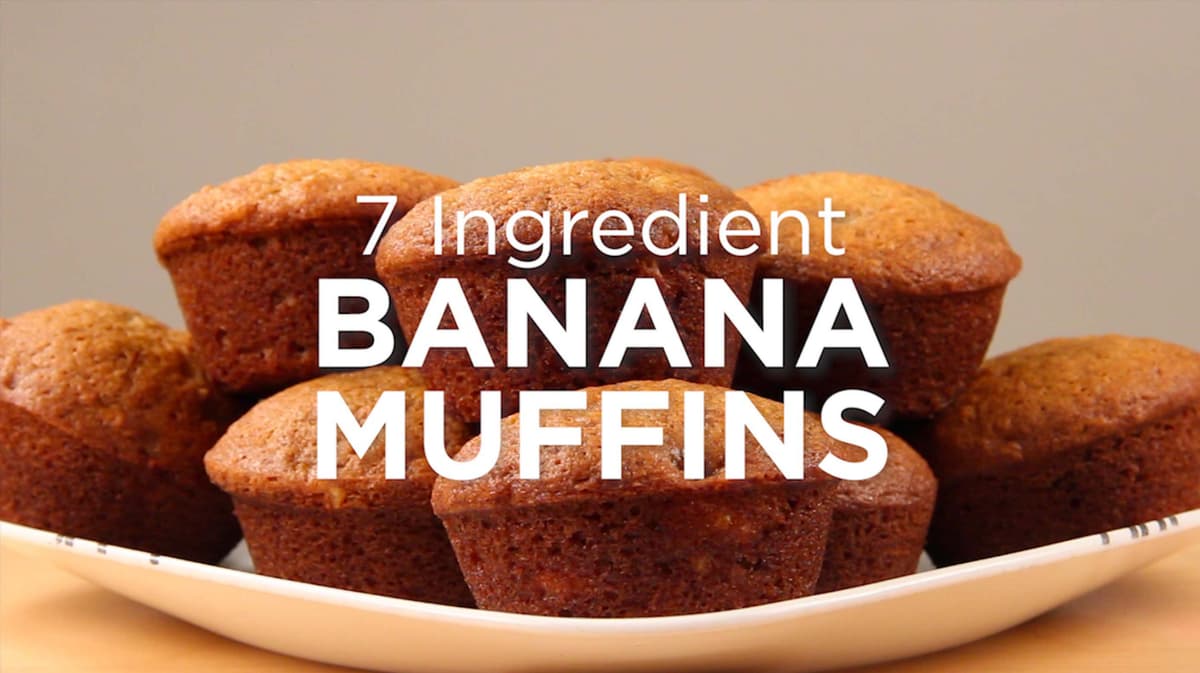
Adding Title Card Text
Now that we’ve edited our video, it’s time to add the accompanying text graphics. We’ll begin with the title card.
You should still have yourname-Banana-Muffins open in Premiere Pro. If you closed it, re-open it now by going to File > Open Project then Desktop > Class Files > Premiere Pro Class > Banana Muffins. We recommend you finish the previous exercises (B2–B3) before starting this one. If you haven’t finished it, do the following sidebar.
If You Did Not Do the Previous Exercises (B2–B3)
- If a project is open in Premiere Pro, go to File > Save, then File > Close Project.
- Go to File > Open Project and navigate to Desktop > Class Files > Premiere Pro Class > Banana Muffins > Finished Projects.
- Double–click on Banana Muffins-Ready for Text.prproj.
- Go to File > Save As. Name the file yourname-Banana Muffins.prproj and save it into Desktop > Class Files > Premiere Pro Class > Banana Muffins.
So that we don’t accidentally make changes to the video, lock
 V1.
V1.Notice in the Project panel that we already have a Titles sequence. We’ll be creating some of our titles, but in the interest of time we’ll also paste in titles from this sequence.
Click in the empty area to the left of V2 to activate that track.
The blue box indicates we’ve set the Source Layer for V2 to be V1: our main track.
Make sure the playhead is at the start of the Timeline.
Select the Type tool
 .
.In the Program Monitor, click in the center to add text (we’ll adjust the positioning a little later).
This will bring up the text options in the Effect Controls panel.
It’s easiest to type first and then make other adjustments so type in the text as shown below on three separate lines:
7 Ingredient BANANA MUFFINS
With the Type tool, select all three lines of text. This way we can change their font, size and placement.
- In the Effect Controls panel, find and expand the Text section.
Within the Text section, under Source Text, choose Proxima Nova Regular.
Click the Center align text button
 .
.Set the size to 100.
Under Appearance, make sure the Fill is set to White.
Check on Shadow.
- Below Shadow, set the following:
- Opacity
 : 48%
: 48% - Angle
 : 135°
 - Distance
 : 8.6
: 8.6 - Blur
 : 59
: 59
- Opacity
Scroll down to find the Transform section. The numbers in this section are based on where you originally clicked to type your text.
To the far right of Position, click the Reset Parameter button

This should center the text.
Next, we just want to change the last two lines, so use the Type tool
to select only Banana Muffins.Change the font for BANANA MUFFINS to Proxima Nova Bold.
Set the Font Size to 150.
Change the Leading
 to –45.
Scroll back up to the Vector Motion section and set the Scale to 133, which enlarges all the text.
Set the Position to 960, 407, to move it up a little.
In the Timeline, extend the new text clip on V2 to match the duration of the first title clip on V1.
Play back the first title clip.
Not bad but it’s looking a little rigid. Let’s see if we can add some animation to fix it.
Unlock
 V1.
V1.Select the first TitleBG shot on V1 so we can scale it up over time.
Make sure the playhead is at the beginning of the Timeline.
In the Effect Controls panel, to the left of both Position and Scale, click the stopwatches
 to add keyframes.
Move the playhead to the end of the shot, and then go back one frame (to 4:03) so you can see what you’re doing.
Change the Scale to 115.
Take note that you don’t want to scale the image too much as its a pixed-based PNG. It’s generally not recommended to scale pixel-based images more than 135–150% of their original size.
Move it up a little bit by setting the Position to 960, 467.
Remember to always adjust the Scale first, and Position second.
Play it back. Much better!
If you notice a yellow or red bar above the clip, feel free to render this section by using the Selection tool
 to select both your text and still image clips, and going to Sequence > Render Selection.
We’re done with the video layer, so lock
V1 again.
Adding Recipe Text Graphics
We’ll continue to create accompanying text graphics to overlay on the rest of the shots, as each ingredient is added according to the recipe.
We are working with text, so we really should have the Title and Action Safety guide up. If it isn’t showing already, click the Safe Margins button
 .
.Make sure the playhead is around 4:04 so you can see the shot you’re overlaying.
Choose the Type tool
.Click in the center of the Program Monitor to place the text.
Type in all caps the first line: BUTTER
Then type on the second line: 1/2 cup
In the Effect Controls panel, expand Text and in the Transform section, to the right of Position, click the Reset Parameter button
.Select the 1/2 cup text and set the font to Proxima Nova Regular.
Set the second line’s Font Size to 100.
Make sure the first line is set to Proxima Nova Bold and its size is 150.
Select both lines of text and set the Leading
to –18.Change the alignment to Right align text
 .
.Scroll up to the Vector Motion section, and set the Scale to 90.
Set the Position to 1823,850, to place it in the lower right-hand corner of the screen.
Take note that we’re keeping the text above title safety on the bottom and within action safety on the right. Because this video is intended for social media only, it’s OK to go this far right. If this were for HD Title-safe TV/broadcast, we would need to have the text within the (inner) Title Safety line.
It’s a little hard to see the text now that it’s over the ingredients so let’s adjust the shadow. In the Effect Controls panel, under Text, find the Appearance section and make sure the Fill is set to White.
- Below Shadow, set the following:
- Opacity : 67%
- Angle : 189
- Distance : 8.6
- Blur : 59
- Opacity
In the Timeline, extend the butter shot out so that it is the same duration as the corresponding clip on V1.
Choose the Selection tool
.Next, is the sugar shot which will look the same as the butter graphic with some additional text. Select the butter text clip and Option-drag (Mac) or ALT–drag (Windows) to your right, to make a duplicate text clip. Stop dragging when the new text clip overlaps the next shots.
We need this text to last the duration of the second and third video shots so drag the right end of the clip to 12:06.
With the playhead over the clip so you can see what you are doing, use the Type tool
to change the text to the following:SUGAR 1 cup
Halfway through the sugar incorporating shot, we want to add the text (a little at a time). Drag the sugar text clip to V3. We’ll use this track as our work area.
Opt–drag (Mac) or ALT–drag (Windows) downward on the sugar text clip, to make a copy of it on V2. The duplicate clip should be directly under the original clip.
Hide
 and lock the V3 track.
Make sure the clip on V2 is selected, and you have chosen the Type tool
.Change the second line of text to read: (a little at a time)
Delete the word SUGAR (including any extra space).
We now need to change the position of the text so that it aligns with where the text used to be. In the Effect Controls panel, in Vector Motion, change the Position to about 1823, 950.7.
- Let’s double-check the placement by using a trick. Unlock V3.
Drag the text clip from V2 and move it to V3, just before the “sugar” text.
Turn the visibility
back on for V3 and move the playhead over the (a little at a time) clip.In the Effect Controls panel, under Vector Motion click on the word Position, so you have mouse control over the text. You’ll see a blue text box.
Lock V2
so we don’t accidentally change anything.With the mouse hovered over the Program Monitor, press the tilde (~) key to view it in full screen.
Change your Zoom Level to Fit.
Use the mouse to drag the text into position so that it aligns properly with the bottom of the letters of the “1/2 cup” text. We have a descender on “p” so we can move the text down a little extra so that the bottom of the e aligns with the bottom of the p.
Press tilde (~) again to exit fullscreen.
In the Effect Controls panel, final Position values should be about 1823,955.
Unlock V2.
In the Timeline, drag the clip back down below “sugar” on V2.
We now need to move the “sugar” text up a little so select the clip on V3 and make sure the playhead is over the clip.
Double–click the clip to open its Effect Controls.
We want to drag it upward so that the bottom of the letter p in cup clears the line below. We used the Position values 1823, 775.
At the moment we have “a little at a time” lasting the duration of the whole sugar clip. We want the text to come in halfway through the clip (and align with the clips below). Drag the left end of the clip so it begins with the second sugar section at 10:06.
The next shot will be eggs. We’ll use the same clip that we used for butter. Make sure the playhead is at 12:06 (so the clip snaps there).
Opt–drag (Mac) or ALT–drag (Windows) the “butter” text clip to your right, until the start of it snaps to your playhead.
Move the playhead over the pasted text clip and with the Type tool change the text to:
EGGS 2 whole
With the text selected, set the Alignment to Left align text
 .
.Move the text to the left. In the Vector Motion section, we used the Position values 104,863.
Drag the right end of the clip in so it ends after two shots at 15:07.
With the playhead still at 15:07, Opt–drag (Mac) or ALT–drag (Windows) the “eggs” text clip to create a duplicate that starts at your playhead.
This next text clip is going to last the duration of 3 shots so extend the right side out to 21:21.
Move the playhead earlier so that it’s over the first of the three banana text clips.
Change the text to:
BANANAS 2
We’ll need to create a second clip for the “mash them well” text that will come in slightly later. Switch to the Selection tool
.Duplicate the clip by holding Option (Mac) or ALT (Windows) and dragging the clip to the track above (V3).
We want the “mash them well” text to only last the duration of the third shot, so on V2 drag in the left end so it begins at 19:02.
Hide
V3 and lock it while we focus on the “mash them well” text clip.Make sure the playhead is over the text clip we want to edit (around 20:00).
With the text tool, select just the word BANANAS and press Return (Mac) or Enter (Windows) to delete the text and keep the empty space on the top line.
Change the 2 text to: (mash them well)
Unlock
and show the V3 track.Notice that (mash them well) is colliding with the 2. To move it over slightly, in the (mash them well) clip’s Effect Controls panel set the first Vector Motion > Position value to 177, 863.
Scrub through with the playhead to view the bananas section. Great!
Adding Finishing Touches
- Unlock any layers.
- Let’s add a cross-dissolve to the beginning of the video on V1. CTRL–click (Mac) or Right–click (Windows) and select Apply Default Transitions
- Go ahead and add a fade-in to V2 as well.
- Play through the beginning.
- The 1 second transition feels a little too short, so Shift–click on both cross-dissolves you just added to select them both.
- Double–click on either and set the duration to 1:12 (remember that we’re working in 24 fps, so this is 1 and a half seconds), and then click OK.
- Play through the opening to see how that feels. Nice!
- Go to the end of the Timeline, and apply a cross-dissolve to the end of the clips on V2 and V1.
- Play back the ending to make sure you like it.
- Let’s also add a couple of seconds of black to the ending. In the Project panel, click the New Item button
 and select Black Video.
 - Leave all the settings as is, and click OK.
- From the Project window, drag Black Video to the end of the Timeline on V1.
- We only want this black video to be 2 seconds long so move the playhead to 56:00, and drag in the end of the clip to meet the playhead.
Exporting with Media Encoder
For this project, we’ll use Adobe Media Encoder—an application specifically designed to encode and process content for your desired output. One of the nice things to note about using Media Encoder to export your projects, is you can continue to work in Premiere or After Effects while it’s exporting, saving you time!
- With the playhead still at 56:00, hit the o key to set the out point.
- Move the playhead to the beginning of the Timeline and press i to set the in point.
- File > Save the project.
- Go to File > Export > Media.
- Under Export Settings, set the Format to H.264.
- At the bottom of the window click the Queue button.
- This should launch Adobe Media Encoder. (Give it some time to launch if it isn’t open already.)
- Let’s make sure we’re looking at the same thing by going to Window > Workspaces > Default Workspace
- Then choose Window > Workspaces > Revert Workspace.
- On the right you should see that Muffins-edit has been added to your Queue.
- Under the Format column, click the arrow and choose H.264.
Click on the arrow to the right of H.264 (under the Preset column) and select YouTube 1080p Full HD.
Notice that there are export presets for various popular formats such as Vimeo, Facebook, YouTube, etc. For best results and because those platforms update their upload requirements more often than Media Encoder, check your intended social media platform’s website for recommended compression settings, prior to encoding.
NOTE: You can customize a preset further by clicking on the blue words, in this case YouTube 1080p HD.
- Under Output File, click on the blue link to edit the path where we want to save the export.
- Navigate to Desktop > Class Files > Premiere Pro Class > Banana Muffins > Exports.
- Set the name to Muffins-video.mp4, and click Save.
- In the top right corner click on the green Start Queue button
 .
. After the export finishes, feel free to go into Desktop > Class Files > Premiere Pro Class > Banana Muffins > Exports and check out the finished video. Great work!