Handy Promo: Adding Camera Moves & Effects in Premiere Pro
What This Tutorial Covers
Motion Effects
Position and scale keyframes that simulate camera moves.
Lumetri Color
Color grading for branded promo video.
Sound Sync
Aligning visual movement with audio cues.
Noble Desktop's Video Editing & Motion Graphics Certificate teaches Premiere Pro alongside After Effects, DaVinci Resolve, and the full motion design toolkit.
Dive deep into video editing techniques with our comprehensive Premiere Pro tutorial, covering key topics such as content editing, adding camera moves, retiming footage, the color balance effect, and animating a logo clip.
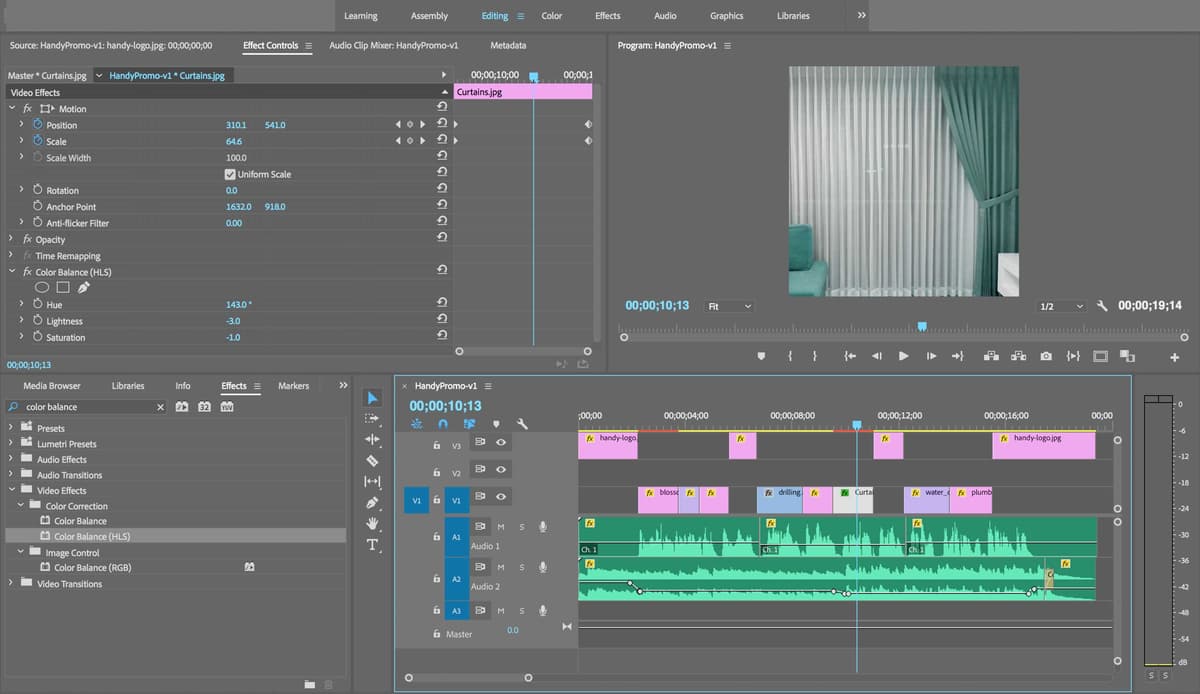
Exercise Preview
Creating a Content Edit
Let’s add our content (graphics, photos, and videos) in sync with the voice-over and music. Before we get into adding adjustments to our graphics, we’ll do what’s called a “content edit”. This is where you throw down all the information that’s going to be happening at key points in the timeline so that we as editors and perhaps our client, know what is happening in the video, and when.
In the Project panel, close up the audio bin. We’re done with its contents.
Expand the gfx, photos, and videos bins.
Expand the Project panel by dragging its top border so we can see all the bins and their content.
Press the
\key to zoom in/out so that you can see all the audio clips in the Timeline.We’ll start off with the logo. From the gfx folder, drag handy-logo.jpg to the beginning of the Timeline on V1.
It’s huge, so let’s scale it down. CTRL–click (Mac) or Right–click (Windows) on the first clip and select Set to Frame Size. Whoops, now we see black edges!
NOTE: If context-clicking doesn’t show you the “Set to Frame Size” option, go to Clip > Video Options > Set to Frame Size.
In the Effect Controls panel, to the left of Motion, click the arrow to expand it if it’s not already.
In the Effect Controls panel, click into the field to the right of Scale and hit Up Arrow to scale up the graphic until it fills the frame. We ended up with 55.
Next, we’ll bring in a photo at 2;08 so move the playhead there.
From the photos folder, drag blossomCleaning.jpg to the Timeline, aligning it at the playhead.
This photo is huge too. For now, CTRL–click (Mac) or Right–click (Windows) on it and select Set to Frame Size, so that we can see what the image is. We won’t bother scaling it just yet.
When the voice-over says “clothes cleaning” we’ll bring in the washing machine video. This happens at 3;23 so move the playhead there.
From the videos bin, drag washer.mov to the Timeline at the playhead.
Move the playhead to 4;17, and drag in the blackPaint.jpg photo.
CTRL–click (Mac) or Right–click (Windows) on it and select Set to Frame Size.
Select the remainder of the washer.mov clip that ended up after blackPaint and hit Delete.
At 5;20, we’ll bring in the Handy logo once again. We’ve already resized the logo in the Timeline to the size that we want, so we’ll use that clip instead of from the Project panel.
Make sure you have V1 activated, and select handy-logo.jpg at the beginning of the Timeline.
With the playhead at 5;20, copy and paste so that the clip is pasted at the playhead.
Move the playhead to 6;21.
From videos, drag in drilling.mp4 to the Timeline.
Notice that the drilling clip comes with its own audio which will override the audio we already have. That’s not what we want, so undo.
Instead, in the Project panel double–click drilling.mp4 to open it in the Source Monitor.
Let’s select the section we want to use. We’ll wait until we actually see the drill on screen so still in the Source Monitor, move the playhead to 6:12.
Hit i to mark the in point.
Drag from the Drag Video Only icon
 to the Timeline at the playhead (at 6;21).
Move the Timeline’s playhead to 8;13.
From photos, drag in the next TVinstall.jpg image.
CTRL–click (Mac) or Right–click (Windows) on it and select Set to Frame Size.
Select and Delete the remainder of the drilling.mp4 video that’s ended up after TVinstall.jpg.
- Move the playhead to 9;17
Drag in Curtains.jpg.
CTRL–click (Mac) or Right–click (Windows) on it and select Set to Frame Size.
- Next we need the Handy logo again. Move the playhead to 11;02.
Select the previous handy-logo.jpg we added to the Timeline.
NOTE: You may need to zoom into the Timeline to see the full names of the clips.
Copy and Paste so we have a third logo clip in our sequence.
Delete the remainder of Curtains.jpg that’s after the logo.
The next video will come in at 12;06 when the VO says “drippy pipes” so move the playhead there.
Extend handy-logo.jpg out to meet the playhead, if needed.
Drag in water_drop.mov, placing it at 12;06.
- Move the playhead to 13;28.
Drag in plumber.jpg.
Finally, we’ll end with the Handy logo again at 15;16 so move the playhead there.
Select the first handy-logo.jpg at the very beginning of the Timeline.
Copy and paste the clip so it pastes at the end of the video.
Delete the remaining water_drop.mov clip at the end of the Timeline.
Extend the handy-logo.jpg clip so that it lasts as long as the music track (19;12).
Organizing the Timeline
Before we move on, let’s organize the Timeline. We’ll need three tracks to layer our picture content. Our topmost track will be for the Handy logo as it will need to overlay some of our images and text. We’ll leave the second track for the text.
At the beginning of the Timeline, drag the first handy-logo.jpg up to V3.
Continue to go through the Timeline and drag up each of the remaining three handy-logo.jpg clips.
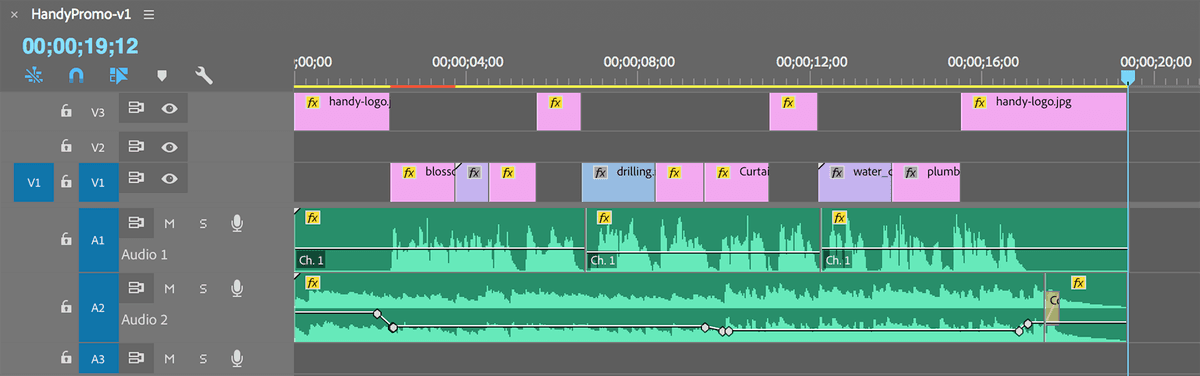
Great, our content edit is done and the Timeline is layered so that later when we add our text and logo animation, everything will make much more sense.
Adding Camera Moves & Adjusting Video
Next, we’ll size and position our photos and videos. We’ll also add some additional movement to some of the static images, speed up some video, and add a little bit of color correction.
Go into the Sequence menu and turn on Selection Follows Playhead.
Click on V1, V2 and V3 so that these tracks are active (blue). This way you can use your up and down arrows to go between clips.
We’ll leave the Handy logo for last, so for now move the playhead to blossomCleaning.jpg in the Timeline. (Because we have “Selection Follows Playhead” selected, the clip currently viewed in the Program Monitor should be automatically the clip loaded into the Effect Controls window, but always double-check the clip name in the Source Monitor tab to be sure).
Open the Effect Controls panel and increase the Scale to 27 to fit the frame.
We’ll adjust the Scale over time. Make sure the playhead is at the beginning of the clip at 2;08.
Next to Scale, click the stopwatch
 .
.Move to the last frame of the clip by pressing the Down Arrow to go to the next cut, then the Left Arrow key to move back one frame so we can see what we are doing at 3;22.
We want to scale up the photo by about 10% so set the Scale to 29.7.
Notice there’s a new keyframe
 for the Scale value in the Effect Controls panel.
Next, is the “clothes washing” clip. At the moment this clip begins while the machine is static, but we want this clip to start during movement. To fix this, we’ll perform a slip edit. Choose the Slip tool
 .
.Hover over the washer.mov clip, then click and drag to the left to find a nice place where the washer is already moving in the video. (You won’t need to slip very far.)
Switch back to the Selection tool
 when done.
Let’s also adjust the framing of this clip: it’s a little off-center. In Effect Controls, adjust the Scale to 101.5.
Set the Position a little to the right to 560, 540.
Play through this clip to see what it looks like.
Next is the painting clip. Move the playhead forward to auto-select blackPaint.jpg.
Set its Scale to 42.
To move the position of the clip over interactively, in the Effect Controls panel click on the word Motion. You’ll see a blue rectangular frame appear.
This allows you to drag in the Program Monitor to position the clip. As shown below, drag towards the left and then hold Shift to move in a straight line.
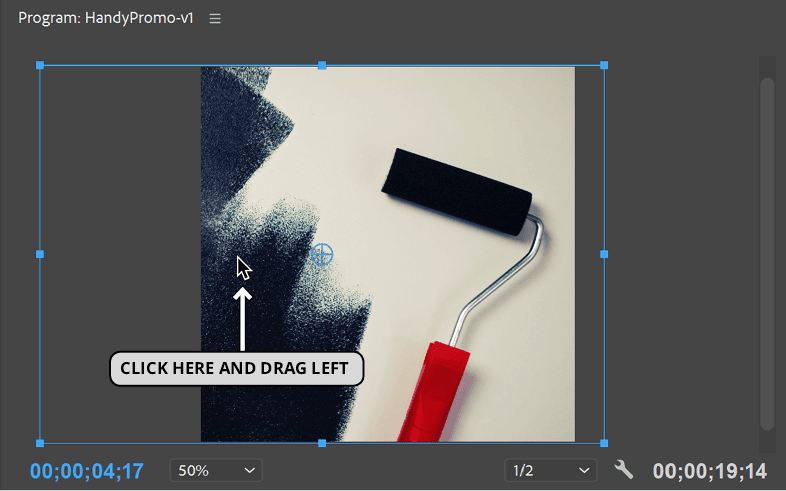
- We moved it over to 350, 540. (A nice framing of the paint roller that follows the compositional rule of thirds.)
- Move the playhead to 4;17.
We’ll only animate the Scale for this clip. So turn on its stopwatch
.Hit the Down Arrow, and then the Left Arrow.
Change the Scale value to 46.2 (again we’re scaling it up by about 10%).
We’re fine with the “furniture assembly” (drilling) video, so let’s skip ahead to TVinstall.jpg. Select the clip and move the playhead to the beginning at 8;13.
Set the Scale to 35.1 to fill the screen.
Let’s move the image over so that we can see the entire TV. Adjust the Position to 740, 540.
We’re going to animate both the Scale and Position this time, so at the beginning of the clip, click on both stopwatches
.Move the playhead by pressing the Down Arrow and Left Arrow.
Change the Scale to 38.6, about 10% larger again.
Adjust the Position to 876, 540 to match the scaling and center the TV again.
Scrub through this clip with the playhead (or left and right arrow keys) and notice that it looks like we’re moving closer into the television. You may need to hit S to disable snapping, so that you can scrub slowly.
- Move the playhead to the following Curtains.jpg clip.
Adjust the Scale to 61.2.
Adjust the Position to 355, 541 to center the curtains.
- Move the playhead to 9;17.
Click the stopwatch
next to both Scale and Position to keyframe both.Hit the Down Arrow, then Left Arrow.
Change the Scale value to 67.
Change the Position to 279, 541.
Play through the next water_drop.mov video. The water is dripping very slowly at the moment, so let’s see how we can speed it up.
CTRL–click (Mac) or Right–click (Windows) on the water_drop.mov clip and select Speed/Duration. Alternatively, you can go to Clip > Speed/Duration.
In the window that opens, change the Speed to 300%.
Make sure none of the options are checked on below, and click OK.
In the Timeline, notice that because we sped up the clip, the duration was shortened. Extend out the right end of the clip so it fills the gap again.
Play back the dripping pipe section.
Actually, it might look better if we used a different part of the pipe video.
- Select the Slip tool .
- Drag left on water_drop.mov to slip it –0;00;25 frames (watch the tool tip), so that the clip begins when the drip is about to drop.
- Play through this section again. Now we also get two drips in. Great!
- Switch to the Selection tool .
- Move the playhead to 13;28.
- Set the Scale to 86.
- Adjust the Position to 674, 540 so we can see the plumber with the pipes on screen.
- Next to Scale, click the stopwatch .
- Hit the Down Arrow, then Left Arrow to move to the end of the clip.
- Set the Scale to 94.
- Click into the Timeline to focus on it.
- Hit the Home key or Fn-Left Arrow to rewind the Playhead to the beginning.
Play through from the beginning to see what we have so far. Remember that you can hover over the Program Monitor and hit the ~ (tilde) key to make it fill the screen. When done, hit ~ again to shrink it again.
Everything is in place, we’ve added some “camera moves” to the photos, and sped up some of the video.
There’s just one more thing we should fix. The curtains are looking a little drab. To liven them up, we’ll apply a color correction effect.
Animating a Logo Clip
Later we’ll add animation created in After Effects to the Handy logo, but let’s add a bit of animation within Premiere first. We’re going to move it up and down like a curtain so that it reveals and hides our footage at various points through the video.
In the Sequence menu, choose Selection Follows Playhead to turn it off.
Each of the logo transitions will happen over 11 frames so to start off, we want to extend the first handy-logo.jpg clip by 11 frames with the selection tool. Drag the right end until the tool tip says +00;11. (You may want to disable snapping for this.)
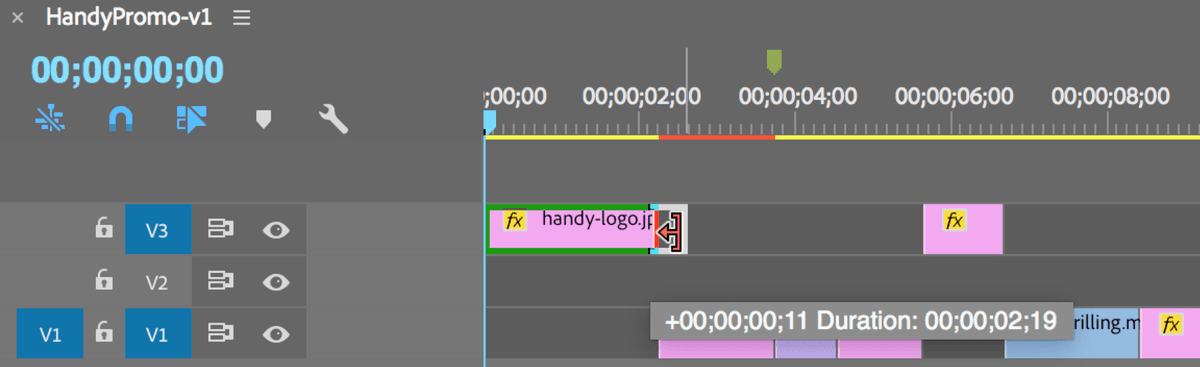
Move the playhead to 2;08 where the first photo clip begins. This is where we want to begin the transition of moving the Handy logo upwards off screen.
Select handy-logo.jpg if it isn’t already.
In the Effect Controls panel, next to Position click the stopwatch
to keyframe it.Press the Down Arrow to move forward to the next cut, then press the Left Arrow to go back a frame (to 2;18).
Remember that using the Arrow keys to navigate only works if you have the tracks you want to navigate through activated. If it isn’t already, you may need to click the V3 button on the left of the Timeline and press the Up Arrow to get back to 2;18.
With the playhead at 2;18, in the Effect Controls panel, drag on the second Position value towards the left until the logo is completely off screen. We used 540, –546.
Play through the beginning to see how the logo animates up to reveal the first clip.
We’re going to do the same thing a few more times. Select the second handy-logo.jpg beginning at 5;20.
Drag out the left side of the clip by –00;11 frames.
We will animate backwards this time. Move the playhead to the overlap point where the clip on V1 ends at 5;20.
In the Effect Controls panel, keyframe Position by clicking its stopwatch
.Move the playhead to the first frame of the logo at 5;09.
Raise the logo off screen to a Position of 540, –546.
We need to add the transition again to the end of the logo so that it wipes up off screen, revealing the next clip. Extend the right end of the clip by +00;11 frames.
Move the playhead to 6;21 where we want the animation to begin.
In the Effect Controls panel to the right of Position, click the Add/Remove Keyframe button
 to add an identical keyframe. This will keep the logo in the same position on screen between the second and third keyframe.
Move the playhead to one frame before the end of the 2nd Handy graphics clip at 7;01.
Drag the second Position value to the left (using Shift to go faster) until you end up with 540, –546.
We want to add the same animation to the remaining two logo clips. To save us some time, we’ll copy and paste the keyframes we already added. You should still have the second handy-logo.jpg clip selected.
Move the playhead to 5;20 where the logo overlaps with the clip below.
We’ll use a marker to mark where the first transition ends. Hit the M key.
You should see a small marker
 appear on the clip in the Timeline.
Copy the clip.
Select and Delete the third handy-logo clip.
Move the playhead to 11;02.
We want to paste the clip on V3 so we’ll need to make it the only active clip. On the left side of the Timeline, click on any other active tracks so that only V3 is activated.
Paste the clip.
Move the clip over to the left so that the marker
aligns with the end of the curtains clip on V1. If snapping is on (keyboard shortcut s), it should snap there automatically.Zoom in to the Timeline to check the alignment, moving it over if necessary.
Move the playhead to 12;06.
In the Effect Controls panel, draw a selection box around the last two keyframes.
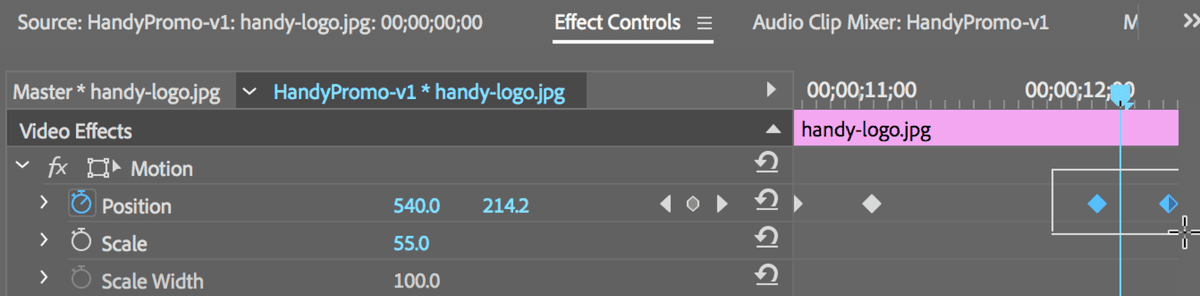
Drag them over to the right so that the first keyframe aligns with the playhead.
You may have noticed that our last keyframe has disappeared. At the moment the clip isn’t long enough to accommodate the entire transition so in the Timeline, extend the end of the clip out a little.
In Effect Controls, notice that the fourth keyframe is visible again.
In the Effect Controls, move the playhead to where the second keyframe is located (at 12;16).
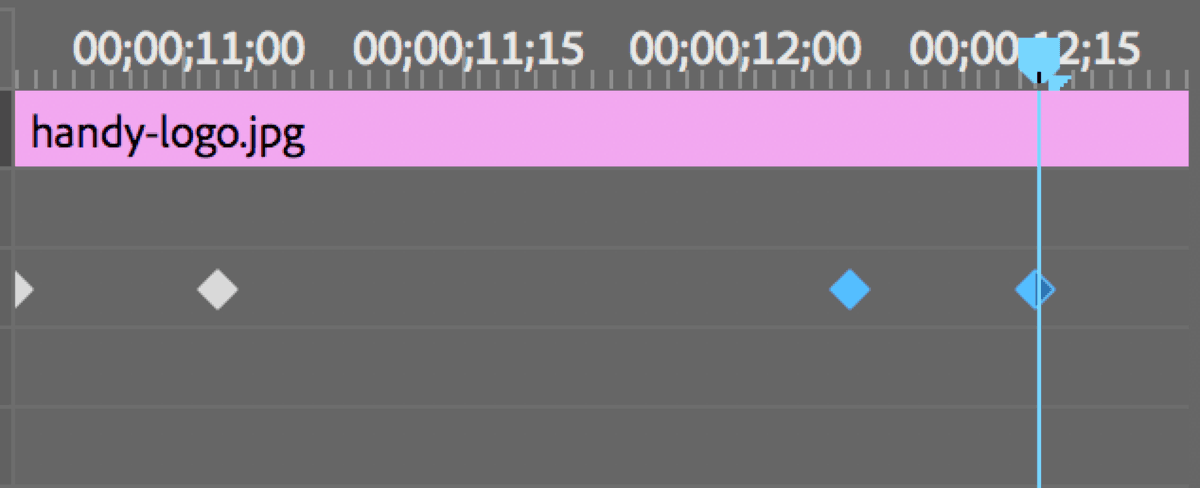
In the Timeline, drag the end of the clip in to snap at the playhead (at 12;16).
Play through the third handy-logo clip to see its animation. Great!
- Lastly, we’ll add the animation to the final handy-logo.jpg clip. Select the last handy-logo.jpg in the Timeline.
Drag out the left side by –11 frames.
Move the playhead to where it overlaps the plumber photo (at 15;16).
In the Effect Controls panel, keyframe the Position by clicking its stopwatch
.Move the playhead to the beginning of the clip (at 15;05) and change the Position to 540, –546.
Watch the entire video to see the content is looking good and we’ve added a little animation to our Handy logo.
Do a File > Save and leave this project open to use in the next exercise.