April 1, 2026Kalika Kharkar Sharma/10 min read

Muffins Recipe Video: Adding Audio & Video in Premiere Pro

Master Premiere Pro Audio and Video Editing

What You'll Learn in This Tutorial

Audio Mastery

Learn advanced audio editing techniques including back-timing, crossfading, and precise level adjustments for professional sound quality.

Video Organization

Master efficient clip selection and organization workflows using multi-track editing and systematic footage management.

BuzzFeed-Style Production

Create engaging recipe videos with fast-paced editing, multiple camera angles, and overlay graphics for social media platforms.

Topics Covered in This Premiere Pro Tutorial:

Advanced Music Editing Techniques, Professional Audio Level Management, Strategic Shot Selection and Organization

Exercise Preview

ex prev muffins music

Exercise Overview

In this comprehensive exercise series, you'll master the creation of a professional how-to video for a banana muffins recipe, following the proven format popularized by BuzzFeed's Tasty videos and similar content that dominates social media platforms in 2026. This format remains one of the most engaging and shareable video styles for culinary content.

You'll develop essential skills including advanced footage acceleration techniques, sophisticated text graphics integration, and optimized export settings for maximum compatibility across YouTube, TikTok, Instagram Reels, and other modern social media platforms. This exercise specifically focuses on professional audio editing workflows and strategic shot selection—two critical skills that separate amateur content from professional-grade productions.

Project Specifications

54s
seconds final duration
1,080p24
resolution at 24fps
3
camera angles used

Previewing the Final Video

  1. Before diving into the technical work, let's examine the finished product to understand our creative objectives. Ensure your audio system is properly configured—either speakers at appropriate volume or headphones connected—as audio quality assessment is crucial to this exercise.

  2. On the Desktop, navigate to Class Files > Premiere Pro Class > Banana Muffins > Finished Movie and double–click Muffins-Recipe.mp4.

  3. Study the video carefully, watching multiple times to analyze these key production elements:

    • The accelerated cooking process creates urgency and maintains viewer engagement—a technique essential for social media retention rates.
    • Each ingredient introduction is clearly visible, following the visual hierarchy principles that make recipe videos successful.
    • The consistent overhead camera angle maintains visual continuity while showcasing the cooking process optimally.
    • Text overlays provide essential recipe information without cluttering the visual composition—we'll implement this in later exercises.
    • Notice the strategic camera angle variations around 00:39, where secondary and tertiary angles add visual interest before returning to the primary overhead shot for the conclusion.

Key Elements to Notice

0/4

Getting Started

Now we'll establish our project foundation with proper settings that ensure professional output quality and streamlined workflow efficiency.

  1. In Premiere Pro, go to File > Close All Projects to establish a clean workspace.

  2. Go to File > New > Project.

  3. In the New Project window, next to Name, type yourname-Muffins-music.

  4. To the right of Location, click Browse.

  5. Navigate to Desktop > Class Files > Premiere Pro Class > Banana Muffins and click Choose (Mac) or Select Folder (Windows).

  6. When done, click OK.

  7. Let's configure project-specific preferences that optimize our workflow. Go into the Premiere Pro (Mac) or Edit (Windows) menu and choose Preferences > Timeline.

  8. Set Video Transition Default Duration to 1.00 Seconds. This provides smooth transitions without being overly dramatic.

  9. Set Audio Transition Default Duration to 1.00 Seconds. Consistent timing across video and audio transitions maintains professional polish.

  10. Set Still Image Default Duration to 3.00 Seconds. This duration works well for social media pacing expectations.

  11. On the bottom right, click OK.

  12. Ensure optimal workspace configuration by going to Window > Workspaces > Editing.

  13. Go to Window > Workspaces > Reset to Saved Layout to standardize our interface—this eliminates variables that could affect your learning experience.

  14. Go to File > New > Sequence.

  15. On the left, under Sequence Presets, expand into Digital SLR > 1080p and click DSLR 1080p24 so that it's highlighted. Note we're using p24 for its cinematic quality—this frame rate provides the film-like motion blur that enhances the professional appearance of food videos.

  16. At the bottom of the window, next to Sequence Name, type Muffins-edit.

  17. Click OK.

  18. In the Sequence menu, ensure Selection Follows Playhead is unchecked. This prevents unintended clip selections during playback.

Project Setup Process

1

Create New Project

Set up project with proper naming convention and file location in the Banana Muffins folder

2

Configure Timeline Preferences

Set video and audio transition defaults to 1 second, still image duration to 3 seconds

3

Create DSLR Sequence

Use 1080p24 preset specifically for DSLR footage, ensuring proper frame rate matching

4

Disable Selection Follows Playhead

Prevents unwanted clip selection during timeline navigation and editing

Editing Music

Professional audio editing separates amateur content from broadcast-quality productions. We'll employ advanced techniques including back-timing and seamless looping to create the perfect soundtrack duration.

  1. To import our background music, maintain Premiere Pro active and switch to your Desktop file browser.
  2. Navigate to Class Files > Premiere Pro Class > Banana Muffins > Capture.
  3. Drag the music folder directly onto the Project panel in Premiere Pro. This imports the entire folder structure, maintaining organization.
  4. In Premiere's Project panel, expand the music folder to reveal its contents.
  5. Drag Morning_Stroll.mp3 to the Timeline, placing it precisely on track A1.
  6. Scale the Timeline view to display the complete audio file duration for proper visual reference.

    Examining the waveform reveals our audio file extends approximately 90 seconds—significantly longer than our target 54-second duration. Rather than simply truncating the audio, we'll employ a professional back-timing technique to preserve the song's natural conclusion.

  7. In the Timeline's timecode field (top left), type 5400 to position the playhead at our target endpoint.

  8. Drag the clip's right edge to align with the playhead at 54:00, creating our initial rough cut.

  9. Let's evaluate the fade potential. Position the playhead around 49:00 and press Spacebar to audition the ending. The abrupt cutoff confirms a simple fade won't provide professional results.

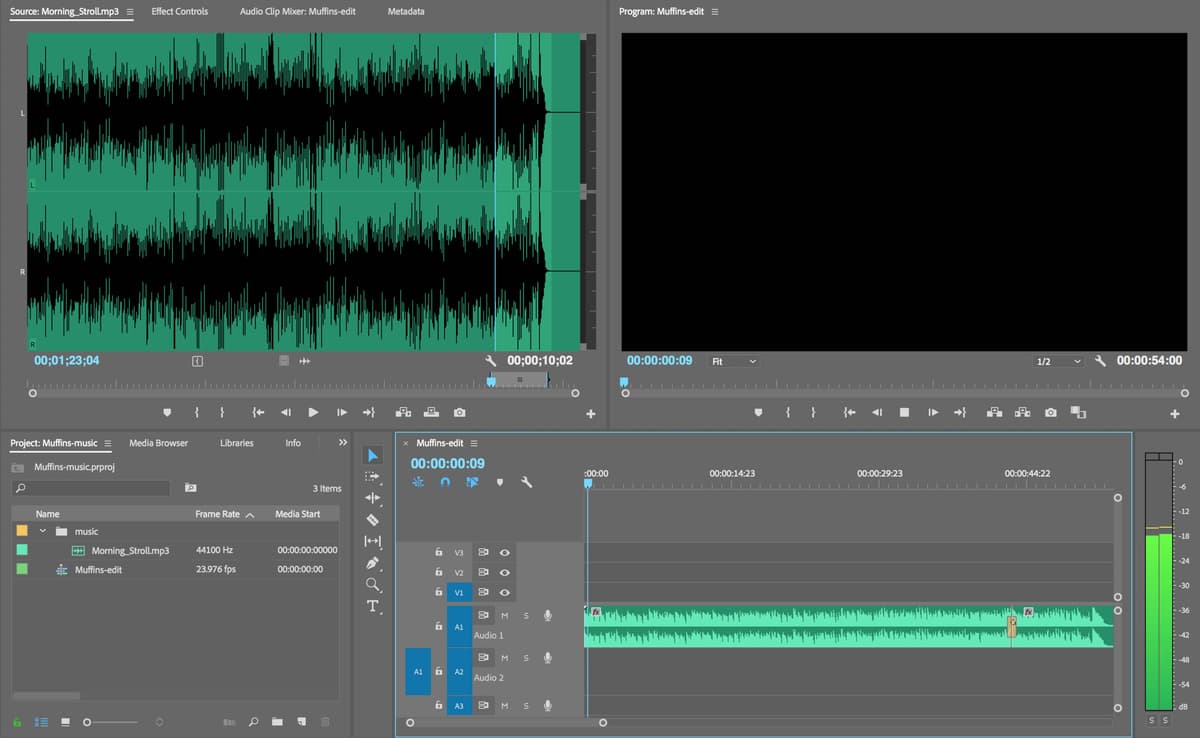
  10. Fortunately, this track features a natural musical conclusion that we can leverage. In the Project panel, double–click the audio file to load it into the Source Monitor.

  11. Preview the original ending starting around 1;28;00. This natural conclusion provides the professional finish we need.

  12. Now we'll implement back-timing—a professional technique for incorporating natural endings within specific duration constraints. The song's final note reverb concludes at approximately 1;33;05. Position your playhead there.

  13. Since we need exactly 54 seconds but the natural ending occurs at 1;33, we'll extract the final 10 seconds and blend it with our main audio track. With the playhead at 1;33;05, press O to set the out point.

  14. For our 10-second conclusion segment, move the playhead to 1;23;04.
  15. Press I to establish the in point, creating our ending segment selection.

  16. Drag from the Drag Audio Only icon drag audio only icon to track A2, aligning the ending precisely with the A1 track's conclusion.

    muffins align audio clips

  17. Expand both A1 and A2 track heights for enhanced waveform visibility—visual alignment is crucial for professional results.

  18. Press the plus (+) key to zoom into the Timeline for detailed waveform analysis. Proper alignment requires precision at the sample level.

  19. Audition both tracks together starting around 46:00. The timing mismatch is immediately apparent—this is normal and expected.

  20. To isolate our ending segment for precise alignment, click the Mute Track button mute button next to A1.

  21. The ending phrase appears truncated. Extend the clip's beginning by dragging its left edge to reveal more of the musical phrase.

  22. Identify the waveform valley around 43:15—this represents a natural musical pause ideal for our edit point.

  23. Position the playhead at this valley and drag the clip's left edge to snap to the playhead.

  24. Use waveform patterns to achieve perfect alignment. You'll need to nudge the A2 clip backward several frames. Disable snapping snap icon temporarily for micro-adjustments, then re-enable it.

  25. Unmute track A1 by clicking its Mute Track button mute button.

  26. Audition both tracks simultaneously to verify synchronization.

  27. Our testing indicates optimal alignment occurs with the second track starting at 43:12. Adjust accordingly if needed.

  28. With synchronization achieved, consolidate the tracks by dragging the A2 clip up to A1.

  29. CTRL–click (Mac) or Right–click (Windows) on the seam between clips and select Apply Default Transitions. This creates a seamless blend.

  30. Position the playhead before the transition and audition the blend. The result should be completely seamless—a hallmark of professional audio editing.

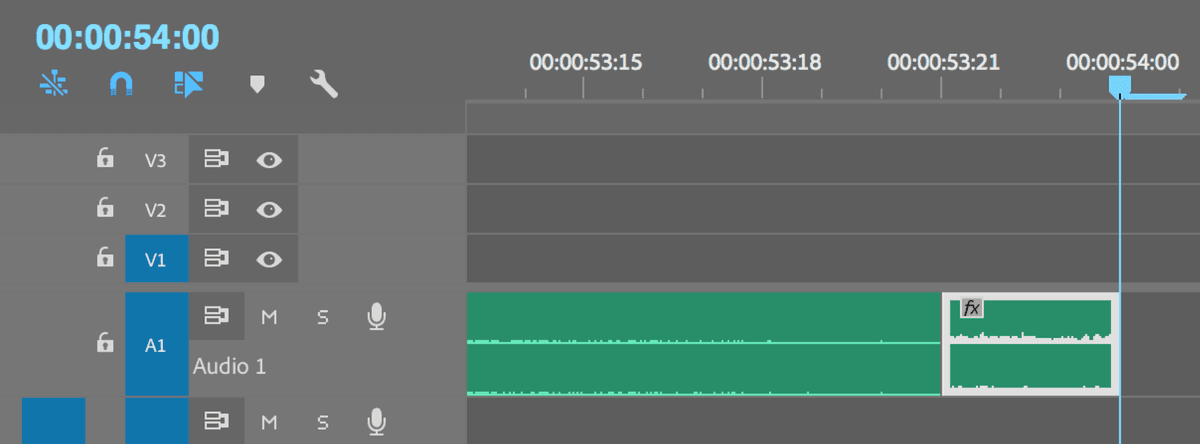
  31. Remove any extraneous frames remaining at the timeline's end. Zoom in for precision and Delete the excess audio as shown:

    muffins extra audio

  32. Extend the final audio clip to conclude precisely at 54:00. Your professional soundtrack is now complete.

Back-Timing Technique

When you need a specific song ending but must fit exact duration requirements, use back-timing: identify the perfect ending point, then work backwards to create seamless transitions with the main track.

Audio Editing Workflow

Step 1

Import and Trim Main Track

Drag Morning_Stroll.mp3 to A1, trim to 54 seconds duration

Step 2

Extract Perfect Ending

Use Source Monitor to identify ideal ending at 1:33:05, create 10-second segment

Step 3

Sync and Blend Tracks

Align ending segment on A2, use waveform analysis for perfect synchronization

Step 4

Apply Crossfade Transition

Merge tracks with default transition for seamless audio blend

Adjusting Audio Levels

Proper audio levels are non-negotiable for professional content. We'll optimize our levels for broadcast standards while ensuring compatibility across all playback systems.

  1. Before proceeding to video editing, let's verify our audio meets professional standards. Play the entire sequence while monitoring the Audio Meter on the Timeline's right side.

    Notice peaks between 0 and –6 decibels. For professional broadcast and streaming standards, we target peak levels no higher than –9 decibels, maintaining headroom while ensuring consistent volume across platforms.

  2. Switch to the specialized Audio workspace by clicking Audio at Premiere's top. This workspace provides enhanced tools for audio-centric work.

  3. For optimal level monitoring, drag the Audio Meters panel to the Essential Sound panel area on the far right if it's not already positioned there.

  4. For universal volume adjustment across both audio clips, navigate to the Audio Track Mixer (second tab in the middle panel).

  5. In the A1 column, adjust the volume slider to –10. This provides appropriate headroom while maintaining clear, audible levels. You can drag the slider or click the blue numerical value to input the exact number.

  6. Go to File > Save to preserve your audio work.

  7. We'll utilize a separate project file for video integration, so go to File > Close Project.

Optimal Audio Level Ranges

Optimal Range
-9
Current Peak
-6
Adjusted Target
-10
Audio Level Guidelines

Keep audio levels between -9 and -12 decibels for optimal quality. Levels above -6 dB can cause distortion and may not meet broadcast standards for various platforms.

Selecting & Organizing Clips

Strategic shot selection transforms raw footage into compelling narrative. We'll identify the most effective angles and moments to create engaging visual storytelling that maintains viewer attention throughout the entire sequence.

  1. Let's open our pre-configured starter project. Go to File > Open Project.

  2. Navigate to Class Files > Premiere Pro Class > Banana Muffins and open BananaMuffins-start.prproj.

  3. Immediately save your working copy: go to File > Save As.

  4. Save this project as yourname-BananaMuffins within the Banana Muffins folder.
  5. Return to the Editing workspace by clicking the workspace tab at Premiere's top.

  6. Examine the Project panel's organized structure:

    • The footage sequence containing raw material
    • A Titles sequence for text overlays
    • A video folder with sequentially numbered clips, maintaining the original shooting order for logical organization
  7. Double–click the footage sequence to load it into the Timeline.

    Notice the preliminary editing work: strategic cuts have been made, and selected shots are elevated to the V2 track, clearly distinguishing our chosen material from unused footage.

  8. Verify that both Snapping snap icon and Linked Selection linked selection icon are activated (highlighted in blue). These settings ensure precise editing behavior and maintain audio-video synchronization.

  9. We'll complete the shot selection process with several additional strategic cuts. Position the playhead at 15:04.

  10. Select the Razor tool razor tool for precise cutting.

  11. Click at the playhead position to create the cut.

  12. Navigate to 23:16 for the next cut point.

    Professional tip: On keyboards with numeric keypads, you can jump directly to timecode positions by typing the numbers—ensure no clips are selected first to avoid accidentally moving them instead of the playhead.

  13. Execute the cut using the Razor tool razor tool.

  14. Continue with cuts at 30:20.

  15. Add another cut at 3:52:07.

  16. Complete the cutting phase with a final cut at 4:54:10.

  17. Return to the Selection tool selection tool for clip manipulation.
  18. Now we'll identify and elevate our selected shots. Return the playhead to 15:04.
  19. Optimize your Timeline view using the minus () key to zoom out or plus (+) key to zoom in as needed.
  20. Locate the clip beginning at 15:04 and elevate it to track V2. This segment provides excellent ingredient visibility and represents our first usable shot.

    Note: The original production audio has been removed from the first clip, as we'll be using our carefully crafted music track instead. We'll remove audio from the remaining clips shortly.

  21. We'll skip the next segment but select the substantial clip beginning at 30:20 for its excellent process documentation.

    Navigation tip: Use Up Arrow and Down Arrow keys to move between edit points on active tracks efficiently.

  22. Elevate the 30:20 clip to track V2.

  23. The subsequent segment (beginning at 3:52:07) also provides valuable visual information, so elevate this clip to V2 as well.

    Excellent work—you've successfully isolated four high-quality shots that will form the foundation of our professional cooking video.

  24. Execute File > Save and maintain this project in an open state for the subsequent exercise.

Clip Selection and Organization

1

Strategic Cut Points

Make precise cuts at 15:04, 23:16, 30:20, 3:52:07, and 4:54:10 using Razor tool

2

Promote Selected Clips

Move chosen segments to V2 track for easy identification and organization

3

Remove Unwanted Audio

Delete original camera audio from clips to prevent interference with music track

4

Verify Track Settings

Ensure Snapping and Linked Selection are enabled for proper editing behavior

Navigation Shortcut

Use Up Arrow and Down Arrow keys to quickly navigate between cuts on active tracks. This speeds up the selection process significantly when working with multiple clips.

Key Takeaways

1Back-timing technique allows you to use perfect song endings while meeting specific duration requirements by aligning ending segments with main audio tracks
2Maintain audio levels between -9 and -12 decibels for professional quality and platform compatibility, using Audio Track Mixer for universal adjustments
3DSLR 1080p24 sequence preset is essential for matching camera footage frame rates and ensuring smooth playback
4Multi-track organization with V2 for selected clips streamlines the editing process and keeps unwanted footage easily identifiable
5Crossfade transitions created through right-click default transitions provide seamless audio blending between segments
6Timeline preferences for 1-second transition defaults and proper still image duration prevent editing workflow interruptions
7Source Monitor preview capabilities are crucial for identifying optimal cut points and audio segments before timeline placement
8Systematic clip selection using numbered video sequences maintains organization and ensures no important footage is overlooked

RELATED ARTICLES