April 1, 2026Jerron Smith/10 min read

London Travel Promo: Adjusting Audio & Adding Titles in Premiere Pro

Master Premiere Pro audio and titles for professional video

Core Skills You'll Master

Audio Volume Control

Learn to set audio gain to professional broadcast standards using the -12db level for optimal audio quality.

Title Template Integration

Master Premiere Pro's built-in title templates and customize them with transparent backgrounds and professional styling.

Timeline Efficiency

Develop skills in duplicating clips, applying transitions, and managing multiple video tracks for complex projects.

Topics Covered in This Premiere Pro Tutorial:

Master essential post-production techniques including adjusting audio volume (Set Audio Gain), implementing professional title templates, editing title text with precision, and seamlessly adding audio transitions for broadcast-quality results.

Exercise Preview

preview titles

Preview Analysis Checklist

0/4

Exercise Overview

In this comprehensive exercise, you'll elevate the London Travel Promo by incorporating professional titling techniques and advanced audio engineering. You'll learn to add dynamic titles that synchronize with your audio track while mastering volume control and fade techniques that meet broadcast standards. These skills form the foundation of professional video production workflows used across the industry today.

Re-Previewing the Final Video

  1. First, let's examine the professional-grade final product you'll be creating. Ensure your audio system is active—this preview demonstrates crucial audio-visual synchronization techniques.

  2. Navigate to Class Files > Premiere Pro Intermediate > London Travel Promo > Preview Movie on your Desktop and double–click London Travel Promo—Square.mp4.

  3. Study these key professional elements as you watch:

    • Titles are precisely synchronized with the musical beat—a hallmark of professional editing
    • Strategic use of opening and closing titles, plus supporting titles for each video segment
    • Perfectly centered text alignment maintaining visual balance
    • Semi-transparent black backgrounds that preserve video visibility while ensuring text readability—essential for accessibility standards
  4. Close the preview when you've analyzed these professional techniques.

Getting Started

  1. Your London Travel Promo—Your Name project should remain open in Premiere Pro. If you've closed it, reopen via File > Open Project, then navigate to Desktop > Class Files > Premiere Pro Intermediate > London Travel Promo. We strongly recommend completing the previous exercises (3A–3B) before proceeding, as they establish the foundational timeline structure required for this advanced work. If you haven't completed those exercises, follow the sidebar instructions below.

    Project Continuity

    This exercise builds on previous work (3A-3B). If you haven't completed them, use the provided starter project file to catch up quickly.

If You Did Not Do the Previous Exercises (3A–3B)

  1. Save any open project via File > Save, then close it using File > Close Project.
  2. Access File > Open Project and navigate to Desktop > Class Files > Premiere Pro Intermediate > London Travel Promo > Finished Projects.
  3. Open London Travel—Ready for Titles.prproj.

    NOTE: If you encounter a Converting Project dialog (from legacy versions), consult the Fixing Version Compatibility Issues section in Exercise 1A. Should the Link Media dialog appear, reference Locating Missing Media in Exercise 1A.

  4. Save your working copy via File > Save As. Name it London Travel Promo—Your Name.prproj and save to Premiere Pro Intermediate > London Travel Promo.

Project Recovery Steps

1

Close Current Project

Save any open work, then close the current project to prepare for the starter file

2

Open Starter Project

Navigate to the Finished Projects folder and open London Travel—Ready for Titles.prproj

3

Save with New Name

Use Save As to create your own version: London Travel Promo—Your Name.prproj

Adjusting the Clip Volume & Adding Transitions

Professional audio mixing requires precise volume control to meet broadcast standards. Currently, this project's background music exceeds acceptable levels, as evidenced by the VU (Volume Unit) meters hitting the red zone—a clear indicator of potential audio distortion. Industry-standard practice maintains audio levels between -10dB and -20dB, with -12dB being the gold standard for broadcast television. This range ensures optimal clarity while preventing digital clipping that can damage both equipment and audience experience.

  1. With the Timeline panel active, hold Shift and press the + (plus) key to expand all video and audio tracks to their standard working height—this provides better visual control over your assets.

  2. If your Timeline clips aren't fully visible, press the \ (backslash) key to automatically zoom out and reveal the complete sequence structure.

  3. Unlock the Audio 1 track by clicking the blue lock icon, enabling editing access to your audio elements.

  4. CTRL–click (Mac) or Right–click (Windows) on the music clip (displayed in green) and select Audio Gain:

    • Enable Set Gain to: and input -12dB
    • Click OK to apply this broadcast-standard level.
  5. Position the playhead at the Timeline beginning to test your audio adjustment.
  6. Press Spacebar to preview—notice how the audio now sits at professional broadcast levels, providing clear sound without distortion.
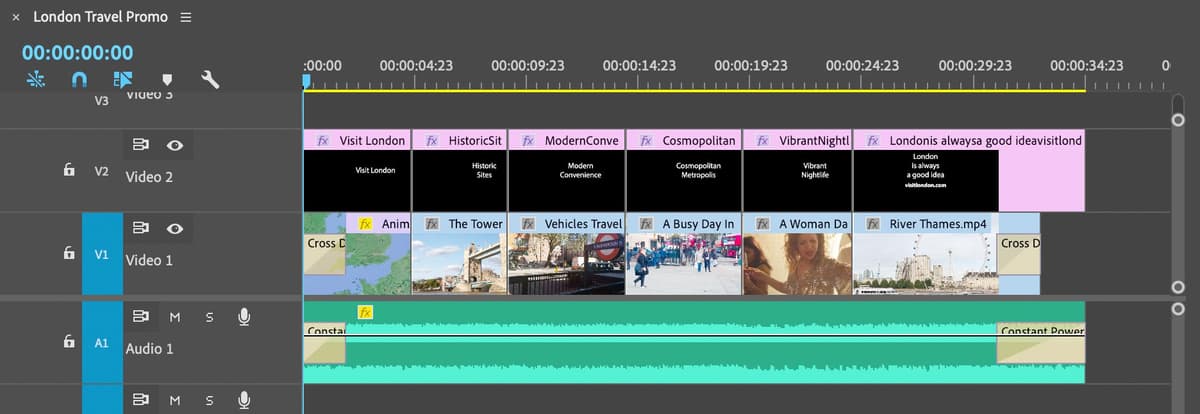
  7. Apply a professional fade-in by CTRL–clicking (Mac) or Right–clicking (Windows) the audio clip's beginning and selecting Apply Default Transitions.

    NOTE: Premiere Pro's default audio transition is Constant Power Crossfade, which provides smooth, natural-sounding fades. The keyboard shortcut Cmd–Shift–D (Mac) or CTRL–Shift–D (Windows) applies this transition instantly.

  8. Double–click the audio transition to access precise timing controls:

    • Set Duration to 200 frames (2 seconds) to synchronize with the video's cross dissolve
    • Click OK to confirm.
  9. Create a professional fade-out by CTRL–clicking (Mac) or Right–clicking (Windows) the audio clip's end and selecting Apply Default Transitions.

  10. Fine-tune the ending transition by double-clicking it:

    • Set Duration to 400 frames (4 seconds) to perfectly align with the River Thames video clip's cross dissolve
    • Click OK to apply.
  11. Save your progress with File > Save or Cmd–S (Mac) / CTRL–S (Windows).

With your audio foundation properly established, you're ready to layer professional titles that will elevate your project to broadcast quality.

Professional Audio Standards

Audio hitting the red zone on VU meters indicates distortion. Professional broadcast television uses -12db levels to maintain quality and prevent clipping.

Audio Level Guidelines

Red Zone (Avoid)
5
Professional Range
85
Too Quiet
10

Adding a Title Template to Your Project

Premiere Pro's built-in title templates provide a professional starting point for motion graphics, saving countless hours while maintaining industry-standard quality. These templates are fully customizable, allowing you to adjust everything from typography and colors to animation timing—essential tools for modern video production workflows.

  1. Switch to the optimal workspace for graphics work: Window > Workspaces > Captions and Graphics.

  2. Reset the workspace to its default configuration via Window > Workspaces > Reset to Saved Layout, ensuring all panels are properly positioned.

  3. In the Essential Graphics panel's search field, type basic title and press Return (Mac) or Enter (Windows) to filter available templates.

  4. Drag the Basic Title template directly onto the Video 2 track at the Timeline's beginning.

    This creates what Premiere Pro calls a "Graphic clip"—a dynamic, editable title element that maintains its template properties while allowing complete customization.

    NOTE: Video tracks function like layers in professional graphics applications such as After Effects or Photoshop. Higher-numbered tracks appear in front of lower tracks, with transparency areas revealing underlying content—a fundamental principle for professional compositing work.

Now that you have your title foundation in place, let's customize it to match your project's professional requirements.

Video Track Layering

Video tracks function like layers in graphics applications. Upper tracks display in front of lower tracks, with transparent areas revealing content below.

Title Template Integration Process

1

Switch to Graphics Workspace

Access the Captions and Graphics workspace and reset to saved layout for optimal panel arrangement

2

Search and Add Template

Use the Essential Graphics panel to search for 'basic title' and drag it to Video 2 track

3

Position on Timeline

Place the title at the beginning of Video 2 track where it becomes an editable Graphic clip

Editing a Title Template

Title template customization in Premiere Pro mirrors the workflow of professional graphics applications like Photoshop, providing intuitive controls for typography, positioning, and visual effects. This approach ensures consistency across Adobe's Creative Suite while maintaining the precision required for broadcast work.

  1. Activate the Selection tool tool_selection in the Tools panel—your primary interface for clip manipulation.

  2. Click once on the Graphic clip in the Video 2 track to select it, enabling the Essential Graphics panel's editing capabilities.

  3. Position the playhead directly over the Graphic clip to preview your edits in real-time—a crucial step for professional workflow efficiency.

  4. Click the text in the Program panel to activate text editing mode, automatically switching the Essential Graphics panel to its text controls.

  5. Double–click the text in the Program panel to select all text for editing—this provides immediate access to content modification.

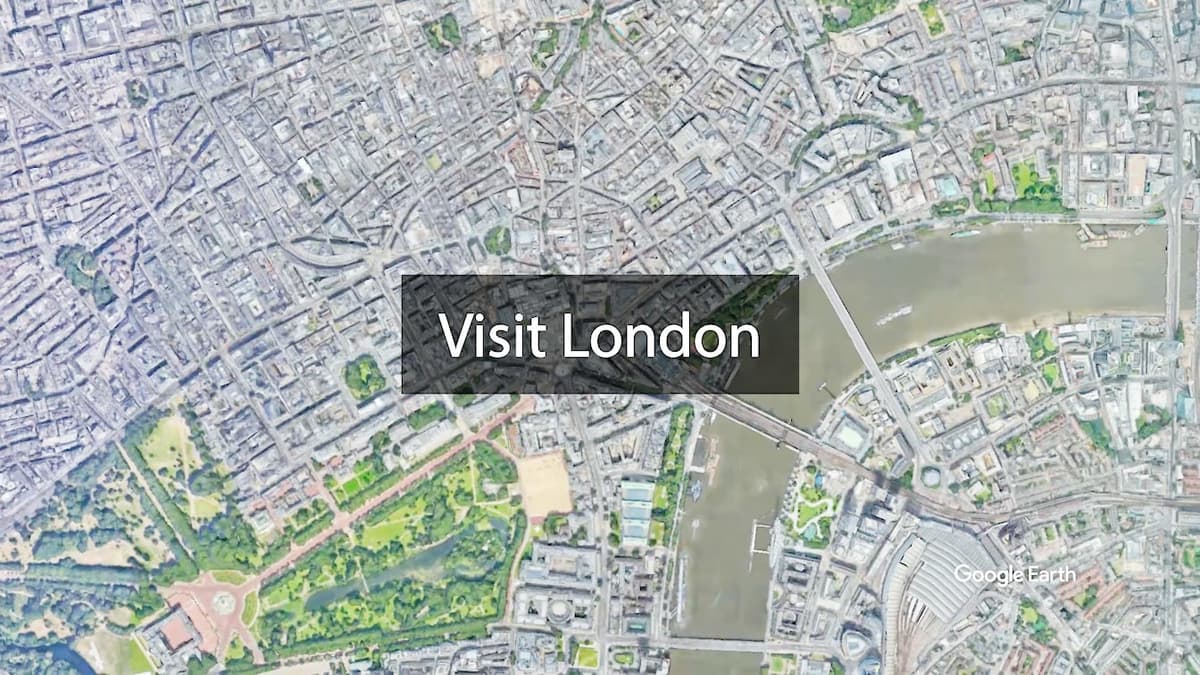
  6. Replace the placeholder text with Visit London—your opening title that will establish the video's professional tone.

  7. Move the playhead to position your title over the London street overhead view. Notice the text lacks sufficient contrast against the background—a common challenge in professional video production that requires strategic design solutions.

  8. In the Essential Graphics panel's Appearance section, enable the Background checkbox to add a professional backdrop for text readability.

  9. Click the color box beside Background to open the Color Picker:

    • Enter 000000 in the # field to create pure black
    • Click OK to apply this professional backdrop color.
  10. Configure these Background settings for optimal professional appearance:

    • Set Opacity essential graphics opacity to 95% for subtle background transparency
    • Set Size essential graphics background size to 60 for balanced visual proportion

    screen_visitlondon

  11. Click the Timeline panel to refocus on timing adjustments.
  12. Press + (plus) multiple times to zoom in until you can clearly see both the Graphic clip's boundaries and the underlying video clip—precision timing is essential for professional results.

  13. Select the Selection tool tool_selection for precise timeline editing.
  14. Drag the Graphic clip's end point to align perfectly with the video clip below—this synchronization creates seamless professional transitions.
  15. Preview the opening sequence to verify your title's impact and timing.
  16. Save your work via File > Save or Cmd–S (Mac) / CTRL–S (Windows).

With your first professional title configured, you'll now learn efficient duplication techniques to maintain consistency across your entire project.

Title Customization Workflow

1

Select and Activate

Click the Graphic clip on timeline and position playhead to view text in Program panel

2

Edit Text Content

Double-click text in Program panel to enter edit mode and change to 'Visit London'

3

Add Background for Readability

Enable background checkbox and set color to black (00,000) for better text visibility

4

Fine-tune Appearance

Set background opacity to 95% and size to 60 for professional semi-transparent effect

Duplicating Clips on the Timeline

Professional video editors rely on clip duplication to maintain visual consistency while maximizing efficiency. This technique ensures uniform styling across your project while allowing for individual content customization—a standard practice in broadcast and commercial production workflows.

  1. Ensure your original Graphic clip is selected in the Timeline for duplication.

  2. Hold Option (Mac) or ALT (Windows) and drag the Graphic clip to the right—this creates an exact duplicate with all formatting preserved.

  3. Without holding modifier keys, position the duplicated Graphic clip so its beginning precisely snaps to the first clip's end, creating seamless continuity without gaps.

  4. Trim the second Graphic clip's endpoint to match the duration of its corresponding video clip below—maintaining perfect synchronization.

  5. Continue duplicating and adjusting Graphic clips until each video segment has its corresponding title element, ensuring comprehensive coverage throughout your project.

  6. Extend the final Graphic clip to align with the music track's conclusion, creating a cohesive ending that ties all elements together.

    timeline_graphcclips

  7. Position your playhead over the second Graphic clip to begin customizing individual title content.
  8. Double–click the Visit London text to enter editing mode for content modification.
  9. Update the text to reflect the specific content:

    Historic Sites

    Press Return (Mac) or Enter (Windows) to create a two-line layout for better visual balance.

  10. In the Essential Graphics panel's Align and Transform section, click both Vertical Center button_vertcenter and Horizontal Center button_horcenter to ensure professional alignment.

  11. Save your progress with File > Save or Cmd–S (Mac) / CTRL–S (Windows).

Your professional title system is now established. The optional bonus sections below will help you complete the entire project with broadcast-quality results.

Efficient Duplication Technique

Hold Option (Mac) or ALT (Windows) while dragging any clip to create instant duplicates. This saves significant time when creating multiple similar elements.

Optional Bonus: Editing the Remaining Graphic Clips

  1. Complete your professional title sequence by customizing each remaining clip according to this content strategy:

    Graphic Clip Replacement Text
    Graphic 3 Modern
    Convenience
    Graphic 4 Cosmopolitan
    Metropolis
    Graphic 5 Vibrant
    Nightlife
    Graphic 6 London
    is always
    a good idea
    visitlondon.com

    ESSENTIAL: After modifying each title's text, maintain professional standards by clicking both the Vertical Center button_vertcenter and Horizontal Center button_horcenter alignment buttons for consistent positioning.

  2. Preserve your work with File > Save or Cmd–S (Mac) / CTRL–S (Windows).

Title Text Variations

Graphic 3: Modern Convenience

Highlights London's contemporary amenities and infrastructure for modern travelers.

Graphic 4: Cosmopolitan Metropolis

Emphasizes London's international character and diverse cultural offerings.

Graphic 5: Vibrant Nightlife

Showcases London's evening entertainment and after-dark attractions.

Optional Bonus: Customizing the Type on the Last Title

  1. Navigate to the final title in your Timeline to apply advanced typography techniques that distinguish different information hierarchies.

    Professional video production often requires visual differentiation between primary messaging and contact information—let's implement this with the visitlondon.com URL.

  2. Double–click the text in the Program panel to activate the Type tool and enable precise text selection capabilities.
  3. Select only the visitlondon.com portion to apply targeted formatting changes.
  4. In the Essential Graphics panel's Text section, apply these professional typography adjustments:

    • Change font weight from Regular to Bold for enhanced readability
    • Reduce size to 75 to create visual hierarchy separation
    • Set Baseline Shift essential graphics baseline shift to -40
      NOTE: While baseline shift is typically used for subscript/superscript effects, this technique provides a creative workaround for controlling line spacing when all title text shares uniform leading values.
  5. Apply professional centering by clicking both Vertical Center button_vertcenter and Horizontal Center button_horcenter to maintain perfect alignment.
  6. Complete this exercise by saving your professional-grade project: File > Save or Cmd–S (Mac) / CTRL–S (Windows).

    Keep this project open—you'll build upon these professional foundations in the next exercise, where we'll explore advanced motion graphics and export techniques for various delivery platforms.

Advanced Typography Techniques

1

Select Specific Text

Use the Type tool to select only 'visitlondon.com' portion of the final title

2

Apply Bold Styling

Change font weight from Regular to Bold to make the website URL stand out

3

Adjust Size and Position

Reduce text size to 75% and use Baseline Shift of -40 to create visual hierarchy

Creative Workaround

Using Baseline Shift for positioning is a creative solution when all text shares the same leading value. Professional editing often requires such innovative approaches.

Key Takeaways

1Professional audio levels should target -12db for broadcast television standards, staying well away from the red zone on VU meters to prevent distortion
2Premiere Pro's title templates provide customizable starting points that can be modified with transparent backgrounds, custom colors, and professional styling
3Video tracks function as layers with upper tracks displaying in front of lower tracks, allowing for complex compositing effects
4The Option/ALT+drag technique enables efficient clip duplication, essential for creating multiple similar title elements quickly
5Audio transitions like Constant Power Crossfade should match video transition durations for seamless audio-visual synchronization
6Text readability on video requires semi-transparent backgrounds (95% opacity) to maintain visibility without completely obscuring underlying footage
7Professional video editing involves precise timing synchronization between titles and music beats for maximum impact
8Typography hierarchy can be achieved through font weight changes, size adjustments, and creative use of baseline shift for visual emphasis

RELATED ARTICLES