April 1, 2026Jerron Smith/8 min read

Donuts Ad: Chroma Keying (Green Screen Removal) in Premiere Pro

Master Professional Green Screen Removal in Premiere Pro

Key Skills You'll Master

Chroma Keying

Remove green screen backgrounds using Ultra Key effect for professional compositing. Learn to sample colors accurately and adjust transparency settings.

Transform Animation

Create smooth motion animations with easing controls and motion blur. Master position keyframes and temporal interpolation techniques.

Opacity Masking

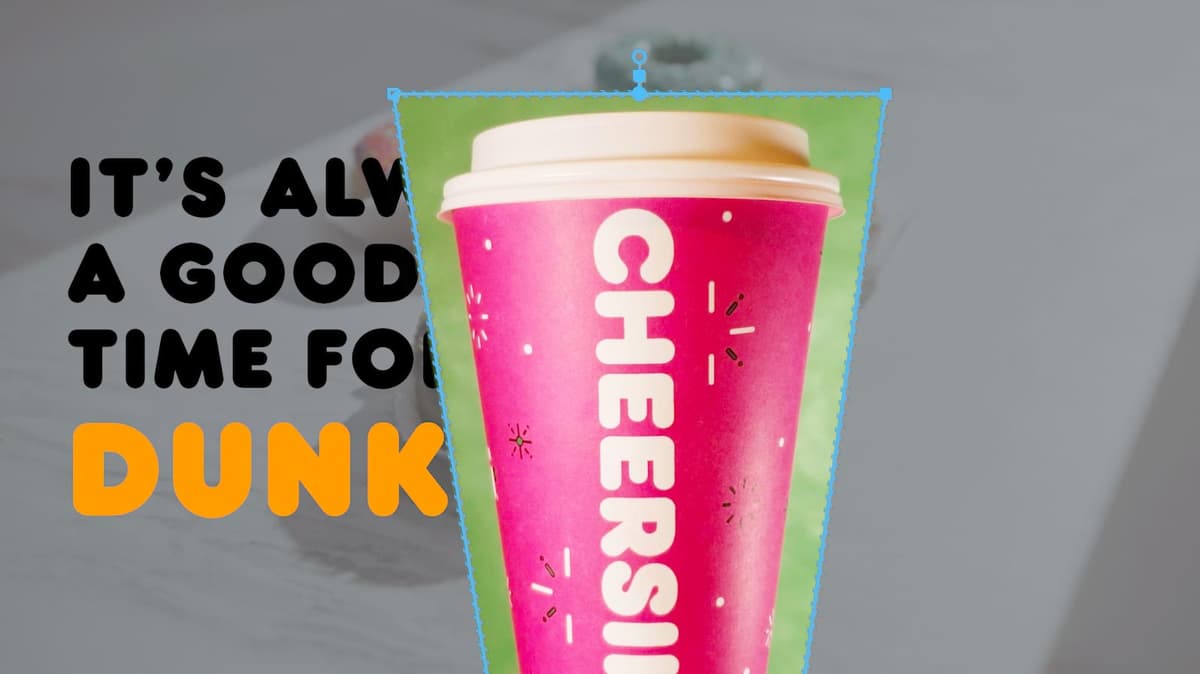
Use 4-point polygon masks to isolate subjects and refine green screen removal. Combine with Ultra Key for precise compositing control.

Topics Covered in This Premiere Pro Tutorial:

Chroma Keying, Using the Ultra Key, Animating Transform Properties

Exercise Preview

cup masked

File Organization Tip

Always preview the final result before starting any video editing project. This helps you understand the desired outcome and plan your workflow accordingly.

Exercise Overview

In this exercise, you'll master the art of green screen removal using Adobe Premiere Pro's sophisticated chroma keying tools. This technique is fundamental to modern video production, enabling seamless integration of foreground elements with new backgrounds—a skill essential for everything from Hollywood blockbusters to corporate training videos.

Previewing the Final Video

  1. Before diving into the technical details, let's examine the polished result you'll be creating.

  2. On the Desktop, navigate to Class Files > Premiere Pro Intermediate > Donuts Ad—Chroma Keying > Preview Movie and double–click Donut Ad—Main.mp4.

  3. Notice how the cup animates seamlessly into frame and spins elegantly over the video background. This professional-grade composite demonstrates the power of combining precise chroma keying with smooth animation.

  4. Replay the video to study the motion dynamics and edge quality, then close the video when you're ready to begin.

Getting Started

Let's set up your workspace with the project files and establish the proper file management protocols for this intermediate-level exercise.

  1. If you have a project open in Premiere, choose File > Close All Projects to ensure a clean workspace.

  2. Choose File > Open Project or hit Cmd–O (Mac) or CTRL–O (Windows).

  3. Navigate to Desktop > Class Files > Premiere Pro Intermediate > Donuts Ad—Chroma Keying.

  4. Double–click on Donuts Ad—Started.prproj to open it.

    NOTE: If you see a dialog about Converting Project (from a prior version) refer to Fixing Version Compatibility Issues section in Exercise 1A. If the Link Media dialog opens refer to Locating Missing Media in Exercise 1A.

  5. Go to File > Save As and:

    • Name the file Your Name—Donuts Ad
    • Save it to Desktop > Class Files > Premiere Pro Intermediate > Donuts Ad—Chroma Keying

Project Setup Workflow

1

Close All Projects

Start with a clean workspace by closing any open projects in Premiere Pro

2

Open Project File

Navigate to the exercise files and open Donuts Ad—Started.prproj

3

Save As New Project

Save the project with your name to preserve the original exercise file

Chroma Keying a Video

Chroma keying is the cornerstone technique of modern visual effects, allowing editors to isolate subjects shot against solid-colored backgrounds and composite them into entirely new environments. While green and blue screens dominate the industry due to their contrast with human skin tones, any solid, evenly-lit color can serve as a key. The process involves two critical steps: creating a rough mask to isolate your subject area, then using Premiere's Ultra Key effect to achieve pixel-perfect transparency.

  1. Choose Window > Workspaces > Editing to optimize your interface for this workflow.
  2. Choose Window > Workspaces > Reset to Saved Layout to ensure consistent panel positioning.
  3. In the Project panel, click on the arrow next to the 01—Video bin to expand it and reveal your source footage.

  4. Drag Cup Spin—Greenscreen.mp4 to the beginning of Video 3 track in the Timeline. Using a higher video track ensures your keyed element will composite properly over the background footage.

  5. On the Timeline, click on the Cup Spin—Greenscreen clip to select it and prepare for effect application.
  6. Click on the Effect Controls panel (at the top left, next to the Source panel's tab) to access the clip's properties.
  7. Expand Opacity using its arrow to reveal the masking tools.
  8. Under Opacity, click the Create 4-point polygon mask button opacity mask polygon to create your initial isolation mask.
  9. In the Program panel, carefully drag the mask's corner points to crop out the majority of the green screen around the cup, as shown below. This preliminary mask reduces the processing load on the Ultra Key effect and prevents edge contamination from poorly-lit green screen areas:

    cup masked

  10. Scrub the Playhead (move it backwards and forwards) across the clip duration to verify that the mask doesn't crop any part of the cup during its rotation, and refine the mask points if necessary.
  11. Open the Effects panel (Window > Effects) to access Premiere's comprehensive effect library.
  12. In the Effects panel's search field, type ultra to quickly locate the industry-standard keying tool.
  13. Drag the Ultra Key effect onto the Cup Spin—Greenscreen clip in the Timeline. This effect represents Adobe's most advanced chroma keying algorithm.

  14. In the Effect Controls panel, scroll down to the Ultra Key section to access the keying parameters.
  15. To the right of Key Color click on the Eye Dropper key eyedropper to begin color sampling.

    Mac Users: The first time you use this tool, macOS may request screen recording permissions for Premiere Pro. This security measure requires opening System Settings to grant access, and Premiere will need to restart. Save your project before proceeding—this permission process is only required once per system.

    Once you relaunch Premiere, reopen the Donuts Ad file and reselect the clip on Video 3 to continue.

  16. With the eye dropper active, hold down Cmd (Mac) or CTRL (Windows) and click on a well-lit, representative area of the green screen (try the lighter green area to the right of the cup for optimal results).

    NOTE: Holding Cmd (Mac) or CTRL (Windows) activates the large eyedropper tool, which samples a broader area and calculates an average color value—this produces more stable keys than single-pixel sampling.

  17. In the Effect Controls panel, under Ultra Key change the Setting menu from Default to Aggressive.

    This preset expands the range of green values that will be removed, particularly effective for unevenly-lit green screens or footage with color variations.

  18. Switch the Output menu from Composite to Alpha Channel to visualize your key's effectiveness:

    • Opaque areas appear as pure white (these areas will remain visible).
    • Transparent areas appear as pure black (these areas will be removed).
    • Semi–transparent areas appear as gray (these create natural edge transitions).
  19. Click on the arrow for Matte Generation to expand that section and access fine-tuning controls.

  20. Under Matte Generation, change Shadow to 30 to enhance transparency in darker green areas.

    Depending on the exact color you sampled, you may need additional adjustments. If areas of green remain visible, use the eye dropper to sample different green tones—remember to hold Cmd (Mac) or CTRL (Windows) for optimal sampling.

  21. Change the Output menu back to Composite to see your final keyed result.

  22. Preview the Timeline to evaluate the quality and consistency of your completed chroma key.

Color Selection Best Practice

Green and blue are most commonly used for chroma keying because they contrast well with human skin tones. Any solid color can technically work for keying.

Ultra Key Setup Process

1

Create Polygon Mask

Use 4-point polygon mask to crop out excess green areas around your subject

2

Apply Ultra Key Effect

Drag Ultra Key effect onto your green screen clip from the Effects panel

3

Sample Key Color

Use eyedropper with Cmd/Ctrl held down for larger sampling area and better color averaging

4

Adjust Settings

Change setting to Aggressive and adjust Shadow value to 30 for better transparency control

Transparency Controls Explained

Understanding these controls enables precision refinement of your chroma key results:

  • Transparency: Adjusts overall transparency of the source image when keyed over a background. 100 creates full transparency, while 0 maintains complete opacity.

  • Highlight: Controls opacity in the brightest areas of the source image, useful for managing reflective surfaces or bright lighting.

  • Shadow: Adjusts opacity in darker regions of the source image, critical for maintaining detail in shadowed areas.

  • Tolerance: Expands or contracts the range of colors that will be keyed out, allowing fine-tuning for challenging lighting conditions.

  • Pedestal: Eliminates noise artifacts from the alpha channel, particularly valuable when working with low-light footage or compressed source material.

Matte Cleanup controls provide additional refinement for professional results:

  • Choke: Contracts the alpha channel matte inward, useful for eliminating thin color fringing around edges.

  • Soften: Applies gaussian blur to the alpha channel edges, creating more natural integration with background elements.

Source and More Info: tinyurl.com/pp-mgcn

Matte Generation vs Matte Cleanup Controls

FeatureMatte GenerationMatte Cleanup
Primary FunctionRefine transparent areasReduce size or soften edges
Key ControlsTransparency, Highlight, ShadowChoke, Soften
Best Used ForColor range and opacityEdge refinement
Recommended: Use Matte Generation first to establish transparency, then Matte Cleanup to refine edges

Essential Ultra Key Controls

Tolerance

Adjusts the range of colors selected for keying. Higher values remove more similar colors but may affect subject edges.

Pedestal

Filters out noise from alpha channel and improves keys in low light footage. Essential for noisy green screen material.

Choke

Shrinks the alpha channel matte size. Useful for removing green spill or tightening edges around your subject.

Animating Transform Properties

Now that you've achieved a clean chroma key, we'll enhance the composite with dynamic motion. While Premiere's basic Motion effect handles simple movements, the Transform effect provides advanced capabilities including motion blur rendering—essential for creating professional, cinematic animation that convincingly integrates with your background footage.

  1. In the Timeline, CTRL–click (Mac) or Right–click (Windows) on the Cup Spin—Greenscreen clip and choose Nest to create a self-contained composition.
  2. Name it Cup Spin—Keyed and click OK. This nested sequence preserves your keying work while enabling advanced animation effects.
  3. Open the Effects panel (Window > Effects) to access the animation tools.
  4. In the Effects panel's search field, type transform to locate the advanced motion controls.
  5. Drag the Transform effect onto the Cup Spin—Keyed nested sequence in the Timeline.
  6. In the Effect Controls panel, collapse the Motion section if it's open to avoid confusion between similar parameters.
  7. Within the Transform effect section, hover over the Position property's first value (X-position) to access direct manipulation controls.
  8. Drag to the left to decrease the X-position value, observing how the cup moves off-screen. Position it completely out of frame (approximately -400) to create an entrance animation.
  9. Move the Playhead to the very beginning of the Timeline (00:00) to establish your starting keyframe.
  10. In the Effect Controls panel, next to Position click on the Toggle Animation stopwatch button_toggleAnim to enable keyframe animation and establish the first position keyframe.

  11. Move the playhead to 3:00 seconds to set the end point of your animation.
  12. In the Effect Controls panel, change the Position property's first value to 1400, positioning the cup completely off the right side of the frame for a complete cross-screen animation.

  13. In the mini–timeline of the Effect Controls panel, CTRL–click (Mac) or Right–click (Windows) on the first keyframe keyframe start and choose Temporal Interpolation > Ease Out to create a natural acceleration from the starting position.

  14. CTRL–click (Mac) or Right–click (Windows) on the second keyframe keyframe end and choose Temporal Interpolation > Ease In to create elegant deceleration as the cup exits frame.

  15. Change the Shutter Angle to 360 degrees to add realistic motion blur to the animation. This cinematic touch mimics natural camera motion blur and significantly enhances the professional quality of fast-moving elements.

  16. Preview the Timeline to evaluate your completed animation, noting how the motion blur and easing create smooth, natural movement that integrates seamlessly with the background footage.

  17. Choose File > Save or hit Cmd–S (Mac) or CTRL–S (Windows) to preserve your work.

    Keep the project open—you'll build upon these techniques in the next exercise to create even more sophisticated compositions.

Transform vs Motion Effect

Transform effect offers more advanced options like motion blur control compared to basic Motion effect. Always nest your clip before applying Transform for better workflow.

Animation Keyframe Workflow

1

Set Starting Position

Position cup offscreen at -400 X value and create first keyframe at timeline beginning

2

Set End Position

Move playhead to 3 seconds and change X position to 1400 for final keyframe

3

Apply Easing

Add Ease Out to first keyframe and Ease In to second keyframe for natural motion

4

Add Motion Blur

Set Shutter Angle to 360 degrees for realistic motion blur during animation

Key Takeaways

1Chroma keying requires combination of polygon masking and Ultra Key effect for professional results
2Hold Cmd/Ctrl when using eyedropper tool to sample larger color areas for better keying accuracy
3Aggressive setting in Ultra Key increases green removal range but may require Shadow adjustment to 30
4Alpha Channel output mode shows transparency as black/white/gray for precise matte evaluation
5Transform effect provides superior animation control compared to basic Motion effect, especially for motion blur
6Nesting clips before applying Transform effect creates cleaner workflow and better performance
7Temporal interpolation with Ease In/Out creates natural motion instead of linear movement
8Matte Generation controls handle transparency while Matte Cleanup controls refine edge quality

RELATED ARTICLES