April 1, 2026Dan Rodney/6 min read

Using Filters for Special Effects

Master Motion Effects with Professional Photoshop Techniques

Tutorial Learning Outcomes

Motion Blur Effects

Learn to create realistic background blur using motion blur filters with precise angle and distance controls.

Spin Blur Techniques

Master wheel spinning effects using Photoshop's Blur Gallery with custom rotation points and blur areas.

Layer Management

Understand layer copying, selection loading, and non-destructive editing workflows for complex effects.

Topics Covered in This Photoshop Tutorial:

Master the Motion & Spin Blur Effects, advanced layer copying techniques, and precision selection loading

Exercise Preview

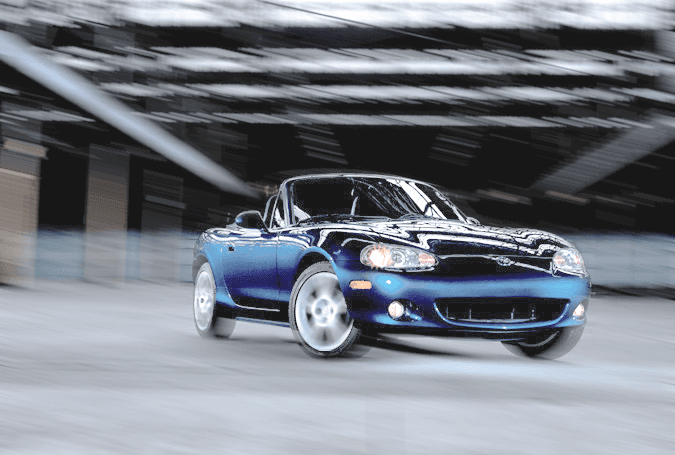
miata done

Before You Begin

This tutorial uses the miata.tif file from the Photoshop Class folder. Ensure you have this file available and Photoshop open before starting the exercise.

Exercise Overview

Static automotive photography often lacks the visceral excitement that draws viewers in. While the original Miata photograph we'll work with is technically sound, it fails to communicate the thrill of driving—that essential emotional connection between viewer and subject. In this exercise, we'll transform a lifeless studio shot into a dynamic image that practically vibrates with motion. By strategically applying Motion and Spin Blur filters, we'll create the illusion of speed while keeping our subject sharp and compelling. This technique is fundamental for automotive advertising, where conveying performance and excitement can make the difference between a scroll-past and a sale.

Motion Effect Workflow Overview

1

Background Separation

Use selection tools to isolate the car from the background for independent editing

2

Motion Blur Application

Apply motion blur to background elements to simulate camera movement during shot

3

Wheel Effect Creation

Add spin blur to individual wheels to show rotation and forward motion

4

Fine-tune and Composite

Adjust blur parameters and blend layers for realistic motion illusion

Blurring the Background

The foundation of effective motion photography lies in selective focus. By blurring the background while keeping the subject crisp, we create a powerful depth-of-field effect that mimics what high-end automotive photographers achieve with expensive equipment and perfect timing.

  1. From the Photoshop Class folder, open the file miata.tif.

  2. We'll transform this static image into a speed demon using Photoshop's advanced blur filters. Navigate to Select > Load Selection to access our pre-saved selection.

  3. Configure the selection parameters:

    • Set Channel to car silhouette.
    • Check on Invert (this selects everything except the car).
    • Click OK.
  4. Go to Layer > New > Layer Via Copy. This creates a duplicate layer containing only the background elements, giving us non-destructive editing control. Your Layers panel now shows the original background plus a new layer with everything except the car—perfect for applying motion effects without touching your subject.

  5. Navigate to Filter > Blur > Motion Blur to begin creating our speed effect.

  6. Apply these motion blur settings:

    Angle: −15°
    Distance: 40 Pixels

    The negative angle creates a diagonal motion streak that suggests the car is racing from upper left to lower right—a psychologically powerful direction that implies forward momentum. Click OK.

  7. In the Layers panel, double–click on the name of Layer 1 and rename it blurry bg. Proper layer naming is essential for professional workflows, especially when collaborating with team members or revisiting projects months later.

Motion Blur Settings Used

Angle (degrees)
15
Distance (pixels)
40
Selection Loading Technique

Using 'Load Selection' with the 'Invert' option allows you to select everything except the car, enabling background-only effects while preserving the main subject.

Spinning the Wheels

Now we'll add the crucial detail that separates amateur motion effects from professional-grade work: realistic wheel spin. Spinning wheels are the visual signature of motion photography, and Photoshop's Spin Blur filter gives us precise control over this effect.

  1. Click back on the Background layer to highlight it and prepare for wheel selection.

  2. Choose Select > Load Selection to access our pre-saved wheel selections.

  3. Configure the front wheel selection:

    • Set Channel to front wheel.
    • Make sure New Selection is selected.
    • Click OK.
  4. Go to Layer > New > Layer Via Copy to create an isolated wheel layer.

  5. Name the new layer front wheel for easy identification.

  6. Navigate to Filter > Blur Gallery > Spin Blur. This advanced filter, introduced in recent Photoshop versions, provides real-time preview and precise control over rotational blur effects—a game-changer for automotive photography.

  7. In the Options bar, ensure Preview is checked on so you can see your adjustments in real-time.

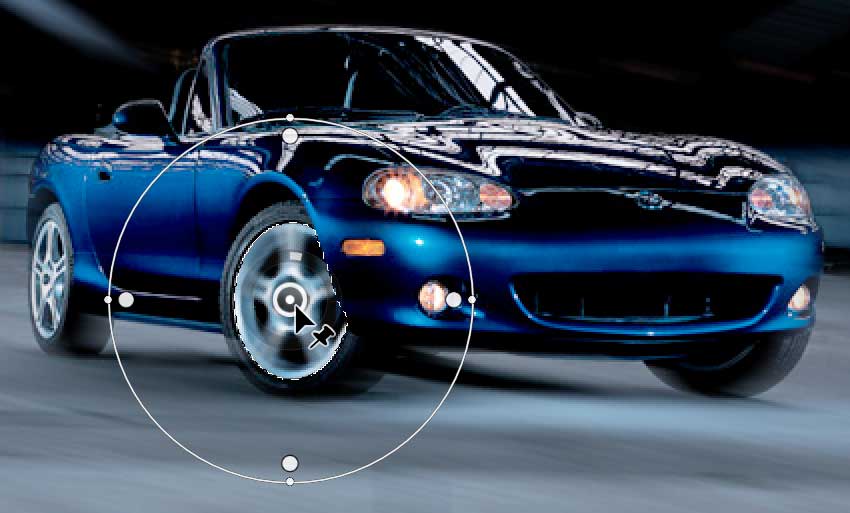
  8. A blur area with overlay controls appears on your photo. Drag the rotation point (center of the blur area) to the exact center of the hubcap for authentic spin simulation:

    spin blur place center point

    NOTE: For advanced effects, the rotation point can be moved off-center by holding Opt (Mac) or ALT (Windows) while dragging. This technique creates eccentric motion effects useful for damaged wheels or artistic interpretations.

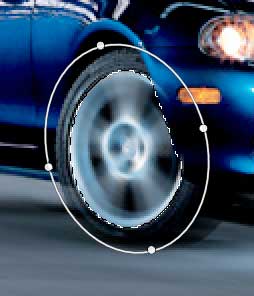
  9. Over the next few steps, we'll sculpt the blur area to match the wheel's perspective. Here's our target configuration—notice how the oval shape matches the wheel's foreshortening:

    spin blur modify selection

  10. First, resize the entire blur area. Hover over the thin circle line (avoiding the control dots) until your cursor displays this resize handle cursor resize handles.

  11. Drag the line inward to create a blur area slightly larger than the wheel. This ensures complete coverage while avoiding unwanted blur on surrounding elements.

  12. Transform the circle into a realistic oval that matches the wheel's perspective. Hover over the small outer dot on the right of the blur area until your cursor shows this resize handle cursor rotation handles.

  13. Drag this dot inward toward the center, narrowing the blur area to match the wheel's compressed width from this viewing angle.

  14. Drag the top small outer dot away from the center to increase the blur area's height, further enhancing the elliptical shape.

  15. Complete the perspective match by tilting the blur area slightly left—drag any small white outer dot counter-clockwise until the oval aligns with the wheel's angle.

    NOTE: The feather handles (large white dots inside the oval) control blur falloff. Position them closer to the edge for sharper transitions, or further away for more gradual blending. For maximum wheel spin effect, keep them near the edge so the entire hubcap receives full blur treatment.

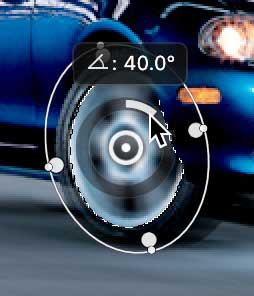
  16. Fine-tune the spin intensity by hovering inside the blur area to reveal the black/white circular slider surrounding the center point. This control determines rotation amount—drag clockwise for more spin, counter-clockwise for less:

    spin blur adjust blur angle

    NOTE: The Blur Tools panel on the right provides numerical Blur Angle control for precision adjustments—especially useful when matching multiple wheels or creating consistent effects across a series.

  17. In the Options bar at the top, click OK to commit the blur. Your front wheel now exhibits convincing rotational motion.

  18. Click back on the Background layer to prepare for the rear wheel treatment.

  19. Choose Select > Load Selection and configure:

    • Set Channel to back wheel.
    • Make sure New Selection is selected.
    • Click OK.
  20. Go to Layer > New > Layer Via Copy to isolate the rear wheel.

  21. Name the new layer back wheel to maintain organization.

  22. Apply Filter > Blur Gallery > Spin Blur once more.

  23. Adjust the blur area to match the rear wheel's perspective and size. The rear wheel appears smaller due to distance, so don't worry about achieving perfect tire coverage—focus on creating a believable oval shape that follows the wheel's angle. Set your preferred Blur Angle for consistent motion intensity.

  24. When satisfied with the effect, click OK in the Options bar to finalize the transformation.

    Congratulations! You've successfully transformed a static automotive photograph into a dynamic image that pulses with energy and motion. This technique is invaluable for automotive marketing, sports photography, and any situation where you need to inject life into stationary subjects. The combination of background motion blur and spinning wheels creates a compelling narrative of speed and performance that engages viewers and drives emotional connection.

Spin Blur Setup Checklist

0/5
Advanced Rotation Control

Hold Alt (Windows) or Opt (Mac) while dragging to move the rotation point off-center for specialized effects like wobbling or irregular motion patterns.

Blur Area Controls

Resize Handles

Thin circle line adjusts overall size. Small outer dots reshape and rotate the blur area for precise wheel matching.

Feather Handles

Large white dots inside the oval control blur transition. Distance from edge determines how much gets blurred.

Blur Intensity Slider

Circular slider around center point adjusts blur amount. Can also use Blur Tools panel for numerical precision.

Key Takeaways

1Motion blur with -15 degree angle and 40 pixel distance creates realistic camera movement simulation
2Loading selections with invert option allows background-only editing while preserving main subjects
3Layer via copy technique maintains non-destructive workflow for complex filter applications
4Spin blur rotation points should be centered on hubcaps for natural wheel motion effects
5Blur area shapes must match wheel perspective using oval forms tilted to viewing angle
6Feather handles control blur transition zones for seamless integration with unblurred areas
7Separate layers for front and back wheels allow individual motion customization
8Preview mode enables real-time adjustment of blur parameters before final application

RELATED ARTICLES