April 1, 2026Dan Rodney/7 min read

Noise Reduction & the Camera Raw Filter

Master Digital Noise Reduction with Camera Raw

Prerequisites

This technique requires Photoshop CC. While Photoshop has a built-in Reduce Noise filter, Camera Raw's noise reduction produces superior results.

Topics Covered in This Photoshop Tutorial:

Reducing Digital Camera Noise, the Camera Raw Filter

Types of Digital Camera Noise

Luminance Noise

Light and dark specks that appear throughout the image, especially visible in shadow areas. More prominent at higher ISO settings.

Color Noise

Random colored specks of red, green, blue, and other hues scattered across the image. Often appears as chromatic artifacts in darker regions.

Exercise Preview

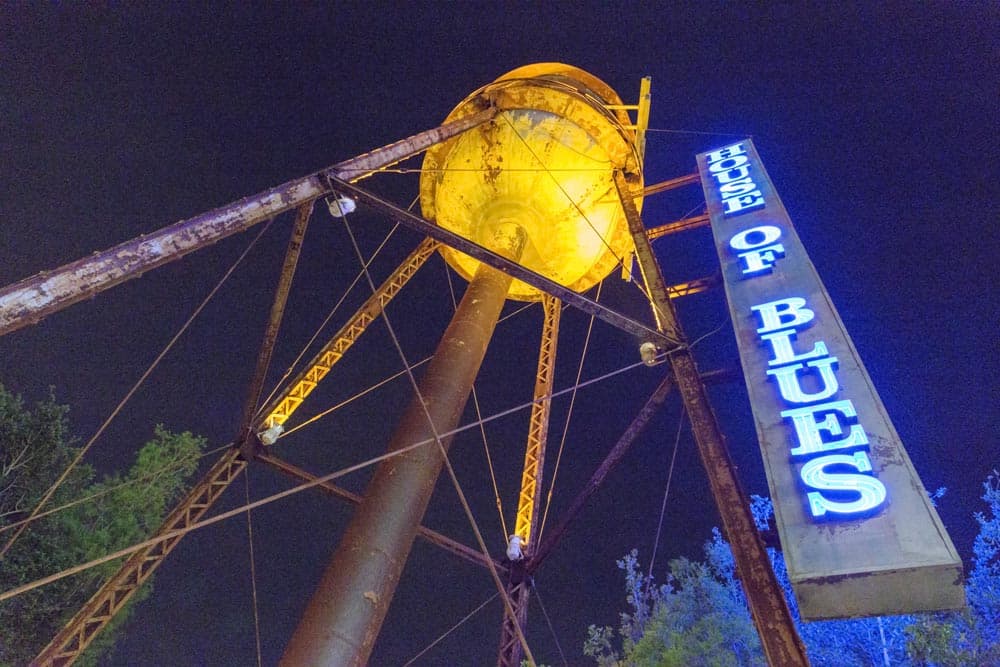
preview House of Blues

Photo Copyright © Dan Rodney, danrodney.com

Exercise Overview

Digital noise remains one of the most persistent challenges in photography, particularly when shooting in challenging lighting conditions or with older camera sensors. While modern cameras have significantly improved high-ISO performance since this technique was first developed, digital noise can still plague images shot at ISO 1600 and above, or when dealing with legacy equipment.

The gold standard for noise reduction is always working with the original RAW file—the unprocessed sensor data gives you maximum flexibility and superior results. However, the reality of professional workflows means you'll frequently encounter JPEG files, client-provided images, or archive photos that need restoration. This is where Photoshop's Camera Raw Filter becomes invaluable, allowing you to apply sophisticated RAW-style processing to any image format.

NOTE: This technique requires Photoshop CC or later (now included in all current Creative Cloud subscriptions). While Photoshop includes a legacy Reduce Noise filter, it's significantly less sophisticated than Camera Raw's noise reduction algorithms, which leverage Adobe's years of RAW processing expertise.

RAW vs JPEG for Noise Reduction

FeatureRAW FilesJPEG Files
Noise Reduction QualityOptimal resultsGood results
Data AvailableFull sensor dataCompressed data
Processing FlexibilityComplete controlLimited adjustments
Recommended: Always work with RAW files when possible for best noise reduction results
Smart Filter Option

For non-destructive editing, use Filter > Convert for Smart Filters before applying Camera Raw Filter. Note that Smart Objects can significantly increase file size.

Using Camera Raw As a Filter

The Camera Raw Filter essentially brings the power of Adobe Camera Raw to any image, regardless of its original format. This workflow has become essential for photographers working with mixed file types or needing to process images that bypass the traditional RAW workflow.

  1. In Photoshop go to File > Open.

  2. Double–click House of Blues.jpg to open it.

  3. An Embedded Profile Mismatch dialog should appear. Since this image is destined for web use, its embedded sRGB color profile is ideal for web design applications. Leave Use the embedded profile (instead of the working space) selected and click OK. This preserves the intended color characteristics while maintaining web compatibility.

  4. Choose Filter > Camera Raw Filter.

    NOTE: Understanding the destructive nature of filters is crucial for professional workflows. By default, filters permanently alter the current layer's pixels. For noise reduction work, this is often acceptable since you're typically committing to these adjustments early in your editing process. However, if maximum flexibility is required, apply Filter > Convert for Smart Filters first, then apply the Camera Raw Filter. This creates a Smart Object that preserves the original data. Be aware that this approach increases file sizes substantially and requires careful layer management—any subsequent retouching must occur on separate layers above the Smart Object, or within the Smart Object itself by double-clicking its thumbnail.

  5. At the bottom left of the window, set the zoom to 200%. Noise evaluation requires pixel-level examination—anything less than 100% zoom can mask the very details you're trying to optimize.

  6. Press H to switch to the Hand tool camera raw hand tool.

  7. Drag on the image to scroll down to the bottom right, focusing on the House of Blues sign. This area typically reveals noise patterns most clearly due to its contrast transitions and shadow details.

  8. On the right side of the window, switch to the Detail tab camera raw detail button (third from the left). This panel houses both sharpening and noise reduction controls, reflecting their interconnected nature in digital image processing.

  9. Understanding the two types of digital noise is essential for effective correction. Luminance noise appears as random light and dark specks—essentially grain-like patterns that affect brightness values. Color noise manifests as random colored pixels (typically red, green, blue, or magenta specks) and is often more visually distracting. Most cameras produce both types simultaneously, requiring a two-pronged approach. In the Noise Reduction section, set the Luminance to 100 to begin with an aggressive correction.

  10. Evaluate your progress systematically:

    • Press the P key to toggle off the preview, revealing the original noisy image.

    • Press P again to see your luminance noise reduction results. The grainy texture should be significantly diminished, though colored specks will likely remain prominent.

  11. Address the color noise by setting Color to 60. This moderate setting typically eliminates most color artifacts without over-processing the image.

  12. Use the P key toggle to compare before and after results, ensuring the preview remains active for the next phase.

Setting Up Camera Raw Filter

1

Open Your Image

Go to File > Open and select your JPEG image. Handle any color profile dialogs appropriately.

2

Access Camera Raw Filter

Choose Filter > Camera Raw Filter to open the Camera Raw interface for your JPEG file.

3

Set Proper Zoom Level

Set zoom to at least 100% or 200% at bottom left to see fine details clearly during noise reduction.

Tweaking the Luminance Noise Settings

The initial noise reduction provides a solid foundation, but professional results require fine-tuning. The challenge lies in balancing noise suppression with detail preservation—an over-processed image can appear plastic and lifeless.

  1. Experiment with the Luminance Detail slider by dragging it slowly left and right while observing image changes:

    • Moving right (higher values) preserves fine textures and edge details but allows more noise to remain visible.
    • Moving left (lower values) creates smoother surfaces with less noise but can eliminate important textural information.
    • The optimal setting balances these competing priorities. Set Luminance Detail to 40 as a starting point for this particular image.
  2. Professional noise reduction requires examining multiple image areas with different characteristics. Navigate to the top left area and locate the base of the yellow water tower where it connects to the large round pipe. This industrial surface provides an excellent test case for texture preservation.

  3. Toggle the preview with the P key to assess the impact on metallic textures and surface details.

  4. If you notice excessive smoothing of the metal's surface texture, increase the Luminance Detail to 45. This retrieves some lost detail while maintaining acceptable noise levels. Remember that noise reduction is always a compromise—settings that work perfectly for smooth areas may be too aggressive for highly textured surfaces.

  5. Return to the sign area by scrolling right to view the OF lettering in the House of Blues sign.

  6. Test the Luminance Contrast slider by dragging between 0 and 100. This control affects the contrast within the luminance noise reduction, potentially revealing subtle details in flat areas while maintaining overall noise suppression. The effect is often subtle but can be crucial for preserving micro-contrast in uniform surfaces.

  7. For this image, a Luminance Contrast setting of 100 enhances detail retention in the sign's flat metal areas without reintroducing objectionable noise.

Recommended Starting Values

Luminance
100
Luminance Detail
45
Luminance Contrast
100
Balancing Act Required

Finding the sweet spot between noise reduction and detail preservation requires checking multiple areas of your image. Settings that work well for one area may affect another differently.

Tweaking the Color Noise Settings

Color noise reduction typically requires less aggressive settings than luminance noise correction, as color noise is generally more visually distracting and easier to eliminate without compromising image quality.

  1. Adjust the Color Detail slider while observing its impact on color transitions:

    • 0 aggressively suppresses color noise but may blur legitimate color boundaries, potentially affecting color accuracy in detailed areas.
    • 100 preserves original color detail but retains more color noise artifacts.
    • For images without critical color details requiring preservation (like this architectural shot), a setting of 0 is often optimal, providing maximum color noise suppression.
  2. Fine-tune the Color Smoothness control while examining the bottom portion of the sign in the lower-right corner. This parameter affects how aggressively the algorithm blends color noise corrections across adjacent pixels.

    A Color Smoothness setting of 100 typically provides excellent color noise suppression while maintaining natural color transitions.

  3. Before finalizing your adjustments, zoom to 100% for a realistic assessment of the final image quality. This viewing percentage most closely approximates how the image will appear in typical usage scenarios.

  4. Perform a final before-and-after comparison using the P key toggle to ensure your noise reduction achieves the desired balance between cleanliness and detail retention.

  5. When satisfied with the results, click OK in the lower right to apply the Camera Raw Filter processing to your image.

  6. With noise reduction complete, you can proceed with additional image enhancements, color corrections, or creative adjustments. For this exercise, you can close the image without saving, but in professional workflows, this is typically when you'd continue with retouching, color grading, or other finishing work.

Color Detail Slider Settings

Pros
Setting to 100 maintains original color details
Preserves important color information in the image
Better for images with fine color details
Cons
Setting to 0 helps reduce color noise visibility
May blur colors together and lose some detail
Can eliminate important color nuances

Final Quality Check

0/4

Key Takeaways

1Camera Raw Filter provides superior noise reduction compared to Photoshop's built-in Reduce Noise filter
2RAW files yield better noise reduction results than JPEG files, but the technique works with both formats
3Luminance noise appears as light and dark specks, while color noise shows as random colored artifacts
4Always work at 100% zoom or higher when adjusting noise reduction settings to see fine details clearly
5Luminance Detail slider requires careful balancing between noise reduction and detail preservation
6Color Detail setting of 0 works well for images without critical color details that need preservation
7Smart Filters option allows non-destructive editing but significantly increases file size
8Multiple image areas should be checked when fine-tuning settings to ensure optimal results throughout

RELATED ARTICLES