April 1, 2026Dan Rodney/6 min read

Using Clipping Paths for Silhouettes

Master Professional Silhouettes with Photoshop Clipping Paths

Essential Skills You'll Master

Clipping Path Creation

Learn to create precise vector paths around objects for clean background removal. Master the professional technique used in commercial design workflows.

Pen Tool Precision

Develop advanced pen tool skills for creating smooth, accurate curves. Build confidence with anchor points and bezier handles.

InDesign Integration

Discover how to seamlessly import clipped images into InDesign layouts. Complete the workflow from editing to final layout design.

Topics Covered in This Photoshop Tutorial:

Clipping Paths, Advanced Pen Tool Techniques, Importing Professional Silhouettes into InDesign

Exercise Preview

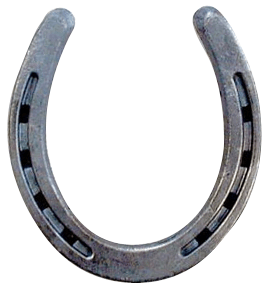
horseshoe done

Project Requirements

This exercise requires both Photoshop and InDesign to complete the full workflow. While you can practice the clipping path creation in Photoshop alone, the final integration step needs InDesign for the complete professional workflow.

Exercise Overview

Professional design work demands pixel-perfect background removal, and this exercise will elevate your precision clipping skills. We'll extract this horseshoe from its background to seamlessly integrate it into a print design created in InDesign. The horseshoe's smooth, well-defined edges make it an ideal candidate for demonstrating advanced clipping path techniques that deliver crisp, vector-quality results.

This workflow mirrors real-world production scenarios where clean silhouettes are essential for professional output. While you can complete most steps without InDesign, you'll need the application to fully appreciate how clipping paths maintain their integrity across Adobe's Creative Suite.

NOTE: If you are working on these exercises out of order, we highly recommend completing Exercise 5C before starting this one, as it establishes fundamental pen tool concepts essential for success here.

When to Use Clipping Paths

Pros
Perfect for objects with smooth, crisp edges like the horseshoe
Creates vector-based edges that scale without quality loss
Ideal for print design workflows and professional layouts
Compatible with multiple file formats in InDesign
Cons
Time-intensive for complex shapes with many curves
Not suitable for objects with soft or fuzzy edges
Requires precision and patience for best results
May cause PostScript errors with overly complex paths

Creating a Path Around an Object with the Pen Tool

Mastering the pen tool for precise selections separates professional designers from amateurs. This technique creates mathematically perfect vector paths that scale infinitely without quality loss—a crucial advantage in professional print workflows.

  1. From the Photoshop Class folder, open the image horseshoe.tif.

  2. Go to View > Fit on Screen (Cmd–0 (Mac) or CTRL–0 (Windows)) to maximize your working canvas. Adequate zoom levels are critical for precision—small inaccuracies compound quickly in professional work.

  3. Choose the Pen tool pen tool.

  4. In the Options bar, ensure that Path is selected. This creates a work path rather than a shape layer, which is essential for clipping path creation.

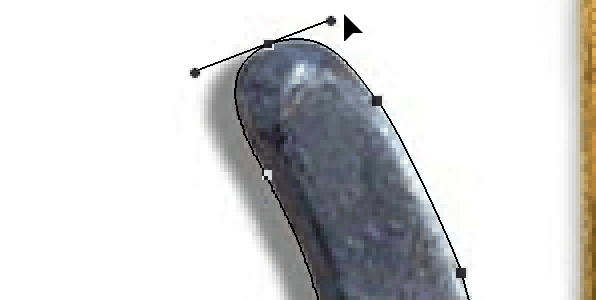
  5. Starting at the top of the right side, click and drag out a handle upwards and right. The initial anchor point sets the foundation for your entire path—position it strategically.
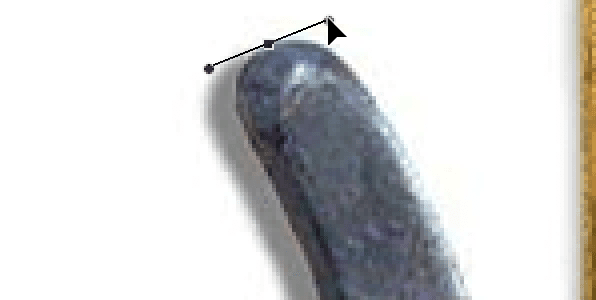
    horseshoe first point

  6. Below on the right, click and drag the next point to follow the contour of the curve. Notice how the bezier handles predict and control the curve between points—this mathematical precision is what creates professional-grade selections.
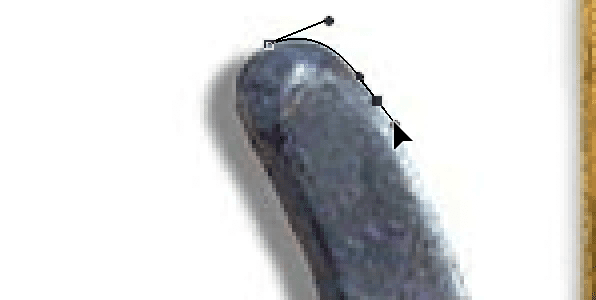
    horseshoe second point

  7. Continue this process around the entire horseshoe, except the last point. Professional path creation requires strategic thinking—each point should serve a purpose. As you proceed, remember these essential techniques:
    • If you make a mistake, immediately undo by pressing Cmd–Z (Mac) or CTRL–Z (Windows). Don't attempt to fix errors mid-path—it compromises accuracy.
    • Place points slightly inside the edge of the horseshoe to avoid including background pixels—even single-pixel contamination can ruin professional output.
    • Longer handles create broader curves, shorter handles create tighter curves. Master this relationship for intuitive path control.
    • Perfection isn't required at this stage—refinement comes next. Focus on capturing the overall form accurately.
  8. When you reach the final point, position the cursor over the first point—it will display the close path cursor pen close path. Click and drag up and right toward the anchor handle to complete the shape. A properly closed path is essential—open paths cannot become clipping paths.

    horseshoe final point

  9. Choose the Direct Selection tool direct selection tool. To find it, you may need to click and hold on the Path Selection tool path selection tool.

  10. Click once on the path to select it. The path should display all anchor points and bezier handles.

  11. Now refine your path to professional standards by:
    • Selecting individual points to move them precisely along the edge.
    • Selecting points and adjusting anchor handles to perfect curve relationships. Small adjustments here create dramatically better results.

Pen Tool Path Creation Process

1

Setup and Tool Selection

Open horseshoe.tif and fit to screen for optimal visibility. Select Pen tool with Path option in Options bar.

2

Start the Path

Begin at the top right side, clicking and dragging to create the first anchor point with handles for curve control.

3

Follow the Contour

Continue around the horseshoe, placing points slightly inside the edge to avoid background inclusion.

4

Close and Refine

Complete the shape by connecting to the first point, then use Direct Selection tool to fine-tune curves and positions.

Pro Path Creation Tips

Place anchor points slightly inside the object edge to avoid including background pixels. Use longer handles for larger curves and shorter handles for tighter curves. Remember that perfection isn't required initially since you can refine the path afterward.

Turning the Work Path into a Clipping Path

The path you just created exists as a Work Path—a temporary construction that Photoshop will discard when you create another path. Converting it to a named, saved clipping path ensures it travels with your file and functions properly in layout applications.

Understanding this workflow is crucial for professional production environments where files move between team members and applications regularly.

  1. Open the Paths panel by going to Window > Paths.
  2. Double–click on Work Path to save it permanently.
  3. Name it horseshoe and click OK. Descriptive naming prevents confusion in complex projects with multiple paths.
  4. In the Paths panel menu panel menu, choose Clipping Path. This designation tells other applications to use this path for transparency.
  5. From the Path menu, select horseshoe, leave the flatness value blank, and click OK.

    Converting Work Path to Clipping Path

    1

    Save the Work Path

    Open Paths panel and double-click Work Path to save it with a descriptive name like 'horseshoe'.

    2

    Create Clipping Path

    Use Paths panel menu to choose Clipping Path option and select your saved path.

    3

    Configure Settings

    Leave flatness value blank for full resolution output, ensuring crisp vector edges at any size.

The Flatness Value

By leaving the flatness value blank, the path maintains the full resolution of the output device—essential for high-end print production. Complex paths with numerous anchor points may occasionally trigger PostScript errors during output. If you encounter printing issues, input a flatness value between 3-10 to reduce path complexity (higher values create more simplified paths, but sacrifice curve accuracy). Modern RIP systems in 2026 handle complex paths more efficiently than legacy systems, making flatness adjustments less common.

Understanding Flatness Values

Leave flatness blank for maximum quality and full resolution output. Only add a flatness value if you encounter PostScript printing errors. Higher flatness values simplify the path but reduce curve accuracy.

Flatness Value Impact

FeatureBlank FlatnessHigher Flatness
Print QualityMaximum resolutionSimplified curves
File ComplexityFull detail retainedReduced complexity
Print CompatibilityMay cause errorsBetter compatibility
Recommended: Start with blank flatness, only increase if printing errors occur

Saving & Importing the Image into InDesign

File format selection directly impacts your clipping path's performance and compatibility. While InDesign accepts clipping paths in multiple formats (PSD, TIFF, EPS), each has specific advantages for different workflows.

For maximum compatibility and feature preservation across Creative Cloud applications, Photoshop's native PSD format remains the gold standard for professional design workflows in 2026.

  1. Go to File > Save As.

  2. Navigate into the Kissimmee Brochure folder.

  3. Under Format (Mac) or Save as type (Windows), choose Photoshop and name the image yourname-horseshoe.psd. The PSD format preserves all path data and maintains perfect integration with InDesign.

  4. Launch InDesign.

  5. Go to File > Open. From the Kissimmee Brochure folder, open the InDesign file Brochure-add horseshoe.indd.

  6. Using the Selection tool selection tool, select the rectangular picture box near the bottom left. Look for the empty blue placeholder frame with an X through it—it's positioned below and larger than the Did You Know text box.
  7. Go to File > Place to import your clipped image.
  8. Navigate to the Kissimmee Brochure folder and double–click yourname-horseshoe.psd. InDesign automatically recognizes and applies the clipping path.
  9. Go to View > Display Performance > High Quality Display to see the full quality of your work.
  10. Zoom in to examine your results. Notice how the clipping path creates perfectly crisp, vector-quality edges that scale without degradation—this is the hallmark of professional production work.
  11. We no longer need this file open, so close the InDesign document and select Don't Save when prompted. Your exercise is complete!

File Format Options for InDesign

PSD (Recommended)

Photoshop's native format preserves all layer information and clipping paths. Offers maximum compatibility and editability for future modifications.

TIFF Alternative

Tagged Image File Format supports clipping paths and offers good compatibility. Suitable when file size optimization is important.

EPS Option

Encapsulated PostScript format ideal for vector-heavy designs. Best for workflows requiring PostScript compatibility.

InDesign Import Checklist

0/4

Key Takeaways

1Clipping paths create vector-based silhouettes with crisp, scalable edges perfect for print design workflows
2The Pen tool requires practice but offers precise control over curved paths when creating professional silhouettes
3Work Paths must be saved and converted to Clipping Paths before they can be used in other applications
4Flatness values should be left blank for maximum quality, only adjusted if PostScript printing errors occur
5Multiple file formats (PSD, TIFF, EPS) support clipping paths in InDesign, with PSD recommended for flexibility
6Placing anchor points slightly inside object edges prevents unwanted background pixels in the final silhouette
7InDesign's High Quality Display mode reveals the professional vector edge quality of properly created clipping paths
8This workflow represents industry-standard practice for removing backgrounds and creating professional layout elements

RELATED ARTICLES