April 1, 2026Dan Rodney/8 min read

Using Channels to Make Selections

Master Advanced Photoshop Selection Techniques with Channels

Core Techniques You'll Master

Channel-Based Selections

Learn to identify and utilize RGB channels for precise selections. Master the art of finding optimal contrast between elements.

Alpha Channel Creation

Create custom alpha channels from color channels. Develop skills in duplicating and refining channels for complex selections.

Color Transformation

Apply Hue/Saturation adjustments with precision. Use adjustment layers and masks for non-destructive color changes.

Topics Covered in This Photoshop Tutorial:

Using Channels for Selections, Using Levels to Refine Selections, Using Hue/Saturation to Change Clothing Color, Updating Channel Selections

Exercise Preview

smiling baby done

Project Objectives

This exercise demonstrates real-world color correction workflows. You'll change the baby's suspender straps and woman's blouse colors using channel-based selections for maximum precision.

Exercise Overview

In this exercise, we'll demonstrate the power of channel-based selections for precise color adjustments. We'll change the color of both the baby's suspender straps and the woman's blouse using Alpha Channels—a technique that's essential for professional retouching work. Channel selections offer superior edge quality and precision compared to traditional selection tools, making them indispensable for complex clothing modifications. This method is particularly valuable in fashion photography, product visualization, and commercial retouching where color accuracy and clean selections are paramount.

Workflow Overview

1

Channel Analysis

Examine RGB channels to identify optimal contrast between target areas and background elements

2

Alpha Channel Creation

Duplicate the best channel and refine it using selection tools and Levels adjustments

3

Color Application

Load selections and apply Hue/Saturation adjustments using layer masks for precise control

Selecting the Baby's Suspender Straps

We'll begin with the relatively straightforward selection of the baby's straps, which will introduce you to the channel selection workflow before tackling more complex areas.

  1. From the Photoshop Adv Class folder, open Baby.tif.

  2. An Embedded Profile Mismatch dialog should appear. Since this image is destined for web use, its embedded sRGB color profile is perfectly suited for web design. Leave Use the embedded profile (instead of the working space) selected and click OK. This ensures color consistency across different browsers and devices.

  3. Navigate to the Channels panel. If it's not visible, access it via Window > Channels.

  4. The key to successful channel selections lies in identifying the channel with the highest contrast between your target area and its surroundings. Examine each color channel systematically by clicking them in the Channels panel or using these keyboard shortcuts:

    • Cmd–3 (Mac) or CTRL–3 (Windows) to select the Red channel
    • Cmd–4 (Mac) or CTRL–4 (Windows) to select the Green channel
    • Cmd–5 (Mac) or CTRL–5 (Windows) to select the Blue channel

    Notice that while most channels show decent contrast between the straps and shirt, the Red channel provides optimal separation. The shirt detail virtually disappears while the straps remain distinctly dark—exactly what we need for a clean selection.

  5. Select the Red channel (Cmd–3 (Mac) or CTRL–3 (Windows)).

  6. From the Channels panel menu panel menu, choose Duplicate Channel.

  7. Name the new alpha channel straps and click OK. Using descriptive names for your alpha channels is crucial for maintaining organization in complex projects.

  8. Double–click on the straps channel thumbnail to access its display options.

  9. Set Color Indicates to Selected Areas and click OK. This visualization method makes it easier to understand what will be included in your final selection.

  10. Ensure the straps channel is both selected and visible eye hide show icon. Hide all other channels to focus solely on refining this selection.

  11. The channel contains extraneous elements that will interfere with our selection. Use the Lasso tool lasso tool to create a rough selection around both suspender straps. Precision isn't critical at this stage—focus on capturing both straps while avoiding excessive shirt area.

  12. Execute Select > Inverse (Cmd–Shift–I (Mac) or CTRL–Shift–I (Windows)) to select everything except the straps.

  13. Verify that your Background color is set to white. You can quickly set this by pressing D to reset to default colors, then X to swap if necessary.

  14. Press Cmd–Delete (Mac) or CTRL–Delete (Windows) to fill the selected area with white, effectively removing unwanted elements.

  15. Deselect with Select > Deselect (Cmd–D (Mac) or CTRL–D (Windows)).

  16. Apply a Levels adjustment (Cmd–L (Mac) or CTRL–L (Windows)). Note: Standard adjustment layers don't function on channels—you must use the direct adjustment command.

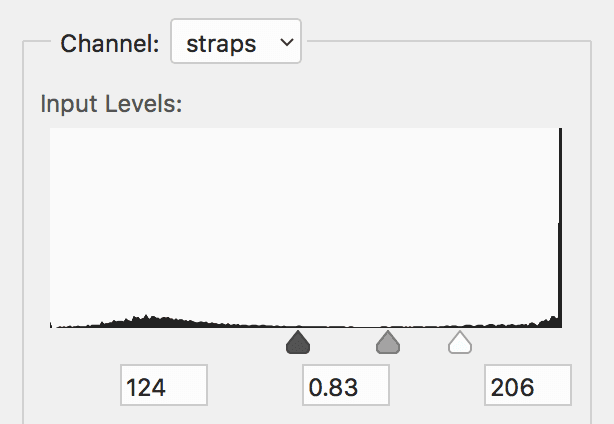
  17. The goal is to create absolute contrast: the straps should be pure black (fully selected) while the shirt becomes pure white (completely unselected). Any gray areas will result in partial selections, which can cause color bleeding. Adjust your levels as follows:
    • Drag the white and black points inward to intensify contrast, pushing dark areas to pure black and light areas to pure white.
    • Fine-tune the midpoint slider while monitoring both the overall darkness and edge quality. Clean edges are crucial for professional results.

    baby levels

  18. Click OK when satisfied with the contrast.

  19. If any unwanted areas persist, paint over them with white using a standard brush. This manual cleanup ensures a perfect selection.

  20. When your alpha channel is refined to perfection, Cmd–click (Mac) or CTRL–click (Windows) on the straps channel thumbnail to load it as an active selection.

RGB Channel Analysis

FeatureRed ChannelGreen/Blue Channels
Contrast QualityExcellent - minimal shirt detailModerate - more background noise
Strap DefinitionVery dark, well-definedLess contrast, harder to isolate
Selection AccuracyHigh precision possibleRequires more cleanup
Recommended: Red channel provides optimal contrast for clean selections

Channel Preparation Steps

0/4

Changing the Color of the Baby's Suspender Straps

With our precise selection active, we'll now apply a non-destructive color change using adjustment layers—the professional standard for maintaining editing flexibility.

  1. Return to the Channels panel and click on the RGB composite channel name (not the visibility icon). This action should automatically hide the straps channel and restore full-color view. If the straps channel remains visible, manually hide it.

  2. Choose Layer > New Adjustment Layer > Hue/Saturation. The active selection will automatically become the layer mask, ensuring the adjustment affects only the straps.

  3. Name the layer change strap color and click OK. Descriptive layer names are essential for professional workflow organization.

  4. In the Properties panel, check Colorize to enable complete color replacement rather than hue shifting. Experiment with the sliders to achieve your desired color. For a subtle reddish tone, try these starting values:

    Hue: 0
    Saturation: 26
    Lightness: –10
Adjustment Layer Benefits

Using Hue/Saturation adjustment layers with channel-based masks provides non-destructive editing. You can modify colors anytime without degrading image quality.

Selecting the Woman's Blouse

The blouse presents a more challenging selection scenario due to its proximity to skin tones and more complex edge transitions. This exercise will demonstrate advanced channel refinement techniques essential for professional retouching work.

  1. Channel selection success depends on finding optimal contrast between target and background elements. Analyze each color channel systematically, looking for the clearest separation between the blouse and surrounding areas. Use the Channels panel or these shortcuts (if they don't respond, click the Background layer first):
    • Cmd–3 (Mac) or CTRL–3 (Windows) for the Red channel
    • Cmd–4 (Mac) or CTRL–4 (Windows) for the Green channel
    • Cmd–5 (Mac) or CTRL–5 (Windows) for the Blue channel

    The Red channel emerges as the clear winner, providing superior contrast that the other channels lack. This contrast difference is what makes channel selections so powerful for color-specific targeting.

  2. Select the Red channel (Cmd–3 (Mac) or CTRL–3 (Windows)).

  3. Access the Channels panel menu panel menu and choose Duplicate Channel.

  4. Name this channel blouse and click OK.

  5. Ensure the blouse channel is selected and visible eye hide show icon.

    Hide all other channels to focus exclusively on this selection.

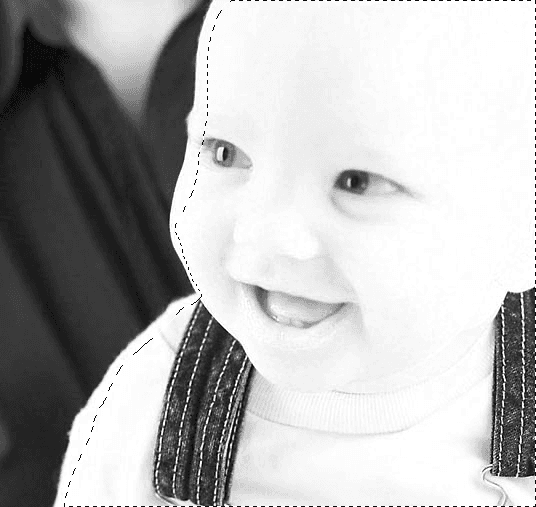
  6. The channel contains numerous elements we don't need for the blouse selection. Using the Lasso tool lasso tool, create a selection around all the baby elements on the right side—including the shirt, facial features, and other non-blouse areas—as shown below. The goal is to select everything except the woman's blouse.

    baby select to clean up for blouse

  7. Confirm your Background color is set to white.

  8. Press Cmd–Delete (Mac) or CTRL–Delete (Windows) to fill the selected area with white, leaving only the woman's neck and blouse visible in the channel.

  9. Deselect with Select > Deselect (Cmd–D (Mac) or CTRL–D (Windows)).

  10. Clean up any remaining unwanted elements along the edges by painting over them with white.

  11. You'll notice the neck area appears gray rather than white, indicating it will be partially selected along with the blouse. Since we don't want to alter the skin tone, we need to address this. However, we'll handle this contrast adjustment in the next section where we can preview the results in real-time—a more efficient approach for precise edge control.

  12. Load the selection by Cmd–clicking (Mac) or CTRL–clicking (Windows) on the blouse channel thumbnail.

Complex Selection Challenge

The blouse selection presents greater difficulty due to skin tone proximity and edge complexity. Careful channel analysis and contrast management are essential.

Advanced Selection Refinement

1

Channel Evaluation

Test all RGB channels to find maximum contrast between blouse fabric and surrounding elements

2

Selective Area Removal

Use Lasso tool to eliminate baby elements, leaving only woman's neck and blouse areas

3

Edge Cleanup

Paint with white to remove any remaining unwanted elements along selection boundaries

Changing the Color of the Woman's Blouse

Now we'll apply the color change while simultaneously refining the selection to eliminate unwanted color bleeding—a common challenge in professional retouching that requires real-time adjustment capabilities.

  1. Click on the RGB composite channel to return to full-color view.

  2. Create a new adjustment layer via Layer > New Adjustment Layer > Hue/Saturation.

  3. Name the layer change blouse color and click OK.

  4. In the Properties panel, activate Colorize and apply these settings for a rich purple tone:

    Hue: 262
    Saturation: 43
    Lightness: 5
  5. Focus on the skin area around the woman's neck. In the Layers panel, toggle the visibility eye hide show icon of the change blouse color layer to observe how the color adjustment affects the skin tone.

  6. You'll notice purple color bleeding into the neck area—this is exactly why precise channel refinement is crucial. Ensure the change blouse color layer mask remains selected (you should see a white border around the mask thumbnail).

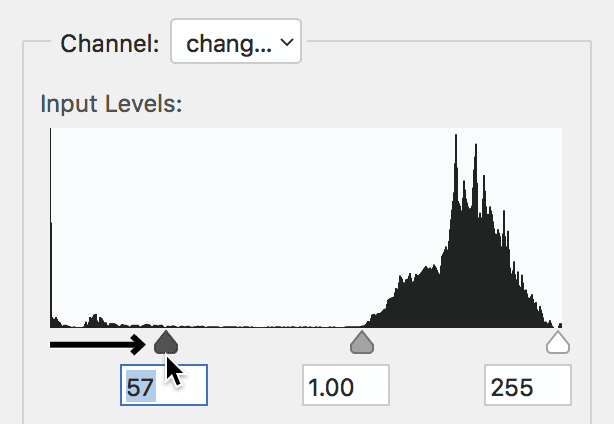
  7. Apply a Levels adjustment directly to the mask by pressing Cmd–L (Mac) or CTRL–L (Windows).

  8. This is where the real magic happens. Drag the black point slider to the right while watching the neck area. You'll see the unwanted purple color gradually disappear from the skin as you restrict the selection. The key is finding the sweet spot—pull far enough to eliminate skin discoloration, but not so far that you remove color from the blouse itself.

    baby change levels shirt

  9. Click OK when you achieve clean color separation between the blouse and skin.

This exercise demonstrates the power of channel-based selections combined with real-time mask refinement—techniques that are essential for professional-quality color adjustments. The ability to preview and adjust selections while seeing the final effect is what separates amateur work from professional retouching. These methods scale effectively for complex commercial projects where precision and flexibility are non-negotiable.

Live Preview Refinement

The final Levels adjustment on the layer mask demonstrates advanced masking technique - adjusting selection precision while viewing the actual color change results.

Channel Selection Method

Pros
Extremely precise selections based on actual image data
Non-destructive workflow using adjustment layers
Ability to refine selections with live preview
Maintains edge quality better than manual selection tools
Cons
Requires good channel contrast to be effective
More complex workflow than basic selection tools
May need additional cleanup for complex images
Learning curve for beginners unfamiliar with channels

Key Takeaways

1RGB channels provide the foundation for precise selections by revealing contrast differences invisible in composite images
2The Red channel often provides superior contrast for clothing and fabric selections compared to Green and Blue channels
3Alpha channels created from color channels can be refined using Levels adjustments to improve selection accuracy
4Setting Color Indicates to Selected Areas provides essential visual feedback when working with alpha channels
5Lasso selections can isolate specific areas within channels before applying contrast adjustments
6Layer masks on adjustment layers allow real-time refinement of selections while previewing color changes
7The Levels adjustment applied directly to layer masks enables precise control over selection boundaries
8Channel-based selections maintain edge quality and provide non-destructive editing capabilities superior to manual selection methods

RELATED ARTICLES