Layer Masks & Collages
What This Tutorial Covers
Multi-Photo Composition
Blend several photos into one image.
Masked Edges
Soft edges where photos meet for natural blending.
Adjustment Layers
Unify color and tone across all photos.
Noble Desktop's Graphic Design Certificate covers Photoshop alongside Illustrator and InDesign.
Dive into this comprehensive Photoshop tutorial and learn how to make a collage by blending several photos together, practicing with layer masks, making selections, and using gradients effectively.
Exercise Preview
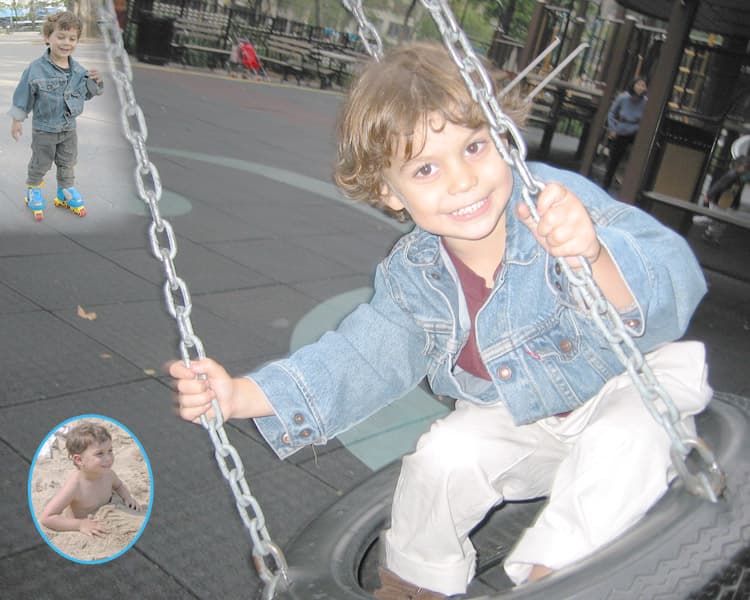
Importing Images into Your Collage
In the Photoshop Class folder, go into the Collage folder and open devinder collage1-started.psd.
Make sure the Layers panel (Window > Layers) is open.
Notice that we’ve already added one image on top of the main background. We have another image to bring in, so open devinder on skates.psd (in the Collage folder).
Select all by pressing Cmd–A (Mac) or CTRL–A (Windows).
Copy by pressing Cmd–C (Mac) or CTRL–C (Windows).
Close the file and return to devinder collage1-started.psd.
Paste by pressing Cmd–V (Mac) or CTRL–V (Windows).
Back in the devinder collage, make sure the Move tool
 is selected.
In the Layers panel, double–click on the name Layer 1 and rename it devinder on skates. (Naming layers in collages is important because you often have many layers, which can get confusing without proper names.)
Move the devinder on skates layer to the top-left corner of the image, releasing the mouse when you see the two intersecting Smart Guides.
The image of Devinder in the sand is not in the right place. In the Layers panel, select the devinder in sand layer.
Move it towards the bottom left, but not all the way to the corner.
Turning a Selection into a Layer Mask
The image of Devinder in the sand would look nice in an oval frame, so choose the Elliptical Marquee tool
 .
.Draw an oval selection around Devinder, making sure no part of the oval falls outside the sand. While drawing the oval, if you find the placement is wrong:
- Hold the Spacebar down and move the oval to the correct place.
- Then release the Spacebar and continue sizing the oval.
Once the oval selection is made, you can move it as long as you are in the Elliptical Marquee tool
.In the Layers panel, make sure you still have the devinder in sand layer highlighted.
At the bottom of the Layers panel, click the Add layer mask button
 .
.Now you should only see the sand image inside your oval. The rest of the image is still there, but it’s hidden by the mask.
Finishing the Oval Image
Use the Move tool
to position the oval image so it looks good.Poor Devinder—he’s looking away from the image. It looks like he doesn’t want to play! Let’s make him look more included by facing him inward. Make sure you are still on the devinder in sand layer.
Go to Edit > Transform > Flip Horizontal. That’s better!
Now that you see how the image looks when it’s in the oval, you might want to move it around within the oval to improve the composition.
As shown below, in the Layers panel, click the link icon
 between the layer thumbnail and the mask thumbnail.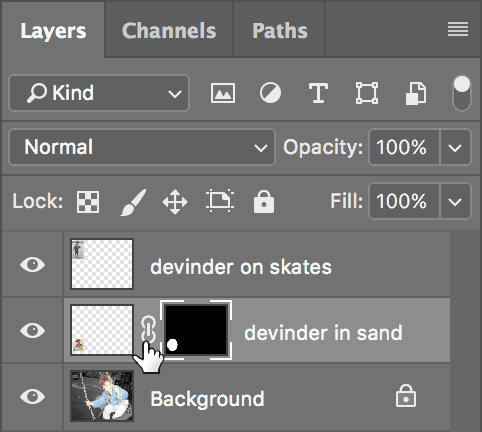
Click on the layer thumbnail (not the black and white mask thumbnail on the right).
Using the Move tool
, drag Devinder around. The oval should remain in place while the image of Devinder in the sand moves.Let’s add a stroke around the oval to make it stand out more. In the Layers panel, make sure the layer is selected and at the bottom of the panel, click the Add a layer style button
 . From the menu, choose Stroke.
- Set the following options:
- Set the Size to 3.
- Next to Color: Click the color swatch and choose a nice light blue that matches Devinder’s blue jacket in the swing picture. (Mouse over the jacket to sample an exact color.)
Click OK and OK again to close the Layer Style dialog.
Creating & Editing a Layer Mask with Gradients & Brushes
Let’s work on the image of Devinder on his skates. It should be all the way against the top-left corner. If it isn’t, move it there now.
The right and bottom edges would look better if they softly blended into the background image, so make sure the devinder on skates layer is highlighted.
At the bottom of the Layers panel, click the Add layer mask button
. Nothing will change in the image, but in the Layers panel there will now be a white mask thumbnail to the right of the layer thumbnail.- Choose the Gradient tool
 and in the Options bar:
- Click the Linear Gradient button
 .
. - Set the Opacity to 100%.
- Click the Linear Gradient button
At the left of the Options bar, click the arrow
 next to the gradient preview.
In the top row of the panel that opens, double–click the third thumbnail from the left, which is the Black, White gradient. (If you pause a moment over the thumbnail, the name will appear.)
As shown below, drag from right to left over the area where the chain should be. Drag at an angle that is perpendicular to the chain and release.
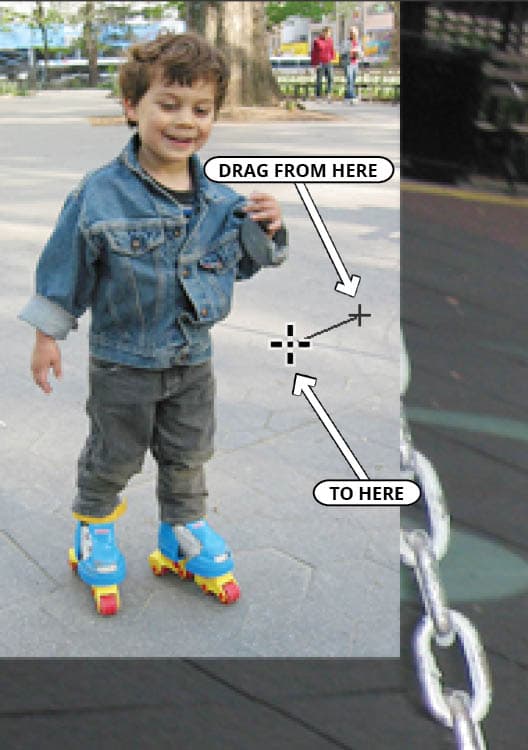
The edge should now fade softly into the chain. If the angle is wrong, just try it again (you don’t even have to undo it first!). Just keep trying until you get the fade and angle right.
Now for the bottom edge. If we did the gradient fade again for this edge, things might look too straight, boring, and crisp. Let’s make the bottom a bit more organic using the brush. Select the Brush tool
 and in the Options bar, choose an appropriately sized soft brush (not a hard-edged brush!).
Make the foreground color black.
Paint around the bottom of the image and watch it fade into the background. Try reducing the Opacity of the Brush (in the Options bar) so you can make the fade nice and smooth, instead of abrupt.
NOTE: If you remove too much of Devinder, change the foreground color to white and paint that part back in. Remember the following mask painting tips:
- By painting with black on the mask, you are hiding the pixels in that layer.
- If you paint with white, you make them visible again.
- Any shade of gray partially shows/hides the layer.
That’s it—a completed collage! For more practice, continue to the next exercise.
Layer Masking Tips
When creating a layer mask, select the parts of a layer you want to see. Then click the Add layer mask button
in the Layers panel: the selected area remains visible, while everything else is hidden by the mask.Shift–click a mask thumbnail to disable it without throwing it away.
Option–click (Mac) or ALT–click (Windows) on a mask thumbnail to view only the mask, not the image.
Option–Shift–click (Mac) or ALT–Shift–click (Windows) on a mask thumbnail to view it as a shaded color overlay.
- Remove a mask by dragging the mask thumbnail to the trash. Photoshop will ask if you want to Apply mask to layer before removing. If you click Apply, Photoshop will delete the areas of the layer that had been hidden by the mask. In most cases, you’ll simply want to choose Delete, to throw away the mask without affecting the image layer.