April 1, 2026Dan Rodney/4 min read

Understanding Blending Modes

Master Photoshop Blending Modes for Professional Image Enhancement

Tutorial Requirements

You'll need Photoshop and the BlueWoman.psd file from the Photoshop Adv Class folder to follow along with this hands-on exercise.

Topics Covered in This Photoshop Tutorial:

Using Blending Modes (Multiply, Screen, Overlay, & Color)

Essential Blending Modes You'll Master

Multiply Mode

Darkens the entire image by multiplying colors with underlying layers. Perfect for adding shadows and depth to overexposed images.

Screen Mode

Lightens images by inverting colors and multiplying them. Creates the opposite effect of Multiply mode for brightening purposes.

Overlay Mode

Adds contrast by darkening pixels darker than 50% gray and lightening those brighter than 50% gray simultaneously.

Color Mode

Applies color tints to images while preserving luminance values. Ideal for creating mood and atmosphere effects.

Exercise Preview

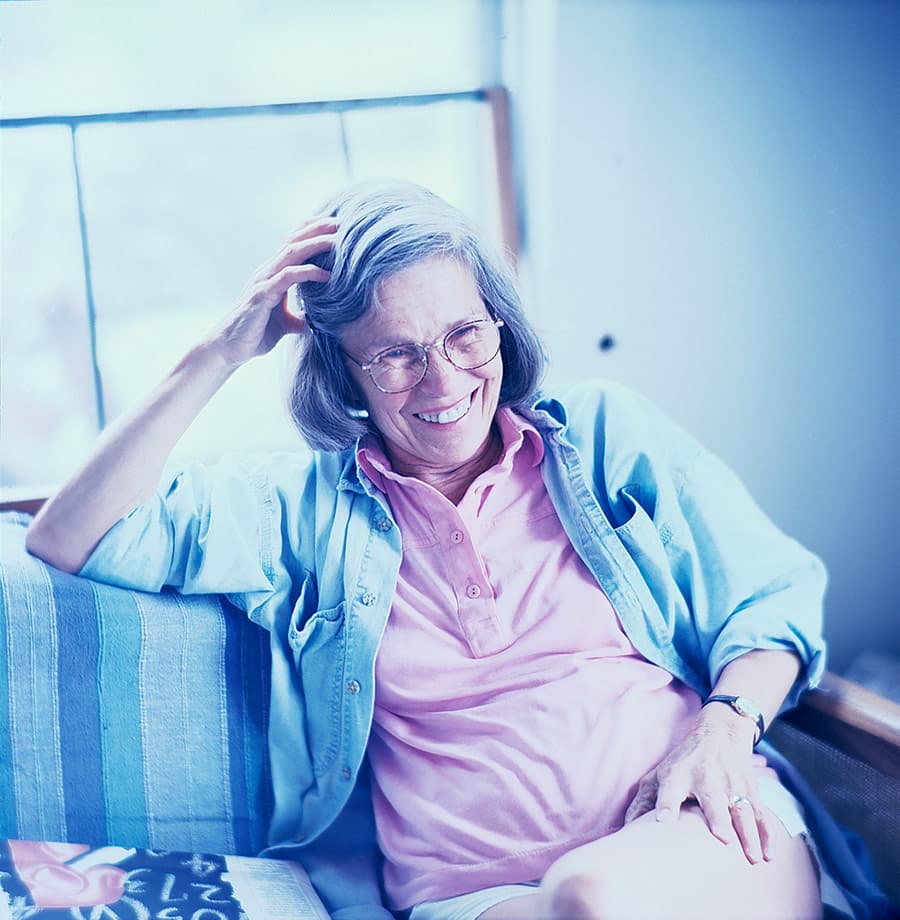
blue woman done

Exercise Overview

Blending modes represent one of Photoshop's most powerful yet misunderstood features. While their mathematical complexity can intimidate even experienced designers, mastering just a handful of essential blending modes will dramatically expand your creative toolkit. This hands-on exercise demystifies four fundamental blending modes through practical application, showing you exactly how they manipulate pixel values to create striking visual effects.

  1. From the Photoshop Adv Class folder, open BlueWoman.psd.

  2. If the Histogram panel is not already visible, choose Window > Histogram.

  3. Examine the image using your eyes and the Histogram panel to assess the tonal distribution.

    This photograph exemplifies a deliberate high-key aesthetic with a cool color cast—a stylistic choice the photographer made during capture. While there's nothing inherently wrong with this dreamy, ethereal look, it provides an excellent foundation for demonstrating how blending modes can dramatically alter mood and contrast.

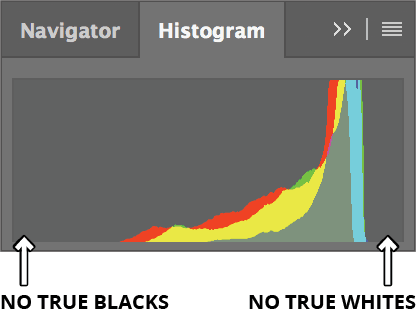
  4. In the Histogram panel, observe that the image lacks true blacks and whites, with pixel data clustered in the midtones and highlights. This compressed tonal range, combined with slight overexposure, creates the soft, low-contrast appearance.

    blue woman histogram

Understanding High-Key Photography

The BlueWoman.psd image demonstrates high-key photography with intentionally overexposed, bluish tones and no true blacks or whites in the histogram.

Initial Image Analysis Process

1

Open the Practice File

Launch BlueWoman.psd from your Photoshop Adv Class folder to begin the exercise

2

Display Histogram Panel

Access Window > Histogram to analyze the tonal range and exposure levels

3

Examine Image Properties

Use both visual inspection and histogram data to identify overexposure and missing black/white points

Experimenting with Different Blending Modes

Now we'll explore how different blending modes interact with identical pixel data to produce vastly different results. This comparative approach will help you understand when to reach for each mode in your professional work.

  1. Duplicate the Background layer using Cmd–J (Mac) or Ctrl–J (Windows).

  2. In the Layers panel, change the blending mode of the copied layer to Multiply:
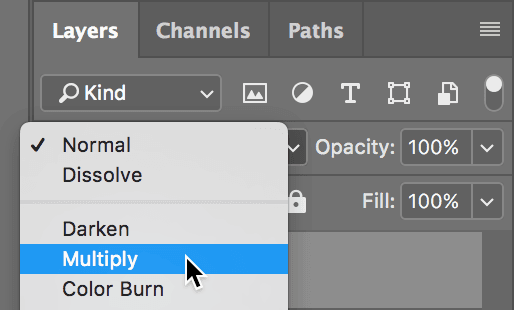
    multiply blue woman

  3. Double-click the layer name and rename it Multiply. Notice how the entire image darkens uniformly—Multiply mode mathematically multiplies the base layer's pixel values with the blend layer's values, always resulting in darker pixels. This makes Multiply invaluable for deepening shadows and adding richness to underexposed images.

  4. Let's compare this with an opposite effect. Hide the Multiply layer by clicking its visibility eye.

  5. Select the Background layer and duplicate it again using Cmd–J (Mac) or Ctrl–J (Windows).

  6. Change this new layer's blending mode to Screen. The image brightens dramatically—Screen mode inverts both layers, multiplies them, then inverts the result. Think of it as projecting two slides simultaneously; the result is always brighter. This mode excels at brightening images and creating ethereal lighting effects.

  7. While Screen creates beautiful luminosity, it's not ideal for our current needs. Change the blending mode to Overlay instead. Overlay combines the best of both worlds: pixels darker than 50% gray multiply (darken), while pixels lighter than 50% gray screen (lighten). This selective contrast enhancement preserves midtones while boosting overall impact—making it a favorite for subtle image enhancement.

  8. Rename this layer Overlay.

Multiply Blending Mode Application

1

Duplicate Background Layer

Press Cmd-J (Mac) or Ctrl-J (Windows) to create a copy of the background layer

2

Apply Multiply Mode

Change the blending mode to Multiply in the Layers panel to darken the entire image

3

Rename the Layer

Double-click the layer name and rename it 'Multiply' for better organization

Blending Mode Effects Comparison

FeatureMultiplyScreenOverlay
Primary EffectDarkens imageLightens imageAdds contrast
Pixel BehaviorMultiplies colorsInverts and multipliesConditional lighten/darken
Best Use CaseCorrecting overexposureBrightening dark imagesEnhancing contrast
Impact on HighlightsDarkens highlightsBrightens highlightsSelective adjustment
Recommended: Overlay mode provides the most balanced results for this high-key image by selectively adjusting contrast.
Understanding Overlay Mechanics

Overlay mode uses 50% gray as the threshold: darker pixels darken underlying areas while brighter pixels lighten them, effectively increasing overall contrast.

Using the Color Blending Mode to Tint an Image

Color grading has become essential in modern digital workflows, from Instagram filters to Hollywood blockbusters. Photoshop's Color blending mode offers precise control over image tinting while preserving luminosity values—a technique that's particularly valuable when matching footage or creating cohesive brand aesthetics.

  1. Click on the Multiply layer to select it.

  2. Navigate to Layer > New Fill Layer > Solid Color.

  3. Name it color tint and change the Mode to Color.

  4. Click OK.

  5. In the color picker, experiment with different hues and observe how Color mode applies the chromatic information while maintaining the original image's brightness values. This separation of color and luminance gives you unprecedented control over mood and atmosphere. Try warm oranges for golden hour effects or cool teals for cinematic drama.

  6. Click OK when you achieve your desired look. For comprehensive coverage of all 27 blending modes and their mathematical operations, consult the Blending Modes reference section—understanding these fundamentals will elevate your compositing work significantly.

  7. When finished exploring, close the file without saving changes.

Creating Color Tint Effects

1

Select Multiply Layer

Click on the Multiply layer to make it the active layer for the color tint effect

2

Add Fill Layer

Navigate to Layer > New Fill Layer > Solid Color to create a new color overlay

3

Configure Color Mode

Name it 'color tint' and change the blending mode to Color before clicking OK

4

Choose Tint Color

Select any desired color from the color picker to apply the tinting effect

Professional Tip

Color blending mode preserves luminance values while applying hue and saturation, making it perfect for creating mood-enhancing color tints without losing image detail.

Key Takeaways

1Blending modes are powerful Photoshop tools that mathematically combine pixel values between layers to create various visual effects
2Multiply mode darkens images by multiplying color values, making it ideal for correcting overexposed photographs
3Screen mode lightens images and produces the opposite effect of Multiply by inverting colors before multiplication
4Overlay mode selectively adjusts contrast using 50% gray as a threshold for darkening or lightening pixels
5Color blending mode enables easy image tinting while preserving original luminance and detail information
6The Histogram panel is essential for analyzing tonal range and identifying exposure issues in digital images
7Layer duplication with keyboard shortcuts (Cmd-J/Ctrl-J) provides non-destructive editing workflows
8High-key photography intentionally uses overexposed, light tones without true blacks or whites for artistic effect

RELATED ARTICLES