April 1, 2026Dan Rodney/10 min read

Exporting Assets: JPEGs & HiDPI/Retina Graphics

Master JPEG optimization for modern web displays

Essential Web Graphics Concepts

1x Graphics

Standard resolution images designed for traditional displays with lower pixel density.

2x Graphics

High-resolution images with twice the pixel dimensions for HiDPI and Retina displays.

JPEG Optimization

Balancing image quality with file size through compression settings and format choices.

Topics Covered in This Photoshop for Web Design Tutorial:

Using Save for Web, Optimizing Photos for Low-res Screens, Optimizing Photos for Hi-res (HiDPI/Retina) Screens, Compression Settings for 1x & 2x Versions, Saving File Size When Optimizing 2x Graphics

Exercise Preview

preview optimizing jpegs

Exercise Overview

Before diving into the complex graphics export workflow from your NYC layout, mastering individual image optimization is crucial. This foundational skill separates professional web designers from amateurs—the difference between crisp, fast-loading sites and bloated experiences that frustrate users.

In this exercise, you'll optimize a large photograph as a JPEG—still the gold standard file format for photographic content on the web in 2026. You'll create both standard and high-resolution versions while maintaining the delicate balance between visual quality and file size efficiency. This dual-optimization approach ensures your images look stunning on every device while loading quickly across all network conditions.

Starting Image Specifications

2,600px
pixels width
1,200px
pixels height
72PPI
pixels per inch

Optimizing Photos for Low-Res Screens

  1. In Photoshop, close any files you have open to start with a clean workspace.
  2. Let's examine the fundamentals of web photo optimization. Go to File > Open.
  3. Navigate to Desktop > Class Files > yourname-Photoshop for Web Class > HiDPI-image-test and double–click cab-full-size-original.jpg.

  4. Raw photographs typically arrive oversized for web use—a common challenge in production workflows. To assess our NYC taxicab image's current dimensions, go to Image > Image Size.

    This photo measures 2600 pixels wide by 1200 pixels tall. (If you're seeing different units, choose Pixels from the dropdown menu next to Width.)

    These dimensions exceed practical web requirements. Modern desktop screens average 1920 pixels wide, but effective web images rarely need to span the entire viewport. We'll systematically resize this photo for multiple display scenarios, starting with standard-resolution displays. These baseline images are designated as 1x versions, establishing the foundation for high-resolution 2x variants.

  5. In the Image Size dialog, ensure the constraint link is active link depressed, then configure these pixel dimensions for standard desktop displays:

    Resample: Verify this is enabled and maintain the default Automatic setting
    Resolution: 72 Pixels/Inch
    Width: 1200 Pixels
  6. Click OK to apply the resize operation.
  7. Understanding how your optimized image will appear across different display technologies is essential for quality control. Display behavior varies significantly between standard and high-resolution screens, so follow the appropriate preview method for your current setup:

    • Standard Resolution Screen: Go to View > 100% or press Cmd–1 (Mac) or CTRL–1 (Windows).
    • High Resolution Screen: Go to View > 200%. This shows the actual web display size, though the image may appear slightly soft since it's not optimized for high-density displays.
  8. Now we'll export the optimized file using Photoshop's specialized web compression tools. Go to File > Export > Save for Web (Legacy).

    NOTE: Despite the Legacy designation, Save for Web remains the most reliable export method for image optimization in 2026. Adobe's newer Export As feature (found under File > Export > Export As) offers some workflow improvements but lacks the critical before-and-after preview functionality that's essential for quality assessment. Professional web designers continue to rely on Save for Web's proven compression algorithms and visual feedback system.

  9. High-resolution screen users should zoom to 200% using Cmd–Plus(+) (Mac) or CTRL–Plus(+) (Windows) to view the image at its intended display size. Monitor the zoom level in the bottom-left corner. Standard resolution users can skip this step.
  10. Select the Optimized tab at the top-left to preview your compression settings in real-time—a crucial advantage of the Save for Web workflow.
  11. In the format dropdown below Preset, select JPEG to access photographic compression options.
  12. The Progressive option significantly impacts both file size and user experience. Toggle Progressive on and off while monitoring the file size indicator in the bottom-left corner. You'll notice improved compression with Progressive enabled.

    Keep Progressive checked for optimal results.

    NOTE: Progressive encoding affects browser loading behavior in meaningful ways. Standard JPEGs load sequentially from top to bottom at full quality—users see a sharp image appear line by line. Progressive JPEGs display the complete image immediately but start pixelated and gradually sharpen as download continues. This perceived performance improvement creates a better user experience, especially on slower connections, while the final image quality remains identical.

  13. JPEG compression quality requires careful calibration—this is where technical skill meets artistic judgment. Begin with maximum quality (100) and systematically reduce the setting while observing image degradation.

    JPEG's lossy compression algorithm inevitably introduces artifacts at lower quality settings. Push too far and you'll see unsightly blocking, banding, and detail loss that undermines your design's professionalism.

  14. Professional optimization balances three competing priorities: visual quality, file size, and loading speed. For this image, set Quality to 50—a sweet spot that maintains photographic integrity while ensuring rapid delivery.

  15. Quality assessment requires direct comparison with the source material. Toggle between the Optimized and Original tabs several times to evaluate compression artifacts.

    Focus on the yellow taxi hood's smooth gradients—subtle quality changes appear most prominently in these areas. At 50% quality, degradation remains minimal and acceptable for web use. Dropping to 40% introduces noticeable smoothness loss, confirming our 50% selection strikes the right balance.

  16. Check the file size indicator below the optimized preview—it should display approximately 177.1K. This represents excellent compression efficiency for a 1200-pixel-wide photograph.

  17. Color management ensures consistent appearance across devices and browsers. Verify that Convert to sRGB is enabled and Preview is set to Monitor Color.

    NOTE: The sRGB color space serves as the web's universal standard, providing predictable color reproduction across diverse display technologies. Monitor Color preview simulates actual browser rendering on your specific hardware, enabling accurate optimization decisions during the export process.

  18. Your standard-resolution image is ready for deployment. Click Save in the bottom-right corner.

  19. Navigate to Desktop > Class Files > yourname-Photoshop for Web Class > HiDPI-image-test.

    NOTE: This folder contains a pre-built index.html webpage designed to showcase your optimized images. This testing environment allows direct comparison between standard and high-resolution versions, demonstrating real-world display behavior across different device types.

  20. Name the file cab.jpg (matching the filename referenced in our HTML code) and click Save.

Low-Resolution Image Setup Process

1

Resize Image Dimensions

Set width to 1200 pixels with Resample checked and maintain 72 PPI resolution

2

Preview at Correct Size

Use 100% view on low-res screens or 200% view on hi-res screens to see actual web size

3

Access Save for Web

Navigate to File > Export > Save for Web (Legacy) for optimization controls

4

Configure JPEG Settings

Select JPEG format, enable Progressive loading, and set quality to 50 for optimal balance

Progressive JPEG Benefits

Progressive JPEGs create smaller file sizes and load as blurry images that sharpen progressively, providing better user experience during download.

Optimizing Photos for Hi-Res (HiDPI/Retina) Screens

High-resolution displays fundamentally changed web design by cramming dramatically more pixels into the same physical space. These screens—whether called HiDPI (high dots per inch), Retina (Apple's marketing term), or simply "high-density"—typically pack twice the pixel density of standard displays. In 2026, they dominate the market from smartphones to professional workstations.

Our 1200-pixel standard image appears crisp on traditional screens but looks noticeably soft on high-resolution displays. To match the increased pixel density, we need a 2400-pixel-wide version—exactly double the dimensions. These graphics earn the 2x designation because they contain four times the total pixels (2x width × 2x height) of their 1x counterparts.

  1. We need to return to our original high-resolution source material. Go to Edit > Undo Image Size to restore the previous dimensions.

  2. Verify the restoration by checking Image > Image Size. The dimensions should read 2600 × 1200 pixels.

  3. Set the Width to 2400 pixels—precisely double our 1x graphic's width—to create the high-resolution variant.

  4. Click OK to apply the modest resize operation.

  5. Preview sizing differs between display types due to pixel density variations. Follow the appropriate method for your hardware:

    • Standard Resolution Screen: Reduce magnification to 50% using Cmd–Minus(-) (Mac) or CTRL–Minus(-) (Windows) until the zoom indicator shows 50%.
    • High Resolution Screen: View at 100% by pressing Cmd–1 (Mac) or CTRL–1 (Windows).
  6. Launch the optimization workflow with File > Export > Save for Web (Legacy).

  7. Photoshop should retain your previous settings, but confirm you're viewing the Optimized tab with Progressive and Convert to sRGB enabled, and Preview set to Monitor Color.

  8. Standard resolution users need to adjust the preview scale to 50% using Cmd–Minus(-) (Mac) or CTRL–Minus(-) (Windows) to see the image at its intended display size. High-resolution users can skip this step.

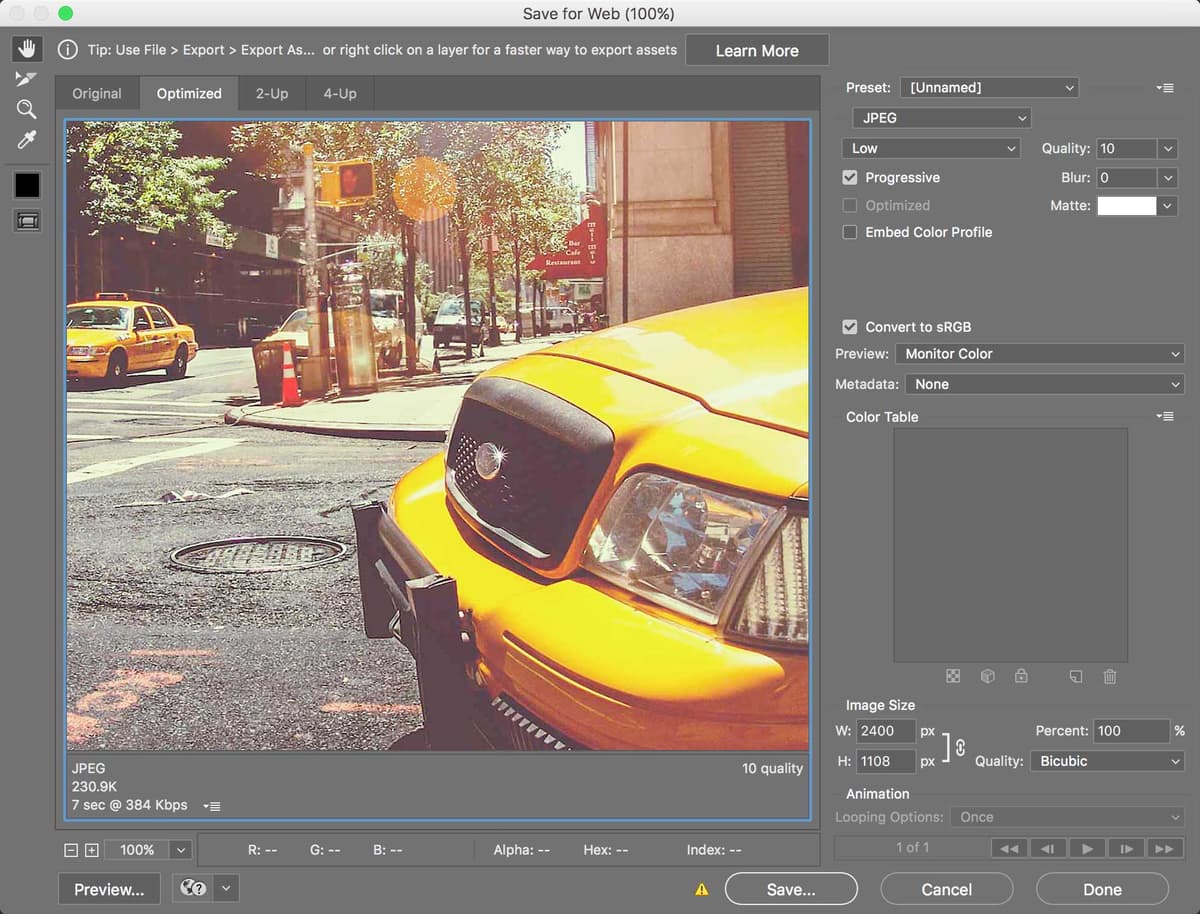
  9. If Quality isn't set to 50, adjust it now as a starting point.

  10. Notice the dramatic file size increase—approximately 530.2K compared to our 1x version's lean 177.1K. This quadruple increase reflects the mathematical reality of doubled dimensions.

    However, high-resolution displays offer a crucial advantage for compression optimization. Since 2x images display at the same physical size as 1x versions, individual pixels appear significantly smaller. This pixel density increase means compression artifacts that would be glaringly obvious on standard displays become nearly invisible on high-resolution screens.

    This phenomenon allows—and demands—more aggressive compression on 2x graphics. Using identical quality settings for both versions wastes bandwidth and slows page loading unnecessarily.

  11. Leverage the artifact-masking properties of high-density displays by setting Quality to 10—a setting that would be unacceptable for 1x graphics.
  12. Perform quality assessment by toggling between Optimized and Original tabs multiple times.

    While compression artifacts appear in predictable areas (smooth gradients, fine details), their visual impact remains surprisingly minimal. The smaller pixel size on high-resolution displays effectively camouflages imperfections that would be problematic at standard resolutions.

  13. Check the optimized file size—it should measure approximately 230.9K. This represents a 56% reduction from the initial 2x file size while maintaining acceptable visual quality for high-density display viewing.

  14. Click Save to proceed with export.

  15. Navigate to Desktop > Class Files > yourname-Photoshop for Web Class > HiDPI-image-test.

  16. Name the file cab@2x.jpg (matching our HTML's expected filename) and click Save.

    The @2x suffix originates from Apple's iOS and macOS development conventions but has been universally adopted by web designers for high-resolution asset organization. This naming system provides immediate file identification and maintains consistency with established industry practices. Standard resolution files never include the @1x suffix—the absence of @ designation implies 1x by default.

1x vs 2x Image Specifications

Feature1x Image2x Image
Width Dimensions1200 pixels2400 pixels
Target Quality Setting50%10%
File Size Result177.1 KB230.9 KB
Compression ToleranceModerateHigh
Recommended: 2x images can use much higher compression due to smaller pixel display size on hi-res screens
2x Compression Advantage

Because 2x image pixels display smaller on HiDPI screens, compression artifacts are less visible, allowing quality settings that would be unacceptable for 1x graphics.

Previewing the Difference in a Browser

  1. Minimize Photoshop to access your desktop workspace.

  2. Navigate to Class Files > yourname-Photoshop for Web Class > HiDPI-image-test.

  3. CTRL–click (Mac) or Right–click (Windows) on index.html, select Open with, and choose your preferred browser (Chrome, Safari, Firefox, Microsoft Edge, or another modern browser).

  4. With proper file naming, you should see both photograph versions displayed for direct comparison.

    The webpage presents the 1x (standard resolution) cab photo above and the 2x (high resolution) version below. Despite the 2x image containing four times the pixel data, both versions occupy identical 1200-pixel display width due to our responsive HTML coding.

  5. Display technology significantly affects how these optimized images appear. Observe the behavior on your specific hardware:

    • Standard Resolution Screen: Both images should appear nearly identical in quality and sharpness. The 2x graphic gets automatically downsampled by your display, which masks the aggressive compression artifacts we introduced. This demonstrates why you can safely use more aggressive compression settings for high-resolution graphics—the visual penalties disappear on standard displays.

      Standard displays cannot reveal the enhanced detail potential of 2x graphics due to hardware limitations. The extra pixel data exists but remains invisible until viewed on appropriate high-density hardware.

    • High Resolution Screen: The quality difference becomes immediately apparent. The 1x version above exhibits noticeable pixelation and softness, particularly visible in fine details like tree branches and building textures. The 2x version below renders these same details with crisp precision, despite the aggressive compression. This comparison illustrates why responsive image strategies remain crucial for professional web experiences in 2026.

  6. Close the browser window to conclude the comparison exercise.

  7. Return to Photoshop and close the cab photo without saving changes, preserving the original source file for future optimization experiments.

File Size Comparison Results

1x Image (Quality 50%)
177.1
2x Image (Quality 10%)
230.9

HiDPI/Retina Display Considerations

Pros
2x images appear crisp and detailed on hi-res screens
Small details like trees show significantly better clarity
Higher compression ratios possible due to smaller pixel size
Apple @2x naming convention widely adopted for web
Cons
Larger file sizes require more bandwidth
No visual improvement on low-res displays
Additional optimization time and complexity required
Need to maintain two versions of each image

Final Export Verification

0/4

Key Takeaways

1JPEG format is optimal for web photographs due to good compression and quality balance
21x images target traditional displays while 2x images serve HiDPI/Retina screens with double pixel density
3Standard 1x images should be sized around 1200 pixels wide for typical desktop displays
42x images can use much higher compression (quality 10% vs 50%) because artifacts display smaller on hi-res screens
5Progressive JPEG loading reduces file size and improves user experience during download
6Save for Web Legacy provides essential before/after preview capabilities for optimization decisions
7sRGB colorspace and Monitor Color preview ensure consistent web browser display
8Apple's @2x naming convention has become the web standard for identifying high-resolution graphics

RELATED ARTICLES