Seamless Video Looping & Animating a Layer’s Transform
What This Tutorial Covers
Timeline Panel
Photoshop's animation workspace for video and GIF work.
Layer Transforms
Animate position, scale, and rotation over time.
Loop Points
Match start and end frames for invisible loops.
Noble Desktop's Graphic Design Certificate covers Photoshop alongside Illustrator and InDesign.
Improve your Photoshop skills by learning how to add a video background as a Smart Object, make the video background loop seamlessly, and animate a layer's rotation using the Transform property with a step-by-step tutorial.
Exercise Preview

Getting Started
In Photoshop, go to File > Open.
Navigate into Desktop > Class Files > Animated GIFs Class > Artificial Intelligence and open artificial-intelligence.psd.
Go to File > Save As.
Name the file yourname-artificial-intelligence.psd and navigate into Class Files > Animated GIFs Class > Artificial Intelligence.
Click Save.
In the Timeline panel, click the Create Video Timeline button. If instead there is a button that says Create Frame Animation, click the arrow
 to the right of Create Frame Animation and choose Create Video Timeline. Then click the Create Video Timeline button.
At the top left of the Timeline panel click the Gear icon
 (for Set playback options) and do the following:
- Set Resolution to 100% if it isn’t already.
- Check on Loop Playback if it isn’t already.
- Click the Gear icon again to close the options.
Click the Timeline panel menu
 and make sure Enable Timeline Shortcut Keys is checked on.
If the bottom left of the Timeline panel doesn’t look like
 , change the time display and/or frame rate as follows:
- If you see a timecode (it looks like 0:00:00:00), hold Opt (Mac) or ALT (Windows) and click on the timecode to toggle it to frames (which look like 0).
- If it doesn’t say 30.00 fps, go into the Timeline panel menu and choose Set Timeline Frame Rate. Change it to 30 and click OK.
Adding a Video Background As a Smart Object
Before we animate anything, let’s add a background so we can see our content clearly. It’s time to bring in that nifty video footage of dancing dots and lines.
To add a video to a Photoshop file, we embed or link it as a Smart Object. Go to File > Place Embedded, which is one way to add a Smart Object.
NOTE: Using Place Embedded places a copy of the file in the document rather than linking to the file on your computer. This way, you don’t have to worry about changes you make in your document affecting the original image file. Additionally, if you (or someone else) needs to edit this document on another computer, you won’t need to include the original image file. In most workflows, this is probably a better choice than Place Linked.
Navigate into Desktop > Class Files > Animated GIFs Class > Artificial Intelligence and double–click neurons.mp4.
Because our canvas is smaller than the video file, it is currently scaling down to fit. We think our GIF will look less cluttered with the video at its original size. If you already accepted the default size, press Cmd–T (Mac) or CTRL–T (Windows).
In the Options bar, set W to 100% and click the Link icon
 .
.Press Return (Mac) or Enter (Windows) twice.
In either the Layers or Timeline panel, drag the neurons layer to the bottom of the stack so it’s below the other two layers.
Press the Spacebar to preview the video that was animated for us. Nifty!
TIP: Remember that you can press the Spacebar again to stop playback. We won’t remind you again.
Restricting the Length of the Animation
Photoshop removes duplicate frames from the exported GIF. Because the neurons in our video background move randomly, no two frames are identical. Each frame adds to the file size so this GIF would be really large! To keep file size down, let’s shorten its duration to 2 seconds.
At 30 frames per second, 2 seconds equals 60 frames. To go to frame 60, drag the blue playhead
 or go to the bottom left of the Timeline panel and drag the frame number.
TIP: You can double-click the frame number at the bottom left of the Timeline panel and then type in the frame number you want to go to.
To change the duration of the work area, at the top right of the Timeline panel go into the panel menu
and choose Work Area > Set End at Playhead.In the Timeline panel directly above the layer bars, notice that the work area’s rightmost handle has snapped to the playhead at frame 60.
NOTE: Throughout the exercise adjust the Timeline’s zoom slider
 (at the bottom) and resize the Timeline panel as needed.
Go back to frame 0 and press Spacebar to see it loop every 60 frames. The looping is not smooth and seamless, so let’s fix that.
Making the Video Background Loop Seamlessly
In either the Timeline or Layers panel, click on the neurons layer bar or layer name to select it. (It will be selected in both panels.)
Go to Layer > Duplicate Layer.
In the dialog that appears, keep the default name (neurons copy) and click OK.
Now we have two copies of the video layer.
Let’s go to a specific frame number without sliding the playhead. At the bottom left of the Timeline panel, double–click the frame number (such as 0).
In the dialog that pops up, enter 60 and click OK.
In the Timeline or Layers panel, select the neurons layer (at the bottom).
In the Timeline panel, hover your mouse over the neurons layer bar’s left edge. An edit cursor
 should appear. This indicates that you can drag the layer to change where it starts and how long the layer is.
Click and hold on the edit cursor
but do not move it yet! First take a look at the tooltip that says our layer currently starts at frame 0 and is 282 frames in Duration.NOTE: If the tooltip is blank, click and drag the edit cursor slightly to the right.
Drag the splitter to the right until the neurons layer bar snaps to the playhead at frame 60. The tooltip should now say the layer is 222 frames long.
Now the first frame in the neurons layer is at frame 60. You just trimmed off everything before this frame. These changes are nondestructive.
Click and hold on the middle of the neurons layer (anywhere but an edge) and as shown below, drag it to the left until it snaps to frame 0:
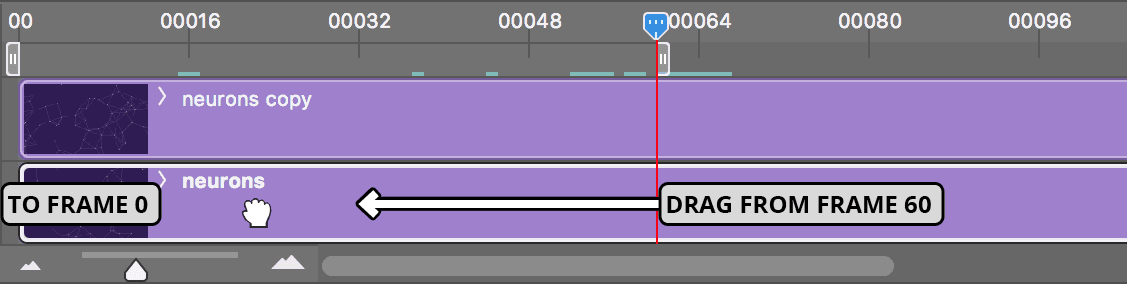
Because Photoshop remembers where we trimmed the neurons layer, its first frame (now at frame 0) still looks like frame 60 in the neurons copy layer.
Now that we have two layers that look different, it’s time to make the neurons copy layer fade in from 0 to 100% opacity. Select the neurons copy layer bar now.
We can either animate this layer’s Opacity property or apply one of Photoshop’s built-in transitions, which are pre-animated and don’t use keyframes. These transitions aren’t as customizable as keyframe animations, but they are useful when performing common animation tasks like what we have planned. So let’s try out one of them!
At the top left of the Timeline panel, click the Transition button
 .
.As shown below, click on the Fade transition and drag it down to the beginning of the neurons copy layer bar (that’s the third layer, which should be selected):
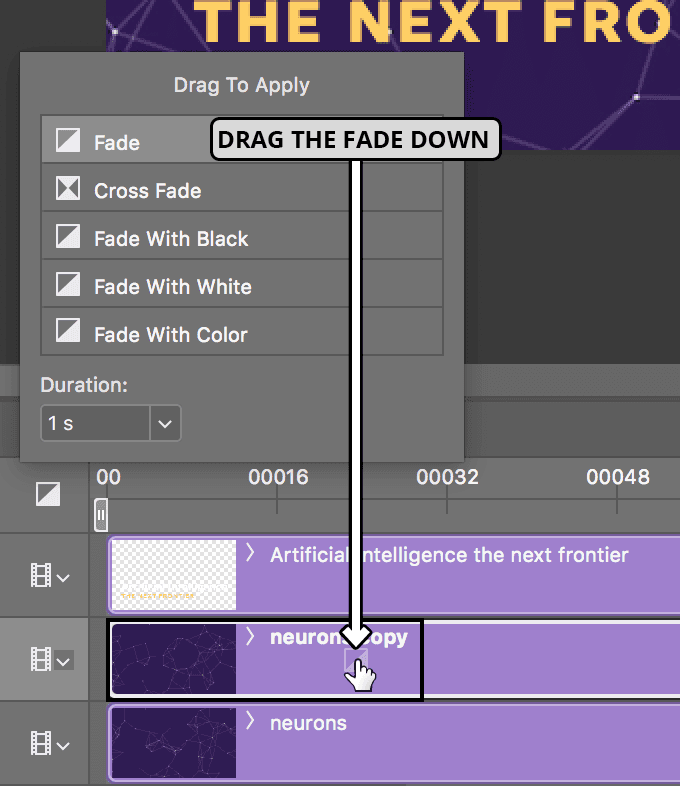
NOTE: The Fade transition is always anchored to either the beginning or end of a layer bar. When anchored to the beginning, it’s a fade-in that starts at 0% opacity and ends at 100% opacity. If anchored to the end, it fades out (100–0% opacity).
Your transition probably lasts for 1 second, because that’s what the Duration is set to by default (as you can see in the image above). To change the duration after a transition has been created, we can’t use that menu. Click anywhere outside the menu to close it.
We want the neurons copy layer to fade in over the course of the entire animation. To do so, hover over the right side of the transition and drag the edit cursor
 out to frame 60 so the tooltip says Duration : 60.
This transition will last for 60 frames. Because the first frame is 0, our Fade will end at frame 59 (which will be the last one in our animation).
NOTE: A built-in transition can only last half as long as the layer’s duration (e.g., 100 frames is the max for a 200-frame layer). Our layer is long enough to extend the fade, but that’s not always the case. When in doubt, animate with keyframes.
Go back to frame 0 and press Spacebar to see the Fade transition makes the animation loop seamlessly!
TIP: If you want to see how the transition works, slide the playhead to around halfway through the animation. Then go to the Layers panel, select the neurons copy layer, and toggle its visibility off/on by clicking its eye
 .
.Make sure all your layers are visible.
Moving Video Layers to Balance Out the Composition
There’s too much negative space at the top left, to the left of the NEW sticker. Our video footage is larger than the canvas, so we have plenty of room to work with. Let’s move both videos to balance out the composition a little better.
Select both the neurons and neurons copy layers.
In the Tools panel, make sure the Move tool
 is selected.
In the canvas, drag the layers around until the composition looks more balanced.
Scrub through with the playhead to see if you like the positioning. If not, move the layers and scrub through again until you’re satisfied.
Go to Select > Deselect Layers to deselect the layers.
Rotating the NEW Sticker Using the Transform Property
We want to rotate the NEW sticker back and forth (both clockwise and counterclockwise) so it grabs the viewer’s attention.
In the Layers or Timeline panel, select the new layer.
On the left of the Timeline, to the left of the new layer name, click the arrow
 to expand into a list of properties that can be animated.
We can’t animate this layer’s rotation using any of the available properties. However, Smart Objects have a Transform property that allows us to animate anything you could do with Free Transform such as changes in the layer’s rotation and scale (which are properties you would otherwise need to animate in a more robust animation app such as Adobe After Effects).
The Transform property is only available for Smart Objects. Go to the Layers panel and in the new layer thumbnail, notice the icon
 . That’s odd… this icon means that the layer is already a Smart Object (just like the two neurons layers).
To enable the Transform property, go to Layer > Smart Objects > Convert to Smart Object.
Go to the Timeline panel and expand
the new layer again. You can see that we have a Transform property instead of a Position property.So why did we have to convert something that was already a Smart Object into a Smart Object? A major clue is hiding further down in the Timeline panel. Expand any of the two neurons layers.
These Smart Object layers already have a Transform property because the video footage is pixel-based. Our NEW button is a vector graphic designed in Illustrator. Photoshop isn’t as “smart” with vector graphics, so you only need to do the conversion if it’s a vector-based Smart Object.
Go to frame 30 using any navigation method (dragging the playhead/frame number, or double–clicking the frame number).
In the Timeline panel, make sure the new layer is still selected.
Under new, click the stopwatch
 next to Transform to add the first keyframe
  .
.We’re going to rotate this counterclockwise. Press Cmd–T (Mac) or CTRL–T (Windows) to do an Edit > Free Transform.
Go into the Options bar at the top of the screen. Next to Rotate
 , type –20° (that’s negative 20).
In Photoshop, negative values rotate an object counterclockwise, and positive values rotate it clockwise.
To commit the change if you haven’t already, click the checkbox
 towards the right in the Options bar.
Let’s animate this by adding another keyframe! Press the Right Arrow key 5 times to move the playhead forward 5 frames. The frame number at the bottom left should show 35.
Because the layer already has a keyframe, the Transform values will automatically update as we do another Free Transform. Press Cmd–T (Mac) or CTRL–T (Windows).
We want to rotate it 5 degrees clockwise. –20 plus 5 equals –15, so enter that value into the Option bar’s Rotate field
.Make sure to apply the change by clicking the checkbox
.We want the NEW sticker to rotate counterclockwise a bit too far before it returns to the angle it started out at. Repeat the Free Transform process at the following timecodes with the values indicated below:
Frame Number Rotation Value Frame 40 –25° (to rotate it 10° counterclockwise) Frame 45 –20° (this sticker’s original angle) Preview the GIF using the Spacebar. Great! Every two seconds the NEW sticker rotates slightly, which draws the viewer’s attention without being too annoying.
We’re done with this, so it’s time to export! Save the file.