April 1, 2026Dan Rodney/8 min read

Text Styling & Adjusting Images Behind Text

Master Photoshop Text Styling for Professional Web Design

Essential Photoshop Text Techniques

Drop Shadow Effects

Learn to add professional drop shadows that make text pop off photo backgrounds. Perfect for web headers and hero sections.

Background Photo Optimization

Master gradient overlays and darkening techniques to ensure maximum text readability over complex imagery.

Typography Hierarchy

Create clear visual hierarchy with proper font sizing, color coordination, and section heading styles.

Topics Covered in This Photoshop for Web Design Tutorial:

Master the art of adding professional drop shadows to typography and strategically darkening background photos to ensure maximum text legibility—essential skills for modern web design.

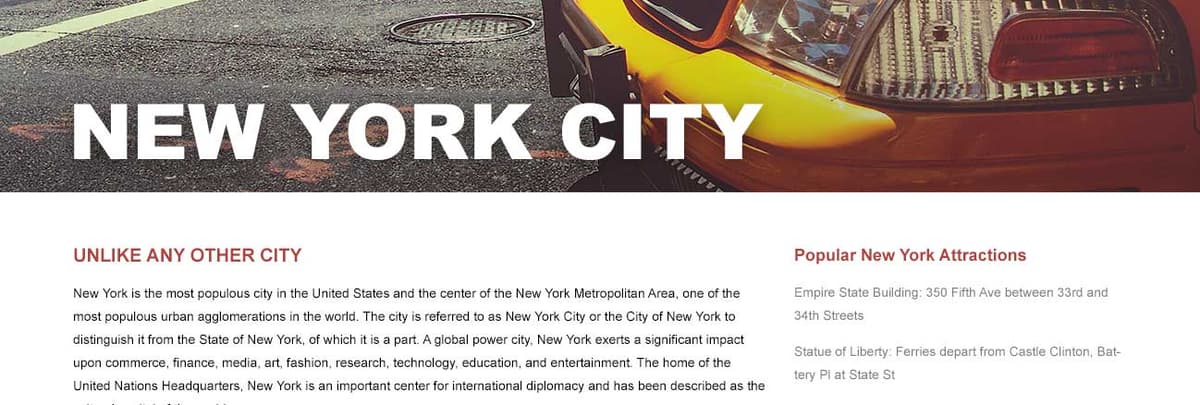
Exercise Preview

preview darken images

Tutorial Setup Process

1

File Preparation

Close existing files and navigate to Class Files > yourname-Photoshop for Web Class > NYC folder

2

Open Working File

Double-click About Page—Ready for Headings.psd to begin the exercise

3

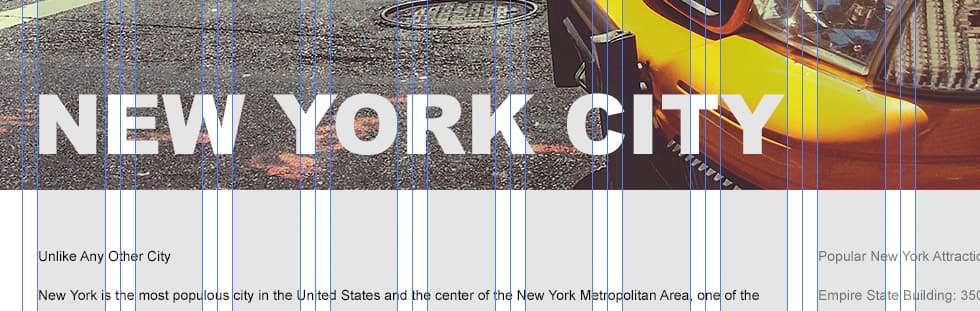
Enable Visual Guides

Show guides and gray columns for precise text positioning and alignment

Exercise Overview

In this comprehensive exercise, you'll advance your typography skills by learning two fundamental techniques that separate amateur designs from professional web layouts. You'll discover how to make text visually pop and maintain optimal readability when overlaying photographs—a critical skill for hero sections, banners, and content-rich layouts. These techniques are particularly valuable in today's design landscape where bold, image-heavy layouts dominate user interfaces.

  1. In Photoshop, close any open files to start with a clean workspace.
  2. Go to File > Open or use the keyboard shortcut Cmd–O (Mac) or CTRL–O (Windows).
  3. Navigate to Class Files > yourname-Photoshop for Web Class > NYC and double–click About Page—Ready for Headings.psd to open your working file.

Adding a Main Page Title

Every effective web page requires a compelling main title that immediately communicates its purpose to visitors. We'll strategically position this heading above the main content column, overlaying it on the cab photo to create visual hierarchy and engagement. This technique mirrors current design trends where hero text integrates seamlessly with background imagery.

  1. Ensure guides are visible by pressing Cmd–; (Mac) or CTRL–; (Windows). These guides are your alignment foundation for professional layouts.
  2. If the gray columns aren't visible, navigate to the Layers panel and activate the columns layer by clicking the visibility box where the eye eye icon icon appears.
  3. Select the Type tool type tool from your toolbar.
  4. Here's a crucial workflow tip that many designers overlook: Photoshop's type styling automatically defaults to your last selected or edited text properties. To work efficiently, we'll first sample the styling closest to our desired outcome—white text with left alignment.

    In the Layers panel, expand the footer folder and double–click on the layer thumbnail (T) next to Source: Wikipedia. This action highlights the text and captures its styling properties.

  5. Press the Esc key to deselect the text. If Photoshop prompts you with a dialog asking to commit or cancel changes, click Commit Text.

    Even though no visible changes were made, Photoshop has now adopted that text's styling as your default, streamlining your workflow.

  6. In the Layers panel, select the cab layer to ensure your new text will be properly layered above the photograph.
  7. Position your cursor at the bottom left of the cab photo, aligning it precisely with the second guide from the left. This positioning follows grid-based design principles for visual consistency.
  8. Click once and type NEW YORK CITY in all caps. All-caps typography creates strong visual impact for hero headlines.
  9. With your cursor still active in the text field, press Cmd–A (Mac) or CTRL–A (Windows) to select all the text you just entered.
  10. In the Options bar, change the font to Arial Black (or Arial Bold if Black is unavailable). These weight options provide the visual authority needed for primary headlines.
  11. Still in the Options bar, locate the Font size icon font size and use this professional sizing technique:

    Click and drag slowly to the right to dynamically increase text size until it spans the same width as the content column below (8 gray columns wide). This creates visual harmony between your headline and body content. Target approximately 83 px for Arial Black or 93 px for Arial Bold—but prioritize visual alignment over exact measurements.

  12. Switch to the Move tool move tool to fine-tune positioning.
  13. Adjust the heading position to match this professional layout standard:

    nyc heading position

    PRO TIP: Use Arrow keys for precise 1 px adjustments. Hold Shift while using Arrow keys for 10 px movements—essential for pixel-perfect positioning.

  14. Clean up your workspace by hiding the columns layer—click the eye eye icon icon next to it in the Layers panel.
  15. Hide the guides by pressing Cmd–; (Mac) or CTRL–; (Windows) to see your design without visual distractions.
  16. In the Layers panel, ensure the NEW YORK CITY text layer remains selected for the next phase of styling.

Text Styling Inheritance

Photoshop's type styling defaults to the last selected or edited text. Always pick up similar styling from existing text layers before creating new ones to maintain consistency.

Main Title Creation Checklist

0/5

Adding a Drop Shadow to Type

Now we'll enhance the title's visual impact and legibility using a carefully crafted drop shadow. This technique is particularly valuable when text overlays complex imagery, ensuring readability across different screen types and viewing conditions. Modern web design relies heavily on subtle shadows to create depth and hierarchy.

  1. With the NEW YORK CITY text layer selected, click the Add a layer style button adjustment layer fx at the bottom of the Layers panel and select Drop Shadow.
  2. Reposition the dialog box to maintain visibility of your title text—you'll want to see changes in real-time.
  3. Here's an advanced technique many seasoned Photoshop users don't know: with the dialog open, you can drag directly on the document to visually reposition the shadow.

    This interactive approach gives you immediate visual feedback and is far more intuitive than adjusting angle and distance values numerically.

  4. For professional web typography, we want a subtle shadow that enhances legibility without overwhelming the design. Configure these precise settings, but don't click OK yet:

    Opacity: 70
    Angle: 90
    Distance: 7
    Spread: 0
    Size: 25
  5. Toggle the Preview checkbox to compare before and after states. Notice how the shadow creates a subtle halo effect that separates the text from the photographic background, dramatically improving readability.

  6. Once satisfied with the enhancement, click OK to apply the effect.

  7. In the Layers panel, you'll now see a Drop Shadow effect listed under your NEW YORK CITY layer. Click its eye eye icon icon on and off to appreciate the dramatic legibility improvement. Ensure it's activated when finished.

    WORKFLOW NOTE: To modify these settings later, simply double–click the Drop Shadow effect name to reopen the dialog with all your current settings intact.

Pro Shadow Positioning Technique

With the Drop Shadow dialog open, drag anywhere in the document to visually move the shadow position. This hidden feature allows for precise shadow placement that many experienced users don't know about.

Optimal Drop Shadow Settings

70%
Opacity percentage for subtle effect
90°
Angle for natural lighting
7px
Distance for proper separation
25px
Size for soft edge blur

Darkening the Background Photo to Make Text More Legible

Beyond drop shadows, another powerful technique for improving text legibility involves strategically darkening the background image. We'll implement a gradient overlay that creates a subtle darkening effect, intensifying toward the bottom of the photo where our text sits. This approach maintains the image's visual appeal while ensuring optimal text contrast—a technique widely used in modern web design and mobile interfaces.

  1. Before creating the gradient, we need to establish black as our foreground color, which will serve as the darkening element in our gradient overlay.

    In the Tools panel, locate the Foreground/Background color swatches and click the Default Foreground and Background Colors icon default colors (alternatively, press D on your keyboard for quick access).

  2. In the Layers panel, select the cab layer as your target for the gradient overlay.

  3. Click the Add a layer style button adjustment layer fx and choose Gradient Overlay from the menu.

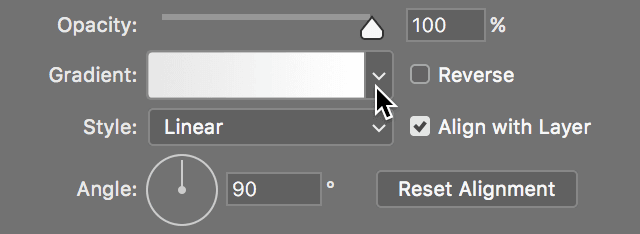
  4. In the Layer Style dialog, locate the gradient preview and click the small down arrow to its right to access the gradient preset library.

    gradient click arrow to show presets

  5. In the Basics folder, locate and double–click the second icon labeled Foreground to Transparent. This gradient appears as black transitioning to a checkerboard pattern (indicating transparency) and will close the preset panel automatically.

    You should immediately see the image darken from top to bottom, creating the foundation for improved text contrast.

  6. Adjust the Scale to 60% to compress the gradient transition, creating a more dramatic shift from transparent to dark areas.

  7. Reduce Opacity to 40% to achieve a subtle, professional darkening effect that doesn't overpower the original image.

  8. Use the interactive positioning feature: drag directly on the image to move the gradient downward, concentrating the darkening effect behind your typography.

  9. Toggle Preview on and off to evaluate the enhancement—you should see significantly improved text contrast while maintaining the photo's visual appeal.

  10. Click OK to finalize this professional enhancement.

Gradient Overlay Application

1

Set Foreground Color

Click Default Foreground and Background Colors icon or press D to set black as foreground color

2

Apply Gradient Overlay

Select cab layer, add Gradient Overlay style, choose Foreground to Transparent preset

3

Adjust Gradient Properties

Set Scale to 60% and Opacity to 40% for subtle darkening effect

4

Position Gradient

Drag gradient down so it's positioned mostly behind the text for optimal legibility

Text Legibility Enhancement Methods

FeatureDrop ShadowGradient Overlay
Best Use CaseLight backgroundsComplex photo backgrounds
Visual ImpactAdds depth dimensionCreates smooth transition
Subtlety LevelModerate enhancementVery subtle effect
Setup ComplexitySingle effect applicationRequires color and positioning
Recommended: Combine both techniques for maximum text legibility over complex photo backgrounds

Styling the Section Headings

With our hero typography perfected, let's turn our attention to the secondary headings that will guide readers through the content hierarchy. Consistent, well-styled section headings are crucial for user experience and accessibility, helping visitors quickly scan and navigate your content.

  1. Select the Type tool type tool to begin styling the section headers.

  2. In the main text column on the left, click and drag to select the first line: Unlike Any Other City

  3. Open the Character panel (Window > Character) for comprehensive typography controls and apply these professional styling specifications:

    Font: Arial Bold
    Font size font size: 20 px
    Color: Click the Color swatch and input the hex value #b5413b for a professional accent color
    All Caps: Activate the All Caps button text all caps icon for authoritative presentation
  4. Press Esc to commit these styling changes and prepare for the next heading.

  5. Move to the right column and select the text: Popular New York Attractions

  6. For this secondary heading, use the Options bar at the top of the screen for quick access to basic formatting:

    Font: Arial Bold
    Font size font size: 18 px
    Color: Click the Color swatch and apply the same hex value: #b5413b

    WORKFLOW TIP: The Options bar provides convenient access to essential text formatting, while the Character and Paragraph panels offer comprehensive control for advanced typography work.

  7. Press Esc to commit these changes and complete your typography styling.

  8. Maintain a clean workspace by collapsing any expanded layer groups in the Layers panel—this organizational habit becomes crucial when managing complex design files.

  9. Save your progress using Cmd–S (Mac) or CTRL–S (Windows) to preserve all your professional typography enhancements.

Section Heading Typography Specifications

Main Column Heading
20
Side Column Heading
18

Typography Configuration Details

Main Column Settings

Arial Bold, 20px, color #b5413b, all caps formatting for Unlike Any Other City heading.

Side Column Settings

Arial Bold, 18px, color #b5413b for Popular New York Attractions heading with consistent branding.

Panel Usage Optimization

Use the Options bar for basic text settings, but access the Character and Paragraph panels for complete typography control and advanced formatting options.

Key Takeaways

1Photoshop inherits text styling from the last selected text layer, so always pick up similar styling before creating new text elements
2Drop shadows with 70% opacity, 90-degree angle, 7px distance, and 25px size create professional text separation from photo backgrounds
3Gradient overlays using Foreground to Transparent at 60% scale and 40% opacity provide subtle background darkening for improved text legibility
4Visual shadow positioning is possible by dragging directly in the document while the Drop Shadow dialog is open
5Consistent color schemes using hex values like #b5413b maintain professional brand cohesion across all text elements
6Arial Bold font family provides optimal readability and professional appearance for web design section headings
7Proper font sizing hierarchy with 20px for main headings and 18px for secondary headings creates clear visual organization
8Layer organization and guide systems ensure precise text positioning and maintain clean project structure throughout the design process

RELATED ARTICLES