April 1, 2026Dan Rodney/5 min read

Clipping Masks: Filling Shapes with Images

Master Advanced Photo Masking Techniques in Photoshop

Essential Photoshop Skills You'll Master

Clipping Masks

Learn to use shapes and type as masks to reveal photos only within specific areas. Master the technique of combining multiple layers for complex compositions.

Layer Management

Understand how to organize and manipulate multiple layers effectively. Control visibility, stacking order, and layer interactions for professional results.

Vector Preservation

Save your work in formats that maintain crisp, scalable graphics for print. Export Photoshop files optimized for professional page layout programs.

Topics Covered in This Photoshop Tutorial:

Mastering clipping masks to seamlessly integrate graphics with shapes and typography, precision drop shadow techniques for professional depth effects

Exercise Preview

preview clipping masks hawaii

Photo by Jeremy Bishop on Unsplash

What You'll Create

In this hands-on exercise, you'll transform a simple Hawaii logo into a stunning photo-filled graphic by masking a coastline image within the logo shape, then enhance it with color adjustments and professional drop shadows.

Exercise Overview

Clipping masks represent one of Photoshop's most powerful non-destructive editing techniques, allowing you to confine image visibility within precise boundaries defined by shapes or typography. This exercise demonstrates how to create sophisticated masked compositions that maintain full editability while achieving professional-grade visual integration. You'll master the fundamental workflow that underlies everything from logo design to complex photo montages.

Mastering Photo Masking with Vector Shapes

  1. Navigate to your Photoshop Class folder and open 5B Hawaii turtle.psd. This file contains the foundation elements for our clipping mask demonstration.

  2. Examine the Layers panel structure:

    • The Hawaii logo layer contains our vector shape that will serve as the masking element.
    • Above it, the hidden coastline layer holds the photographic content we'll reveal through the mask.
  3. Activate the coastline layer by clicking the empty visibility box where the eye eye hide show icon icon should appear to the left of the layer name.

    The key to effective clipping masks lies in understanding layer hierarchy: the bottom layer defines the visible boundaries, while upper layers provide the content that fills those boundaries. This non-destructive approach preserves both elements while creating seamless integration.

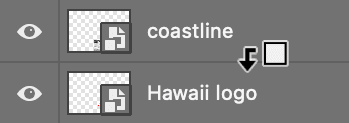
  4. Create the clipping relationship by holding Option (Mac) or ALT (Windows) while positioning your cursor precisely on the divider line between the coastline and Hawaii logo layers. When the cursor transforms to clipping mask icon, click once to establish the mask.

    clipping group

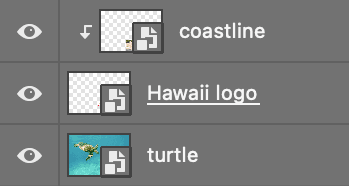
  5. Observe how the logo shape now constrains the photo's visibility, creating a sophisticated masked effect. Your layer structure should display the characteristic clipping mask indentation:

    coastline clipped onto logo

  6. Select the Move tool move tool from the Tools panel to enable precise positioning control.
  7. In the Options bar, ensure Auto-Select remains unchecked to maintain deliberate layer selection control—a crucial workflow practice for complex compositions.
  8. Target the coastline layer in the Layers panel to isolate your editing focus.
  9. Reposition the coastline imagery by dragging within the canvas until the most compelling portion—such as the golden sand textures—appears within the logo boundaries.

    Professional insight: Clipping masks accept any layer type as the masking element, from vector smart objects like this logo to live editable text created directly in Photoshop. This versatility makes them indispensable for dynamic typography treatments and scalable design systems.

Implementing Targeted Adjustment Layers

Professional workflows often require selective color enhancement that affects only specific design elements. By extending our clipping mask to include adjustment layers, we can apply targeted corrections that maintain the overall composition's balance.

  1. Hold Option (Mac) or ALT (Windows) while clicking the Create new fill or adjustment layer button adjustment layer button at the bottom of the Layers panel. Select Vibrance from the menu.
  2. The modifier key triggers an options dialog with advanced settings:

    • Enable Use Previous Layer to Create Clipping Mask to automatically inherit the mask relationship.
    • Confirm with OK to proceed.
  3. In the Properties panel, set Saturation to +90 to intensify the logo's color impact.

    Notice how the enhancement affects exclusively the masked area, leaving surrounding elements untouched. This precision control exemplifies non-destructive editing principles that define professional Photoshop workflows.

Crafting Professional Drop Shadow Effects

Layer styles provide the foundation for sophisticated depth effects that elevate flat designs into dimensional compositions. The drop shadow technique we'll apply here demonstrates industry-standard approaches to visual hierarchy and spatial relationships.

  1. Select the Hawaii logo layer to target our shadow application.
  2. Access layer styles by clicking the Add a layer style button adjustment layer fx at the bottom of the Layers panel. Choose Drop Shadow to open the comprehensive styling interface.

    • Reposition the Layer Style dialog to maintain visual feedback with your design.
    • Establish shadow direction and distance through direct manipulation—drag anywhere within the image to adjust both Distance and Angle simultaneously.
    • Fine-tune the Size parameter to control shadow edge quality, balancing realism with design intent.
    • Modulate Opacity to achieve appropriate shadow intensity that supports rather than overwhelms the primary design elements.

    • Confirm your adjustments with OK when the shadow enhances the logo's dimensional presence.

  3. The Layers panel now displays Drop Shadow as a sub-item of the Hawaii logo layer, indicating successful style application.

    Advanced workflow note: Double-click the shadow effect for future modifications, toggle visibility via the eye eye hide show icon icon for comparison testing, or drag to the trash for complete removal. This flexibility supports iterative design refinement throughout your creative process.

  4. Save your completed file to preserve the layered structure for future modifications.

Optimizing Vector Output for Professional Print Production

In 2026's demanding print environment, maintaining vector integrity through the production pipeline remains critical for achieving professional-quality output. While raster elements print at fixed resolutions, vectors scale infinitely to match your output device's capabilities—whether that's a 300 DPI desktop printer or a 2400 DPI commercial press.

Photoshop PDF format uniquely preserves vector elements, layer structure, and full editability while supporting the semi-transparency effects that modern designs demand. This approach significantly outperforms traditional PSD workflows when preparing files for page layout applications like InDesign, maintaining both quality and flexibility throughout production.

To implement vector-optimized output, navigate to File > Save As, configure the Format (Mac) or Save as type (Windows) to Photoshop PDF, then click Save to access advanced options:

  1. Select [Press Quality] from the Adobe PDF Preset dropdown to establish professional baseline settings.

  2. Navigate to Compression settings for image quality control:

    • Change Bicubic Downsampling To to Do Not Downsample to preserve original image resolution.

    • Set Compression to None to eliminate quality degradation from file compression.

  3. Access Output configuration for color management:

    • Configure Color Conversion to No Conversion to maintain your original color space integrity throughout the production workflow.
  4. When prompted to Preserve Photoshop Editing Capabilities, select Yes to maintain full functionality for future revisions.

Production efficiency tip: Create a custom preset by clicking Save Preset in the dialog's bottom-left corner. Name it descriptively, such as Vector Print Production, to streamline future export workflows. This investment in setup automation pays dividends across multiple projects, ensuring consistent quality while reducing repetitive configuration tasks.

Key Takeaways

1Clipping masks allow you to fill shapes and type with images by using one layer to mask another, creating sophisticated photo-filled graphics
2Hold Option (Mac) or ALT (Windows) and click between layers to create clipping masks that constrain effects to specific shapes
3Adjustment layers can be clipped to affect only masked areas, allowing targeted color and tone corrections without affecting the entire image
4Layer styles like drop shadows can be applied to mask layers and remain fully editable through double-clicking
5The Move tool with Auto-Select unchecked provides precise control over positioning masked images within their shapes
6Photoshop PDF format preserves vector quality for type and shapes while maintaining full editability and layer structure
7Press Quality export settings with no compression or downsampling ensure maximum print quality for professional output
8Creating custom export presets streamlines workflow for consistent high-quality output to page layout programs like InDesign

RELATED ARTICLES