April 1, 2026Dan Rodney/4 min read

Smoothing Skin with Luminosity

Master Professional Skin Retouching with Channel Mixer

Core Techniques You'll Master

Channel Mixer Adjustments

Learn to blend color channels for optimal skin texture. Control luminosity without affecting color information.

Luminosity Blending

Apply adjustments to light and dark values only. Preserve natural skin color while smoothing texture.

Selective Masking

Target specific facial areas while preserving fine details. Maintain natural eye and lip definition.

Topics Covered in This Photoshop Tutorial:

The Channel Mixer Adjustment, Using Channels to Smooth Skin Tones, the Luminosity Blending Mode

Professional Photography Insight

The Red channel typically contains the smoothest skin texture because skin reflects more red light than other colors, resulting in less textural variation and fewer blemishes.

Exercise Preview

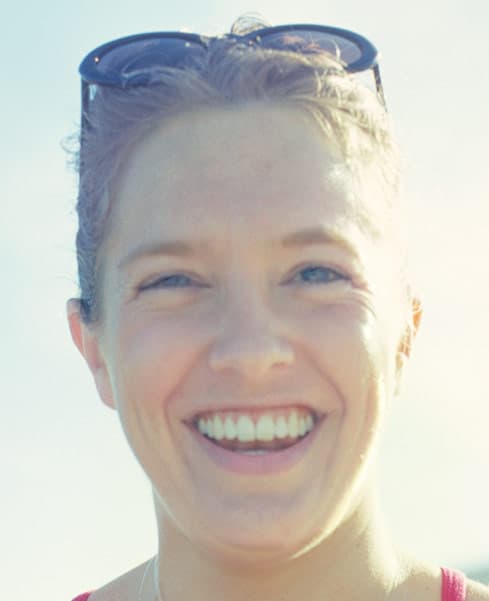
pink tank top girl smooth skin done

Exercise Overview

Professional photographers and retouchers have long understood a fundamental principle of skin retouching: the red channel consistently delivers the smoothest skin texture with minimal blemishes and pore definition. This technique leverages Photoshop's Channel Mixer in Luminosity blending mode to strategically blend these smoother red channel tones into your portraits. The result? Natural-looking skin smoothing that maintains authentic texture while eliminating harsh imperfections—a cornerstone technique for high-end portrait work.

Color Channel Characteristics for Skin

FeatureRed ChannelGreen/Blue Channels
Skin TextureSmoothest appearanceMore texture visible
Blemish VisibilityMinimal blemishesEnhanced imperfections
Tonal VariationUniform contentGreater variation
Recommended: Use Red channel information to replace texture from Green and Blue channels

Channel Analysis Workflow

1

Navigate Channels

Press Cmd+3, 4, 5 (Mac) or Ctrl+3, 4, 5 (Windows) to view individual Red, Green, and Blue channels

2

Evaluate Skin Quality

Compare skin texture across all channels to identify which contains the smoothest information

3

Assess Suitability

Determine if the Red channel shows sufficient improvement over other channels for effective smoothing

Looking at One Image

  1. Open yourname-WhiteShawlWoman.psd if it isn't still open.

  2. Hide the smooth skin layer group.

  3. Select the Background layer.

  4. Examine each color channel individually by pressing Cmd–3, 4, 5 (Mac) or CTRL–3, 4, 5 (Windows) to cycle through Red, Green, and Blue channels respectively.

    Notice how the Red channel reveals significantly smoother skin tones with minimal textural variation, while the Green and Blue channels show more pronounced pore structure and surface irregularities. This phenomenon occurs because skin naturally reflects more red light uniformly, creating less contrast in surface texture. However, in this particular image, even the red channel shows considerable forehead texture, making it a poor candidate for this technique.

    This principle mirrors traditional black-and-white photography, where photographers used yellow, orange, or red filters to emphasize the smooth red component of skin while suppressing the texture-heavy green and blue information. We're applying this same concept digitally by replacing the luminosity information from the Green and Blue channels with the superior data from the Red channel.

Since this current image doesn't showcase the technique optimally, let's work with a more suitable example that better demonstrates the power of channel-based skin smoothing.

Image Suitability Assessment

Not all images are suitable for channel-based skin smoothing. If the Red channel still shows significant texture problems, this technique may not produce optimal results.

Photographers who shoot in black and white know they can take advantage of the uniformity of red content in skin to smooth its appearance
This principle from film photography translates directly to digital color portrait retouching techniques

Smoothing the Skin in a More Suitable Image

  1. Close this file without saving changes.
  2. From the Photoshop Adv Class folder, open PinkTankTopGirl.psd.
  3. Save it as yourname-PinkTankTopGirl.psd.
  4. Navigate to the Channels panel and carefully examine the skin texture across all three color channels. You'll immediately notice the dramatic difference—skin blotchiness and texture are virtually absent in the Red channel, while clearly visible in the Green and Blue channels. This makes it an ideal candidate for channel mixing techniques.
  5. Select the composite RGB channel to return to full-color view.
  6. Choose the Lasso tool lasso tool and create a rough selection around the woman's face. Precision isn't critical at this stage—we'll refine the selection next.
  7. Navigate to Select > Select and Mask to access Photoshop's advanced selection refinement tools.
  8. In the Properties panel, click the view thumbnail and double-click On White for optimal edge visibility.
  9. Set Opacity to 100% for maximum contrast against the white background.
  10. In the Global Refinements section, apply a subtle Feather of 2-3 pixels to ensure smooth edge transitions that won't create visible selection lines.
  11. Click OK. Don't worry about protecting eyes, eyebrows, mouth, or hair at this stage—we'll address these areas with targeted masking.
  12. Choose Layer > New Adjustment Layer > Channel Mixer to access our primary smoothing tool.
  13. Name the layer smooth face and—this is crucial—set the blending mode to Luminosity. This blending mode ensures we're only affecting the brightness values while preserving all color information, preventing unwanted color shifts that could make skin look unnatural.
  14. Click OK to create the adjustment layer.
  15. In the Properties panel, enable Monochrome to work with luminosity values exclusively.
  16. Configure the channel sliders to isolate the Red channel information:

    Red: 100%
    Green: 0%
    Blue: 0%

    The Total should read 100%, ensuring proper luminosity balance. You'll immediately see smoother skin texture, though it may appear lighter and flatter than desired—this is normal and easily corrected.

  17. If the selection edges create visible boundaries, select the Layer Mask of the smooth face layer and paint with a soft, low-opacity brush to blend the edges seamlessly into the surrounding areas.
  18. With the layer mask still active, paint with black over critical facial features—eyes, eyebrows, lips, hair, and any overexposed highlight areas. This preserves the natural detail and prevents the artificial "plastic" look that occurs when these areas are over-smoothed.
  19. Now we'll restore natural contrast and luminosity to the smoothed face. Ensure the smooth face layer is selected.
  20. Create a targeted adjustment by choosing Layer > New Adjustment Layer > Curves with these settings:

    • Name: face brightness & contrast
    • Check Use Previous Layer to Create Clipping Mask to limit the effect to our smoothed area
    • Set Mode to Luminosity to maintain color integrity
    • Click OK
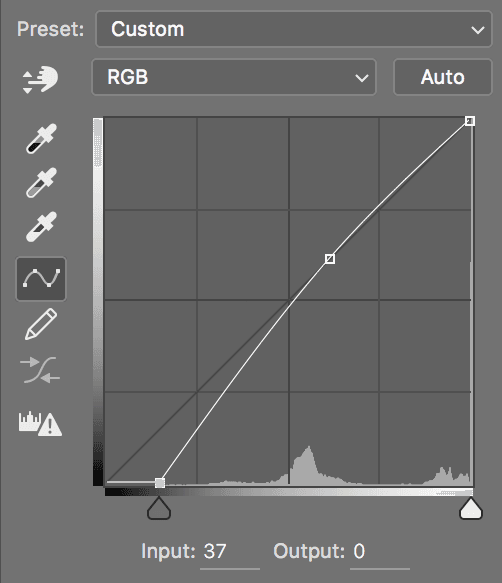
  21. Create a subtle S-curve to restore natural contrast and skin luminosity, as demonstrated below:

    pink tank top girl add contrast to face

    The curve should gently lift the highlights and deepen the shadows to restore dimension while maintaining the smooth texture we've achieved.

  22. Save your work and close the image. You've now mastered a professional-grade skin smoothing technique that maintains natural texture while eliminating unwanted imperfections.

Channel Mixer Skin Smoothing Process

1

Create Selection

Use Lasso tool to roughly select the face area, then refine using Select and Mask with appropriate feathering

2

Add Channel Mixer Layer

Create new Channel Mixer adjustment layer named 'smooth face' and set blending mode to Luminosity

3

Configure Channel Settings

Enable Monochrome and set Red to 100%, Green to 0%, Blue to 0% for pure Red channel information

4

Refine Layer Mask

Paint with black on mask to exclude eyes, eyebrows, mouth, hair, and overexposed highlights

5

Adjust Brightness and Contrast

Add Curves adjustment layer with Luminosity blend mode and clipping mask to restore natural contrast

Channel Mixer Skin Smoothing

Pros
Preserves natural color information
Non-destructive adjustment layer workflow
Utilizes existing image data for realistic results
Allows precise control over affected areas
Cons
Not effective on all image types
May require additional contrast adjustments
Requires careful masking for natural results
Limited by original Red channel quality

Quality Control Checklist

0/4

Key Takeaways

1The Red color channel typically contains the smoothest skin texture information, making it ideal for skin retouching techniques
2Luminosity blending mode allows you to adjust light and dark values without affecting color information in portraits
3Channel Mixer adjustment layers provide non-destructive workflow for blending channel information with precise control
4Not all images are suitable for channel-based skin smoothing - the Red channel must show significant improvement over other channels
5Proper masking is essential to exclude eyes, eyebrows, mouth, and hair from skin smoothing effects
6Select and Mask tool with appropriate feathering creates natural selection edges for facial retouching work
7Additional contrast adjustments using Curves layers are often necessary to restore natural skin appearance after channel mixing
8This technique mirrors traditional black and white photography filter principles applied to digital color portrait retouching

RELATED ARTICLES