April 1, 2026Dan Rodney/6 min read

Color Correction Using Curves

Master Professional Color Correction with Curves

Essential Skills You'll Master

Curves Adjustment Layer

Learn to use Photoshop's most powerful color correction tool. Understand the relationship between input and output values for precise control.

Point Setting Techniques

Master the art of setting white, black, and gray points using eyedroppers. Learn optimal brightness settings for professional results.

Midpoint Manipulation

Discover how to create and control multiple midpoints on curves. Gain precise control over different tonal ranges in your images.

Topics Covered in This Photoshop Tutorial:

Master color correction using Curves Adjustment Layers, refine your technique for setting precise white, black, and gray points, and learn advanced midpoint manipulation for professional-grade image enhancement.

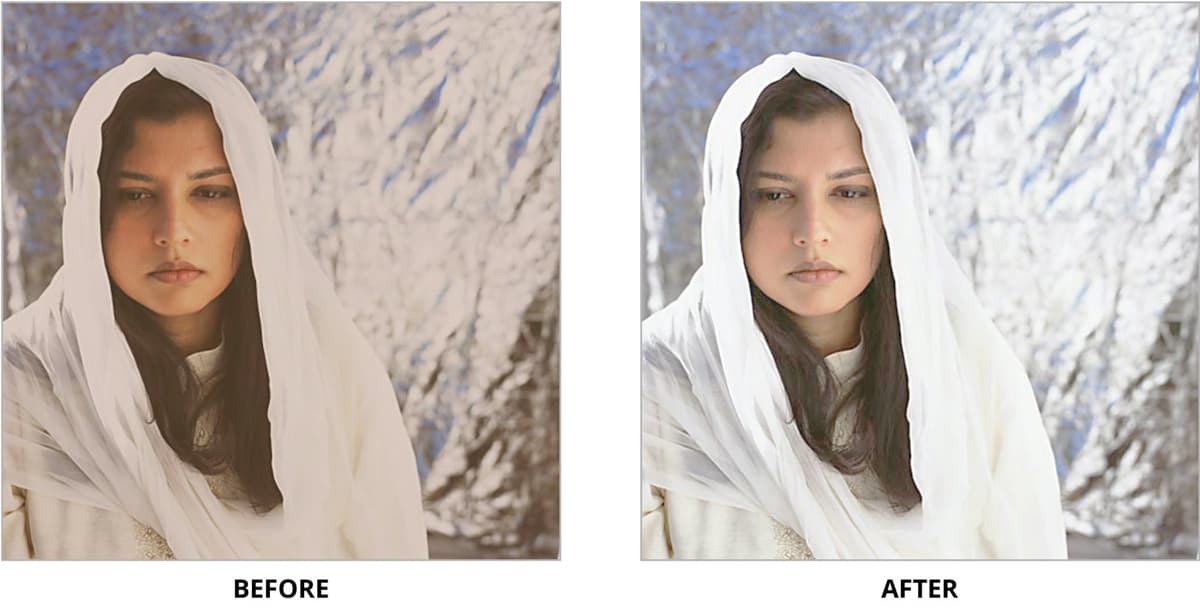
Exercise Preview

shawl before&after

Exercise Overview

While Curves adjustments may seem less intuitive than basic correction tools, they represent the gold standard of color correction in Photoshop. This single tool offers unparalleled precision and flexibility, allowing you to target specific tonal ranges while maintaining complete control over your image's luminosity and color balance. Professional colorists and photographers rely on Curves for critical color work because of its ability to make subtle, targeted adjustments that other tools simply cannot match.

Why Curves Excel Over Other Tools

Using Curves to adjust an image may be less intuitive, but it is probably the single most powerful color correction tool Photoshop offers. Unlike Levels, Curves allow multiple midpoint adjustments for unprecedented control.

Adjusting Curves

Let's start by establishing proper white and black points using Photoshop's eyedropper tools, then fine-tune the settings for optimal results:

  1. From the Photoshop Class folder, open shawl.jpg.

  2. At the bottom of the Layers panel, click the Create new fill or adjustment layer button adjustment layer button and select Curves from the menu.

  3. In the Properties panel, you'll see the characteristic curve—currently a straight diagonal line that maps the image's original tonal range (input values along the bottom) to corrected values (output values along the left side). The bottom-left represents pure black (0), while the top-right represents pure white (255). While the eyedropper tools provide the most efficient approach to initial correction, we'll first optimize their target values for more precise results.

  4. Double-click the Set White Point button set white point located on the left side of the panel.

  5. In the color picker, locate the H, S, B values and change the B (brightness) setting to 96%. Click OK.

    This 96% setting prevents pure white from becoming completely blown out, preserving subtle detail in highlight areas—a crucial consideration for professional print and web output. If Photoshop prompts you to save this as the new default target color, click Yes to streamline future corrections.

  6. Click on the lightest area in the image that should register as white or near-white. Target the brightest section of the woman's shawl where fabric detail is still visible.

    Watch as the image brightens and contrast improves. If the correction appears too aggressive, simply click on a different highlight area to establish a new white point reference.

  7. Double-click the Set Black Point button set black point to access the black point target settings.

  8. Set the brightness (B) value to 4%, then click OK.

    This 4% black point prevents shadows from becoming completely void of detail—essential for maintaining printable shadows and avoiding the muddy appearance that pure black (0%) often creates. Again, save this as your default when prompted.

  9. Identify and click on the darkest area in the image. The woman's hair typically provides an excellent black point reference.

    The image will gain depth and contrast as shadow detail becomes more defined. If the result appears too dark or creates unwanted color shifts, experiment with different shadow areas until you achieve the desired balance.

  10. Click once on the Set Gray Point button set gray point to activate the neutral midtone correction tool.

  11. Click on an area that should appear as perfectly neutral gray—areas like concrete, neutral fabric, or naturally gray surfaces work best. Test different locations and observe how each affects the overall color balance.

    Professional Tip: Unlike white and black points, which exist in virtually every image, true neutral grays are relatively rare. Many images contain no perfectly neutral areas, making the gray point tool less universally applicable. Use it judiciously and trust your eye—if no click produces a convincing improvement, skip this step entirely.

Setting Up Your Curves Adjustment

1

Open Your Image

From the Photoshop Class folder, open shawl.jpg to begin the exercise.

2

Create Curves Layer

Click the Create new fill or adjustment layer button at the bottom of the Layers panel and choose Curves.

3

Understand the Interface

In the Properties panel, observe the curve line comparing original input to corrected output values across shadows, midtones, and highlights.

Optimal Point Settings

FeatureWhite PointBlack Point
Brightness Setting96%4%
Target AreaLightest area of shawlDarkest area in hair
Effect on ImageLightens overallDarkens overall
Recommended: Always adjust brightness settings before using eyedroppers for more precise control.

Working with Midpoints

Now we'll explore Curves' most powerful feature: the ability to create and manipulate multiple midpoint anchors for precise tonal control that goes far beyond what Levels can achieve.

  1. In the Properties panel, you may notice multiple diagonal lines overlaying your curve—these represent individual color channels and can create visual confusion during adjustment.

  2. Click the Properties panel menu panel menu and choose Curves Display Options.

  3. In the dialog box, locate the Show section and ensure Channel Overlays remains unchecked. This simplifies the interface for clearer curve manipulation.

  4. Click OK to apply the display changes.

  5. You should now see a single, clean diagonal line. Click on the upper-right anchor point—this represents your White Point control.

  6. Drag the White Point horizontally to the left and observe how highlight areas expand, making the image progressively lighter as more midtone values are mapped to white.

  7. Now drag the White Point vertically downward. Notice how the brightest areas become muted gray instead of pure white, effectively compressing the highlight range—useful for matching images with limited contrast ranges.

  8. Return the point to the upper-right corner to restore the original white point mapping.

  9. Select the bottom-left anchor point—your Black Point control.

  10. Drag the Black Point horizontally to the right to expand the shadow range, forcing more midtone values toward pure black and increasing overall contrast.

  11. Drag the Black Point vertically upward to compress the shadow range, preventing true blacks and creating a lifted, film-like appearance popular in contemporary digital photography.

  12. Reset the point to the bottom-left corner to return to neutral black point mapping.

  13. Click anywhere on the center of the diagonal line to create your first custom midpoint anchor. This new control point allows you to adjust specific tonal ranges independently.

  14. Drag your new midpoint downward to darken the midtones while preserving your established white and black points—this creates rich, saturated midtones perfect for portrait work.

  15. Drag the midpoint upward to brighten midtones, creating an airier, high-key effect that works beautifully for lifestyle and fashion photography.

  16. Curves' true power lies in multiple anchor points. Click on the curve between your black point and existing midpoint to create a second control point targeting the quarter-tones (darker midrange values).

  17. Adjust this new point vertically to fine-tune shadow transitions and depth without affecting your primary midpoint or established white/black points. This level of control enables the subtle tonal sculpting that separates professional-grade corrections from basic adjustments.

  18. To remove any unwanted anchor points, simply click and drag them outside the Properties panel boundary, then release your mouse—the anchor disappears instantly.

  19. Notice the channel selector at the top of the Properties panel, offering individual Red, Green, and Blue curve control beyond the default RGB composite. These individual channels provide powerful color cast correction capabilities, though the eyedropper tools often handle color balance more efficiently for most images.

  20. Take time to experiment with various curve shapes and observe their effects on image character and mood.

    Gray Point Reality Check

    Remember that while most images have a true white and a true black, they do NOT always have a true neutral gray. So the Set Gray Point tool isn't used as often as the Set White/Black Point tools.

    Configuring Curves Display

    1

    Access Display Options

    Click on the Properties panel menu and choose Curves Display Options to clean up your workspace.

    2

    Disable Channel Overlays

    In the dialog box next to Show, make sure Channel Overlays is unchecked for clearer visualization.

    3

    Confirm Single Line

    Click OK to ensure only one diagonal line is visible for easier manipulation.

    Point Manipulation Effects

    White Point Control

    Drag left to make image lighter as more light areas become pure white. Drag down to make lightest parts duller gray instead of pure white.

    Black Point Control

    Drag right to darken image as more dark areas become pure black. Drag up to make darkest parts duller gray instead of pure black.

    Midpoint Creation

    Click anywhere on the diagonal line to create new control points. Drag up to lighten or down to darken specific tonal ranges.

    Multiple Midpoint Advantage

    Curves allows multiple midpoints for unprecedented control. Create additional points between existing ones to fine-tune specific tonal ranges. Remove unwanted points by dragging them out of the window.

Professional Curve Techniques

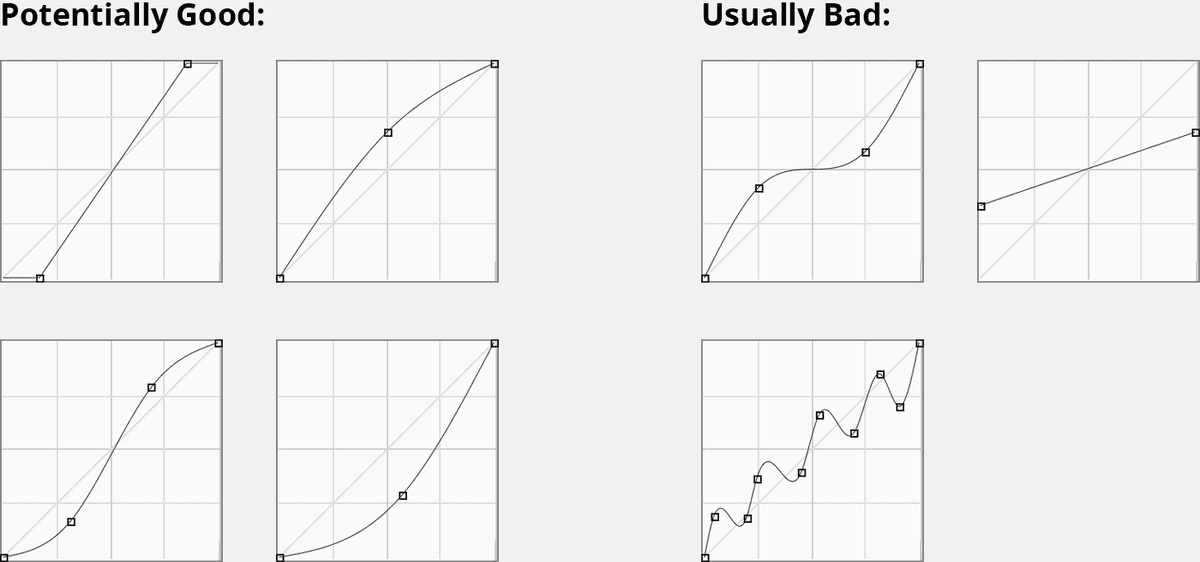
Effective curve adjustments follow certain principles that distinguish professional results from amateur attempts. The most successful curves maintain smooth, flowing shapes rather than sharp angles or extreme points. Small, subtle adjustments typically yield more natural-looking results than dramatic corrections.

curves good&bad examples

Classic Curves to Master: The gentle S-curve (slight lift in highlights, subtle drop in shadows) adds elegance and dimension to most images. The lifted shadows curve (raising the black point) creates the coveted film look. The gentle highlight roll-off (slightly lowering the white point) prevents harsh digital highlight clipping that can appear unnatural in final output.

Key Takeaways

1Curves adjustment layers provide the most powerful color correction tool in Photoshop, offering more control than Levels
2Set white point brightness to 96% and black point brightness to 4% before using eyedroppers for optimal results
3Gray point adjustment should be used selectively since not all images contain true neutral gray areas
4Multiple midpoints can be created on curves for precise control over different tonal ranges in your image
5White and black point manipulation affects overall image lightness and contrast in predictable ways
6Channel-specific curve adjustments (RGB, Red, Green, Blue) help correct color casts when eyedroppers aren't sufficient
7Proper curve shapes vary by image, but smooth transitions and natural contrast preservation are essential principles
8Unwanted curve points can be removed by dragging them outside the Properties panel window

RELATED ARTICLES