April 1, 2026Dan Rodney/6 min read

Smoothing Skin with Blending Modes

Master Professional Skin Smoothing with Advanced Blending Techniques

Essential Skills You'll Master

Blending Mode Mastery

Learn to use Lighten and Darken modes for independent highlight and shadow control. Achieve professional-grade smoothing effects.

Natural Texture Restoration

Discover how to add realistic texture back to smoothed skin using noise filters and overlay techniques.

Precision Masking Control

Master layer masking techniques to selectively apply effects only where needed for natural results.

Topics Covered in This Photoshop Tutorial:

Professional Skin Smoothing Techniques, Independent Highlight & Shadow Blurring, Natural Texture Restoration, Advanced Blending Mode Applications

Exercise Preview

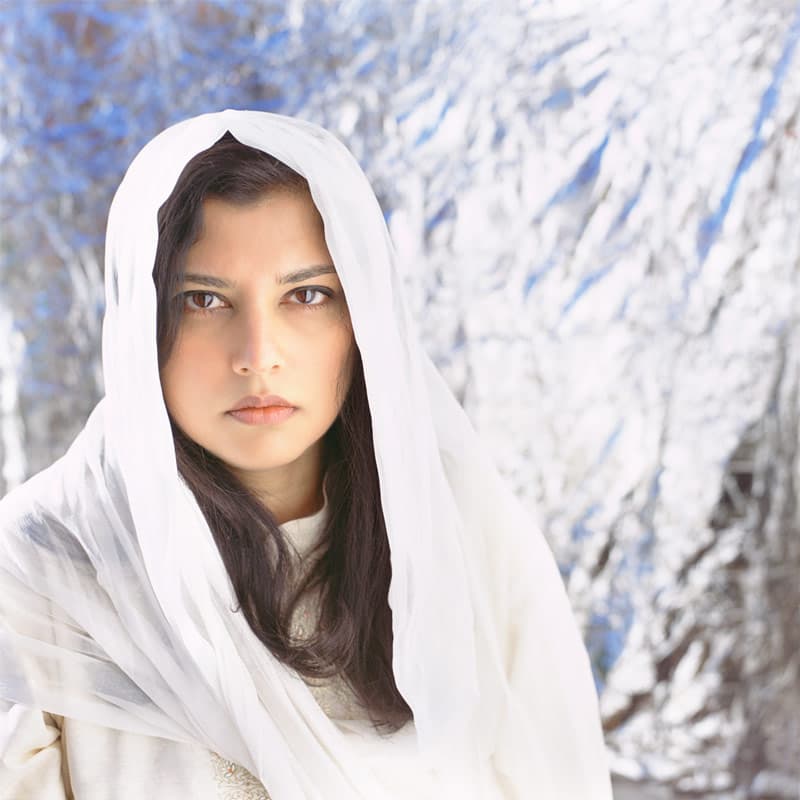
white shawl woman done

Avoiding the Airbrushed Look

This technique requires discretion to avoid the artificial '70s airbrushed pinup appearance. When applied properly, you can achieve beautiful natural-looking results that enhance rather than replace skin texture.

Exercise Overview

In this exercise, you'll master professional-grade skin smoothing that maintains natural texture and depth—a technique essential for portrait photographers and retouchers working with high-resolution images. We'll focus on smoothing skin texture, particularly addressing common problem areas like foreheads, while avoiding the telltale signs of over-processing that plague amateur retouching work. This method gives you granular control over highlights and shadows separately, creating results that enhance rather than replace natural skin characteristics. When executed with restraint, this technique produces the subtle, polished look that clients expect from professional work.

Workflow Overview

1

Layer Preparation

Duplicate background layer and set up proper color management in Adobe RGB workspace

2

Apply Dual Blending

Create separate Lighten and Darken blur layers for independent highlight and shadow control

3

Restore Natural Texture

Add noise texture using Overlay blend mode to maintain realistic skin appearance

4

Fine-tune with Masks

Use layer masks to selectively apply smoothing effects only where needed

Smoothing the Skin

The foundation of this technique relies on dual-layer processing using complementary blending modes. This approach mirrors how professional diffusion filters work optically, giving you unprecedented control over the final result.

  1. From the Photoshop Adv Class folder, open WhiteShawlWoman.psd. Notice there's no color management dialog—this image is already in Adobe RGB, matching our workspace settings for proper color management throughout the workflow.

  2. Save it as yourname-WhiteShawlWoman.psd to preserve the original file.

  3. Duplicate the Background layer using Cmd–J (Mac) or CTRL–J (Windows). This preserves your original image data for non-destructive editing.

  4. Change the blending mode of your new layer to Lighten.

    You won't see any visible change yet—Lighten mode only affects pixels that are darker than the corresponding pixels on the layer below. This selective behavior is key to controlling how our blur affects different tonal ranges.

  5. Apply Filter > Blur > Gaussian Blur to this layer.

  6. Set the Radius to 5 pixels and click OK. For higher resolution images, you may need to increase this value proportionally—the key is achieving visible softening without losing essential facial structure.

    Now you'll see subtle softening beginning to emerge, particularly in the lighter areas of the skin.

  7. Rename this layer blurred lighten for clear workflow organization.

  8. Reduce the Opacity of this layer to approximately 60%. This initial setting provides a good starting point, but you'll fine-tune this based on your specific image requirements.

  9. Duplicate this layer using Cmd–J (Mac) or CTRL–J (Windows).

  10. Rename the duplicate blurred darken.

  11. Change its blending mode to Darken. This mode affects only pixels lighter than those on the underlying layer.

    The power of this dual-layer approach lies in independent control over highlights and shadows. Unlike single-layer blurring, this technique mimics how professional camera diffusion filters work optically, creating more natural-looking results that preserve skin dimensionality.

  12. Experiment with the opacity settings of each layer independently. Notice how adjusting the blurred lighten layer primarily affects shadow areas and skin texture, while the blurred darken layer influences highlights and shine. This granular control allows you to address specific skin concerns—such as excessive texture in shadows or harsh highlights—with surgical precision.

Lighten vs Darken Blend Modes

FeatureLighten ModeDarken Mode
Effect on PixelsBrightens darker pixels belowDarkens lighter pixels below
Primary TargetShadow areasHighlight areas
Visual ResultSoftens dark skin imperfectionsSmooths bright reflective areas
Recommended Opacity60%Adjustable based on effect
Recommended: Using both modes together mimics professional camera diffusion filters more effectively than single blur layers.
Professional Technique Advantage

The power of this dual-layer approach is controlling blur effects in highlights and shadows separately. This combination more effectively mimics a camera's diffusion filter than traditional single-layer blur methods.

Adding Texture Back in

Professional skin smoothing requires a delicate balance. While we want to reduce unwanted texture, completely smooth skin appears artificial and plasticky. The next phase involves strategically reintroducing controlled texture that looks natural and age-appropriate.

  1. While the skin appears smoother, it may look unnaturally flat. Professional retouchers know that subtle texture is essential for believable results. Select the blurred darken layer to position our new texture layer correctly in the stack.

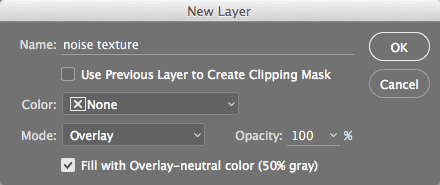
  2. Create a new layer using Cmd–Shift–N (Mac) or CTRL–Shift–N (Windows) with these specific settings:

    • Name: noise texture
    • Blending mode: Overlay
    • Check Fill with Overlay-neutral color

    noise texture

    Understanding Overlay blending is crucial for advanced retouching. This mode increases contrast by:

    • Brightening pixels lighter than 50% neutral gray
    • Darkening pixels darker than 50% neutral gray

    Starting with 50% neutral gray creates no visible effect initially—giving you complete control over how much texture you introduce.

  3. Click OK to create the layer.

  4. With the noise texture layer selected, apply Filter > Noise > Add Noise.

  5. Ensure Gaussian is selected and check Monochromatic to prevent color artifacts that could create unrealistic skin tones.

  6. Set the Amount between 2–5%. The optimal setting depends on your image resolution and the degree of smoothing applied earlier. For 4K+ images or heavy smoothing, you may need slightly higher values. Remember: you can always reduce opacity later, but you can't add detail that isn't there.

  7. Click OK to apply the noise.

  8. Fine-tune the opacity of the noise texture layer until the skin appears naturally textured. Professional work typically requires very subtle application—often 20-40% opacity.

  9. Group these three effect layers for easier management and client revisions.

  10. Shift–click to select from the noise texture layer down to the blurred lighten layer.

  11. Group the layers using Layer > Group Layers (Cmd–G (Mac) or CTRL–G (Windows)).

  12. Name the group smooth skin for clear project organization.

Understanding Overlay Blend Mode

Neutral Gray Foundation

Starting with 50% neutral gray produces no visual effect, providing the perfect base for texture application.

Contrast Enhancement

Overlay brightens pixels brighter than 50% gray and darkens pixels darker than 50% gray, adding natural contrast.

Recommended Noise Amount by Resolution

Low Resolution
2
Medium Resolution
3.5
High Resolution
5

Controlling the Intensity of the Smoothing Effect

The final phase involves precise application control. Professional retouching requires restraint—smoothing should enhance natural beauty, not create an artificial appearance. Proper masking ensures the effect appears only where needed while preserving important facial details.

  1. Select the smooth skin group folder button and adjust the group's opacity to achieve the optimal smoothing intensity. This global control allows you to satisfy client preferences without rebuilding the entire effect.

  2. For precise application control, we'll use a hide-all layer mask—the professional approach that ensures smoothing appears only where intentionally applied. With the smooth skin group folder button selected, apply Layer > Layer Mask > Hide All. This approach prevents accidental over-processing and gives you complete control over the final result.

  3. Using a soft-edged brush with white paint, carefully reveal the smoothing effect on the layer mask where desired. Focus on problem areas like foreheads, cheeks, and chin while avoiding critical detail areas such as eyes, eyebrows, lips, and hair. Vary your brush opacity between 20-60% to build up the effect gradually—professional retouching is about subtlety and control.

  4. Save your work to preserve all layer information for future revisions.

    Pro Tip: This workflow is perfect for Photoshop Actions if skin retouching is part of your regular workflow. Create an action that builds the layer structure, applies the blending modes, and adds the hide-all mask. This automation leaves only the creative decisions—opacity adjustments and mask painting—for manual control, dramatically speeding up your retouching process while maintaining consistent quality.

Layer Mask Approaches

FeatureShow All MethodHide All Method (Recommended)
Starting StateEffect visible everywhereEffect hidden everywhere
WorkflowMask away unwanted areasPaint in desired areas
Precision LevelLess preciseMore precise
Control MethodBlack brush to hideWhite brush to reveal
Recommended: The Hide All approach provides better control by allowing you to paint the smoothing effect back in only where needed.
Automation Opportunity

These steps work excellently as a Photoshop action. The action can create all layers, groups, and masks automatically, leaving only opacity adjustments and selective painting for each image.

Key Takeaways

1Use dual blending modes (Lighten and Darken) with Gaussian blur to control highlights and shadows independently for more natural skin smoothing results
2Set Lighten layer opacity to approximately 60% and adjust Darken layer opacity based on the specific smoothing needs of each image
3Add texture back using a noise layer set to Overlay blend mode with 2-5% Gaussian noise to prevent artificial airbrushed appearance
4Group all smoothing layers together to control the entire effect's opacity and apply layer masks for selective application
5Use the Hide All layer mask approach for better precision - paint with white brush to reveal smoothing effects only where needed
6Adjust brush opacity when painting on masks to control the intensity of the smoothing effect in different areas
7This technique mimics professional camera diffusion filters more effectively than single-layer blur methods
8Consider creating a Photoshop action for this workflow if you frequently need to perform skin smoothing on multiple images

RELATED ARTICLES