April 1, 2026Dan Rodney/4 min read

3D Type Shadow: Free Photoshop Tutorial

Master Professional 3D Text Effects in Photoshop

Why 3D Text Effects Matter

Visual Impact

3D shadows add depth and dimension to flat text, making designs more engaging and professional. They help text stand out from backgrounds.

Design Versatility

This technique works across multiple design contexts from logos to promotional materials. Master it once, apply it everywhere.

Client Value

Professional text effects command higher project rates and demonstrate advanced Photoshop skills to potential clients.

Topics Covered in This Photoshop Tutorial:

Advanced Drop Shadow Techniques, Professional Layer Effects Application, Transform Tools for Dimensional Text Effects

Skills You'll Master

0/4

Exercise Preview

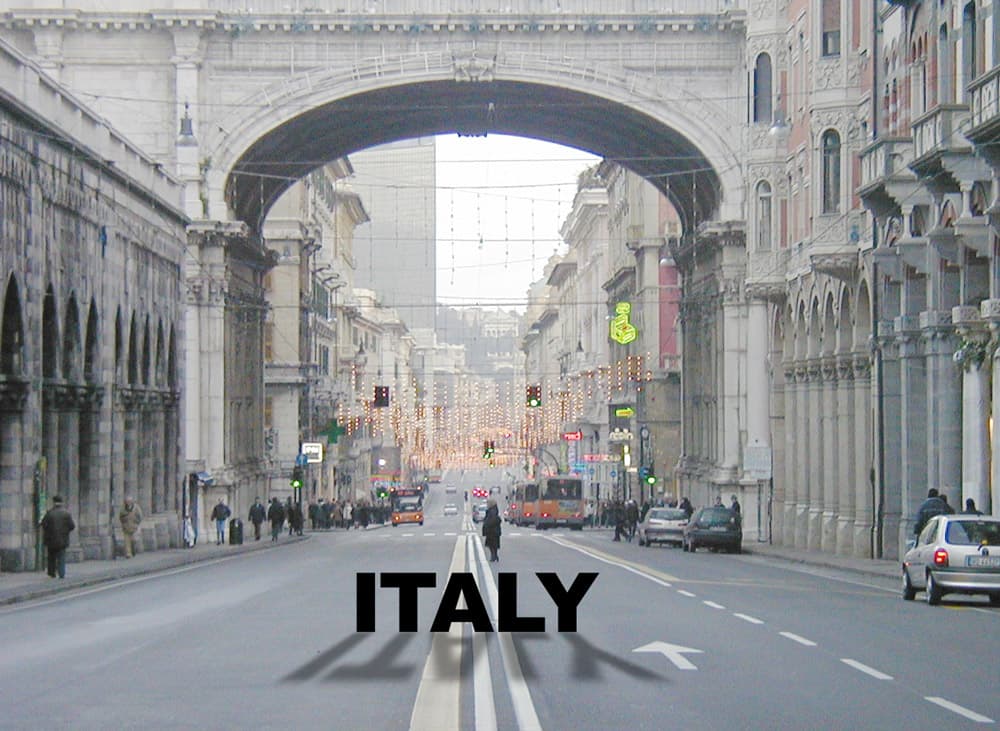
italy done

From 2D to 3D

This tutorial transforms a basic drop shadow into a convincing 3D effect using Photoshop's built-in tools. No plugins or complex techniques required - just smart use of layer styles and transform tools.

Exercise Overview

Standard drop shadows create basic depth, but they're limited to flat, 2D effects. In this exercise, you'll master the technique of creating convincing 3D shadows that follow perspective rules—a skill essential for professional design work, from advertising campaigns to architectural visualizations. This technique transforms ordinary text into dimensional elements that appear naturally integrated into photographic environments.

Tutorial Process Overview

1

Text Setup

Create properly formatted text with optimal typography settings including font choice, size, and kerning for maximum readability and impact.

2

2D Shadow Creation

Apply standard drop shadow layer style with carefully chosen opacity, distance, and blur settings to establish the foundation.

3

Layer Separation

Convert the shadow effect into an independent layer that can be manipulated separately from the original text.

4

3D Transformation

Use distort transformation to create realistic perspective and depth, making the shadow appear three-dimensional.

Adding 2D Drop Shadow to Text

We'll begin by establishing our base text element and applying a traditional drop shadow, which will serve as the foundation for our 3D transformation.

  1. From the Photoshop Class folder, open the file italy.psd.

  2. Choose the Horizontal Type tool type tool.

  3. In the Options bar at the top of the screen, configure your text settings: Arial Black, 100 pt, and Center text text center. Arial Black provides the bold weight necessary for this dimensional effect to read clearly against the textured background.

  4. Click in the middle of the street (precisely on the lane divider line) and type the word ITALY in all caps. This positioning ensures your text follows the road's perspective naturally.

  5. While still using the Horizontal Type tool type tool, select all text and access the Character panel (Window > Character) for precise typography control.

  6. Click the Color swatch and select black from the color picker. Black text will provide maximum contrast against the road surface while creating a strong foundation for the shadow effect.

  7. From the Kerning menu text kerning, choose Optical. This adjustment ensures professional letter spacing that accounts for each character's visual weight—a crucial detail that separates amateur from professional typography.

  8. Switch to the Move tool move tool and position the text in the center of the road. Leave generous space below the text—approximately 1.5 times the text height—to accommodate the dimensional shadow we'll create.

  9. In the Layers panel (Window > Layers), verify that the ITALY layer remains selected before proceeding to the shadow application.

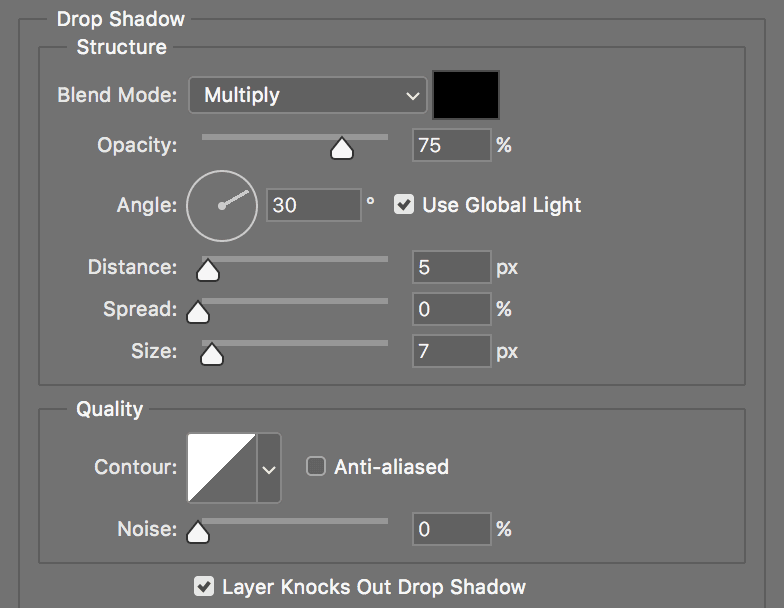
  10. At the bottom of the Layers panel, click Add a layer style adjustment layer fx and select Drop Shadow. Configure the settings as shown below, then click OK. These settings create a shadow with sufficient distance and softness to appear realistic once we transform it into 3D perspective:

    italy drop shadow

Typography Best Practices

Arial Black at 100pt provides excellent readability and bold presence. Optical kerning automatically adjusts letter spacing for visual balance, creating more professional-looking text than default metrics kerning.

Essential Text Settings

Font Selection

Arial Black provides strong, readable letterforms that work well with shadow effects. Bold fonts create more dramatic 3D results.

Color Strategy

Black text on light backgrounds creates maximum contrast. This ensures the 3D effect will be clearly visible and impactful.

Using Transform to Create a 3D Effect

Now we'll separate the shadow from the text layer and manipulate it to follow the road's perspective, creating the illusion that the text is standing upright on the street surface.

  1. To transform the shadow independently, we must convert it to a separate layer. Navigate to Layer > Layer Style > Create Layer. When the warning dialog appears about layer effects reproduction limitations, click OK—this won't impact our intended result.

  2. Select the newly created ITALY's Drop Shadow layer and choose Edit > Transform > Distort. This transform mode allows you to manipulate each corner handle independently, essential for matching perspective accurately.

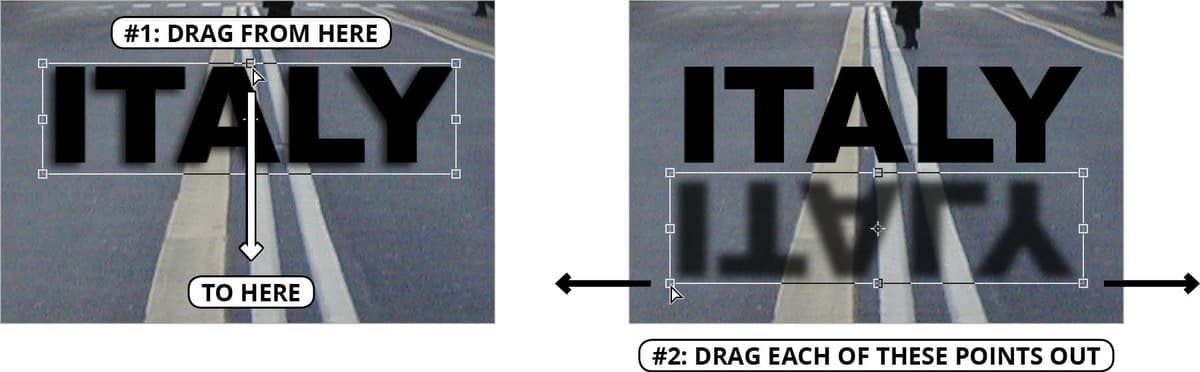
  3. Distort the shadow to follow the road's perspective, making it appear as though the text is casting a natural shadow onto the street surface. Use the reference image below as your guide, but pay attention to how the shadow narrows as it recedes into the distance—this follows basic perspective principles. Press Return (Mac) or Enter (Windows) to confirm your transformation when satisfied with the perspective match.

    italy drag

  4. Using the Move tool move tool, position the shadow so it just touches the bottom edge of the text. This connection point is critical—any gap will break the illusion of the text resting on the road surface.

  5. For final refinements to achieve professional results:

    • Return to Edit > Transform > Distort if the perspective needs additional adjustment. Professional work often requires multiple refinement passes.
    • In the Layers panel, fine-tune the shadow's Fill (Opacity) to match the lighting conditions of the original photograph. Typically, 60-80% opacity creates realistic shadow density. Ciao!
Layer Style Conversion Notice

When converting layer styles to separate layers, Photoshop warns about reproduction limitations. For drop shadows, this doesn't affect the final result - the conversion works perfectly for this technique.

3D Transform Process

1

Separate Shadow Layer

Use Layer > Layer Style > Create Layer to break the shadow into an independent layer that can be transformed without affecting the original text.

2

Apply Distort Transform

Access Edit > Transform > Distort to manipulate shadow corner points individually, creating realistic perspective that matches the scene's vanishing point.

3

Fine-tune Position

Use the Move tool to position the shadow precisely against the text edge, ensuring seamless connection between text and shadow.

4

Adjust Opacity

Modify the Fill opacity to achieve realistic shadow intensity that matches the lighting conditions in your design.

This Technique vs Alternatives

Pros
Uses only built-in Photoshop tools
Non-destructive workflow with layer styles
Easy to adjust and refine results
Works with any text or font
Creates realistic perspective effects
Cons
Requires manual distortion adjustment
Layer separation warning can be confusing
Multiple steps needed for complex shadows

Key Takeaways

13D text effects are created by combining traditional drop shadows with perspective transformation techniques
2Arial Black at 100pt with optical kerning provides optimal readability and professional appearance for shadow effects
3Layer style separation allows independent manipulation of shadows while preserving original text formatting
4The distort transformation tool enables realistic 3D perspective by manipulating individual corner points
5Proper shadow positioning requires touching the text edge and adjusting opacity to match scene lighting
6Converting layer styles to separate layers enables advanced manipulation without affecting base text
7Black text on light backgrounds creates maximum contrast for dramatic 3D shadow effects
8Fine-tuning through multiple transform sessions and opacity adjustments perfects the final result

RELATED ARTICLES