March 23, 2026Dan Rodney/5 min read

Sharpening Photos: Free Photoshop Tutorial

Master Professional Photo Sharpening Techniques in Photoshop

Tutorial Components

Smart Sharpen Filter

Learn the most advanced sharpening tool in Photoshop with precise control over amount, radius, and noise reduction.

Print Resolution Techniques

Discover specialized settings for high-resolution photos intended for print output with optimal sharpening parameters.

Topics Covered in This Photoshop Tutorial:

The Smart Sharpen Filter, Sharpening Hi-res Photos for Print

Exercise Preview

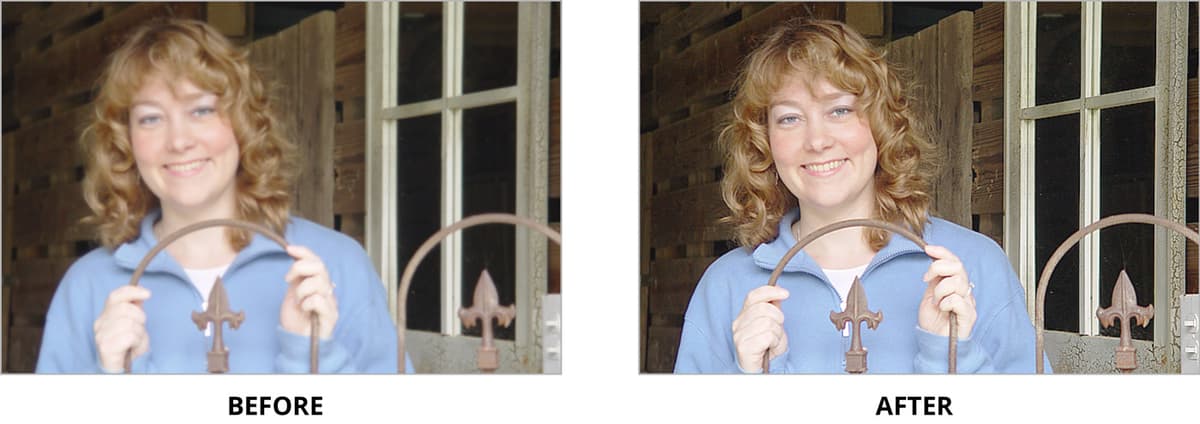
heather before&after

Photos by Dan Rodney

Exercise Files Required

This tutorial uses specific practice files including Heather landscape.jpg, Heather portrait.jpg, and do not feed the animals.jpg from the Photoshop Class folder.

Exercise Overview

The photo shown above suffers from a common photography challenge: slight focus issues that compromise image quality. While Photoshop cannot resurrect severely blurred images, its sophisticated sharpening tools can dramatically improve photos with minor focus problems. This exercise demonstrates how to strategically apply the Smart Sharpen filter to enhance image clarity while avoiding the telltale artifacts that mark amateur post-processing work.

Sharpening Limitations

While Photoshop can improve slightly out of focus images, it cannot fix severely blurred or badly focused photographs. The tool works best for subtle enhancements.

The Smart Sharpen Filter

The Smart Sharpen filter represents one of Photoshop's most sophisticated sharpening algorithms, offering superior control over traditional Unsharp Mask techniques. Let's begin with a practical application to understand its capabilities.

  1. In Photoshop, go to File > Open.
  2. From the Photoshop Class folder, open Heather landscape.jpg.
  3. Go to View > 100% to see the most accurate view of the image. This viewing percentage is critical for proper sharpening evaluation—zoom levels above or below 100% can misrepresent the actual sharpening effect.

  4. Go to Filter > Sharpen > Smart Sharpen.

  5. Position the dialog window so you can see as much of the photo in the background as possible. Professional tip: Always evaluate sharpening on the actual image rather than relying solely on the preview box, which shows only a small portion of your image and may not reveal problematic artifacts.

  6. Enter the following settings but do NOT click OK yet—we'll analyze the results first:

    Amount: 400%
    Radius: 3 px
    Reduce Noise: 10%
    Remove: Lens Blur (this algorithm produces finer, more natural-looking sharpening compared to Motion Blur or Gaussian Blur options)
  7. Toggle the Preview checkbox several times to assess the sharpening effect. Notice how the image details become more defined, particularly in areas like hair texture and fabric. However, observe that the original focus issue—where the camera locked onto the background rather than the subject—limits how much improvement is possible through post-processing alone.

  8. Click OK to apply the filter.
  9. Close the file without saving changes when prompted.

Now let's examine how the same technique performs on a properly focused image that simply needs enhancement:

  1. Go to File > Open.
  2. From the Photoshop Class folder, open Heather portrait.jpg.

  3. Set your view to View > 100% for accurate evaluation.

    This portrait demonstrates proper camera focus but lacks the crisp clarity that elevates professional imagery. This scenario represents the ideal candidate for Smart Sharpen enhancement.

  4. Navigate to Filter > Sharpen > Smart Sharpen.

  5. Reposition the dialog window for optimal image viewing during the preview process.

  6. Apply these initial settings without clicking OK:

    Amount: 400%
    Radius: 3 px
    Reduce Noise: 10%
    Remove: Lens Blur
  7. Toggle Preview on and off repeatedly, focusing your attention on high-contrast edges such as the teeth, eyes, and hair strands. You'll likely notice unwanted light and dark halos around these elements—a classic sign of over-sharpening that immediately identifies amateur post-processing work.

  8. Reduce the Radius setting to 2 px.

  9. Preview the adjustment again. The smaller radius should significantly reduce the haloing artifacts while maintaining the sharpening benefits.

  10. Fine-tune both Amount and Radius values to achieve optimal results. For this particular image, professional settings typically fall around 300% amount and 1.5 px radius. Remember: subtle enhancement often produces more convincing results than dramatic adjustments.

  11. Once satisfied with your settings, click OK, then save your work with File > Save before closing the file.

Smart Sharpen Workflow

1

Set View to 100%

Always view images at 100% magnification for the most accurate preview of sharpening effects before applying filters.

2

Access Smart Sharpen

Navigate to Filter > Sharpen > Smart Sharpen and position the dialog to see the background image for real-time preview.

3

Configure Initial Settings

Start with Amount: 400%, Radius: 3px, Reduce Noise: 10%, and Remove: Lens Blur for fine, subtle sharpening.

4

Preview and Adjust

Toggle Preview on/off multiple times to evaluate the effect, watching for unnatural halos that indicate over-sharpening.

Recommended Settings by Image Type

FeatureOut of Focus ImagesIn Focus Images
Amount400%300%
Radius3px1.5px
Reduce Noise10%10%
Remove SettingLens BlurLens Blur
Recommended: Lower radius values prevent unnatural halos while maintaining sharpening effectiveness.
Halo Detection

Watch for light and dark halos around elements like teeth or high-contrast edges. These unnatural artifacts indicate excessive sharpening that needs adjustment.

Sharpening Hi-Res Photos for Print

Print production requires different sharpening considerations than screen display. High-resolution images destined for physical printing can—and should—accommodate more aggressive sharpening because the printing process inherently softens detail. Additionally, viewing distance affects perceived sharpness: images viewed at arm's length (like prints) can handle stronger sharpening than those viewed at typical screen distance.

  1. Open do not feed the animals.jpg from your class folder.

  2. Immediately create a working copy by choosing File > Save As and saving it as a Photoshop document named yourname-do not feed the animals.psd. This preserves your original file while creating an editable working version.

  3. Set your view to View > 100% to ensure accurate sharpening assessment.

  4. Access Filter > Sharpen > Smart Sharpen.

  5. Position the dialog for optimal background image visibility during preview.

  6. Configure these print-optimized settings before previewing:

    Amount: 400%
    Radius: 2 px
    Reduce Noise: 10%
    Remove: Lens Blur
  7. Use the Preview toggle to evaluate the sharpening effect. Notice how surface textures become more pronounced and defined—this enhanced detail compensation accounts for the softening that occurs during the printing process. The apparently aggressive on-screen sharpening will appear natural and crisp in the final printed piece.

  8. Apply the filter with OK, then save and close your file to preserve the print-ready enhancement.

Mastering these Smart Sharpen techniques provides the foundation for professional image enhancement across both digital and print media. The key lies in understanding your output destination and adjusting your approach accordingly—restrained sharpening for screen viewing, more aggressive settings for print production.

Print vs Screen Sharpening Settings

FeatureScreen DisplayPrint Output
Typical Radius1.5px2px
Sharpening IntensityConservativeSlightly Heavy
ReasonPrevent artifactsCompensate for print loss
Recommended: Higher radius values work better for print because some sharpening is lost during the printing process.
Print Sharpening Advantage

Print workflows can handle slightly heavier sharpening because texture enhancement becomes more apparent in physical prints, and some sharpening effect is naturally lost during printing.

High-Resolution Print Workflow

0/4

Key Takeaways

1The Smart Sharpen filter is the most advanced sharpening tool in Photoshop, offering precise control over amount, radius, and noise reduction parameters.
2Always view images at 100% magnification when applying sharpening filters to see the most accurate preview of the effects.
3Lens Blur removal setting typically produces finer and more subtle sharpening results compared to other removal options.
4Watch for unnatural light and dark halos around high-contrast elements as indicators of excessive sharpening that needs adjustment.
5Out-of-focus images can be improved but not completely fixed - sharpening works best on images that are already reasonably in focus.
6Print-destined images can handle slightly higher radius values and more aggressive sharpening since some effect is lost during printing.
7The recommended starting settings are 400% amount, 3px radius, and 10% noise reduction, then adjust based on the specific image.
8High-resolution photos for print benefit from around 2px radius settings to compensate for sharpening loss in the printing process.

RELATED ARTICLES