April 1, 2026Dan Rodney/3 min read

Fill Opacity & Effects

Master Photoshop Layer Effects and Transparency Controls

Key Learning Objectives

Layer Effects Mastery

Learn advanced techniques for applying and controlling layer effects in professional design work. Master the tools used by industry professionals.

Fill vs Opacity Understanding

Discover the crucial differences between fill and opacity settings. This fundamental concept separates beginners from advanced users.

Dynamic Visual Results

Create sophisticated transparency effects that maintain effect visibility while adjusting layer content transparency for professional results.

Topics Covered in This Photoshop Tutorial:

Advanced Layer Effects Techniques, Mastering the Critical Distinction Between Layer Opacity and Fill

Exercise Preview

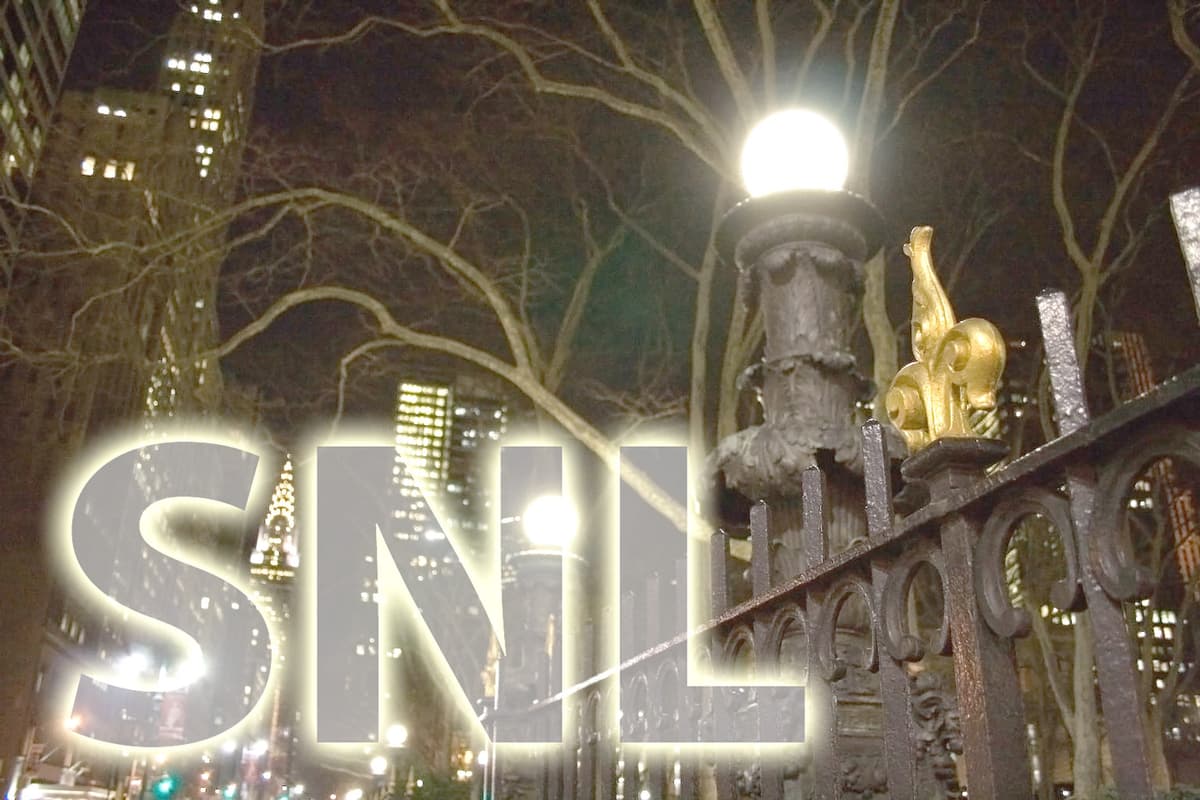
bryant park chrysler bldg done

Photo by Dan Rodney

Exercise Context

This tutorial uses a Saturday Night Live (SNL) graphic design project to demonstrate real-world application of layer transparency techniques in professional media design.

Exercise Overview

Understanding the nuanced difference between opacity and fill controls is what separates competent designers from true Photoshop professionals. This exercise demonstrates how manipulating a layer's content transparency independently from its effects can create sophisticated visual treatments that would be impossible through traditional opacity adjustments alone. We'll recreate a dynamic graphic treatment inspired by Saturday Night Live's iconic branding, using New York's skyline as our canvas.

The opacity of a layer's contents and effects can be controlled separately to create dynamic results.
This fundamental principle allows designers to create sophisticated visual effects while maintaining precise control over different layer elements.

Project Workflow Overview

1

File Setup

Open the NYC night scene background image and prepare the workspace for text overlay design work.

2

Typography Creation

Create and position the SNL text using specific font settings and strategic placement relative to the Chrysler Building.

3

Effect Application

Apply outer glow effects and manipulate fill opacity to achieve the desired transparency balance.

Setting up the Type Layer

Begin by establishing your foundational text element with proper formatting and strategic positioning:

  1. From the Photoshop Class folder, open the file nyc at night.jpg.
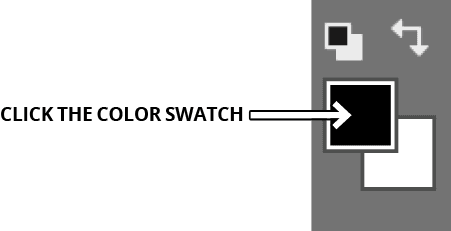
  2. At the bottom of the Tools panel, click on the Foreground color swatch to access the color picker.

    foreground color swatch

  3. In the color picker dialog, select white (#FFFFFF) and click OK. White provides maximum contrast against the dark cityscape while ensuring our subsequent transparency effects will be clearly visible.

  4. Select the Horizontal Type tool type tool from the Tools panel.

  5. In the Options bar, configure your text formatting to Myriad Pro Bold at 135 pt. This size provides substantial presence without overwhelming the architectural elements we'll be incorporating.

  6. Click in the center of the image to create your text insertion point.

  7. Type: SNL

  8. Switch to the Move tool move tool to begin positioning your text.

  9. Carefully position the text in the lower-left corner, ensuring the iconic Chrysler Building appears to emerge between the S and N letters. This creates visual integration between the typography and the cityscape, a hallmark of professional design composition.

Type Layer Setup Requirements

0/4
Professional Typography Tip

The 135pt font size for Myriad Pro Bold is specifically chosen to create visual impact while maintaining readability in broadcast media applications like Saturday Night Live graphics.

Adding Effects & Adjusting Layer Fill

Now we'll apply layer effects and explore the powerful distinction between fill and opacity controls:

  1. In the Layers panel, click the Add a layer style button adjustment layer fx and select Outer Glow from the dropdown menu.

  2. Configure the Outer Glow with these precise settings to create a subtle atmospheric halo:

    Spread: 6%
    Size: 50 px
  3. Click OK to apply the effect.

  4. Here's where the magic happens: In the Layers panel's upper-right area, locate the Fill percentage control and reduce it to 15%. Notice how this creates a dramatically different result than reducing opacity would.

    TIP: When you hover over the word Fill, your cursor transforms into a hand slider hand slider. Click and drag horizontally to make real-time adjustments—this interactive approach lets you find the perfect balance intuitively.

  5. Observe the crucial difference: the white text becomes nearly transparent, allowing the background to show through, while the outer glow effect maintains its full intensity and visibility. This selective transparency control is impossible to achieve with opacity alone. When you've found a setting that creates the desired atmospheric effect, save your work via File > Save As and create a Photoshop document named yourname-nyc at night.psd

Outer Glow Settings

6%
Spread Percentage
50px
Size in Pixels
15%
Recommended Starting Fill
Hand Slider Technique

When your mouse hovers over the word Fill in the Layers panel, it transforms into a hand slider. Click and drag left or right to quickly adjust values without typing numbers.

Key Observation

Notice how the white text fill becomes partially transparent while the outer glow effect remains at full intensity. This selective transparency control is the core concept of this lesson.

Fill Vs. Opacity: A Professional's Guide

Mastering this distinction is essential for advanced Photoshop work. Here's how these controls differ in practice:

Opacity: Affects transparency of layer contents AND all applied effects uniformly
Fill: Affects transparency of layer contents only, leaving effects at full strength

This granular control enables sophisticated design techniques like ghost text with visible effects, transparent shapes with solid borders, and complex layering scenarios that would otherwise require multiple layers and complex masking.

Fill vs Opacity Behavior

FeatureFillOpacity
Layer ContentsAffects TransparencyAffects Transparency
Layer EffectsNo EffectAffects Transparency
Use CasePreserve Effect IntensityFade Everything Uniformly
Recommended: Use Fill when you want to maintain effect visibility while reducing layer content opacity. Use Opacity when you want to fade the entire layer uniformly.

When to Use Each Setting

Fill Control

Perfect for creating ghost text effects, watermarks, or maintaining glow effects while reducing text visibility. Essential for sophisticated transparency work.

Opacity Control

Ideal for uniform fading of entire layers including all effects. Best for simple transparency adjustments and layer blending operations.

Key Takeaways

1Fill opacity affects only layer contents while preserving the full intensity of applied layer effects like outer glow, drop shadow, and stroke
2Opacity controls affect both layer contents and all applied effects uniformly, creating a different visual result than fill adjustments
3The hand slider technique allows rapid value adjustments by hovering over parameter names and dragging horizontally in the interface
4Professional typography in media graphics requires specific font choices like Myriad Pro Bold at larger point sizes for broadcast readability
5Strategic text positioning relative to background elements like architecture creates visual integration and professional composition
6Outer glow effects with 6% spread and 50px size create appropriate contrast for text over photographic backgrounds
7Starting with 15% fill opacity provides a good baseline for experimenting with transparency effects while maintaining effect visibility
8Understanding the distinction between fill and opacity is fundamental for advanced layer effect control in professional design work

RELATED ARTICLES