April 1, 2026Dan Rodney/6 min read

Saving Photos for the Web as JPEG

Master JPEG optimization for faster loading websites

Why JPEG Optimization Matters

SEO Impact

Google considers page speed when ranking webpages. Optimized images directly improve your search rankings.

User Experience

Faster loading images mean better user experience and reduced bounce rates on your website.

Bandwidth Efficiency

Smaller file sizes reduce bandwidth costs and improve performance on mobile devices with limited data.

Topics Covered in This Photoshop Tutorial:

Resizing Images for the Web, Reducing Image Size with Resampling, Setting JPEG Quality

Exercise Preview

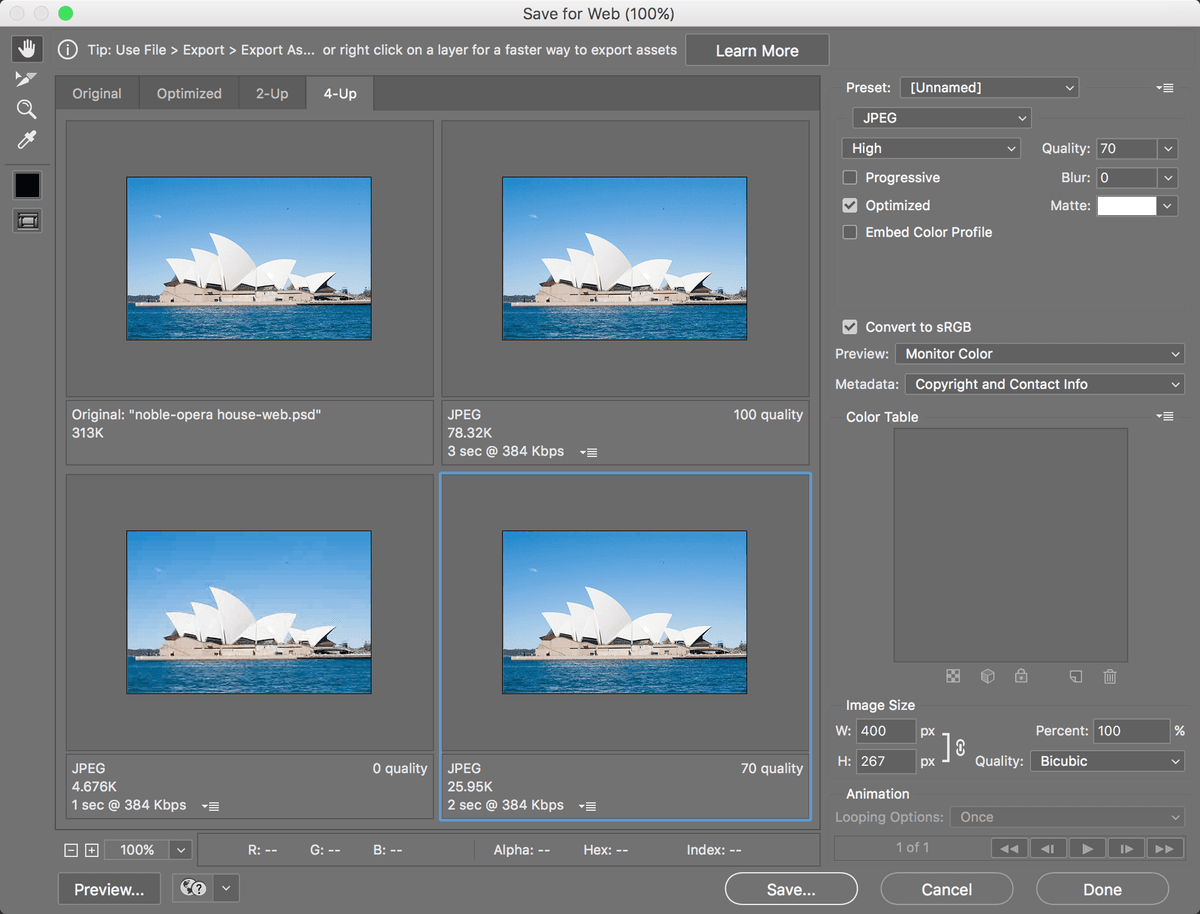
save for web dialog jpeg

Photo by Dan Rodney

Exercise Overview

In today's multi-platform digital landscape, the same visual content must perform across print and web environments—each with dramatically different optimization requirements. Web images operate in the RGB color space, and their display quality depends entirely on pixel dimensions (width and height), not the PPI resolution setting within Photoshop. More critically, file size optimization has become a make-or-break factor for web performance. Google's Core Web Vitals now heavily weight page load speeds in search rankings, while users abandon sites that don't load within three seconds. Mastering efficient image compression isn't just a technical skill—it's essential for digital success in 2026.

This exercise will teach you the professional workflow for converting high-resolution images into web-optimized assets without sacrificing visual quality, using techniques that balance compression efficiency with user experience standards.

Print vs Web Image Requirements

FeaturePrint ImagesWeb Images
Color ModeCMYKRGB
Resolution PriorityPPI (300+)Pixel Dimensions
File Size PriorityQuality FirstBalance Quality/Size
Typical FormatTIFF/PSDJPEG/PNG
Recommended: Always convert print images to RGB and resize for web use

Resizing an Image for the Web

  1. From the Photoshop Class folder, open the file opera house.jpg.
  2. Choose View > 100% to see the image at its actual pixel dimensions.
  3. Before converting this image for web use, establish a professional backup workflow. Go to File > Save As to preserve your original asset.
  4. Next to Format (Mac) or Save as type (Windows), choose Photoshop to maintain all layer data and editing flexibility.
  5. Name it yourname-opera house-web.psd and click Save. This creates your working file while keeping the original intact.
  6. Navigate to Image > Image Size to access Photoshop's resampling controls.
  7. At the bottom of the dialog, ensure Resample is checked. This setting is crucial for web optimization.

    Proper Web Image Preparation Workflow

    1

    Create Working Copy

    Save as PSD format to preserve original and maintain editing flexibility for future changes

    2

    Access Image Size Dialog

    Navigate to Image > Image Size to control pixel dimensions and resampling options

    3

    Configure Resampling

    Enable Resample checkbox to allow pixel dimension changes and ensure Constrain Aspect Ratio is active

    4

    Set Target Dimensions

    Change units to pixels and set width to your target size - height adjusts automatically

    Dimension Planning

    The specific pixel dimensions you need depend on your intended use - social media platforms, corporate websites, and email newsletters all have different optimal sizes.

Understanding Resampling

Resampling is the process of adding, removing, or recalculating pixel data to change an image's file size and dimensions.

When Resample is enabled, Photoshop physically changes the number of pixels in your image. Downsizing removes pixel data (creating smaller files), while upsizing interpolates new pixels (which can reduce sharpness). For web optimization, downsizing with resampling is essential for reducing file sizes.

When disabled, you're only adjusting the relationship between pixel dimensions and print resolution—useful for print workflows but not for web optimization where pixel count determines file size.

  • Verify that Constrain Aspect Ratio link icon is active (the chain link should appear solid). This prevents distortion by maintaining the image's original proportions.
  • In the units dropdown to the right of Width, select Pixels. Web images are measured in pixels, not inches or centimeters.
  • Set the Width to 600 pixels. The height will automatically adjust to preserve the image's aspect ratio.

    NOTE: Your target dimensions should align with your specific use case. Social media platforms, corporate websites, e-commerce sites, and email newsletters each have different optimal sizing requirements. Research current platform specifications, as these requirements evolve regularly.

  • Click OK to apply the resize.

    The image now displays at web-appropriate dimensions, dramatically reducing its pixel count and preparing it for efficient web compression.

  • With your image properly sized, the next critical step is optimizing the file format and compression settings to achieve the smallest possible file size while maintaining professional visual quality.

    Resampling: On vs Off

    FeatureResample CheckedResample Unchecked
    Pixel CountChangesUnchanged
    Image QualityMay degradePreserved
    File DimensionsActually resizePrint size only
    Best ForWeb resizingPrint conversion
    Recommended: Use Resample ON for web preparation to actually change pixel dimensions

    Setting JPEG Quality in the Save for Web Dialog

    1. Navigate to File > Export > Save for Web (Legacy).

      NOTE: While Adobe labels this as Legacy and has introduced newer export options like File > Export > Export As, Save for Web remains the gold standard for precise compression control. The newer methods still lack some advanced features, and Adobe maintains Save for Web specifically for professional workflows that demand granular optimization control.

    2. The Save for Web dialog opens, providing real-time compression previews. Click the 4-Up tab at the top to compare multiple compression settings simultaneously.

    3. You'll see four panels: the original uncompressed image (upper left) and three compression previews. Click on the upper right preview to begin optimizing.

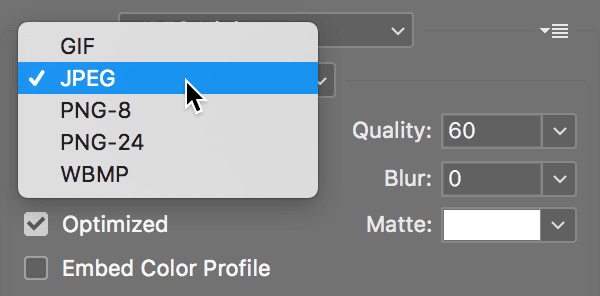
    4. In the settings panel on the right, locate the format dropdown below Preset and choose JPEG.

      save web jpeg

      NOTE: JPEG excels at compressing photographic images with gradual tonal transitions and complex color information. It uses lossy compression, trading some image data for significantly smaller file sizes. However, each time you save a JPEG, quality degrades slightly—always work from your original PSD file when making adjustments.

    5. In the Quality field on the right, enter 100 to see maximum quality.

      Observe the file size displayed beneath each preview. While Quality 100 produces excellent visual results, the file size may be unnecessarily large for web delivery. Professional optimization means finding the sweet spot between quality and performance.

    6. Click the lower left preview panel. Set its format to JPEG and quality to 0 to see maximum compression.

      This extreme compression produces visible artifacts and posterization—acceptable only for thumbnails or situations where file size is the absolute priority over image quality.

    7. Select the lower right preview. Choose JPEG format and set quality to 70.

      Quality 70 typically represents the professional standard for web images—minimal visible artifacts while achieving substantial file size reduction. This setting works well for most commercial applications, balancing user experience with loading performance.

    8. The selected preview (indicated by a thicker border around the lower right panel) shows your chosen settings. Click Save to export with these optimizations.

    9. Name the file yourname-opera-house-web.jpg, following web-safe naming conventions.

      NOTE: Web-safe filenames never contain spaces, special characters, or capital letters. Spaces break URLs and cause server errors. Use hyphens or underscores as separators. Photoshop automatically converts spaces to hyphens, but developing good naming habits prevents issues across all platforms.

    10. Navigate to your Photoshop Class folder and click Save, ensuring the format is set to Images Only.

    11. Return to your original PSD file and choose File > Save. This preserves your Save for Web settings within the PSD file.

      Photoshop remembers your export settings for each file, streamlining future optimizations and ensuring consistency across your web assets. This is particularly valuable when working with image series or maintaining brand standards across multiple platforms.

    12. Close the file to complete the exercise.

    You've now mastered the essential workflow for professional web image optimization—a skill that directly impacts user experience, search engine rankings, and ultimately, digital business success. These techniques form the foundation for all web-based visual content creation.

    Legacy Feature Notice

    Save for Web is marked as Legacy because Adobe won't update it for new features like artboards. However, Adobe maintains it until new export methods can fully replace its functionality.

    JPEG Quality vs File Size Impact

    Quality 100
    100
    Quality 70
    45
    Quality 0
    5

    4-Up Preview Optimization Process

    1

    Access 4-Up View

    Click 4-Up tab to compare original with three different compression settings simultaneously

    2

    Test High Quality

    Set upper right to JPEG Quality 100 - minimal distortion but large file size

    3

    Test Low Quality

    Set lower left to JPEG Quality 0 - smallest file but too much distortion for most uses

    4

    Find Sweet Spot

    Set lower right to Quality 70 - good balance between file size and visual quality

    JPEG Format for Web Images

    Pros
    Excellent for photographs and complex images
    Maintains good quality at small file sizes
    Universal browser and device support
    Adjustable compression levels
    Cons
    Lossy compression degrades image with each save
    Not ideal for images with text or sharp lines
    No transparency support
    Quality loss accumulates with multiple edits

    Final Export Checklist

    0/4
    Settings Memory

    Photoshop remembers your Save for Web settings for each specific file, making future adjustments quick and consistent.

    Key Takeaways

    1Google considers page speed in rankings, making optimized images crucial for SEO performance and search visibility
    2Web images require RGB color mode and pixel dimensions matter more than PPI resolution settings
    3Always save a PSD copy before web optimization to preserve original quality and editing flexibility
    4Resampling with the checkbox enabled actually changes pixel count, while unchecked only affects print dimensions
    5The 4-Up preview in Save for Web allows direct comparison of different compression levels side by side
    6JPEG Quality 70 typically provides the optimal balance between file size and visual quality for most web uses
    7Never use spaces in web image filenames as they cause browser compatibility issues
    8Photoshop saves your export settings with each file, enabling consistent results in future edits

    RELATED ARTICLES