Using Photoshop's Refine Edge to Create a Hair Selection
What This Tutorial Covers
Select & Mask
Modern replacement for the legacy Refine Edge dialog.
Smart Radius
Automatically detect mixed soft/hard edges.
Output Options
Send refined selections to a new layer or mask.
Noble Desktop's Graphic Design Certificate covers Photoshop alongside Illustrator and InDesign — the complete Adobe toolkit.
In this exercise, you'll learn how to silhouette hair in a quick and easy way. The image we'll start with has a lot of contrast between the hair and the background, so it's a good candidate for learning how to use the Refine Edge selection method.
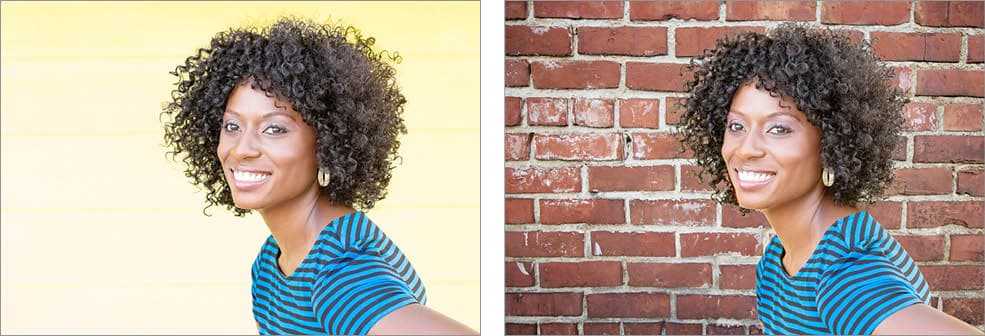
Photo courtesy of istockphoto, LL28, Image #23058113
NOTE: Photoshop CC 2015.5 replaced the Refine Edge feature with an "upgraded" version called Select and Mask. The new version doesn't add features we need for this technique, and removed a useful feature we want to use. Luckily there's a hidden trick that lets us still use Refine Edge in CC 2015.5 or 2017.
Creating the Selection
Because the hair and background have high contrast (dark hair and light background), Photoshop's Refine Edge will likely work pretty well. As we mentioned earlier, Refine Edge has been replaced by Select and Mask. While we could use Select and Mask, it isn't quite as nice as Refine Edge for this type of work. We'll show you a hidden trick to access Refine Edge in CC 2015.5 or 2017!
First, we must create a rough selection, and then Refine Edge will help fix it. This initial selection will not be perfect, and that's fine. Refine Edge does what it says; it refines the edge of a selection (so you don't have to work as hard).
1. Choose the Quick Selection tool. If you don't see it, click and hold the Magic Wand tool, then select it.
2. This tool works like a brush that paints a selection. Each drag will select more (adding to the selection). Dragging over part of an image will select it. Then dragging over another part will add to the selection without you having to hold any keys. Drag over the woman to select her body, face, and most of her hair. Do not worry about being perfect around the edge of the hair. You won't be able to get all the hair or exclude all the background; that will be fixed in a moment.
Be sure not to miss any parts of her shirt, especially around the edges. Small portions of stripes may be left unselected. Go back and drag over any missing spots!
Tips for using the Quick Selection tool:
- To subtract from a selection, hold Option (Mac) or ALT (Windows) while dragging (the cursor in the center of the circle will change to a minus).
- If you accidentally select something you don't want, you can undo your mistake by hitting Cmd–Z (Mac) or CTRL–Z (Windows).
3. To access the older Refine Edge, hold Shift and choose Select > Select and Mask. (If you're using an older version of Photoshop and see Refine Edge in the Select menu, you do not have to hold Shift.)
4. It's a good idea to work on a copy of the original, so at the bottom of the window go into the Output To menu and choose New Layer with Layer Mask. (Do NOT click OK until we tell you! We're going to do quite a bit with this dialog open.)
5. At the top of the dialog, click on the thumbnail to the right of View.
6. In the menu that appears double–click on the On White (W) option to choose it. (As we work it will be easier to see the hair on white than on a more complex background like the bricks in our file.)
Some features of Refine Edge are not very intuitive to figure out on your own, but it's easy to use once you know how. We'll tweak the settings in the dialog later. The first thing we need to do is tell Photoshop the transition area (radius) between the hair and background, so it can analyze it and refine it. It will essentially make the hair selection for us.
7. In the Options bar at the top of the screen, set the Brush Size to about 125.
8. If the Refine Edge dialog is blocking the image, move it to the side so you can see the entire selection. It must stay open as we work.
9. The current view shows us the current selection. Here we can't even see the parts of the hair that didn't get selected. Press X on your keyboard to disable this view.
10. You should now see the entire original photo. Paint over the edges of the hair. As you drag you'll see a green highlight. You want that green highlight to cover some of the background and some of the hair. This green area will define where Photoshop looks to figure out what should be selected (the hair) and what shouldn't be (the background). When you stop brushing, the green highlight will go away and you won't see anything change. Press X to switch back to the selection preview. That is where you can see what happened (on the white preview background).
11. To continue working, press X again (so you see the original photo with its yellow background) and paint more green highlight over the hair edges. Continue going back and forth between edge highlighting and the selection preview (press X to switch back and forth) until you've highlighted all the hair edges. We will still be able to improve the quality by tweaking the settings, but first we want to make sure the edge highlighting is done before looking at those settings. Things to keep in mind:
- Be sure to paint edge highlights over the yellow parts inside her hair to help eliminate them. Some of them are farther inside, not just at the edge.
- Don't miss the hair around the chin.
- In the Refine Edge dialog you may want to check on Show Radius so you can see all the areas you have painted. Make sure this covers the entire hair edge and that you didn't miss any parts. Then uncheck Show Radius before proceeding.
12. In the Refine Edge dialog try adjusting the Radius. As you increase it, give Photoshop a moment to process the results. You probably won't see a change in the hair because you defined that radius with the brush, but watch the shirt and arms because you did not brush there.
Larger values mean Photoshop will look for edges to refine within a larger area away from the selection. Smaller values keep Refine Edge's changes more localized and closer to the original selection.
Be careful of setting this too high because Photoshop will start going too far away from real selection edges and start making mistakes by thinking about edges it shouldn't. It's better to keep this fairly small and paint around edges that are larger (like we did for the hair).
13. Set the Radius to 3px, which we think works well for this image.
14. Check on Smart Radius, which in this image should ever so slightly improve the edge detection.
15. Let's try a different preview to see the quality of our selection. At the top of the Refine Edge dialog, click on the thumbnail to the right of View.
16. In the menu that appears, double–click on the On Layers (L) option to choose it.
17. Let's see this at 100% zoom so we can truly judge the quality. Go into the View menu (at the top of the screen) and choose 100% (or Actual Pixels).
18. If you can't see the hair, hold the Spacebar and drag on the image to scroll to it.
19. The edge can clearly use some improvement. There's way too much yellow. Start by increasing the Contrast to 15%. This should sharpen up the selection and eliminate some yellow. (NOTE: Specific amounts will vary across photos, so we'll recommend amounts we think work for this photo.)
20. To pull the selection in (and remove more yellow) set Shift Edge to –25%.
21. The edge could use a little softening, so set Feather to 1px.
22. You should now have the following settings:
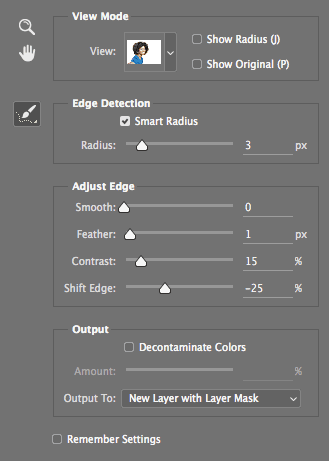
23. This is as good as we're going to get with Refine Edge. We'll fix the remaining issues a different way. Click OK.
NOTE: You may be wondering why we're not using the Decontaminate Colors option. While this may work on some images, we found that it doesn't on this image. We'll show you another technique that offers more control (and can work when this option doesn't).
24. In the Layers panel you should now have a new layer named original copy. Double–click the name and rename it silo.
Filling in Missing Spots in the Layer Mask
1. Let's take a closer look at our mask. In the Layers panel, hold down Option (Mac) or ALT (Windows) and click on the silo's black and white layer mask thumbnail.
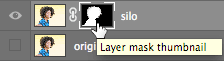
2. In the document window you should now see a full-sized black-and-white version of the mask, which lets us see the mask details more clearly. If your mask has any black or gray spots in the middle of the face or the interior of the hair, the following steps will explain how to fill in those gaps. Depending on how you made the selection, the mask may not need to be modified.
- Select the Brush tool.
- Press D to set the Foreground color to White. (When you're working with masks, white areas reveal the layer and black areas hide it.)
- Adjust the brush size and hardness as necessary. TIP: Press the right bracket ] key to increase brush size. Press the left bracket [ to decrease size. To adjust softness, hold Shift while pressing the left or right bracket keys.
- Paint over any black spots that you think shouldn't be there.
3. Once you're done, click on the silo layer's thumbnail (not the mask thumbnail) to view the regular image again.
Final Refinement of the Hair Mask
If you look closely, there's still a light halo around the hair. Let's sharpen the edges of the hair a little more by using Curves on the layer mask.
1. Click on the silo layer's mask thumbnail.
2. Hit Cmd–M (Mac) or CTRL–M (Windows) to apply a Curves adjustment (this is the keystroke for Image > Adjustments > Curves).
3. Darkening up the mask will hide more of the photo. Adjust the black point and darken the mask with a curve adjustment as shown below:
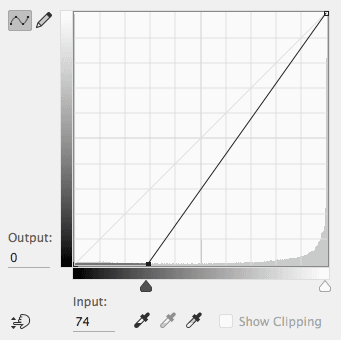
4. Uncheck and re-check Preview to see the improvement. Notice that the gray halo is reduced around the edges of the hair.
5. Click OK.
6. Let's see how the silo layer looks on the beach. In the Layers panel, hide the Bricks layer by clicking the eye.
7. This is looking pretty good. Here are some other things you may want to do:
- Selectively remove unwanted flyaway hairs. (Select the silo layer mask and paint black over them.)
- Fade out the edges of the hair to make them partially transparent. This depends on the look you're going for, so it's optional. If you want, choose a large soft brush with a low opacity (around 10%). Choose black and paint around the edges of the hair, to make them appear more transparent. You could also use the Blur tool to soften the edges of the hair mask.
8. Lastly, we want her to face the other way, so go to Edit > Transform > Flip Horizontal.
9. Choose View > Fit on Screen to see the whole image. Nice!
Final Thought: Keep in mind that Refine Edge works better on some images than others. It's pretty quick and easy so it's good to know, but it's not always perfect. It may be good enough for a specific image and background, but may not be good enough to create a silo that works on any background. For example, this image is fine on these brick and beach backgrounds, but not good on a black background. There are many techniques to select hair because there are so many variables. You'll explore other techniques in the next two exercises.