Photoshop for Design: Creating Digital Art in Photoshop
What This Tutorial Covers
Brush System
Photoshop's deeply customizable brush engine.
Layers & Masks
Non-destructive painting with layered workflows.
Tablet Support
Pressure-sensitive input for natural drawing feel.
Noble Desktop's Graphic Design Certificate covers Photoshop alongside Illustrator and InDesign.
Learn how to draw vector shapes and create paint splatters with a custom brush in Photoshop, utilizing features like the Rectangle tool, Solid Color, Stroke thumbnail, and more in this comprehensive tutorial.
Exercise Preview
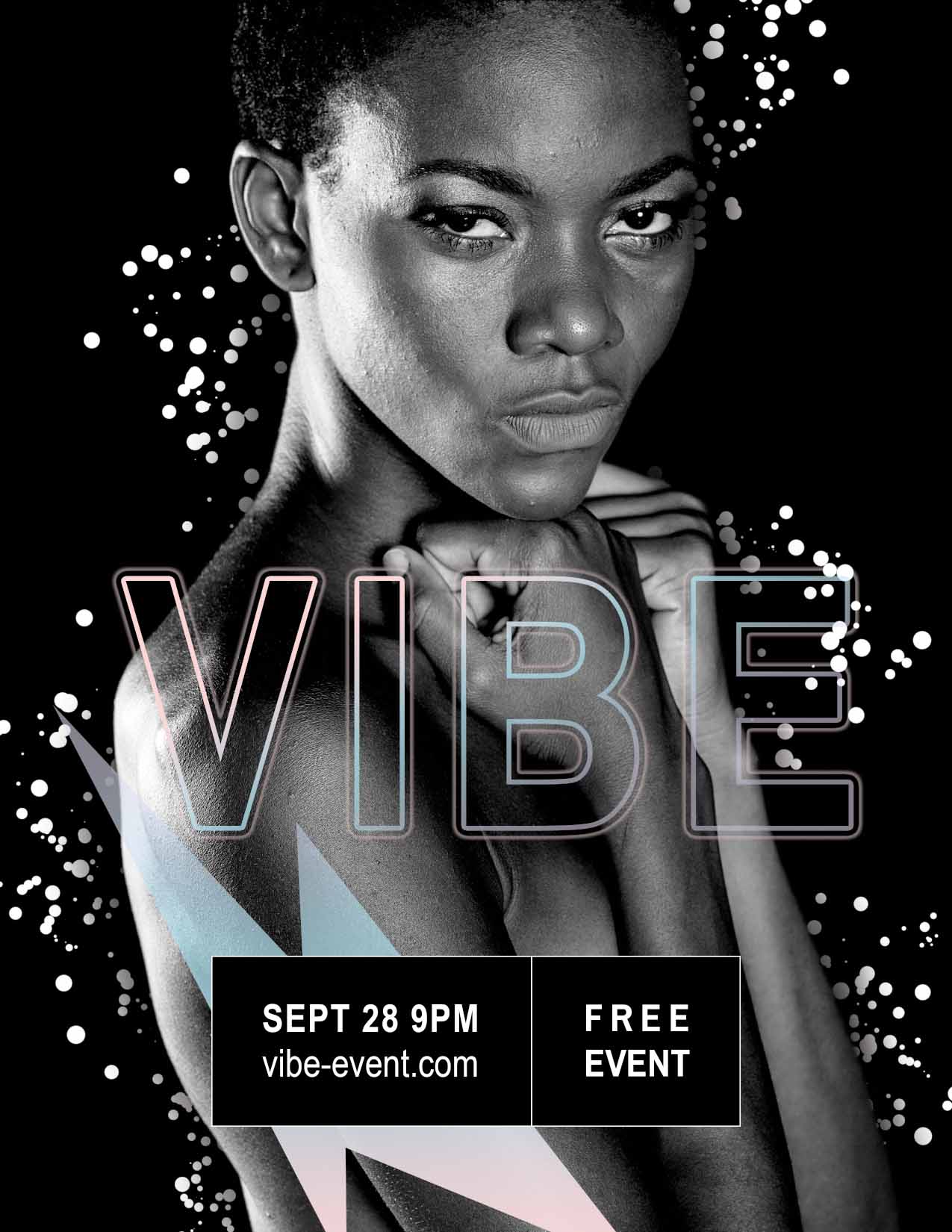
Using Standard Vector Shapes to Create a Background
- From the Photoshop Class folder, open the 6C Magazine ad.psd file.
Choose View > Fit on Screen (Cmd–0 (Mac) or CTRL–0 (Windows)).
This is the same design you created in the previous exercise, except we added some more text at the bottom to save you some time.
- Let’s add a rectangle behind the new type at the bottom so it stands out more.
- In the Tools panel choose the Rectangle tool
 . Do not confuse this with the Rectangular Marquee tool
  .
. - In the Options bar make sure the menu on the left says Shape (it may initially be Shape, Path, or Pixels).
In the Options bar click on the Fill thumbnail and:
- At the top of the panel that appears, choose Solid Color
 .
. - In the Grayscale folder, click on Black (last icon).
- At the top of the panel that appears, choose Solid Color
In the Options bar click on the Stroke thumbnail and:
- At the top of the panel, choose Solid Color .
- In the Grayscale folder, click on White (first icon).
- To the right of Stroke set the weight to 3 px
- At the top of the panel, choose Solid Color
Drag a box over the type as shown below:

- In the Layers panel drag the Rectangle 1 layer so it’s just above the VIBE layer.
- Rename Rectangle 1 to type bg
If you need to adjust the box size, choose Edit > Free Transform or hit Cmd–T (Mac) or CTRL–T (Windows).
Hold Shift (so it does not resize the entire box proportionally) and use the resize handles to adjust the size.
- Let’s center the box horizontally. Choose the Move tool
 .
. - In the Layers panel, select the type bg layer.
- Choose Select > All.
- In the Options bar, click the Align horizontal centers button
 .
. - Choose Select > Deselect.
Let’s make sure the type is vertically centered in the box. In the Layers panel:
- Select the top layer SEPT 28 9pm vibe-event.com
- Hold Shift and select the type bg layer.
- In the Options bar, click the Align vertical centers button
 .
. While we have our layers selected, let’s organize them by putting them in a group. Go into Layer > Group Layers or hit Cmd–G (Mac) or CTRL–G (Windows).
Rename the group to event info
Lastly, let’s add a divider line between the two pieces of text in this box.
In the Layers panel, expand the event info and select the type bg layer.
- In the Tools panel, click and hold on the Rectangle tool and choose the Line tool

If the rectangle currently has resize handles in the image (indicating it’s selected), hit Return (Mac) or Enter (Windows) to deselect it.
This is important because we want the line to be created on its own layer, not added to the rectangle layer.
Hold Shift (so it will draw a perfectly vertical line), and draw a line from the top to the bottom of the box as shown below:

- Rename Line 1 to divider line.
If you need to move the line, use the Move tool
to drag it, or with the Move tool selected use your keyboard’s arrow keys to nudge it slightly.If you need to change the height, use Edit > Free Transform and resize it with the transform handles that appear.
Creating a Custom Vector Shape with the Pen Tool
- In the Layers panel select the Model layer.
- In the Tools panel choose the Pen tool
 .
. - In the Options bar make sure the menu on the left says Shape (it may initially be Shape, Path, or Pixels).
In the Options bar, click on the Fill thumbnail.
- At the top of the panel that appears, click Gradient
 .
. - In the list of colors, scroll down and at the bottom click on the yourname-VIBE gradient you created in the last exercise. It should be at the bottom, outside of the folders.
- At the top of the panel that appears, click Gradient
In the Options bar, click on the Stroke thumbnail.
- At the top of the panel that appears, click on No Color
 .
.
- At the top of the panel that appears, click on No Color
Zoom out once by pressing Cmd–Minus(-) (Mac) or CTRL–Minus(-) (Windows).
We need to be able to see a bit of the empty area around the image because our shape will go outside the image.
In the image, click to create points that draw a shape shown below. To finish the shape, end by clicking again on your first point.
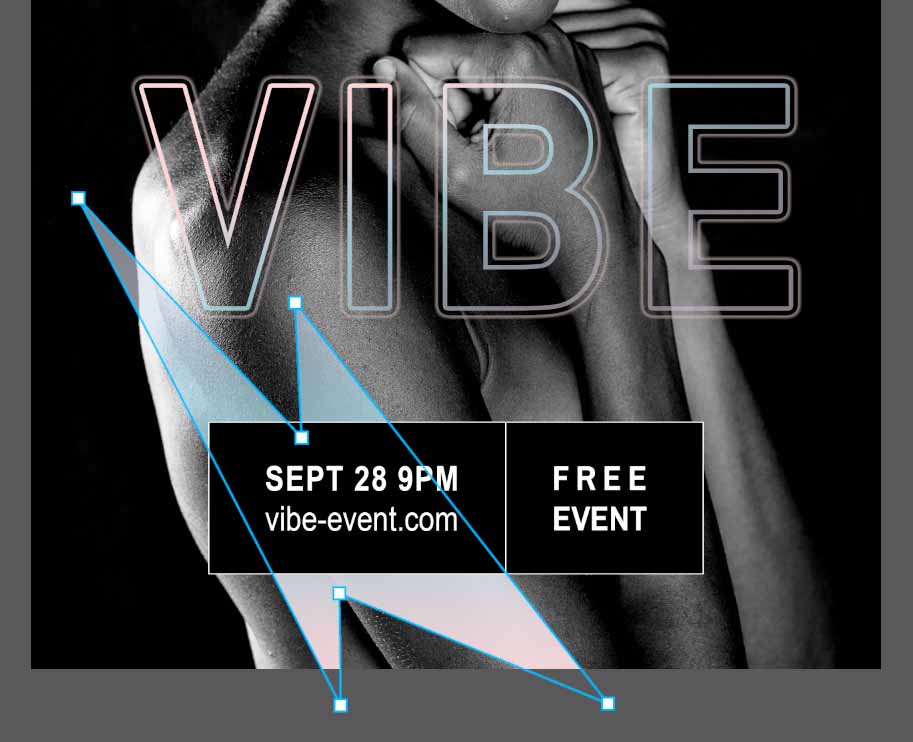
If you want to move the points after making the shape:
- In the Tools panel select the Direct Selection tool
 . You may have to click and hold on the Path Selection tool
  to find it.
 - Click on the outline of the path to show the editable points.
- Drag the points around to your liking.
- In the Tools panel select the Direct Selection tool
Save the file.
Masking the Model
We’re going to add paint splatters behind the model, so let’s create a mask for her.
- Choose View > Fit on Screen.
- In the Layers panel, select the Model layer.
- Choose Select > Select and Mask.
In the Options bar at the top of the window:
- To the right of Select Subject click the down arrow and choose Cloud (Detailed results).
- Click Select Subject button.
In the Properties panel the right:
- Next to View click the thumbnail and choose On White.
- Set Opacity to 40%
- Set Smooth to 5
- Set Feather to 4 px
In the Tools panel on the left, select the Brush tool
 .
.Some of her head at the top right is missing, so paint it back in. You don’t have to be flawless with this selection because it’s going to be on a mostly black background so you won’t notice the edges much.
At the bottom of the Properties panel expand the Output Settings and set:
- Output To: Layer Mask
Click OK (at the bottom right).
Creating & Using a Custom Splatter Brush
We want to add some paint splatters around the model to add an interesting flair.
- Choose View > Fit on Screen.
- We want to create a new layer behind the model. In the Layers panel, select the Background layer (so the new layer we’re about to create will be created above it).
At the bottom right of the Layers panel click the New layer button
 .
.This creates a new pixel-based layer that we can paint on.
- Rename the new layer to paint splatters.
- In the Tools panel, choose the Brush tool
 .
. Near the bottom of the Tools panel, above the foreground and background colors, click the small Default Colors icon
 to set the Foreground color to black and the Background color to white.
TIP: You can also hit D on your keyboard to do the same thing.
- Hit X to exchange the foreground/background colors, so you’ll paint with white.
In the Options bar at the top of the screen:
- Click on the Brush Preset picker and in the General Brushes select the 2nd brush which is named Hard Round.
- Set Size to 10 px
- Set Hardness to 100%
- Choose Window > Brush Settings.
In the Brush Settings panel that opens:
- On the left, click on the word Scattering (click on the word, not just the checkbox).
- On the right of the panel, drag the Scatter slider to the highest value ,000% and notice that how the preview below updates.
- Check on Both Axes.
On the left, click on Shape Dynamics (click on the words, not just the checkbox).
- On the right of the panel, drag the Size Jitter slider to the highest value 100% and notice that how the preview below updates.
On the left, click on Brush Tip Shape.
- On the right of the panel, drag the Spacing slider to the right and watch the preview to see how the spots get farther apart.
- Set the Spacing to 100%
To test out the brush, drag once in the black background (don’t paint on her, because the layer you’re painting on is behind her).
The dots are very small, so undo that (Edit > Undo).
To make the brush bigger, increase the size to 50 px (in either the Brush Settings panel or in the Option bar’s Brush Preset picker).
- Try painting again and you’ll see the spots are bigger. Perfect.
Do Edit > Undo to remove that test brush mark.
Saving a Brush Preset
Before we paint, let’s save this brush so we can use it again later. Choose Window > Brushes.
At the bottom right of the Brushes panel click the New brush icon
.- Name it Yourname Splatter
- Click OK.
Your new brush should now appear at the bottom, outside of any of the folders.
Close the Brushes panel (by clicking the panel name at the top of the panel) so nothing is covering the image.
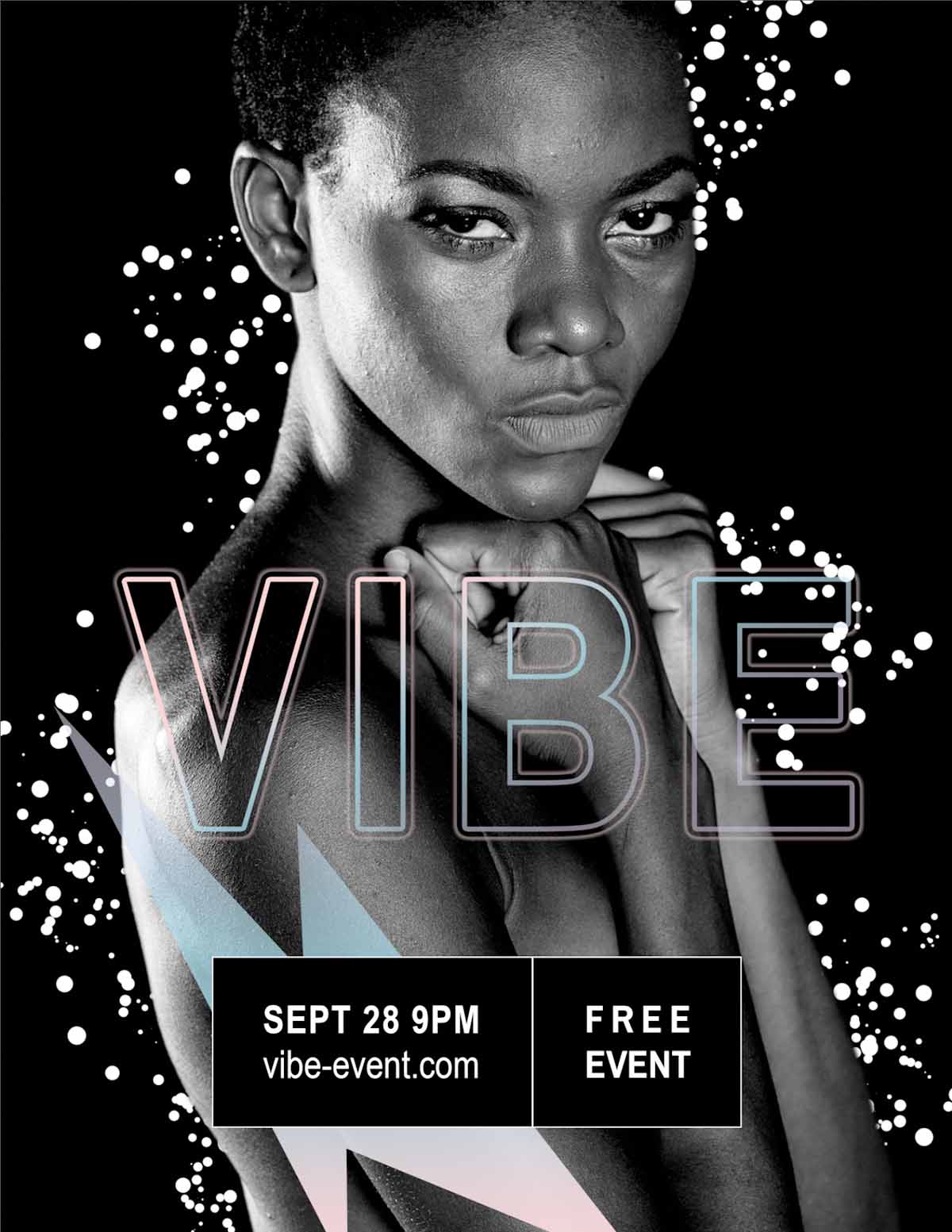
Now it’s time to paint! Drag over the background around the model (like shown below) and keep the following in mind:
- Splatters are random, so your result won’t look exactly like ours. Do what you think looks good.
- If you don’t like a mark you just made, undo it.
- Feel free to change your brush size with the
[or]keys to vary the splatter sizes.
Masking the Splatters to Add Depth
To make the splatters look farther back, there should be some shadows on them. While we could add a Drop Shadow to the model, that would be an even amount everywhere and we may want more control than that. We’ll add use a mask on the splatters. That way we can hide (or later reveal) them as needed.
- In the Layers panel select the paint splatters layer.
- At the bottom of the Layers panel click the Add a mask button
 .
. Near the bottom of the Tools panel, above the foreground and background colors, click the small Default Colors icon
 to set the Foreground color to white and the Background color to white.
TIP: You can also hit D on your keyboard to do the same thing.
- Hit X to exchange the foreground/background colors, so you’ll be painting with black (which will hide the splatters).
- In the Tools panel, choose the Brush tool .
In the Options bar:
- Click on the Brush Preset picker and in the General Brushes select the first brush which is named Soft Round.
- Set Size to 300 px
Close the Brush Preset picker and in the Options bar set Opacity to 40%
Go around the edges of the model’s body and paint to make the splatters darker.
- You can paint over an area multiple times to make it darker, but don’t feel that you have to make the splatters go away completely.
- You can paint over any of the splatters to vary their brightness if you think some are too bright.
Save the file.