April 1, 2026Dan Rodney/3 min read

Camera Raw as a Filter

Master Camera Raw Filter for Enhanced Photo Processing

Key Camera Raw Filter Benefits

Non-Destructive Editing

Apply Camera Raw as a Smart Filter to maintain original image quality. Edits remain re-editable without permanent changes to your base image.

Unique Features Access

Use exclusive Camera Raw tools like Dehaze and Clarity on any image type. These powerful features aren't available elsewhere in Photoshop.

Universal Compatibility

Work with any image format, not just RAW files. Apply professional-grade adjustments to JPEG, TIFF, and other standard formats.

Topics Covered in This Photoshop Tutorial:

Applying Camera Raw As a Non-Destructive Smart Filter, Leveraging the Dehaze Tool for Atmospheric Correction, Advanced Masking Techniques in Camera Raw

Exercise Preview

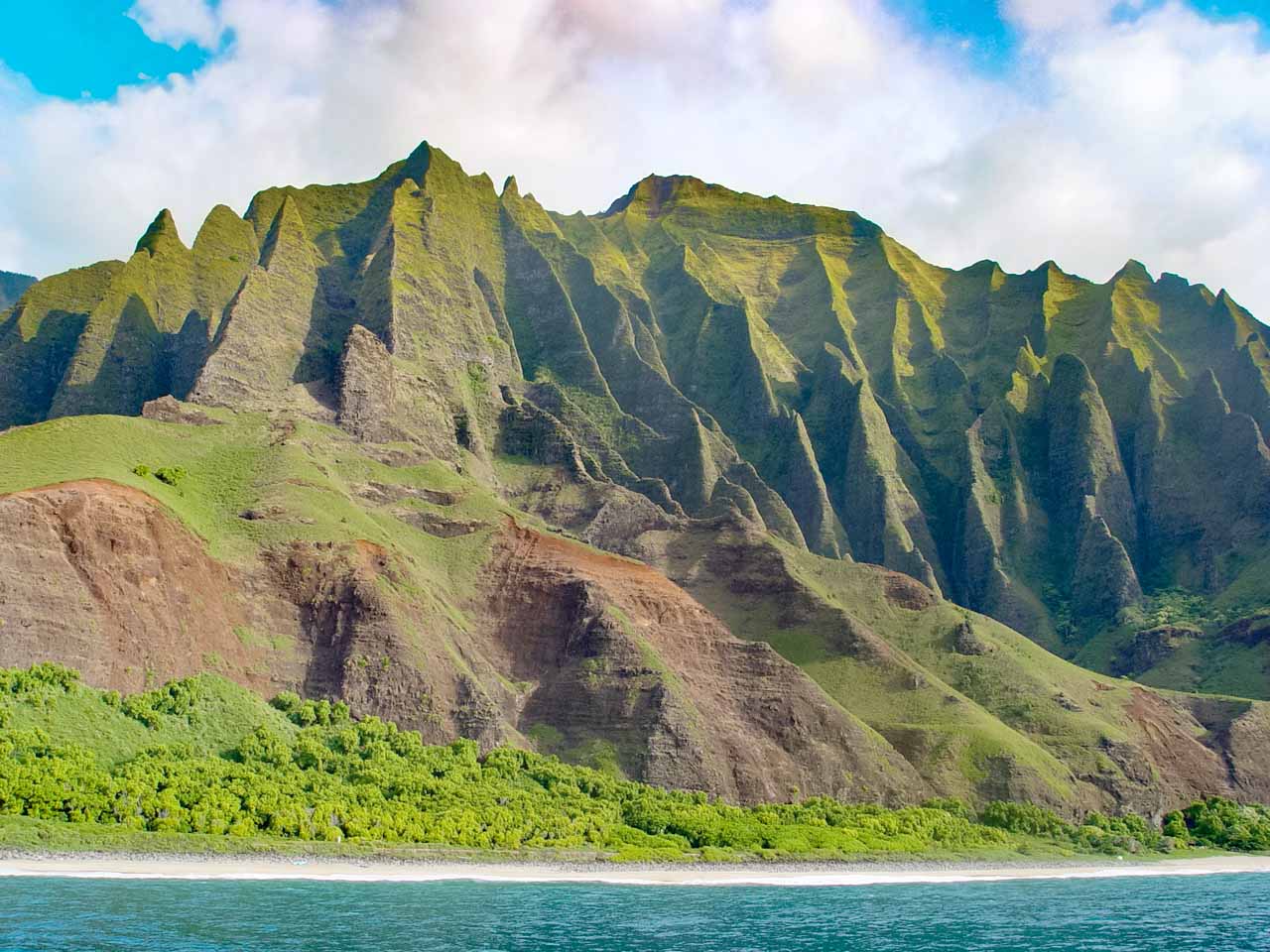
preview camera raw filter

Photo Copyright © Dan Rodney, danrodney.com

Working with Lower Resolution Images

This exercise uses a lower-resolution image to demonstrate that not every file you work with will be high resolution, but Camera Raw techniques remain valuable for various use cases.

Exercise Overview

Camera Raw houses some of Photoshop's most powerful image enhancement tools—including Dehaze, Clarity, and advanced noise reduction algorithms—that traditionally remained locked away from JPEG and TIFF workflows. The Camera Raw Filter bridges this gap, allowing you to harness these professional-grade adjustments on any image format while maintaining complete editability. This technique has become essential for modern photographers and retouchers who need consistent processing capabilities across diverse file types.

Camera Raw Filter Workflow Overview

1

Convert for Smart Filters

Enable non-destructive editing by converting your layer to a smart object before applying filters

2

Apply Camera Raw Filter

Access the full Camera Raw interface through the Filter menu for comprehensive adjustments

3

Make Targeted Adjustments

Use masking tools within Camera Raw to apply different settings to specific areas like sky and landscape

4

Optimize and Finalize

Fine-tune noise reduction, defringing, and other details before applying the filter

Applying Camera Raw As a Filter

The key to professional non-destructive editing lies in smart object workflows. Let's walk through the complete process of applying Camera Raw as a smart filter.

  1. From the Photoshop Class folder, open 5E Napali coast.tif.

    NOTE: This image intentionally uses a moderate resolution to demonstrate that effective processing isn't dependent on massive file sizes. In professional workflows, you'll encounter images across the resolution spectrum—from web-optimized files to high-resolution capture—and these techniques scale appropriately.

  2. Choose View > Fit on Screen to optimize your workspace view.
  3. Since filters apply destructively by default, we need to enable smart object processing first. Navigate to the Filter menu and choose Convert for Smart Filters.

    If you encounter a dialog about enabling re-editable smart filters, click OK. This conversion creates a protective wrapper around your image data, ensuring every adjustment remains fully editable.

  4. Access Filter > Camera Raw Filter to launch the interface.
  5. Locate the Basic panel on the right side—this houses Camera Raw's primary tone and color controls.
  6. Drag the Dehaze slider progressively to the right, observing how atmospheric haze transforms into enhanced contrast and color saturation. Set the final Dehaze value to 100.

    NOTE: While 100% dehaze represents an aggressive application, certain atmospheric conditions—like marine environments or high-altitude landscapes—can handle these extreme values effectively. In typical scenarios, values between 20-50 often prove more appropriate.

  7. Strong dehaze adjustments often reveal underlying noise, particularly in smooth gradients like skies. Expand the Detail section (scroll down if necessary) to access noise reduction controls.

  8. Noise reduction requires careful balance between smoothness and detail preservation:

    • Set Color Noise Reduction to 15. Excessive color noise reduction can desaturate important color information, particularly in foliage and skin tones.
    • Set Luminance Noise Reduction to 9. This addresses brightness-based noise while preserving edge detail.
  9. The sky requires additional noise reduction, but applying it globally would compromise detail in the landscape. Camera Raw's masking capabilities allow targeted adjustments with precision that rivals dedicated selection tools.

    Click the Masking icon camera raw masking in the upper-right toolbar area.

  10. Camera Raw's AI-powered masking delivers remarkably accurate selections:

    • Under Create a New Mask, click Sky. The algorithm automatically identifies and selects the sky region.
    • In the Detail section (scroll to locate it), increase Noise Reduction to 35 for the sky area specifically.
  11. Examine the mountain ridgeline, particularly the sharp peak on the left, for color fringing—those unnatural green or purple bands that often appear at high-contrast edges.

    In the Detail section, increase Defringe to 100. This targets chromatic aberration and edge artifacts without affecting overall color accuracy.

  12. Review your comprehensive adjustments: atmospheric haze correction, targeted noise reduction, and fringe removal have transformed this image significantly. Click OK to apply these settings as a smart filter.

The beauty of this smart filter approach means you can double-click the "Camera Raw Filter" layer effect at any time to refine these adjustments, making this technique invaluable for iterative client work and long-term project flexibility.

Smart Filter Conversion Required

Always convert your layer for Smart Filters before applying Camera Raw. Without this step, your edits will be destructive and cannot be modified later.

Dehaze Settings Impact

Standard Use
25
Moderate Haze
50
Heavy Haze (Tutorial)
100

Noise Reduction Settings Comparison

FeatureGeneral Image AreasSky-Specific Areas
Color Noise Reduction1515
Luminance Noise Reduction935
Defringe100100
Recommended: Use selective masking to apply stronger noise reduction only where needed, preserving detail in important areas.

Selective Sky Masking Process

1

Access Masking Panel

Click on Masking in the top right of the Camera Raw window to reveal selection tools

2

Create Sky Mask

Under Create a New Mask, click Sky to automatically select sky areas using AI detection

3

Apply Targeted Adjustments

Increase Noise Reduction to 35 specifically for sky areas while preserving landscape details

4

Address Color Fringing

Set Defringe to 100 to eliminate green color bands where sky meets mountain peaks

Balancing Noise Reduction and Detail

Be careful with Color Noise Reduction settings above 15, as higher values can reduce color saturation in certain areas. Use selective masking for targeted noise reduction instead.

Key Takeaways

1Camera Raw can be applied as a non-destructive Smart Filter to any image type, not just RAW files
2Always convert layers for Smart Filters before applying Camera Raw to maintain editability
3Dehaze slider effectively removes atmospheric haze and improves contrast and color saturation
4Use selective masking within Camera Raw to apply different settings to specific areas like sky and landscape
5Color Noise Reduction should be kept moderate (around 15) to avoid reducing color saturation
6Sky areas typically require stronger noise reduction settings than detailed landscape areas
7Defringe tool at 100% effectively eliminates color banding where contrasting areas meet
8Camera Raw Filter provides access to unique tools like Dehaze and Clarity not available elsewhere in Photoshop

RELATED ARTICLES