April 1, 2026Dan Rodney/4 min read

Product Shot: Selecting Bottle Parts

Master Professional Product Photography Selection Techniques

Prerequisites Required

This tutorial assumes you have Adobe Photoshop installed and basic familiarity with the interface. You'll need the Photoshop Adv Class folder with the product-Adobe RGB.psd file to follow along.

Topics Covered in This Photoshop Tutorial:

Making Precise Selections Using Paths

Key Skills You'll Master

Path-Based Selections

Learn to create precise selections using the Pen tool for complex product shapes. Master the technique of tracing bottle contours while handling overlapping objects.

Multi-Component Selection

Develop skills in selecting different parts of a product separately. Understand how to efficiently select labels and caps without retracing existing paths.

Workflow Optimization

Establish proper file management and naming conventions for professional retouching workflows. Learn to prepare selections before color correction begins.

Exercise Preview

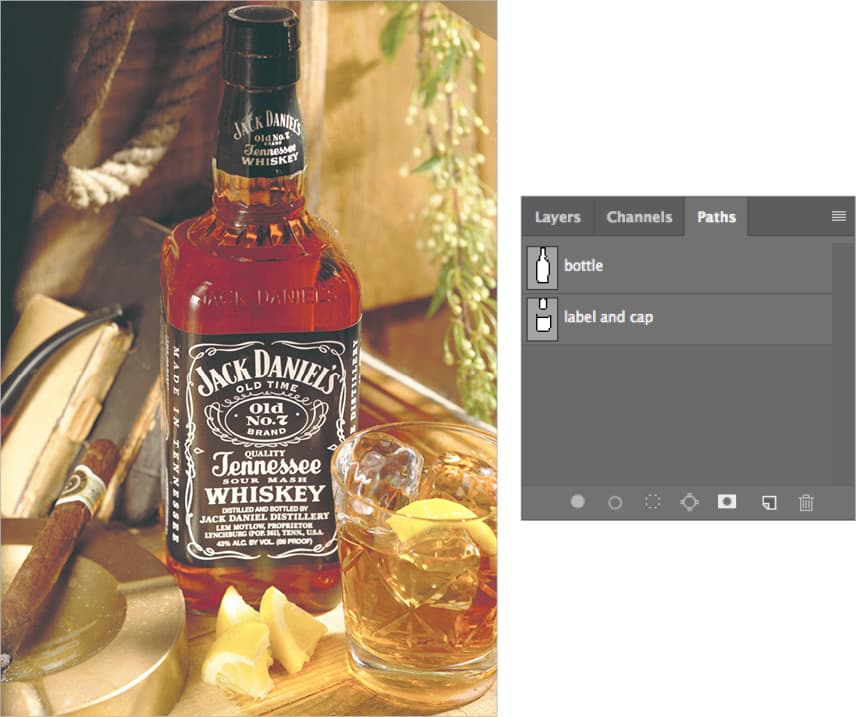
product bottle and cap

Exercise Overview

This exercise launches a comprehensive series focused on professional product retouching—a skill essential for e-commerce, advertising, and marketing photography. Before diving into color correction and enhancement techniques, we'll establish the foundation with precise selections. In this tutorial, you'll master the art of using paths to isolate the bottle, label, and cap with pixel-perfect accuracy. This methodical approach ensures clean, professional results that meet industry standards.

Color Management Best Practice

The tutorial uses Adobe RGB color space, which matches the workspace setting. When your image color profile matches your workspace, no conversion dialog appears, ensuring color accuracy throughout the editing process.

Preparation Workflow

1

Open Source File

Open product-Adobe RGB.psd from the Photoshop Adv Class folder and verify color space compatibility

2

Save Working Copy

Use File > Save As to create yourname-product-Adobe RGB.psd in the same folder for non-destructive editing

3

Plan Selection Strategy

Identify bottle, label, and cap as separate selection targets before beginning the tracing process

Selecting the Bottle Using a Path

  1. From the Photoshop Adv Class folder, open product-Adobe RGB.psd. Notice the absence of a color management dialog? This occurs because the image is already in Adobe RGB color space, matching our established RGB workspace. This seamless workflow prevents color shifts and maintains image integrity throughout the editing process—a crucial consideration for professional product photography where color accuracy is paramount.

  2. Execute File > Save As and save the file back into the same directory as a Photoshop file named yourname-product-Adobe RGB.psd. Establishing this naming convention and saving regularly prevents data loss and maintains project organization—essential habits for professional workflows.

  3. Before proceeding with color correction, we must create precise selections for targeted adjustments. This preparation-first approach streamlines the retouching process and ensures consistent, professional results. Select the Pen tool pen tool, the industry standard for creating vector-based selections with mathematical precision.

  4. In the Options bar, select Path mode and verify that Combine Shapes combine shapes is active. This setting enables you to create multiple path components within a single work path, essential for complex product selections.

  5. Carefully trace a path around the bottle's perimeter, applying these professional techniques:
    • Execute precise tracing along the bottom left where the cigar dish intersects the bottle—this junction requires careful attention to maintain clean edges.
    • At the bottom right intersection with the tumbler glass, ignore the glass's edge entirely. Instead, trace the bottle's natural contour as if the glass weren't present. This forward-thinking approach simplifies later cleanup when we remove unwanted elements.
    • Apply the same principle with the lemons—trace through them as if they're transparent. This technique, known as "predictive pathing," saves significant time during object removal phases.
    Critical Tracing Guidelines

    When tracing the bottle, go straight through overlapping objects like the tumbler glass and lemons. These will be removed later, so don't waste time tracing around them precisely.

    Pen Tool Setup Checklist

    0/4

Essential Pen Tool Shortcuts

Master these keyboard modifiers to accelerate your path creation workflow with the Pen tool pen tool:

  • Direct Selection tool direct selection tool: Hold Command (Mac) or Control (Windows) to dynamically adjust anchor points and direction handles without switching tools.

  • Convert Point tool convert point tool: Hold Option (Mac) or Alt (Windows) to independently manipulate direction handles, converting smooth curves to sharp corners or vice versa.
  • Upon completion, navigate to the Paths panel and double-click the Work Path entry. Rename it bottle for clear project organization—a best practice that becomes invaluable in complex, multi-element compositions.

  • Deselect the active path by pressing Return (Mac) or Enter (Windows), clearing your workspace for the next selection phase.

  • Selecting the Bottle's Label & Cap

    With the bottle's primary selection complete, we'll now create targeted paths for the label and cap—elements that typically require separate color and contrast adjustments in professional product retouching.

    1. Create a path around the bottle's label using an efficient approach. Since you've already defined the bottle's left and right edges, focus exclusively on tracing the label's top and bottom boundaries with precision. This technique, shown below, demonstrates how professional retouchers leverage existing work to accelerate complex selections:

      label cap path bottle

    2. With the label path active and visible, proceed to trace the bottle's cap. This sequential approach builds upon your existing work while maintaining selection accuracy:

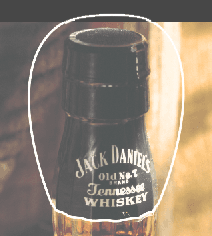
      • As illustrated below, bypass retracing the bottle's exterior edges—your initial bottle path already defines these boundaries. Concentrate on the cap's unique contours, particularly the transition area where it meets the label:

        label cap path cap

      • Monitor the Paths panel to ensure your new path integrates with the existing Work Path. If a separate path appears unexpectedly, immediately undo the action, reselect your target path in the Paths panel, then resume tracing. This workflow management prevents path fragmentation and maintains project organization.

    3. Once your path is complete, access the Paths panel and double-click Work Path. Assign the descriptive name label and cap—this clear labeling system becomes essential when managing multiple paths in professional retouching projects.

    4. Deselect the path using Return (Mac) or Enter (Windows) to clear your workspace and prepare for subsequent operations.

    5. Save your progress and maintain the file in an active state—the next exercise builds directly upon these foundational selections, demonstrating the interconnected nature of professional retouching workflows.

    Efficiency Through Path Reuse

    Don't retrace the bottle's left and right edges when selecting the label and cap. The existing bottle path already defines these boundaries, so focus only on the top and bottom edges.

    Label and Cap Selection Process

    1

    Trace Label Boundaries

    Focus on carefully tracing only the top and bottom edges of the label, reusing existing bottle edge paths

    2

    Add Cap to Same Path

    While the label path is active, trace around the cap bottom edge to combine both selections

    3

    Troubleshoot Path Issues

    If a third path appears unexpectedly, undo and reselect the correct Work Path before continuing

    4

    Finalize and Save

    Name the combined path 'label and cap' then deselect and save the file for future exercises

    Key Takeaways

    1Color management is crucial - matching image color space to workspace prevents conversion issues and maintains color accuracy throughout the editing process
    2The Pen tool with Path mode and Combine Shapes setting provides the most precise method for selecting complex product shapes with smooth curves and sharp corners
    3Strategic path planning saves time - trace through overlapping objects that will be removed later rather than working around them unnecessarily
    4Keyboard shortcuts for Direct Selection (Cmd/Ctrl) and Convert Point (Opt/Alt) tools streamline the path creation process without constant tool switching
    5Proper file naming and path organization establishes a professional workflow foundation that supports complex multi-step retouching projects
    6Reusing existing path boundaries when creating new selections maximizes efficiency and ensures perfect alignment between different product components
    7Regular saving during the selection process protects work and prepares files for subsequent color correction and retouching exercises
    8Separating bottle, label, and cap into distinct named paths enables targeted adjustments during the color correction phase of product photography retouching

    RELATED ARTICLES