April 1, 2026Dan Rodney/9 min read

Creating Graphics: Combing Photos, Text, & Graphics

Master Photoshop for Professional Social Media Graphics

Core Skills You'll Master

Smart Objects

Learn non-destructive editing techniques that preserve image quality and maintain editability throughout your design process.

Vector Integration

Import and scale vector graphics from Adobe Illustrator without quality loss, perfect for logos and scalable elements.

Typography Control

Master type anti-aliasing, leading, and alignment for professional-quality text that looks crisp at any size.

Topics Covered in This Photoshop Tutorial:

Adding Type, Smart Objects, Importing Vector Graphics (Such As Logos), Type Anti-Aliasing

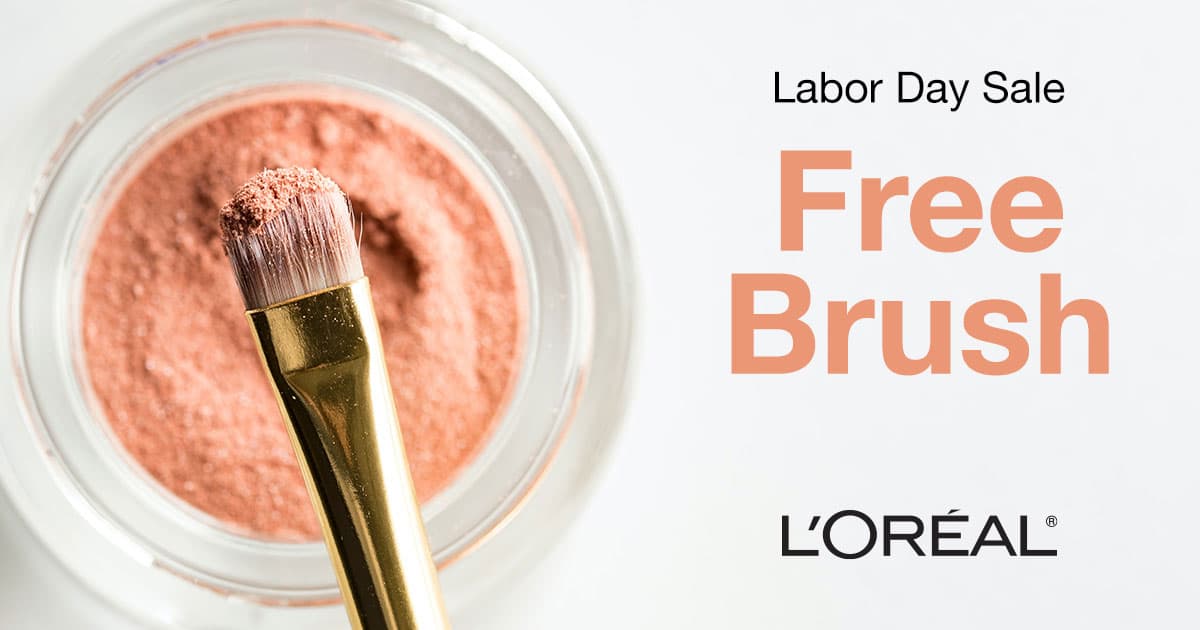
Exercise Preview

Facebook post done

Photo by Joanna Kosinska on Unsplash

Exercise Overview

In this comprehensive exercise, you'll master the art of designing professional social media graphics by combining photography, typography, and vector elements. While we're creating a Facebook post, these foundational design principles and technical skills apply universally—whether you're developing print advertisements, web banners, or any other visual marketing materials. You'll learn industry-standard workflows that professional designers use daily, including non-destructive editing techniques and proper file management.

By the end of this tutorial, you'll understand how to maintain image quality while scaling different types of graphics, create compelling typographic hierarchies, and prepare files for various distribution channels—skills that are essential in today's multi-platform digital landscape.

Facebook Post Specifications

1,200px
pixels width
630px
pixels height
72ppi
pixels per inch

Creating the File

  1. In Photoshop, go to File > New.
  2. At the top, click the Web tab.
  3. A few presets are listed, but click View All Presets+ to see more.
  4. Click on Web Small (1280 X 800px @ 72 ppi).
  5. On the right of the window set:

    • Width: 1200 Pixels
    • Height: 630 Pixels

    NOTE: These dimensions represent Facebook's current optimal image size for shared posts. Social media platforms frequently update their specifications, so always verify current requirements. As of 2026, this 1200x630 format ensures your content displays properly across desktop and mobile feeds while maintaining crisp image quality. For the most current specifications across all platforms, reference resources like Sprout Social's continuously updated social media image size guide at tinyurl.com/ssmis

  6. Click Create.
  7. Do a File > Save As and set the following:

    • Set Format (Mac) or Save as type (Windows) to Photoshop.
    • If you're not already in the Photoshop Class folder, navigate into it.
    • Name it yourname-Facebook post.psd and hit Save.

Now that we have our properly sized canvas, let's begin building our design with professional-grade image handling techniques.

Social Media Size Standards

The 1200x630 pixel dimension is Facebook's recommended size for optimal display across all devices and placements, ensuring your graphics won't be cropped or distorted.

Importing a Photo & Non-Destructive Resizing

  1. Go to File > Place Embedded.

    NOTE: Understanding the difference between Place Embedded and Place Linked is crucial for professional workflows. Place Embedded incorporates a copy of the file directly into your Photoshop document as a smart object, creating a self-contained file that's perfect for sharing with clients or team members. Place Linked maintains a live connection to the original file on your hard drive—when you update the source file, Photoshop automatically prompts you to refresh the linked smart object. This approach is ideal for projects where source materials frequently change, but requires careful file organization since all linked assets must accompany the PSD file.

  2. Navigate to Desktop > Class Files > Photoshop Class and double–click on makeup.jpg to open it.
  3. Make sure you see plenty of gray area outside the file (so you have room to work). If needed, zoom out by pressing Cmd–Minus(-) (Mac) or CTRL–Minus(-) (Windows).
  4. In the Options bar at the top of the screen, make sure the link icon transform link icon between W and H is checked on (it's darkened).

    NOTE: This constraint maintains the image's aspect ratio automatically. When unchecked, you'd need to hold Shift while dragging corner handles to prevent distortion—a common source of unprofessional-looking results. Smart objects provide additional protection against quality loss, allowing you to resize multiple times without degradation.

  5. Use the resize handles to size the photo, and drag anywhere inside the photo to move it, so it ends up looking approximately as shown below (around 30% W/H looks good to us):
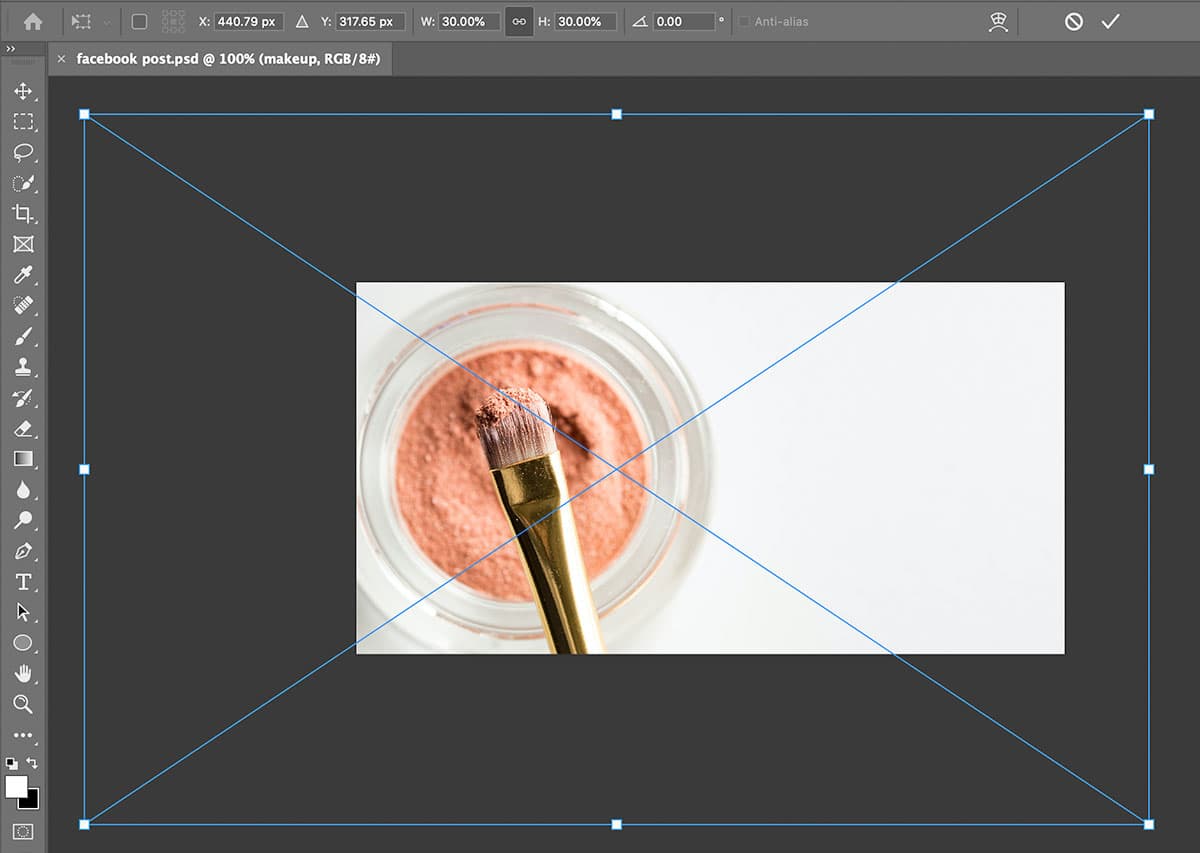
    size makeup

  6. Press Return (Mac) or Enter (Windows) to accept the size.

With our hero image properly positioned, we'll now add a professional logo using vector graphics—demonstrating why understanding different file types is essential for modern design work.

Place Embedded vs Place Linked

FeaturePlace EmbeddedPlace Linked
File PortabilitySelf-containedRequires original file
File SizeLarger PSD fileSmaller PSD file
External UpdatesNo automatic updatesUpdates when source changes
CollaborationEasy file sharingMust share linked assets
Recommended: Use Place Embedded for self-contained projects and easy sharing
Smart Object Scaling Rules

Keep the link icon checked to maintain proportions. Smart objects preserve original image data, allowing non-destructive resizing while preventing quality loss.

Importing a Vector Graphic (from Adobe Illustrator)

  1. Go to File > Place Embedded.
  2. In the Photoshop Class folder, double–click on Loreal logo.ai to open it.
  3. In the dialog that opens, make sure Crop To is set to Bounding Box.
  4. Click OK.
  5. Use the resize handles to size the logo, and drag anywhere inside the logo to move it, so it ends up looking approximately as shown below (around 165% W/H looks good to us):
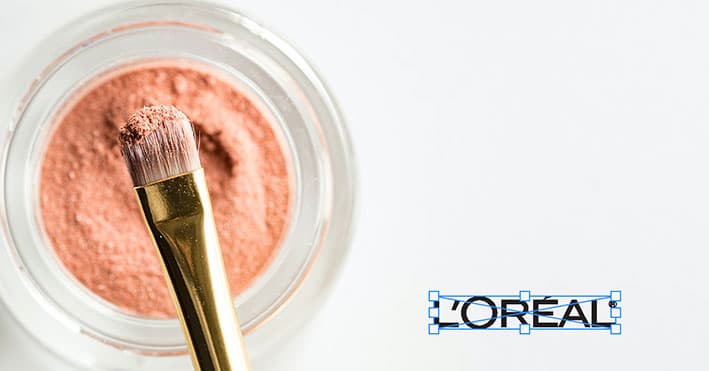
    size loreal logo

    NOTE: This demonstrates a fundamental principle in digital design: vector graphics can be scaled infinitely without quality loss because they're mathematically defined rather than pixel-based. This makes them perfect for logos that need to work across multiple sizes and applications. In contrast, enlarging raster images (like photographs) beyond 100% introduces interpolation artifacts and visible quality degradation. Understanding this distinction is crucial when working with mixed media designs.

  6. Press Return (Mac) or Enter (Windows) to accept the size.

Now we'll create a compelling typographic hierarchy that guides the viewer's attention and communicates our message effectively—a core skill in visual communication design.

Vector Graphics in Photoshop

Pros
Infinite scalability without quality loss
Crisp edges at any resolution
Small file sizes for simple graphics
Editable in original application
Cons
Limited editing capabilities within Photoshop
Best for simple graphics and logos
May require original application for modifications

Adding Type

  1. In the Tools panel, choose the Horizontal Type tool type tool.
  2. In the Options bar:

    • Set size text size to 43 pt.
    • Click the Center text button text center.
  3. In the Options bar, click the color swatch (shown below).

    Facebook post click color swatch

  4. In the color picker that opens, choose black and click OK.
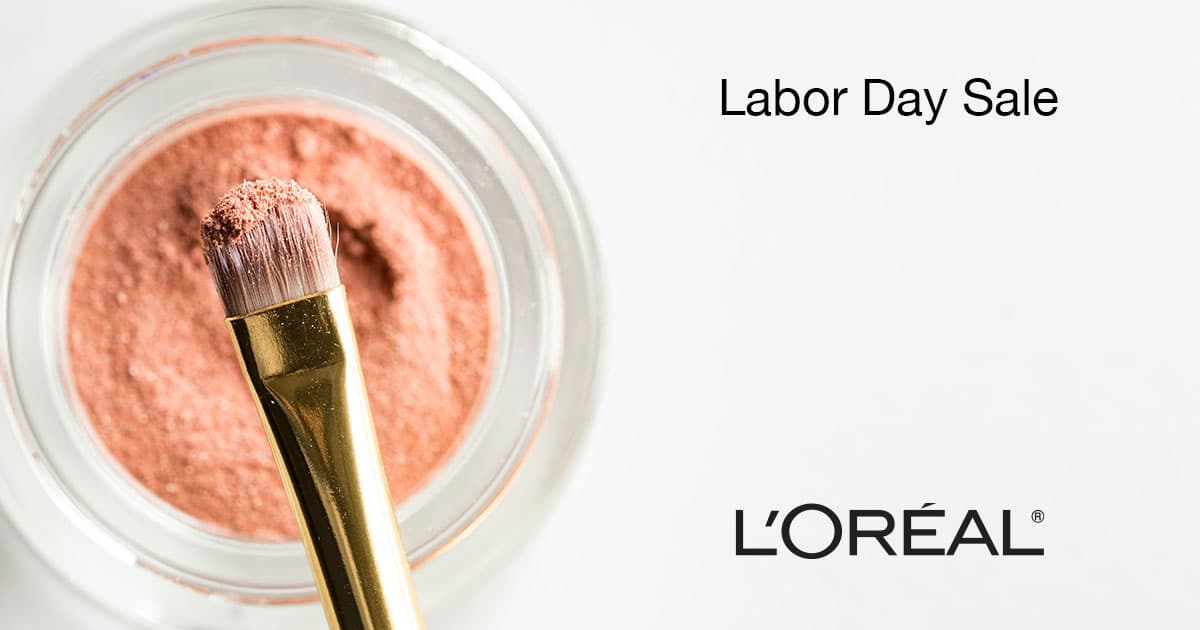
  5. On the right side of the image, click at the top of the empty space and type in Labor Day Sale
  6. Select the text.
  7. Set the font and size text size, so it looks approximately as shown below. We recommend Helvetica Neue Regular for its clean readability across digital platforms, but choose a font that aligns with your brand guidelines.

    type labor day

  8. In the Tools panel, choose the Move tool move tool.
  9. Choose the Horizontal Type tool type tool again.
  10. Typography quality depends heavily on proper anti-aliasing. In the Options bar, click on the Anti-Alias text anti aliasing menu and experiment with different settings (avoid "None").

    Anti-aliasing smooths the edges where text meets background by blending edge pixels. The optimal setting varies based on font weight, size, and background complexity. "Sharp" works well for small text on solid backgrounds, while "Smooth" is often better for larger display text or complex backgrounds. Professional designers test multiple options to achieve optimal legibility.

  11. In the Tools panel, choose the Move tool move tool.
  12. Drag the type into a position as shown below:

    type labor day

  13. We have more text to add, which will be on multiple lines. To ensure proper line spacing that enhances readability, go to Window > Character.
  14. In the Character panel, set the Leading leading to Auto.
  15. In the Tools panel, choose the Horizontal Type tool type tool.
  16. Click in the space below the Labor Day Sale to add a new piece of text.
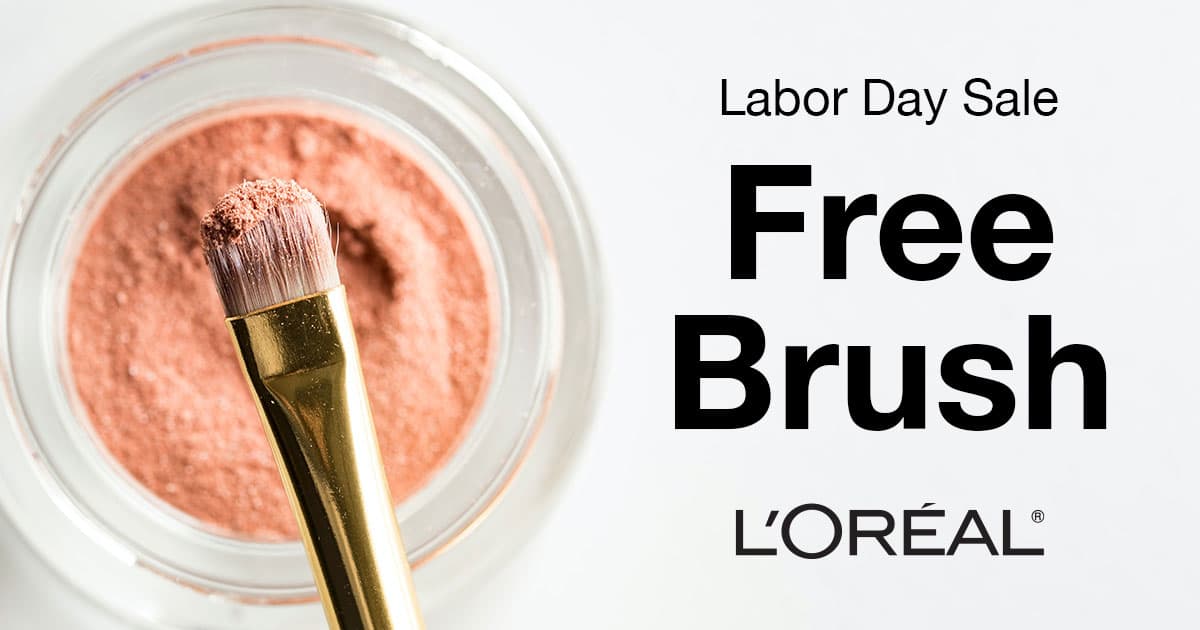
  17. Type in Free Brush with each word on its own line.
  18. Select the text.
  19. In the Options bar set the font and size text size, so it looks approximately as shown below. We suggest Helvetica Neue Bold, 160 pt size text size, and 150 pt leading leading, but adjust based on your design preferences.

    type free brush

  20. In the Tools panel, choose the Move tool move tool.
  21. Drag the Free Brush type into a position as shown in the previous screenshot.
  22. In the Tools panel, choose the Horizontal Type tool type tool.
  23. In the Options bar, click the color swatch (shown below).

    Facebook post click color swatch

  24. A Color Picker dialog will appear. We want to create visual harmony by sampling color directly from the makeup in our image.

    • Move the color picker so you can see the image and the type.
    • Click on different parts of the makeup in the photo until you get a color that complements your design.
    • Click OK.

Color sampling from your imagery creates cohesive designs that feel intentional and professional. Next, we'll use Photoshop's alignment tools to ensure precise positioning—a hallmark of polished design work.

Professional Typography Workflow

1

Set Base Properties

Configure font size, alignment, and color before typing to establish consistent formatting

2

Choose Typography Settings

Select appropriate font family and weight that matches your design's tone and readability requirements

3

Optimize Anti-Aliasing

Test different anti-aliasing options to ensure crisp text rendering for your specific font and size combination

4

Adjust Line Spacing

Set leading to Auto or customize for optimal readability, especially important for multi-line text blocks

Aligning Layers

Precise alignment separates professional work from amateur attempts. Let's use Photoshop's alignment tools to create perfect vertical centering across our text and logo elements.

  1. In the Layers panel click on the Loreal logo layer.
  2. Hold Shift and click on the top text layer, so all 3 layers are selected (the 2 type layers and the logo).
  3. Choose the Move tool move tool.
  4. In the Options bar, click the Align horizontal centers button align horizontal centers.
  5. If needed, make final positioning adjustments by dragging the layers. The design should now demonstrate proper hierarchy and alignment, but feel free to refine any elements to match your vision.
  6. Do a File > Save.

With our design complete, it's time to prepare the file for digital distribution—a critical step that ensures your work displays optimally across Facebook's platform.

Layer Alignment Best Practices

0/4

Exporting the Final File for Uploading to Facebook

Social media platforms automatically compress uploaded images, so starting with high-quality files is essential. Facebook's algorithms are sophisticated, but providing the best possible source material ensures optimal results after their processing.

  1. Go to File > Export > Export As.
  2. On the right, set Format to JPG.
  3. Set Quality to 100%.

    NOTE: While 100% quality creates larger files, this prevents double-compression artifacts when Facebook processes your upload. For faster uploading with minimal visible quality loss, 90% is acceptable, but avoid going lower for social media applications where image quality affects engagement.

  4. Click Export.
  5. Navigate to Desktop > Class Files > Photoshop Class, name it yourname-Facebook post.jpg and click Save.

For those working in Creative Cloud environments, there's an advanced technique worth exploring that demonstrates the power of Adobe's integrated workflow.

Export Quality Recommendations

Social Media Upload
100
Web Display
90
Email Attachment
80
Quick Preview
60
Platform Optimization Strategy

Upload high-quality images to social platforms because they apply their own compression. Starting with 100% quality ensures the best possible result after platform optimization.

Optional Bonus (If You Get Done Early)

This advanced technique showcases the seamless integration between Photoshop and Illustrator—a workflow that's invaluable when working with client logos that need color adjustments or modifications.

  1. In the Layers panel, double–click on the layer thumbnail for Loreal logo (to the left of the layer name).
  2. Wait for Illustrator to launch and the file will open.
  3. If you get a message that the document has been modified. Choose Discard changes…, and click OK.
  4. Choose Select > All.
  5. Near the bottom of the Tools panel double–click on the black fill color icon.
  6. Choose a color that complements your overall design and click OK.
  7. Do a File > Save.
  8. Switch back to Photoshop and the logo color should be updated automatically—demonstrating the power of Smart Object workflows in professional design environments.

Smart Object Editing Workflow

Step 1

Double-click Smart Object

Opens the original file in its native application

Step 2

Handle Modification Warnings

Choose to discard conflicting changes to avoid version conflicts

Step 3

Make Your Edits

Modify colors, shapes, or other elements in the source application

Step 4

Save and Return

Changes automatically update in your Photoshop document

Key Takeaways

1Smart Objects enable non-destructive editing and preserve original image quality throughout the design process
2Facebook's optimal post size is 1200x630 pixels at 72 ppi for consistent display across all devices and placements
3Vector graphics can be scaled infinitely without quality loss, making them perfect for logos and scalable design elements
4Place Embedded creates self-contained files ideal for sharing, while Place Linked maintains connections to original assets
5Typography anti-aliasing settings significantly impact text clarity and should be tested for each font and size combination
6Layer alignment tools ensure pixel-perfect positioning and create professional visual hierarchy in your compositions
7Export at 100% quality for social media uploads since platforms apply their own optimization and compression
8Smart Objects can be edited in their original applications with changes automatically updating in your Photoshop document

RELATED ARTICLES