Mocking Up Interaction States (Pop-Up, Hover, Etc.)
What This Tutorial Covers
State Variations
Default, hover, active, disabled, and error states.
Layer Comps
Save and switch between visual states in one file.
Annotation
Notes that explain interaction logic to developers.
Noble Desktop's Graphic Design Certificate covers Photoshop alongside Illustrator and InDesign.
Learn to Mock up Different Interaction States Using Layer Comps in Photoshop for Web Design with This Detailed Tutorial, Including Creating a Video Overlay and Viewing Layer Comps.
Exercise Preview
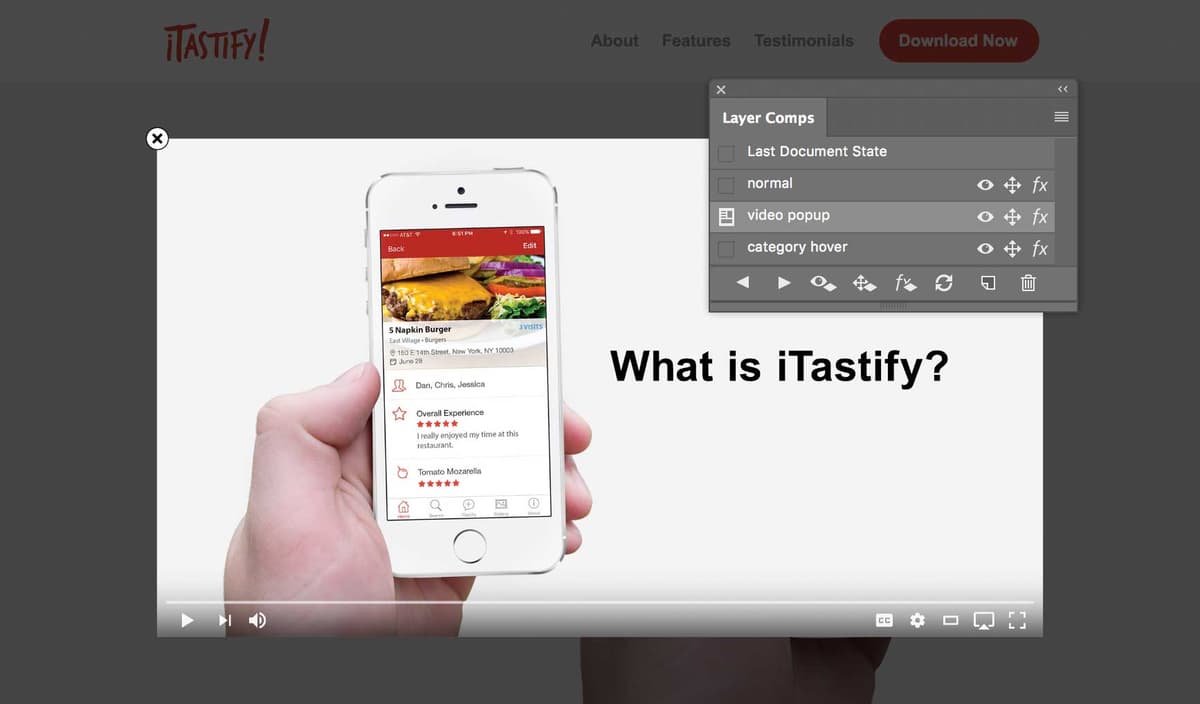
Creating the Video Overlay
- In Photoshop, close any files you have open.
- Hit Cmd–O (Mac) or CTRL–O (Windows).
- Navigate into Desktop > Class Files > yourname-Photoshop for Web Class > iTastify and open iTastify Design Done.psd.
- Zoom in on the top masthead area with the Be Your Own Food Critic headline and iPhone photo.
- The first state we want to mock up is how a video overlay would look on the page. To start, we need a new layer group on top of everything. In the Layers panel, select the nav folder.
- At the bottom of the Layers panel, click the Create a new group button
 .
. - Double–click the name Group 1 and rename it: video pop-up
- At the bottom of the Layers panel, click the Create new fill or adjustment layer button
 and choose Solid Color.
 - In the Color Picker, set it to black, #000
- Click OK.
- At the top of the Layers panel, set Opacity to 80%. By darkening the page, we can focus the user on the video we want them to watch.
- Choose the Move tool
 .
. - We’ve been provided with a still frame from the video. Go to File > Place Embedded.
- Navigate into Class Files > yourname-Photoshop for Web Class > iTastify and double–click video-poster-frame.jpg.
- Hit Return (Mac) or Enter (Windows) to accept the size.
- Drag the video approximately to the middle of the gray background for the masthead.
- To make sure it is exactly centered on the page, hit Cmd–A (Mac) or CTRL–A (Windows) to select all.
- In the Options bar, click the Align horizontal centers button
 .
. - Get rid of the selection by choosing Select > Deselect or hitting Cmd–D (Mac) or CTRL–D (Windows).
Adding Video Controls
To make this look like a video, we recreated the YouTube video controls that you can overlay onto the video preview image.
- Go to File > Open.
- If you’re not in the iTastify folder, navigate into Class Files > yourname-Photoshop for Web Class > iTastify.
- Double–click on youtube-controls@2x.psd to choose it.
- In the Layers panel, select the YouTube Controls folder.
- Copy it (Cmd–C (Mac) or CTRL–C (Windows)).
Close the file.
You should now be back in yourname-iTastify Interactive States.psd. You may not see the controls because they are in the middle of the artboard. Don’t worry, we have a quick way of aligning them to the video preview.
- Paste it (Cmd–C (Mac) or CTRL–C (Windows)).
Hold Cmd (Mac) or CTRL (Windows) and click on the thumbnail of the video-poster-frame layer, as shown below:

The video preview image should now have a marquee selection around it, which we can align to.
- In the Layers panel select the YouTube Controls folder.
In the Options bar:
- Click Align bottom edges
 .
. - Click Align left edges
 .
.
- Click Align bottom edges
The controls should be aligned to the bottom of the video! Choose Select > Deselect or hit Cmd–D (Mac) or CTRL–D (Windows).
Adding a Close Button
We should add a close button for the video. Conveniently, Photoshop has an icon we can use for this.
- Photoshop has a built-in shape that we want to use, but we must load it first. Open the Shapes panel by choosing Window > Shapes.
At the top right of the Shapes panel, go into the panel menu
 and choose Legacy Shapes and More.
- Zoom in closer on the top-left corner of the video image.
- In the Tools panel below the other vector shape tools, choose the Custom Shape tool
 .
. - At the top left of the Options bar, set the menu to Shape. (The menu may currently say Path or Pixels.)
- In the Options bar, click on the Fill button
 .
. - At the top of the pop-up panel, click on the Solid Color button
 .
. - Go into the Grayscale folder and choose black (the last color).
- Let’s choose the shape we want to create. Towards the right side of the Options bar, click the Shape icon/menu (next to Align Edges).
- In the pop-up panel, navigate into Legacy Shapes and More > All Legacy Default Shapes > Web.
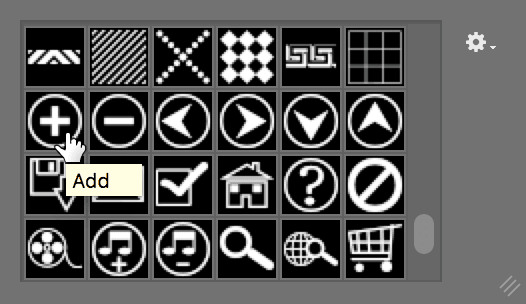
The Add button looks like a + inside a circle. If we rotate this icon 45º it will look like an X instead of a + and we’ll have a close button!
Double–click the Add button to choose it and close the panel.
Aim the cursor at the top-left corner of the video image and click once.
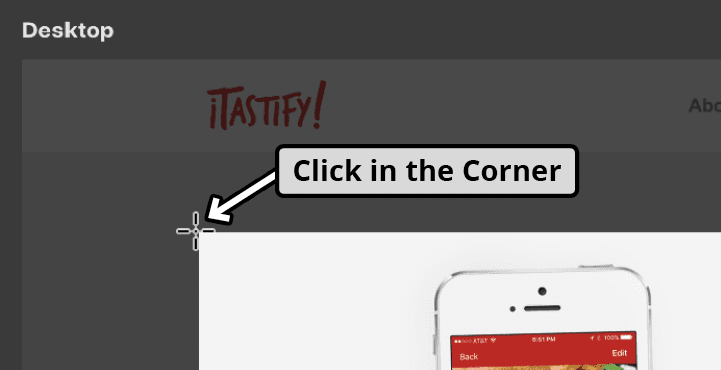
In the dialog that appears set the following:
- Set both Width and Height to 50 px
- Check on From Center.
- Click OK.
- Hit Cmd–T (Mac) or CTRL–T (Windows) so we can transform this icon.
- In the Options bar, to the right of H: 100%, set Rotate
 to 45º
 - Hit Return (Mac) or Enter (Windows) twice to apply the change.
- In the Layers panel, rename the Shape 1 layer to close X
- In the Layers panel, select the video pop-up folder (so we can preview the icon without it selected).
- You can currently see through the icon, but we want it to have a solid white background. Choose the Ellipse tool
 .
. - Click once around the center of the close button.
In the dialog that appears, set Width and Height to 49 px.
We’re making it one pixel smaller than the icon to ensure none of the white will protrude past the black icon.
- Click OK.
- In the Options bar, click the Fill color button .
- In the Grayscale folder click on the White swatch and hit Return (Mac) or Enter (Windows) to close the color panel.
- In the Layers panel, change the name of Ellipse 1 to button bg
- Drag the close X layer above the button bg layer.
- Select the close X and button bg layers by Shift–clicking on them in the Layers panel.
- Choose the Move tool .
In the Options bar:
- Click the Align vertical centers button
 .
. - Click the Align horizontal centers button .
- Click the Align vertical centers button
While you’re in the Options bar, make sure the following are also set. We’ll want these set a bit later in this exercise:
Auto-Select is NOT checked.
The menu to its right is set to Layer.
- The close icon is done! Zoom out so you can see the full width of the page.
- In the Layers panel, close the video pop-up folder.
To see how the page looks with or without the video overlay, toggle its visibility by clicking the eye
 next to the video pop-up folder. Looking good so far!
Layer Comps
While toggling the visibility of layers works fine for simple presentations, there is a more refined method we can use, which is especially helpful when showing multiple interactive states.
- In the Layers panel, make sure the video pop-up folder is hidden.
- Hit Cmd–S (Mac) or CTRL–S (Windows) to save.
- Go to Window > Layer Comps.
- We want to save the normal appearance of the page, before the video pops up. At the bottom of the Layer Comps panel, click the Create New Layer Comp button
 .
. Name it normal and make sure all the Apply to Layers options are checked on.
Layer comps allow us to change specific layer attributes (visibility, position, layer style, etc.) so we can save different variations of the current file (so we can view them quickly and easily later on). Some changes cannot be saved using Layer Comps, including content changes (like changing text), fill color, stroke color, etc. You’ll see what this means as we start using the Layer Comps.
- Click OK.
- Now let’s save the overlay as another layer comp. In the Layers panel, show the video pop-up folder.
- At the bottom of the Layer Comps panel, click the Create New Layer Comp button .
- Name it video pop-up and make sure all the options are checked.
- Click OK.
To switch between our layer comps, you can:
- Click the Layer Comp icon
 to the left of a layer comp. (Clicking on the name of a layer comp does not view it!)
 - Click the Previous or Next arrows at the bottom left of the Layer Comps panel.
- Click the Layer Comp icon
Before moving on, make sure you’re viewing the normal layer comp.
Creating One More Layer Comp
- Let’s create another layer comp. In the file, scroll down to the Rate What You Ate section.
- CTRL–click (Mac) or Right–click (Windows) on the Appetizers icon’s white circle.
- In the menu that appears, under Category-Appetizers choose Ellipse.
- In the Layers panel, notice the Category-Appetizers contains the appetizers icon, ellipse, and text. We want to change the color of all these elements, so we’ll apply a layer style to the group containing them.
- Double–click in the empty space to the right of Category-Appetizers.
- The Layer Style window should open. On the left, check on the words Color Overlay so it’s checked on and selected. Click directly on the words. Do not just check the checkbox, or else you won’t see its options on the right.
- Set Blend Mode to Normal.
- To the right of Blend Mode, click the Color swatch.
- Set the color to the iTastify red, #e24637
Click OK twice to close the windows.
The change we just made is a layer style change, which can be saved into a layer comp.
- In the Layer Comps panel, notice that the Layer Comp icon indicates we are currently viewing the Last Document State.
Click the Layer Comp icon
to the left of normal to switch to it.Notice that the Appetizers red color overlay has not been applied there.
Click the Layer Comp icon
to the left of video pop-up to switch to it.The change hasn’t been made there either. The change was only made in the Last Document State.
Switch back to the Last Document State by clicking its Layer Comp icon
.At the bottom of the Layer Comps panel, click the Create New Layer Comp button
.Name it category hover and make sure all the options are checked.
Click OK.
View each of the 3 layer comps we created (normal, video pop-up, and category hover) to see that the red color change was only made to the category hover layer comp. That’s precisely what we wanted.
Making Changes Across Layer Comps
What if we want to make a change that should apply to all the layer comps? Let’s see how to do that.
Make sure you are viewing the category hover layer comp.
Cmd–click (Mac) or CTRL–click (Windows) the Rate What You Ate heading.
Drag it down a bit.
In the Layer Comps panel, switch between the layer comps to see that the text has not been moved in any of the layer comps we created.
Switch to Last Document State to see that is where this most recent change was made.
We want to apply this change to our previously saved layer comps. In the Layer Comps panel:
- Click on the name of normal (not the icon).
- Shift–click on the name of category hover.
At the bottom of the Layer Comps panel, click the Update Positions button
 .
.Switch between the various layer comps to see that the Rate What You Ate heading was moved in all of them.
Every time you make a change to visibility, position, or appearance (layer style), the change is initially saved into Last Document State. To save that change into any other layer comp(s), you must select the desired layer comp(s) and update them by clicking the appropriate update button.
View the normal layer comp.
Content changes such as text are not tracked individually across layer comps. Let’s see an example. Scroll up to the top of the page.
Select the Type tool
 .
.Change the text in the Learn More button to: Watch Video
Hit Esc to finish editing the text.
In the Layer Comps panel, view the category hover layer comp to see that the change has already been made there!
This is because text changes are not one of the attributes that are differentiated between layer comps (visibility, position, layer style, etc.). Only those things can be different across layer comps. Everything else will be the same.
For example if you delete a layer, it will be deleted across all layer comps!
Let’s see one more example. Scroll down to the Download Now button near the bottom of the page.
Choose the Move tool
.Cmd–click (Mac) or CTRL–click (Windows) the Download Now button’s red background.
To change the button’s color, in the Layers panel, double–click the layer thumbnail to the left of Download Button bg.
In the Color Picker, set the color to black, #000
Click OK.
Switch between the different layer comps to see that the button is black in all of them.
You might have expected this change to be different across the layer comps, because it seems like an appearance change. But the appearance change that layer comps track is specific to layer styles (color overlay, stroke, drop shadow, etc.). A fill or stroke applied directly to vector objects (via the Options bar or Properties panel) is different from the color overlay or stroke effects applied as a layer style! The difference is subtle, so we understand how that can be confusing at first. It’s because Photoshop actually has multiple ways to apply fill colors and strokes. That’s why we wanted to talk about it!
That’s all for now. Hit Cmd–S (Mac) or CTRL–S (Windows) to save.