April 1, 2026Dan Rodney/4 min read

Product Shot: Selecting & Adjusting Vines

Master Professional Vine Selection and Color Enhancement Techniques

Essential Photoshop Skills You'll Master

Color Range Selections

Learn precise selection techniques using Photoshop's Color Range tool. Master the eyedropper tools and fuzziness controls for accurate selections.

Channel Refinement

Discover how to use channels to refine and perfect your color-based selections. Clean up imperfections with brush tools for professional results.

Color Adjustment Mastery

Apply targeted color corrections using curves adjustment layers. Enhance specific color ranges without affecting the entire image.

Topics Covered in This Photoshop Tutorial:

Color Range Selections, Using Channels to Refine Color Range Selections

Exercise Preview

pa selective color

Tutorial Focus

This exercise specifically targets vine color enhancement by combining Color Range selections with channel refinement and curves adjustments for professional product photography results.

Exercise Overview

In this exercise, we'll demonstrate professional-grade color enhancement by targeting the green foliage using Photoshop's Color Range selection tool. This technique combines the precision of color-based selections with the refinement capabilities of channel editing—a workflow essential for commercial retouching and fine art photography. By isolating specific color ranges and using channels to perfect our selections, we'll achieve natural-looking color adjustments that maintain the integrity of surrounding elements.

Workflow Overview

1

Initial Selection

Use Color Range tool to select green vine areas with precise eyedropper sampling

2

Channel Refinement

Save selection as channel and manually clean up unwanted areas with brush tools

3

Color Enhancement

Apply curves adjustment targeting red and green channels for vibrant vine colors

Selecting the Vines

The first phase focuses on creating an accurate selection of the vine foliage. We'll start with a rough selection to limit our Color Range sampling area, then use Photoshop's intelligent color detection to build a precise mask.

  1. In the Layers panel, click on the Background layer to select it. This ensures our selection tools sample from the original image data.

  2. Use the Lasso lasso tool to quickly select the area around the vines. This preliminary selection constrains the Color Range tool to sample only within your target area, preventing unwanted selections from distant parts of the image.

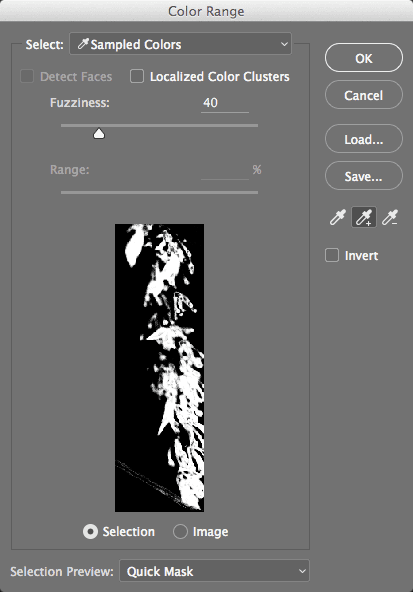
  3. Go to Select > Color Range. This opens Photoshop's intelligent color selection dialog, which remains one of the most powerful tools for isolating specific hues and tones.

  4. Click on the greens of the vines at the top right of the image. Start with the most representative green tone—this establishes your base selection criteria.

  5. Choose the Add to Sample Eyedropper color range add eyedropper and click on more greens throughout the vine areas. This expands your color sample to include the natural variations in leaf color, shadows, and highlights.

  6. Adjust the Fuzziness slider to balance inclusivity with precision. Higher values capture more color variation but may include unwanted areas; lower values create cleaner selections but might miss subtle color shifts within the foliage.

  7. To see a larger preview, at the bottom next to Selection Preview, choose Quick Mask. This overlay view clearly shows selected (unmasked) and unselected (red masked) areas. Use the eyedroppers and Fuzziness control to adjust your selection if needed.

  8. When satisfied with your selection coverage, click OK to apply the Color Range selection.

  9. Go to Select > Save Selection to save the selection as a new channel. This preserves your work and allows for non-destructive editing later.

  10. Name the new channel vines and click OK. Clear naming conventions become crucial in complex projects with multiple saved selections.

  11. Deselect (Cmd–D (Mac) or CTRL–D (Windows)) to clear the marching ants and prepare for channel refinement.

  12. Go to the Channels panel and view the vines channel by itself. Notice all the imperfections and unintended selections—this is normal and expected. Even Photoshop's sophisticated algorithms require manual refinement for professional results.

  13. Use the Brush brush tool to quickly clean up any unwanted areas. Paint with black to remove areas from the selection, or white to add areas back. Make sure the vines channel remains selected for direct editing.

Vine Selection Checklist

0/6
Selection Preview Tip

Switch to Quick Mask view in Selection Preview for a larger, more detailed view of your selection. This makes it easier to fine-tune your Color Range settings.

Adjusting the Vine Color Using Your Channel Selection & Curves

With our refined selection saved as a channel, we can now apply targeted color adjustments that affect only the vine areas. Using Curves adjustment layers provides the most control over color manipulation while maintaining editability.

  1. Hold Cmd (Mac) or CTRL (Windows) and click on the vines channel thumbnail to load it as an active selection. This technique loads any saved channel as a selection, making it invaluable for complex compositing workflows.

  2. Switch to the composite RGB channel to return to full-color viewing mode while maintaining your active selection.

  3. Go to the Layers panel, then click the New adjustment layer button adjustment layer button and choose Curves. The active selection automatically becomes the adjustment layer's mask, limiting the effect to your selected vines.

  4. Name the new curves layer green vines for clear project organization and future reference.

  5. In the Properties panel, choose the Green channel and add green by dragging a midpoint up slightly. This lightens the Green channel's contribution, intensifying the green appearance of the foliage while maintaining natural tonality.

  6. Switch to the Red channel and remove red by dragging a midpoint down slightly. This darkens the Red channel's influence, further purifying the green tones by eliminating competing warm hues. The vines should now display vibrant, natural-looking green coloration that stands out beautifully from the surrounding image elements.

  7. When satisfied with your color adjustments, save and close the file. Your channel-based selection remains intact for future modifications, and the adjustment layer structure allows for continued refinement of the color enhancement.

Color Enhancement Process

1

Load Channel Selection

Hold Cmd/Ctrl and click vines channel thumbnail to load as active selection

2

Create Curves Layer

Add new curves adjustment layer named 'green vines' with selection active

3

Enhance Green Channel

Drag midpoint up in Green channel to increase green luminosity

4

Reduce Red Channel

Drag midpoint down in Red channel to minimize red tones and enhance green appearance

Channel-Based Color Adjustment Benefits

Pros
Precise targeting of specific image areas without affecting background
Non-destructive editing using adjustment layers
Reusable channel selections for consistent results
Fine control over individual color channels
Cons
Requires manual cleanup of channel imperfections
Time-intensive selection process for complex subjects
May need multiple iterations to achieve desired results
Professional Result

By combining precise channel selections with targeted curves adjustments, you achieve professional-grade color enhancement that maintains natural appearance while dramatically improving vine vibrancy.

Key Takeaways

1Color Range selections provide precise control for isolating specific colors in product photography
2Channel refinement with brush tools is essential for cleaning up automated selections and achieving professional results
3Quick Mask preview offers superior visibility when fine-tuning Color Range selections compared to marching ants
4Saving selections as named channels allows for reusability and non-destructive workflow practices
5Curves adjustment layers targeting individual color channels enable precise color enhancement without global image changes
6Green channel enhancement combined with red channel reduction creates more vibrant and natural-looking vegetation
7Lasso pre-selection helps focus Color Range tool on relevant image areas, improving selection accuracy
8Professional product photography requires systematic approach combining multiple Photoshop tools for optimal color correction

RELATED ARTICLES